> ## Documentation Index
> Fetch the complete documentation index at: https://docs.sequencehq.com/llms.txt
> Use this file to discover all available pages before exploring further.
# Accounts receivable agent
> Let an agent action customer billing requests over email, with human review before anything changes
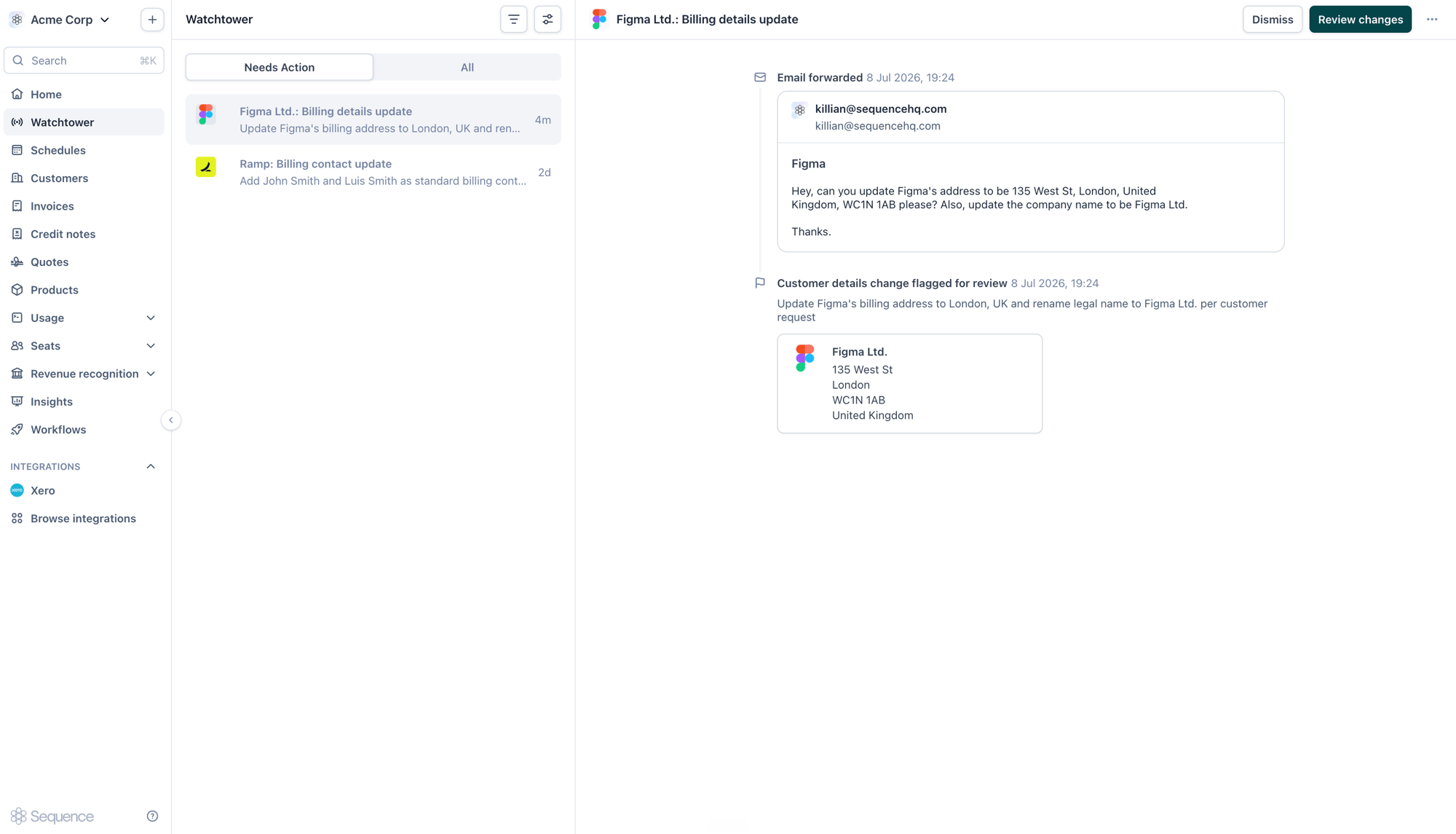
The accounts receivable (AR) agent lets your customers and team action routine billing requests by email. Forward a request to your workspace's agent address and the agent interprets it, prepares the change, and flags it in Watchtower for a human to review and approve.
 ## Overview
Instead of manually handling every "can you update our billing address?" email, let the agent do the interpretation for you. It reads the request, drafts the corresponding change to the customer record, and surfaces it in [Watchtower](/agents/watchtower) so nothing is applied until a person reviews and approves it.
Today the agent can action customer detail changes, including:
* **Company name**: update a customer's legal or trading name
* **Billing address**: update the billing address, including reformatting unstructured addresses
* **Billing contacts**: add or update contacts who receive invoices
Every change is prepared as a proposal for review. The agent never writes to your data without human approval.
The AR agent is an early-access feature in **Sequence Labs**. Behaviour and scope will expand over time. Enable it from Settings > Labs to try it out.
## Enabling the agent
The AR agent is turned on per workspace and can only be enabled by an admin.
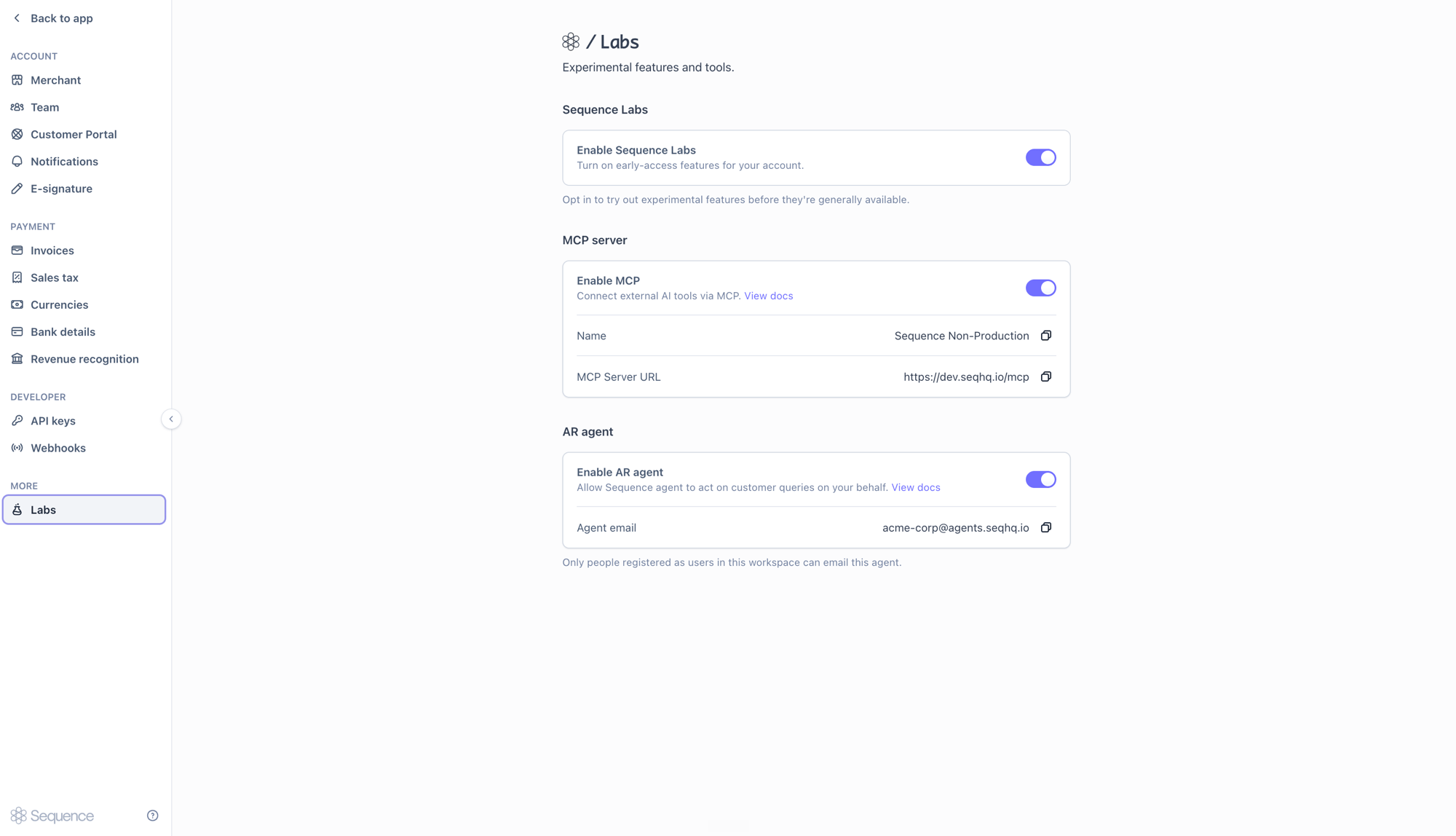
Go to **Settings > Labs** and toggle on **Enable Sequence Labs** to opt in to early-access features.
Under **AR agent**, toggle on **Enable AR agent** to allow the Sequence agent to act on customer queries on your behalf.
Each workspace gets a unique agent email address, derived from your account name (for example, `acme-corp@agents.seqhq.io`). Copy this address to start forwarding requests.
## Overview
Instead of manually handling every "can you update our billing address?" email, let the agent do the interpretation for you. It reads the request, drafts the corresponding change to the customer record, and surfaces it in [Watchtower](/agents/watchtower) so nothing is applied until a person reviews and approves it.
Today the agent can action customer detail changes, including:
* **Company name**: update a customer's legal or trading name
* **Billing address**: update the billing address, including reformatting unstructured addresses
* **Billing contacts**: add or update contacts who receive invoices
Every change is prepared as a proposal for review. The agent never writes to your data without human approval.
The AR agent is an early-access feature in **Sequence Labs**. Behaviour and scope will expand over time. Enable it from Settings > Labs to try it out.
## Enabling the agent
The AR agent is turned on per workspace and can only be enabled by an admin.
Go to **Settings > Labs** and toggle on **Enable Sequence Labs** to opt in to early-access features.
Under **AR agent**, toggle on **Enable AR agent** to allow the Sequence agent to act on customer queries on your behalf.
Each workspace gets a unique agent email address, derived from your account name (for example, `acme-corp@agents.seqhq.io`). Copy this address to start forwarding requests.
 ## Emailing the agent
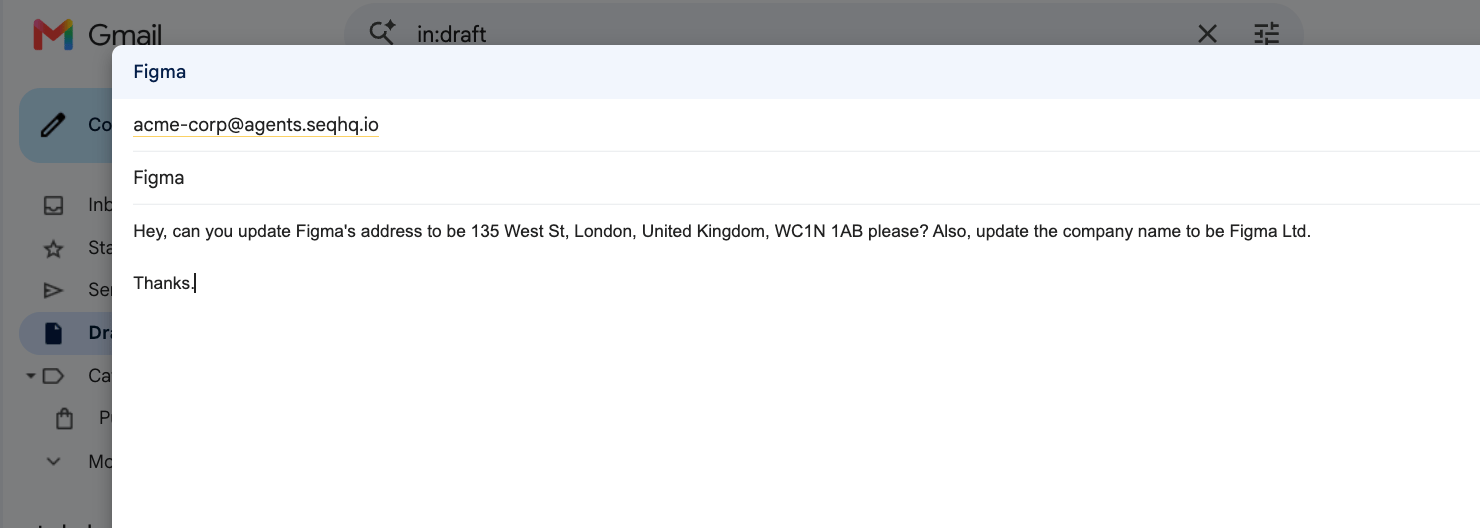
Send or forward a customer request to your workspace's agent address. A plain-language description of the change is enough. The agent parses the request, identifies the customer, and works out which fields to update. There's no required subject line or format.
## Emailing the agent
Send or forward a customer request to your workspace's agent address. A plain-language description of the change is enough. The agent parses the request, identifies the customer, and works out which fields to update. There's no required subject line or format.
 For security, only people registered as users in your workspace can email the agent. Requests from unrecognised senders are ignored.
Processing can take a minute or two, as the request passes through several steps before it appears in Watchtower. If a request falls outside what the agent can action, it posts a notification in Watchtower explaining why, so nothing is silently dropped.
## Review and approval
Once the agent has processed a request, the proposed change appears in [Watchtower](/agents/watchtower) under **Needs Action**. Each item shows the original email as its source alongside the change the agent has prepared.
For security, only people registered as users in your workspace can email the agent. Requests from unrecognised senders are ignored.
Processing can take a minute or two, as the request passes through several steps before it appears in Watchtower. If a request falls outside what the agent can action, it posts a notification in Watchtower explaining why, so nothing is silently dropped.
## Review and approval
Once the agent has processed a request, the proposed change appears in [Watchtower](/agents/watchtower) under **Needs Action**. Each item shows the original email as its source alongside the change the agent has prepared.
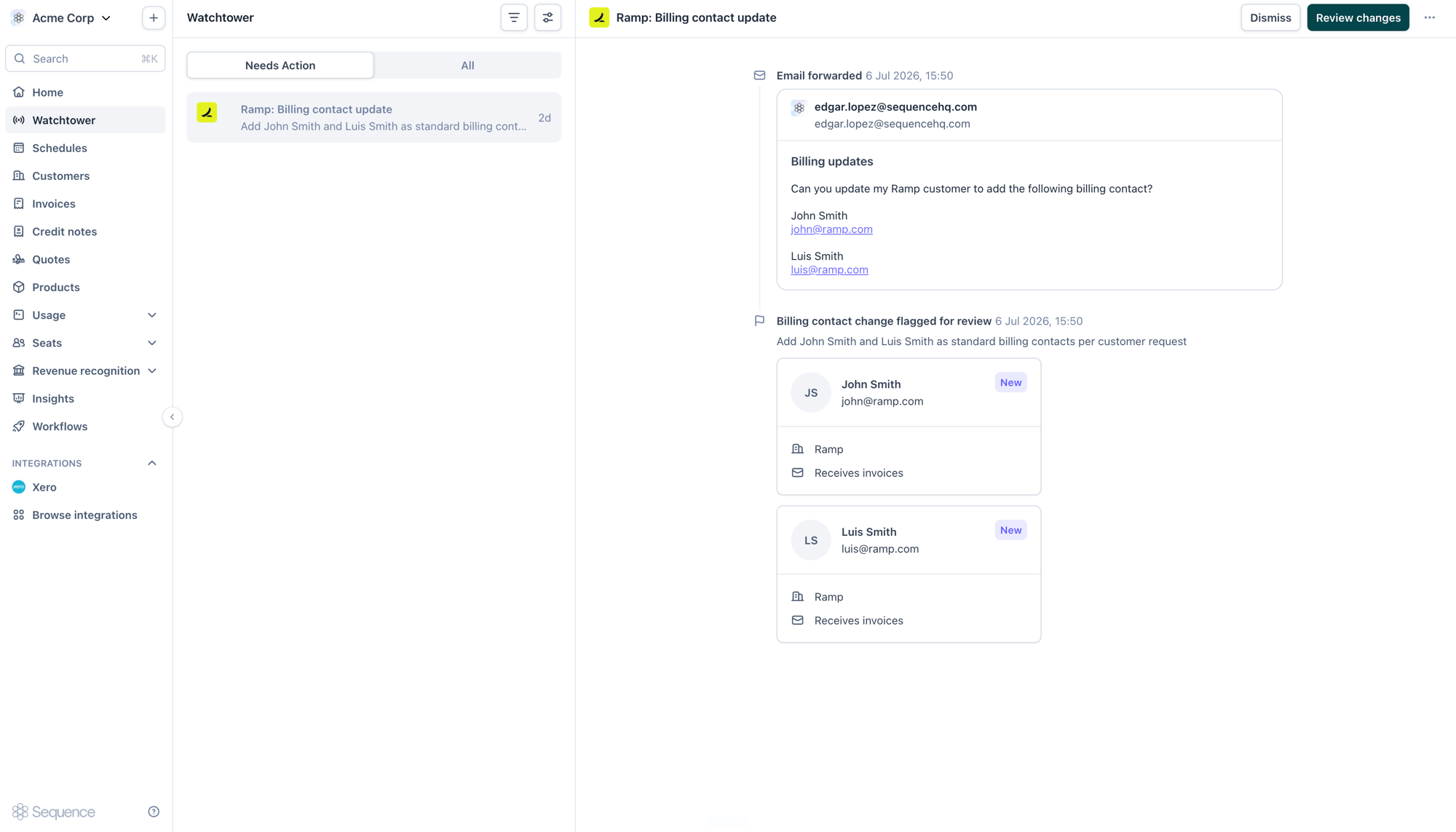 Open the item and choose **Review changes** to see a before-and-after comparison of the customer record. You can edit any field before applying. The agent's proposal is a starting point, with a human always in the loop.
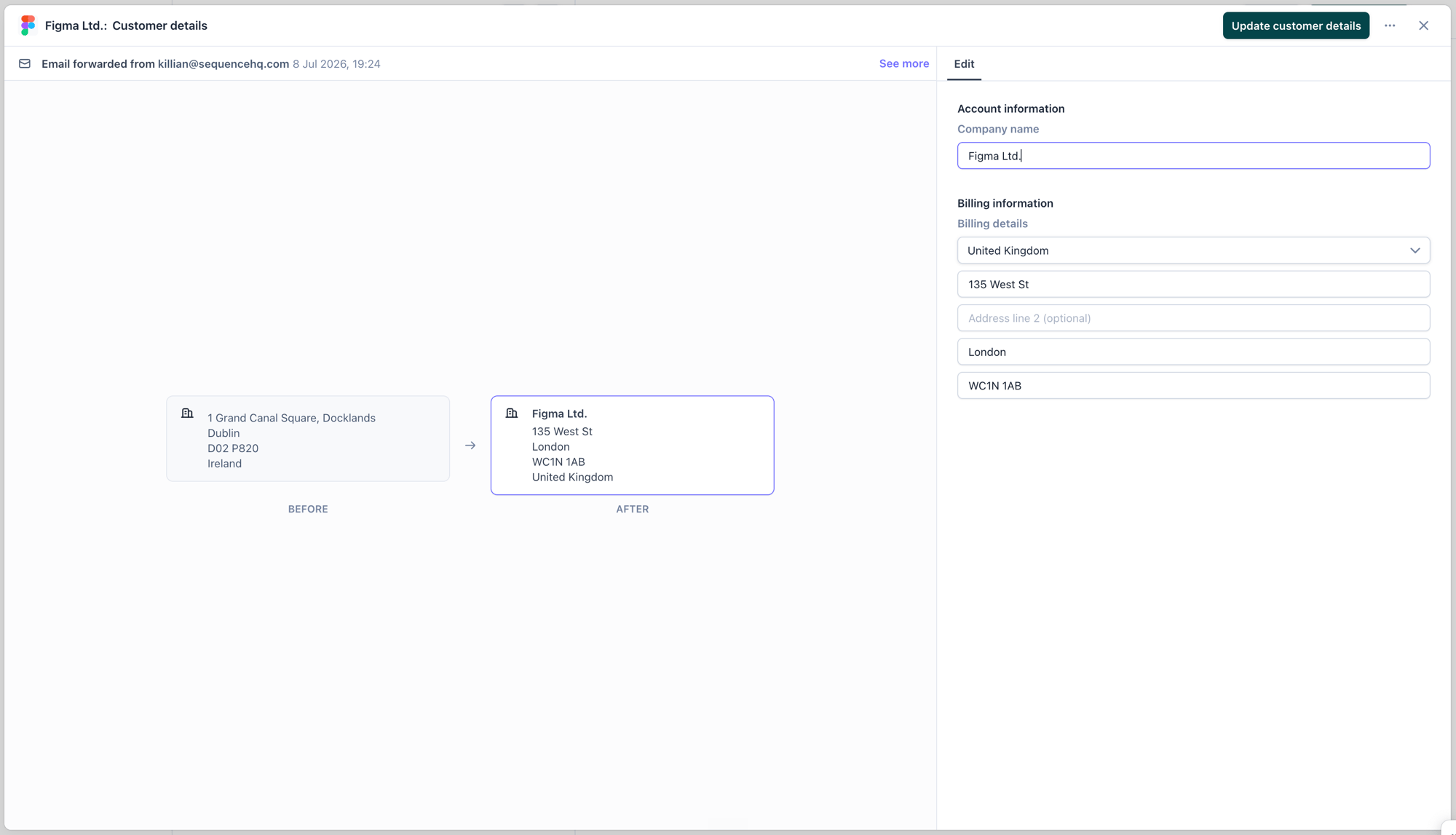 From here you can:
1. **Review changes**: apply the update to the customer record
2. **Edit**: adjust any field before applying
3. **Dismiss**: discard the proposed change
Once approved, the change is written to the customer and reflected across Sequence.
From here you can:
1. **Review changes**: apply the update to the customer record
2. **Edit**: adjust any field before applying
3. **Dismiss**: discard the proposed change
Once approved, the change is written to the customer and reflected across Sequence.
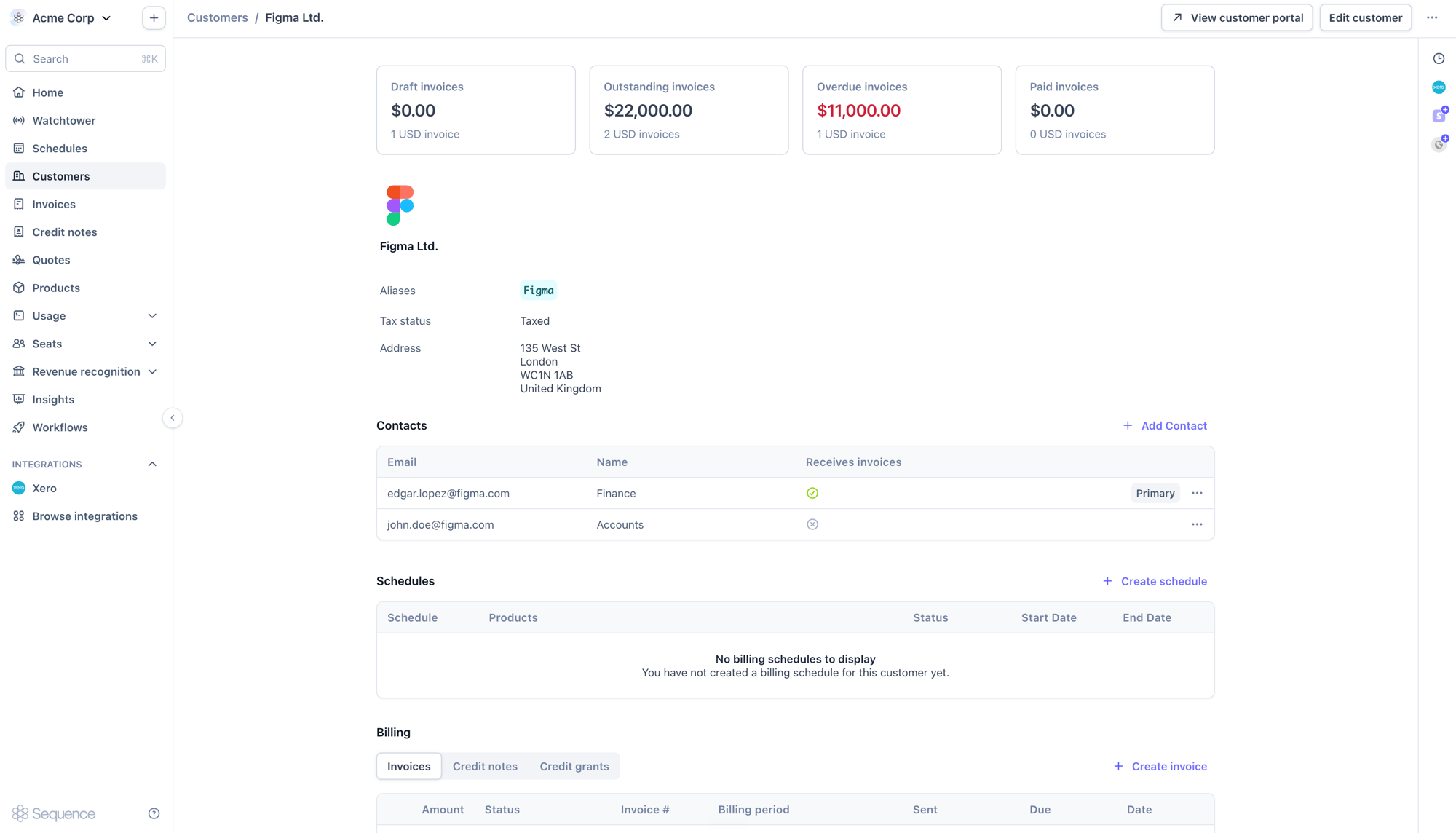 All agent activity and approvals are logged in Watchtower's audit trail, so you keep a complete record of who approved what and when.
## Best practices
* Name the customer clearly so the agent can match the right record
* Include the full set of details for the change (for example, the complete new address)
* One request per email keeps changes easy to review
* Always check the before-and-after comparison before approving
* Verify billing addresses, which affect tax calculation
* Confirm the agent matched the correct customer
* Edit any field directly in the review view before applying
* Dismiss a proposal if it isn't correct and re-send a clearer request
* Check Watchtower for a notification if a request didn't produce a change
## Next steps
After approving a change:
* The customer record is updated with the new details
* The change is reflected everywhere the customer is used, including future invoices
* The full history stays available in Watchtower's audit trail
All agent activity and approvals are logged in Watchtower's audit trail, so you keep a complete record of who approved what and when.
## Best practices
* Name the customer clearly so the agent can match the right record
* Include the full set of details for the change (for example, the complete new address)
* One request per email keeps changes easy to review
* Always check the before-and-after comparison before approving
* Verify billing addresses, which affect tax calculation
* Confirm the agent matched the correct customer
* Edit any field directly in the review view before applying
* Dismiss a proposal if it isn't correct and re-send a clearer request
* Check Watchtower for a notification if a request didn't produce a change
## Next steps
After approving a change:
* The customer record is updated with the new details
* The change is reflected everywhere the customer is used, including future invoices
* The full history stays available in Watchtower's audit trail