> ## Documentation Index
> Fetch the complete documentation index at: https://docs.sequencehq.com/llms.txt
> Use this file to discover all available pages before exploring further.
# Payment reminders
> Automate invoice chasing (dunning) with reminder workflows
Payment reminder workflows let you chase overdue invoices automatically. Build a sequence of reminders on the [Workflows](/agents/workflows) canvas, decide when each one sends, and optionally route reminders through [Watchtower](/agents/watchtower) for human review before they reach your customer.
## How it works
Create a workflow and choose the **Invoice sent** trigger. The workflow starts when Sequence sends an invoice to the customer. (Invoices you manually mark as sent do not trigger reminder workflows.)
Drop one or more **Reminder** nodes onto the canvas and connect them in order. Each node represents one reminder in your dunning sequence. For example, a nudge before the due date followed by escalating reminders after it.
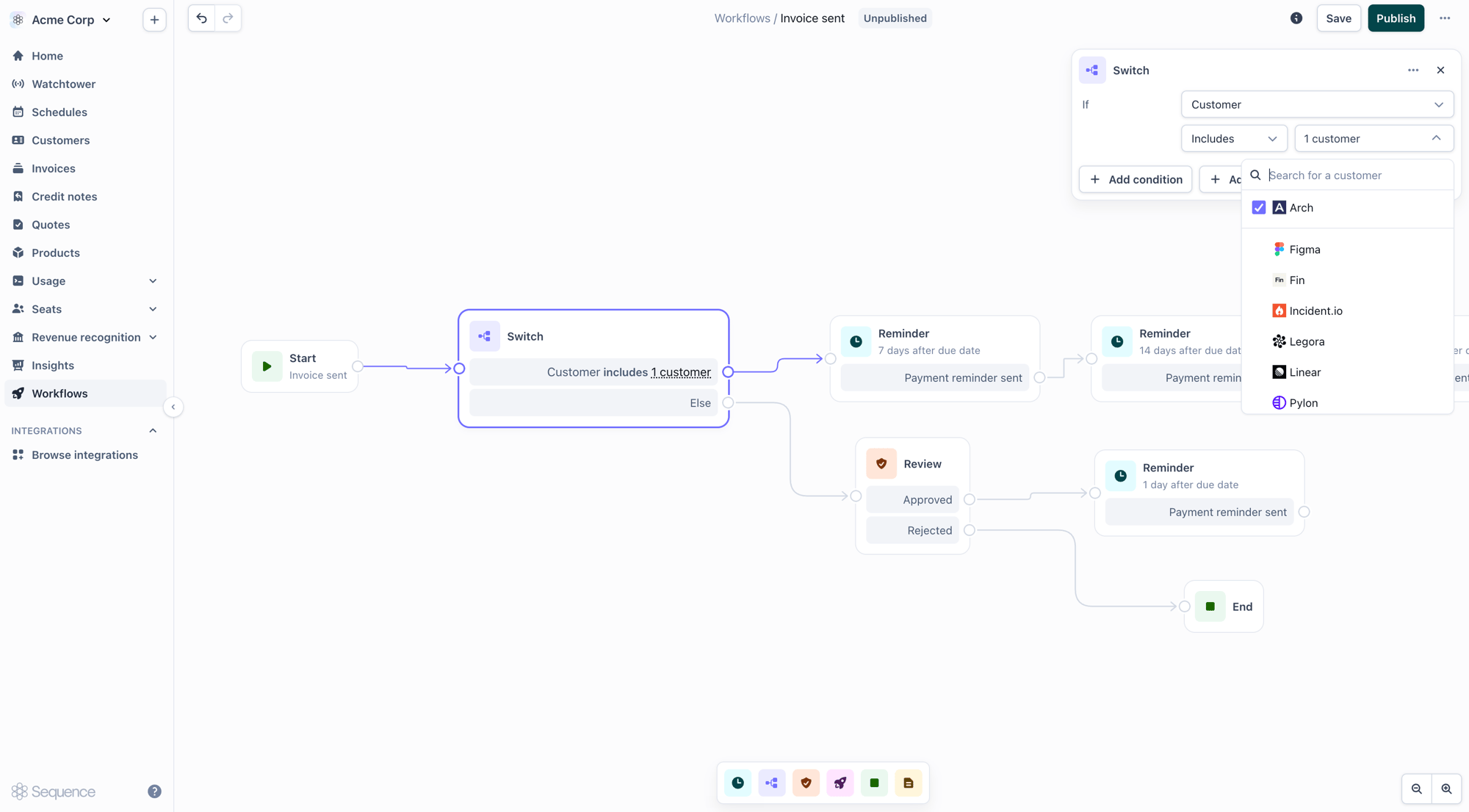
Use a **Switch** node to send different customers or invoice sizes down different reminder paths.
Publish the workflow to make it live for every invoice sent from then on.
## The Reminder node
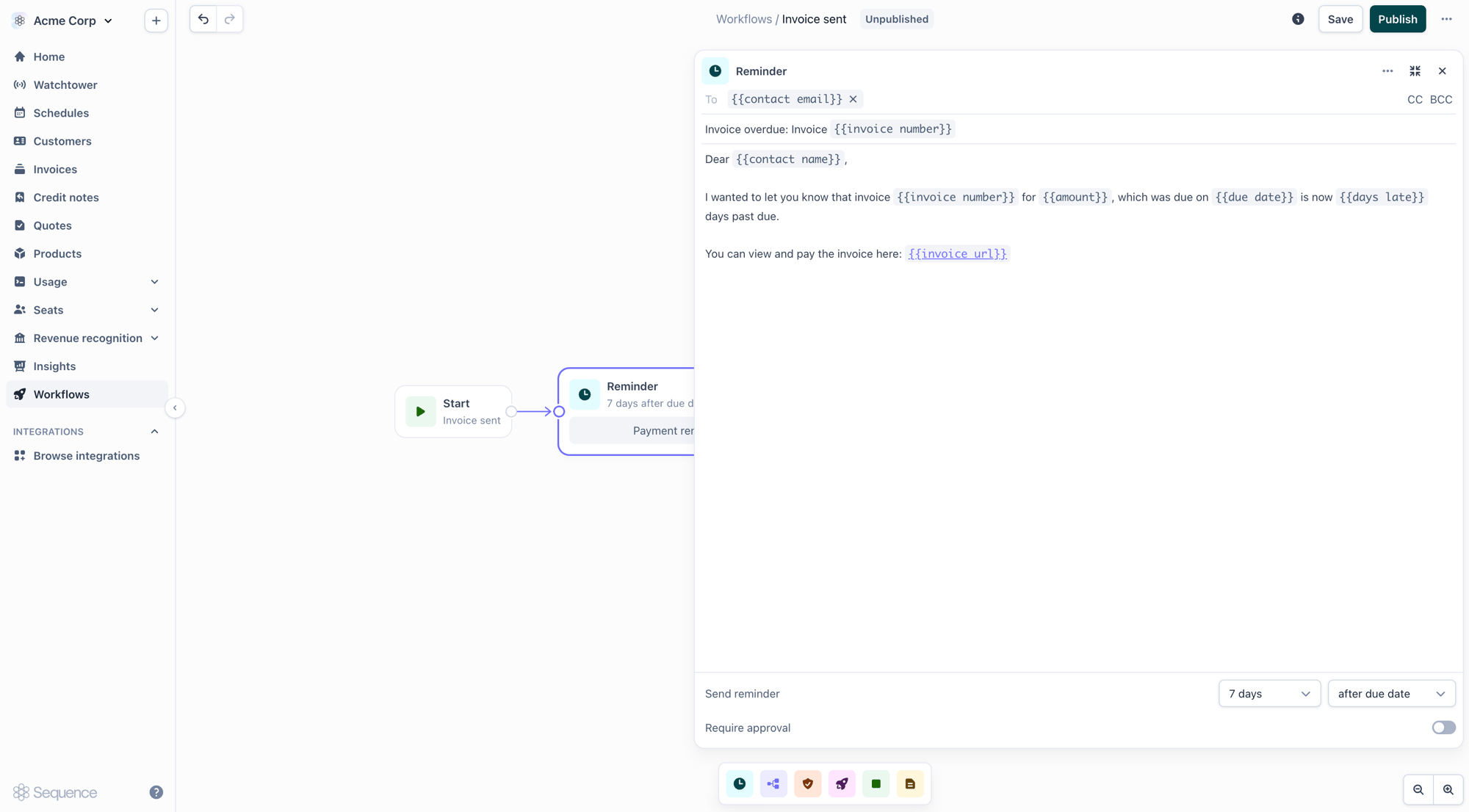
The Reminder node packages a complete reminder step into a single node on the canvas. Internally it waits, checks the invoice is still owed, composes the email, optionally routes it for review, and sends it. Chain several Reminder nodes to model a full dunning sequence.
 ### Timing
Each Reminder node has its own send timing:
* **Relative to the due date**: a set number of days **before** or **after** the invoice due date (e.g. 7 days before, 1 day after).
* **Immediately**: send as soon as the run reaches the node.
The node shows its configured timing as a subtitle on the canvas so the sequence is readable at a glance.
### The email
Configure the **To**, **CC**, **BCC**, **Subject**, and **Body**. Reminders are addressed to the customer's billing contacts by default; add your own company address in CC so customers can reply directly to your team.
The body supports template variables, which are filled in from the invoice and customer when the email is generated:
| Variable | Inserts |
| -------------------- | --------------------------------------------------------------------- |
| `{{contact name}}` | Primary billing contact's name |
| `{{contact email}}` | Primary billing contact's email |
| `{{invoice number}}` | Invoice number |
| `{{amount}}` | Invoice amount |
| `{{due date}}` | Invoice due date |
| `{{days late}}` | Days past the due date |
| `{{url}}` | Link to the invoice in the customer portal (shown as **Invoice URL**) |
The invoice PDF and any attachments sent with the original invoice are attached automatically. Reminder emails are intentionally sent **unstyled** (plain). Our testing shows plain reminders are more effective at prompting payment.
If a template variable can't be resolved (for example a typo or missing data), the reminder is routed to a review task instead of sending a broken email, even when review is otherwise turned off.
### Require approval
Turn on **Require approval** to insert a human checkpoint: instead of sending automatically, the reminder is composed and paused as a task in [Watchtower](/agents/watchtower) for the approvers you assign. See [Reviewing reminders in Watchtower](#reviewing-reminders-in-watchtower) for the review-and-send path. With approval off, the reminder sends automatically once its timing is reached.
### Stopping automatically
While a Reminder node is waiting, Sequence keeps watching the invoice. If it's paid, voided, or written off as uncollectible, the run ends on its own and no further reminders are sent.
## Reviewing reminders in Watchtower
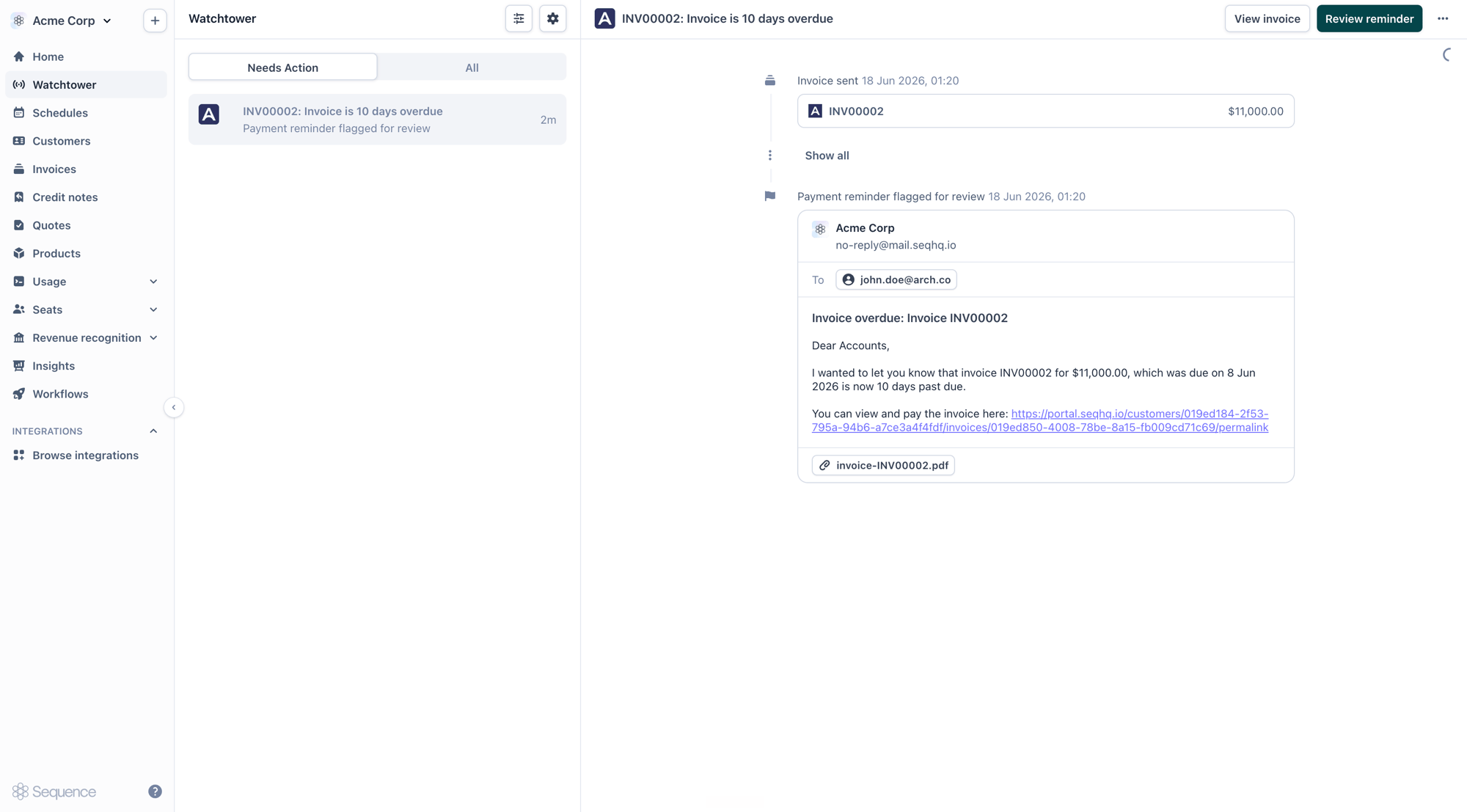
When a reminder requires approval, assigned reviewers are notified by email and the reminder appears in [Watchtower](/agents/watchtower). From there it follows a three-step path before it reaches the customer.
The reminder lands in Watchtower as a task (e.g. "Invoice is 10 days overdue"), showing the drafted email, the recipient, and the attached invoice PDF.
### Timing
Each Reminder node has its own send timing:
* **Relative to the due date**: a set number of days **before** or **after** the invoice due date (e.g. 7 days before, 1 day after).
* **Immediately**: send as soon as the run reaches the node.
The node shows its configured timing as a subtitle on the canvas so the sequence is readable at a glance.
### The email
Configure the **To**, **CC**, **BCC**, **Subject**, and **Body**. Reminders are addressed to the customer's billing contacts by default; add your own company address in CC so customers can reply directly to your team.
The body supports template variables, which are filled in from the invoice and customer when the email is generated:
| Variable | Inserts |
| -------------------- | --------------------------------------------------------------------- |
| `{{contact name}}` | Primary billing contact's name |
| `{{contact email}}` | Primary billing contact's email |
| `{{invoice number}}` | Invoice number |
| `{{amount}}` | Invoice amount |
| `{{due date}}` | Invoice due date |
| `{{days late}}` | Days past the due date |
| `{{url}}` | Link to the invoice in the customer portal (shown as **Invoice URL**) |
The invoice PDF and any attachments sent with the original invoice are attached automatically. Reminder emails are intentionally sent **unstyled** (plain). Our testing shows plain reminders are more effective at prompting payment.
If a template variable can't be resolved (for example a typo or missing data), the reminder is routed to a review task instead of sending a broken email, even when review is otherwise turned off.
### Require approval
Turn on **Require approval** to insert a human checkpoint: instead of sending automatically, the reminder is composed and paused as a task in [Watchtower](/agents/watchtower) for the approvers you assign. See [Reviewing reminders in Watchtower](#reviewing-reminders-in-watchtower) for the review-and-send path. With approval off, the reminder sends automatically once its timing is reached.
### Stopping automatically
While a Reminder node is waiting, Sequence keeps watching the invoice. If it's paid, voided, or written off as uncollectible, the run ends on its own and no further reminders are sent.
## Reviewing reminders in Watchtower
When a reminder requires approval, assigned reviewers are notified by email and the reminder appears in [Watchtower](/agents/watchtower). From there it follows a three-step path before it reaches the customer.
The reminder lands in Watchtower as a task (e.g. "Invoice is 10 days overdue"), showing the drafted email, the recipient, and the attached invoice PDF.
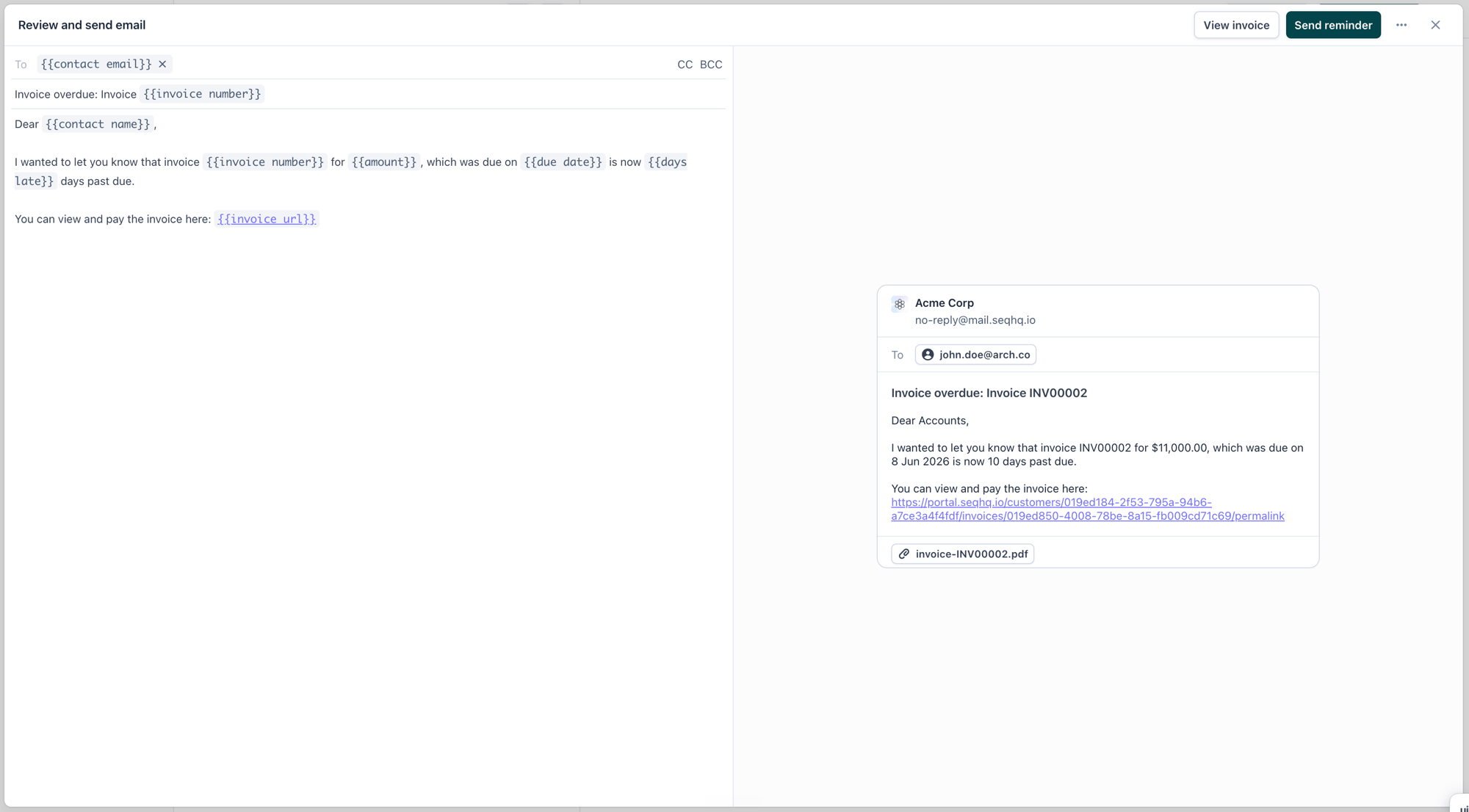
 Open **Review reminder** to edit the recipients, subject, and body. A live preview on the right shows exactly what the customer will receive, including the invoice PDF.
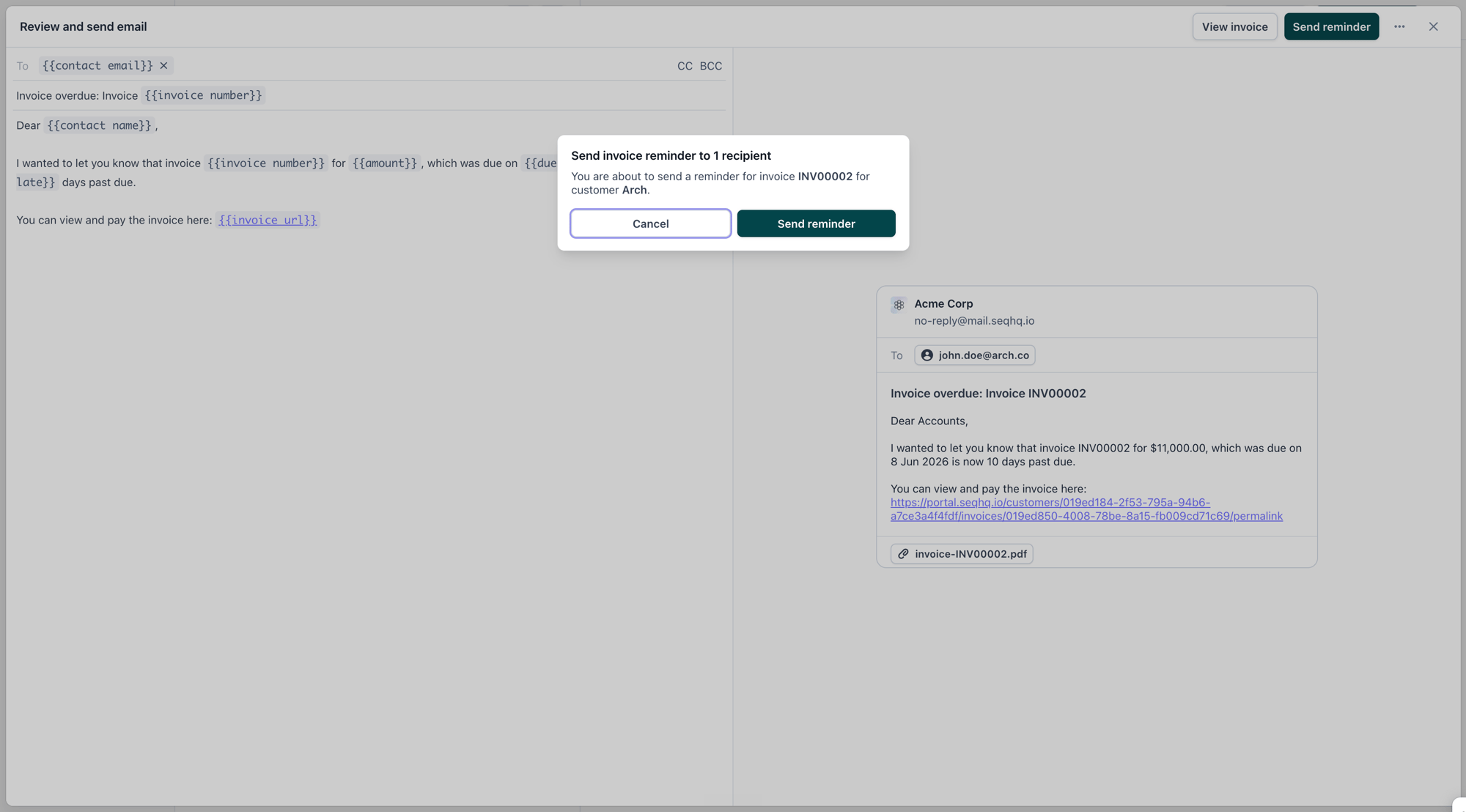
 Confirm to send the reminder to the customer, or cancel to stop it. Once sent, Watchtower records it in the execution summary.
 Watchtower's execution summary tracks every reminder through its states (Waiting, Flagged for review, Sending, Sent, and Invoice paid/uncollectible), with email previews and timestamps, giving a full audit trail of what was sent and when.
## Routing by customer or invoice
Add a **Switch** node to branch the dunning flow. Conditions relevant to reminders include:
| Condition | Use |
| ------------- | ------------------------------------------------------------ |
| Customer | Include or exclude specific customers |
| Invoice total | Branch on invoice amount (less than / greater than / equals) |
For example, route high-value invoices through a path that requires approval, while smaller invoices send automatically.
Watchtower's execution summary tracks every reminder through its states (Waiting, Flagged for review, Sending, Sent, and Invoice paid/uncollectible), with email previews and timestamps, giving a full audit trail of what was sent and when.
## Routing by customer or invoice
Add a **Switch** node to branch the dunning flow. Conditions relevant to reminders include:
| Condition | Use |
| ------------- | ------------------------------------------------------------ |
| Customer | Include or exclude specific customers |
| Invoice total | Branch on invoice amount (less than / greater than / equals) |
For example, route high-value invoices through a path that requires approval, while smaller invoices send automatically.
 ## Webhooks
Two webhook events let you observe dunning from external systems:
| Event | Fires when |
| -------------------------- | ---------------------------------------- |
| `INVOICE_REMINDER_SENT` | A reminder email is sent |
| `WATCHTOWER_TASK_ASSIGNED` | A review task is assigned to an approver |
Subscribe to these in your notification policies to mirror reminders into a CRM, Slack, or your own dashboards.
## Related
* [Workflows](/agents/workflows): the visual builder, nodes, triggers, and publishing
* [Watchtower](/agents/watchtower): review and approve reminders, track runs
* [Invoicing customers](/invoicing/invoicing-customers): send and manage the invoices reminders chase
## Webhooks
Two webhook events let you observe dunning from external systems:
| Event | Fires when |
| -------------------------- | ---------------------------------------- |
| `INVOICE_REMINDER_SENT` | A reminder email is sent |
| `WATCHTOWER_TASK_ASSIGNED` | A review task is assigned to an approver |
Subscribe to these in your notification policies to mirror reminders into a CRM, Slack, or your own dashboards.
## Related
* [Workflows](/agents/workflows): the visual builder, nodes, triggers, and publishing
* [Watchtower](/agents/watchtower): review and approve reminders, track runs
* [Invoicing customers](/invoicing/invoicing-customers): send and manage the invoices reminders chase