> ## Documentation Index
> Fetch the complete documentation index at: https://docs.sequencehq.com/llms.txt
> Use this file to discover all available pages before exploring further.
# Create quotes
> Create order forms, proposals and sales quotes with custom deal terms in minutes
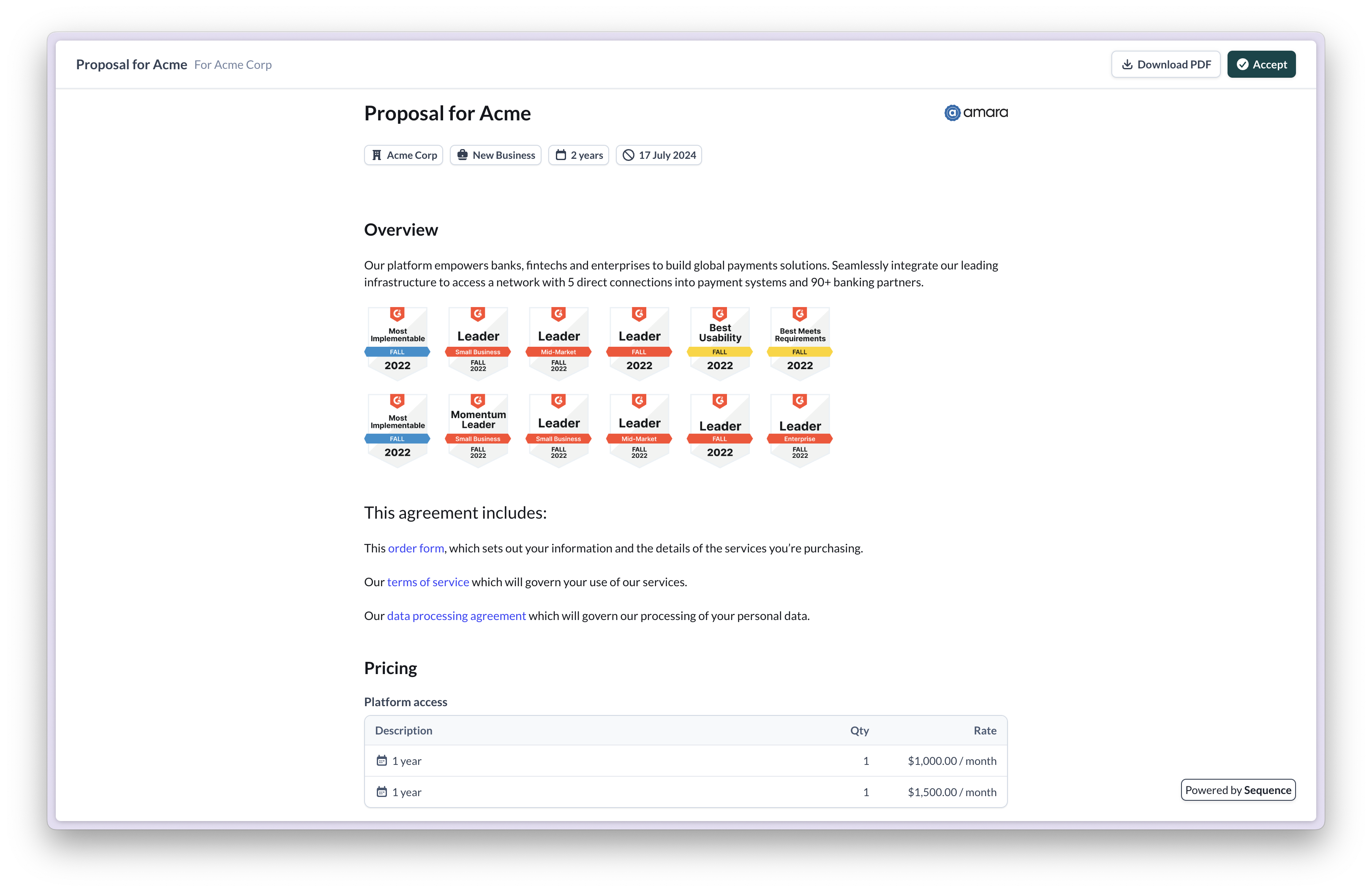
 Sequence CPQ is purpose-built for for Fintech, AI and similar B2B Saas startups selling contracts with usage tiers, minimum commitments and ramped pricing. Native e-signatures powered by Dropbox Sign provide a low friction signing experience for your customers (no Dropbox account required).
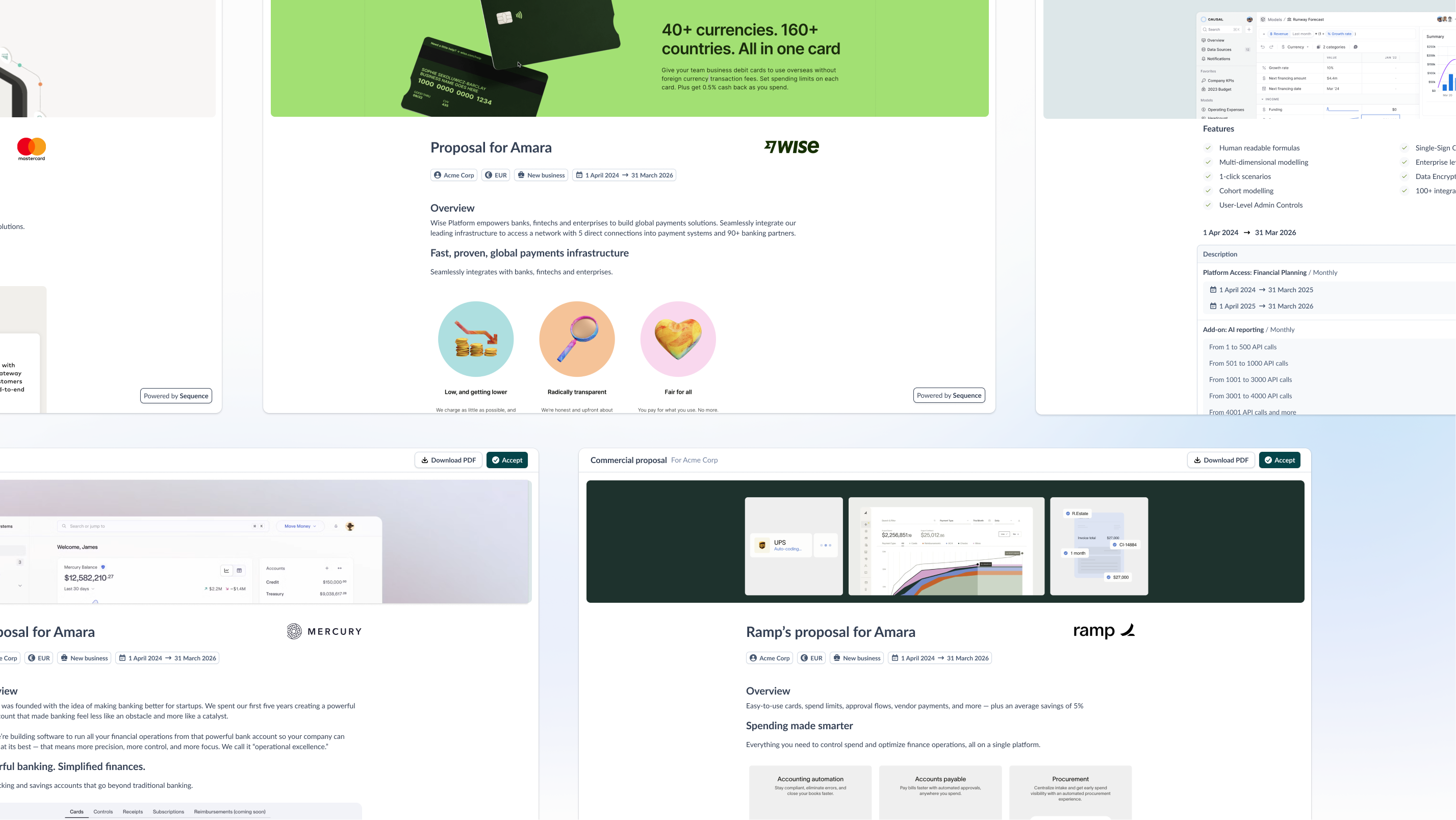 With Sequence CPQ, your teams can create professional quotes in minutes. You can create new quotes from scratch via the quote editor or duplicate existing quotes. When you publish your quote, you and your customer can retrieve the quote via a shareable link.
You can preview what your published quote will look like via the `Preview` button.
### Lifecycle of a quote
With Sequence CPQ, your teams can create professional quotes in minutes. You can create new quotes from scratch via the quote editor or duplicate existing quotes. When you publish your quote, you and your customer can retrieve the quote via a shareable link.
You can preview what your published quote will look like via the `Preview` button.
### Lifecycle of a quote
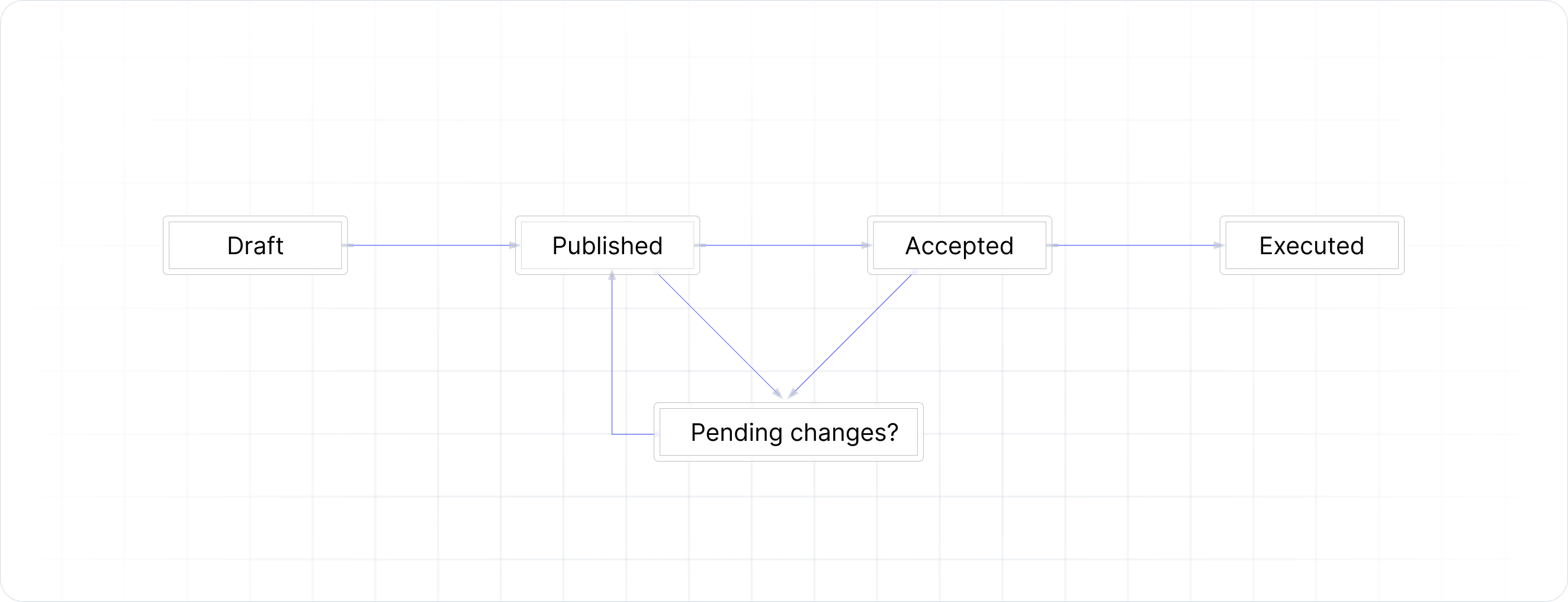 As you negotiate with customers, you can adjust pricing, change deal terms and issue a new quote. Quotes have one of the following status options:
An unpublished quote that is still being edited.
A published quote can be shared with your customer.
Once you make changes on a published quote, a new version is created. You have the option publish or discard changes made. If you publish changes, the shareable link stays the same, but will now reflect your latest edits.
When e-signature is enabled, this status indicates that not every signatory has signed the document. The quote is locked for editing.
Indicates that all signatories have signed the quote, or that the quote has manually been marked as accepted (if e-signature is disabled).
An executed quote is a accepted quote for which a billing schedule has been created.
Sequence keeps an audit trail of any change made to a published quote by creating a new quote version. Once a quote is pending signature, completed or executed, it cannot be edited anymore.
### Getting started with CPQ
Reach out to a member of our team and schedule a tailored onboarding session. If needed, our team can assist in creating a set of on-brand visual assets for your quotes (testimonials, feature spotlights, brand assets, etc).
Start by setting up your products in the product catalogue. For each product, configure one or more list prices.
Next, create a template quote that reflects the standard terms and clauses included in your proposals. Templates can be duplicated. You can also copy and paste from the quote editor.
Use the template to create a new quote for a test customer. Add a pricing block and configure your pricing. Preview, then publish the quote to your test customer.
### Create a quote
In Sequence, quotes are shareable pages that can be customized, similar to a Notion page or a Google Doc. At the minimum, a quote must include customer details and pricing. You can optionally add other sections, terms, links and documents to the page.
As you negotiate with customers, you can adjust pricing, change deal terms and issue a new quote. Quotes have one of the following status options:
An unpublished quote that is still being edited.
A published quote can be shared with your customer.
Once you make changes on a published quote, a new version is created. You have the option publish or discard changes made. If you publish changes, the shareable link stays the same, but will now reflect your latest edits.
When e-signature is enabled, this status indicates that not every signatory has signed the document. The quote is locked for editing.
Indicates that all signatories have signed the quote, or that the quote has manually been marked as accepted (if e-signature is disabled).
An executed quote is a accepted quote for which a billing schedule has been created.
Sequence keeps an audit trail of any change made to a published quote by creating a new quote version. Once a quote is pending signature, completed or executed, it cannot be edited anymore.
### Getting started with CPQ
Reach out to a member of our team and schedule a tailored onboarding session. If needed, our team can assist in creating a set of on-brand visual assets for your quotes (testimonials, feature spotlights, brand assets, etc).
Start by setting up your products in the product catalogue. For each product, configure one or more list prices.
Next, create a template quote that reflects the standard terms and clauses included in your proposals. Templates can be duplicated. You can also copy and paste from the quote editor.
Use the template to create a new quote for a test customer. Add a pricing block and configure your pricing. Preview, then publish the quote to your test customer.
### Create a quote
In Sequence, quotes are shareable pages that can be customized, similar to a Notion page or a Google Doc. At the minimum, a quote must include customer details and pricing. You can optionally add other sections, terms, links and documents to the page.
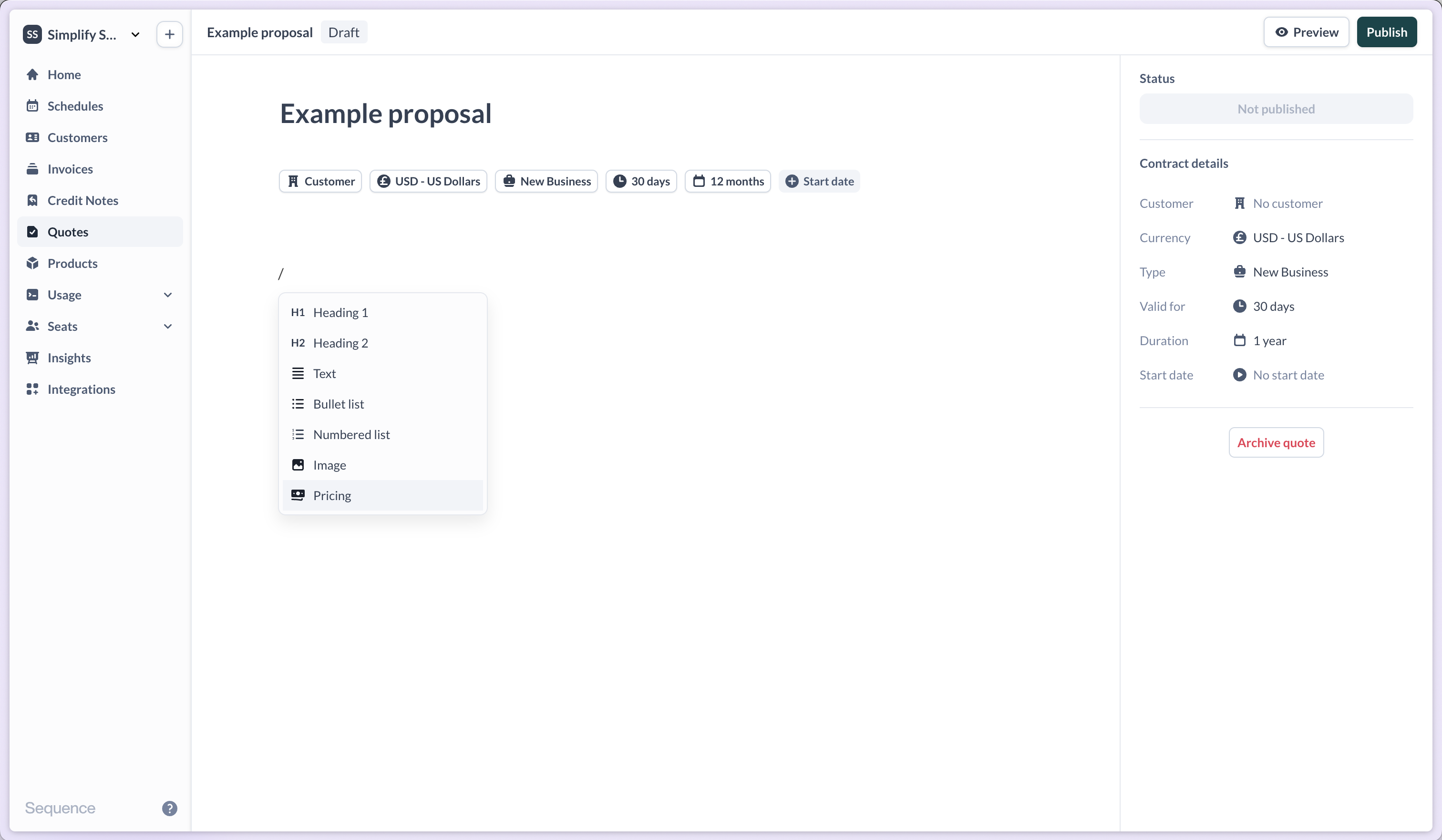 Choose from the following content blocks to design your quote:
* Text blocks (including formatting)
* Headings
* Lists (bullet and numbered)
* Images
* Pricing block
### Variables for quote templates
Never send a quote with the wrong customer name, currency, or dates again. Quote templates now auto-populate with customer-specific data the moment you select an account - eliminating manual data entry and the errors that come with it.
When creating or editing a quote template, use variables to automatically insert customer information:
**Available variables:**
* `{Customer name}` - Customer company name
* `{Customer address}` - Customer billing address
* `{Customer country}` - Customer country
* `{Recipients}` - Quote recipients
* `{Quote owner}` - Account owner of the quote
* `{Start date}` - Contract start date
* `{End date}` - Contract end date
* `{Contract duration}` - Duration of the contract
* `{Payment terms}` - Payment terms for the quote
* `{Currency}` - Customer currency
Choose from the following content blocks to design your quote:
* Text blocks (including formatting)
* Headings
* Lists (bullet and numbered)
* Images
* Pricing block
### Variables for quote templates
Never send a quote with the wrong customer name, currency, or dates again. Quote templates now auto-populate with customer-specific data the moment you select an account - eliminating manual data entry and the errors that come with it.
When creating or editing a quote template, use variables to automatically insert customer information:
**Available variables:**
* `{Customer name}` - Customer company name
* `{Customer address}` - Customer billing address
* `{Customer country}` - Customer country
* `{Recipients}` - Quote recipients
* `{Quote owner}` - Account owner of the quote
* `{Start date}` - Contract start date
* `{End date}` - Contract end date
* `{Contract duration}` - Duration of the contract
* `{Payment terms}` - Payment terms for the quote
* `{Currency}` - Customer currency
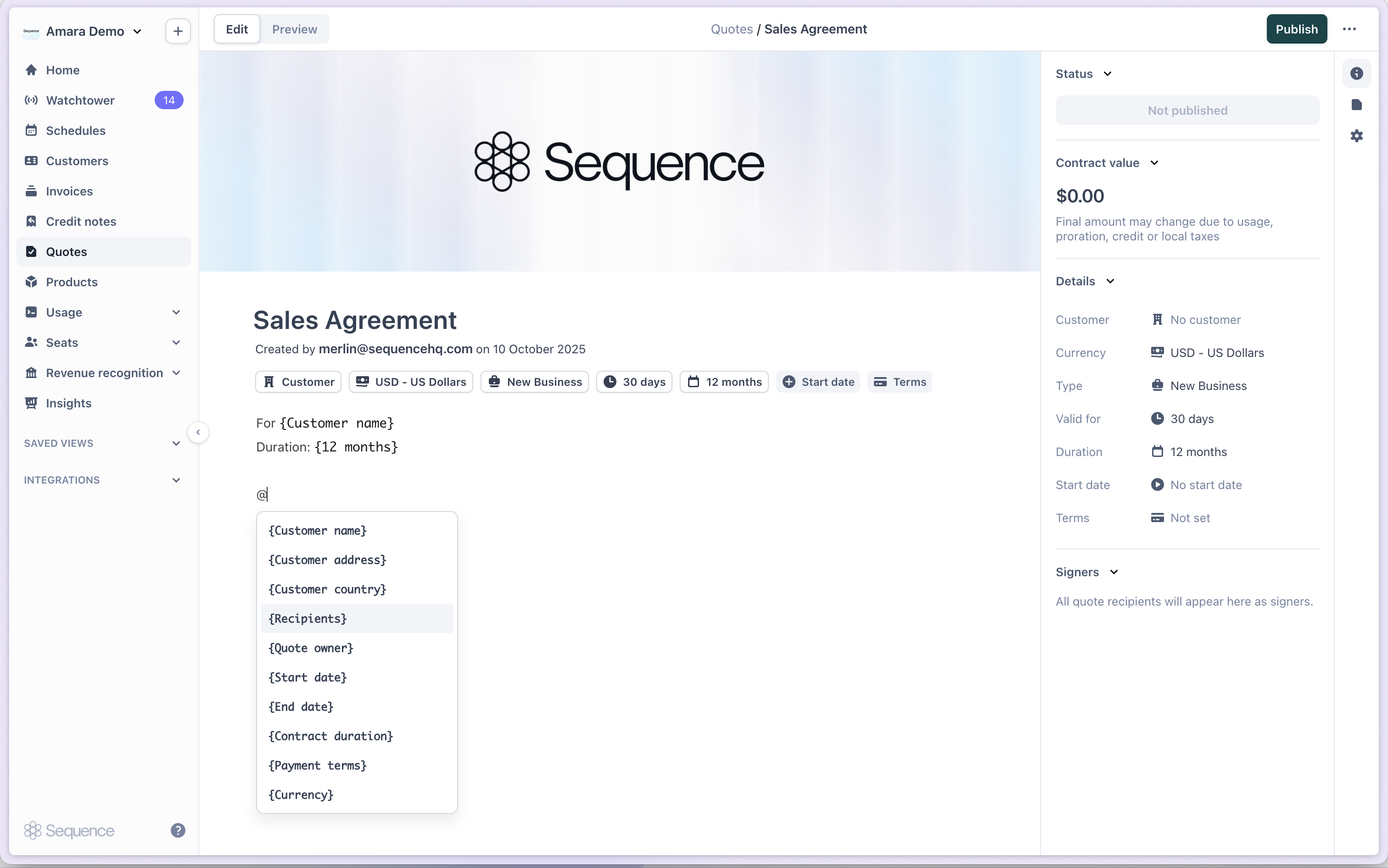 Variables automatically populate when you select a customer, ensuring every quote contains accurate, customer-specific information without manual updates.
Use variables in any text block within your quote template. They'll remain as placeholders in the template and automatically fill when you create a new quote for a specific customer.
### Configure a quote cover image
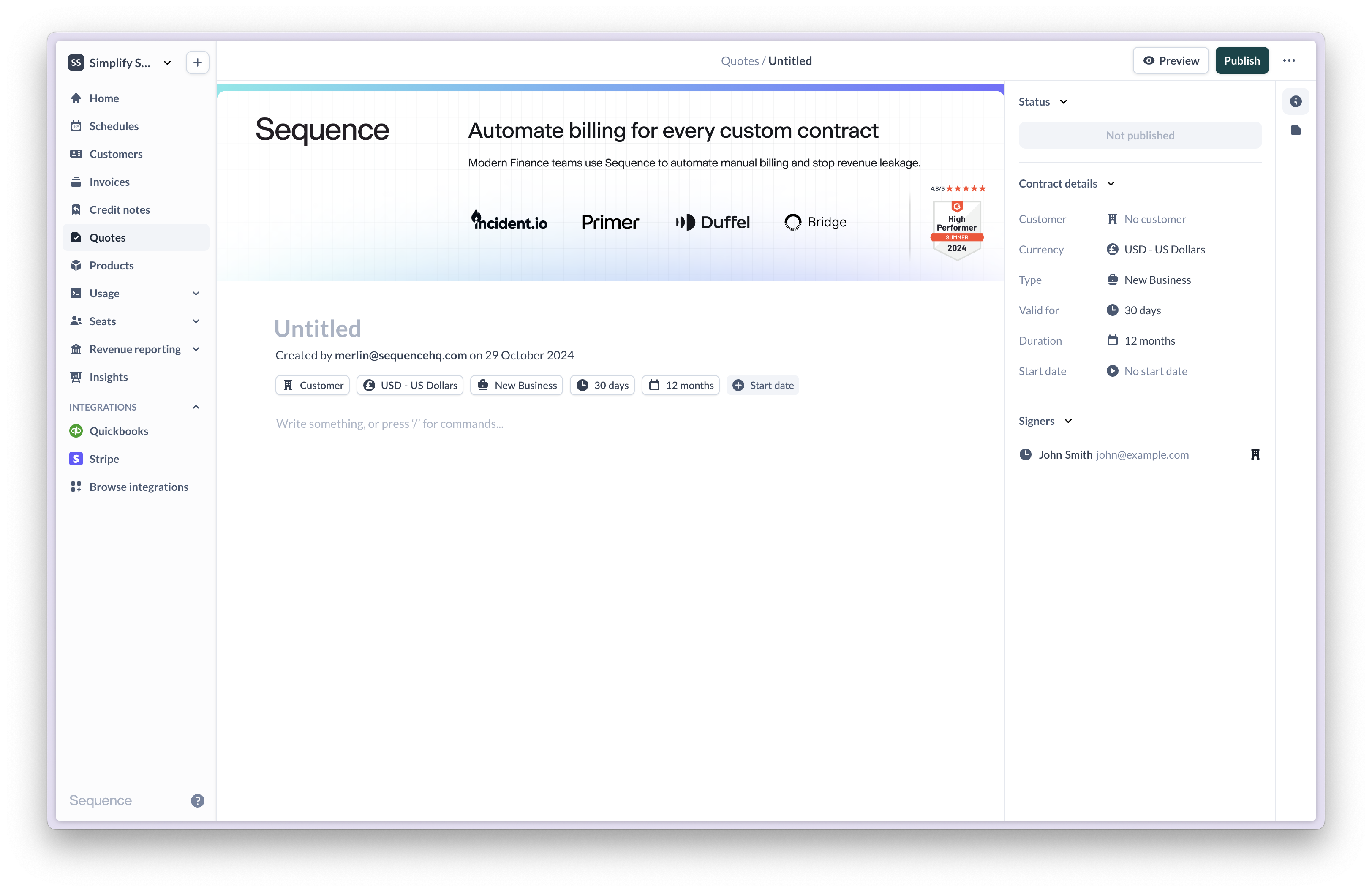
Take your quotes to the next level with a branded cover image. Go to your quote and click add cover.
Variables automatically populate when you select a customer, ensuring every quote contains accurate, customer-specific information without manual updates.
Use variables in any text block within your quote template. They'll remain as placeholders in the template and automatically fill when you create a new quote for a specific customer.
### Configure a quote cover image
Take your quotes to the next level with a branded cover image. Go to your quote and click add cover.
 ### Configuring pricing
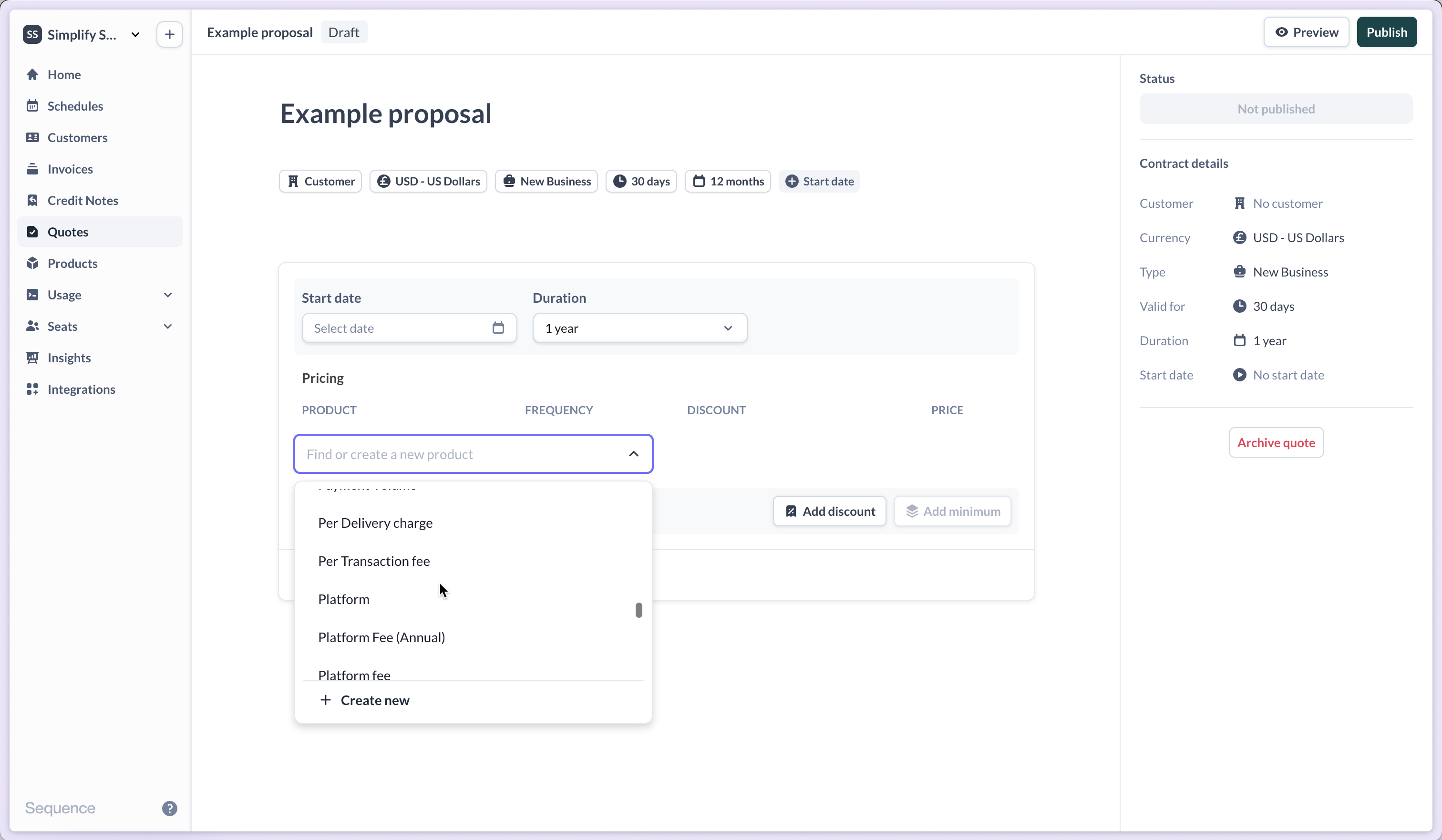
Add a pricing block to your quote to add products, prices, discounts, minimums and other terms. Select `+ Add product` and choose from the set of products you've set up in your product catalogue.
By default, the list price will be added to the quote.
### Configuring pricing
Add a pricing block to your quote to add products, prices, discounts, minimums and other terms. Select `+ Add product` and choose from the set of products you've set up in your product catalogue.
By default, the list price will be added to the quote.
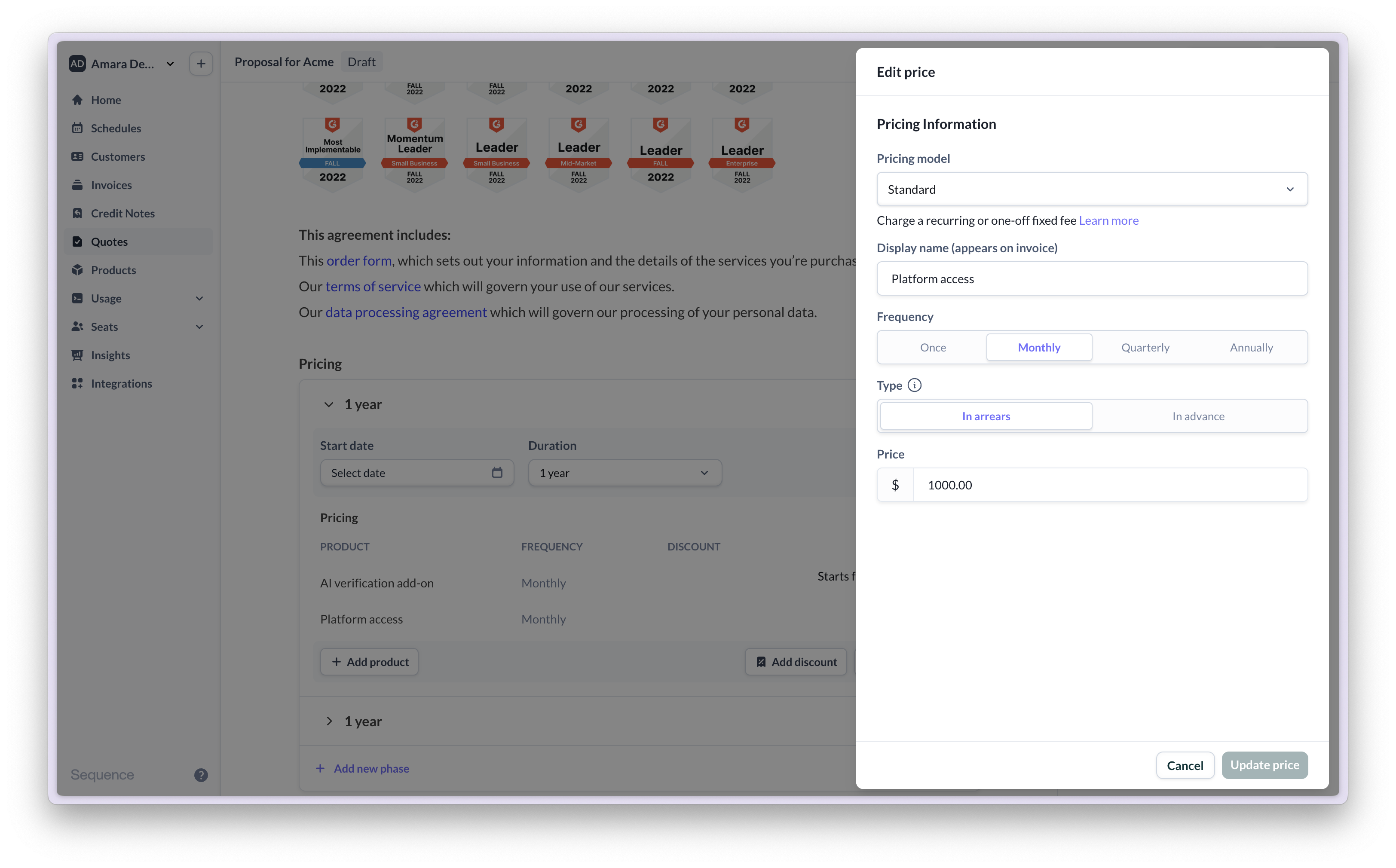
 You can make a price adjustment against the list price. This will create a new price variant for this product in your product catalogue once the quote gets executed.
 ### Configure ramp deals and phased contracts
You can create a pricing proposal with phased pricing in just a few clicks. In the pricing block, select `+ Add new phase` and choose a duration.
### Configure ramp deals and phased contracts
You can create a pricing proposal with phased pricing in just a few clicks. In the pricing block, select `+ Add new phase` and choose a duration.
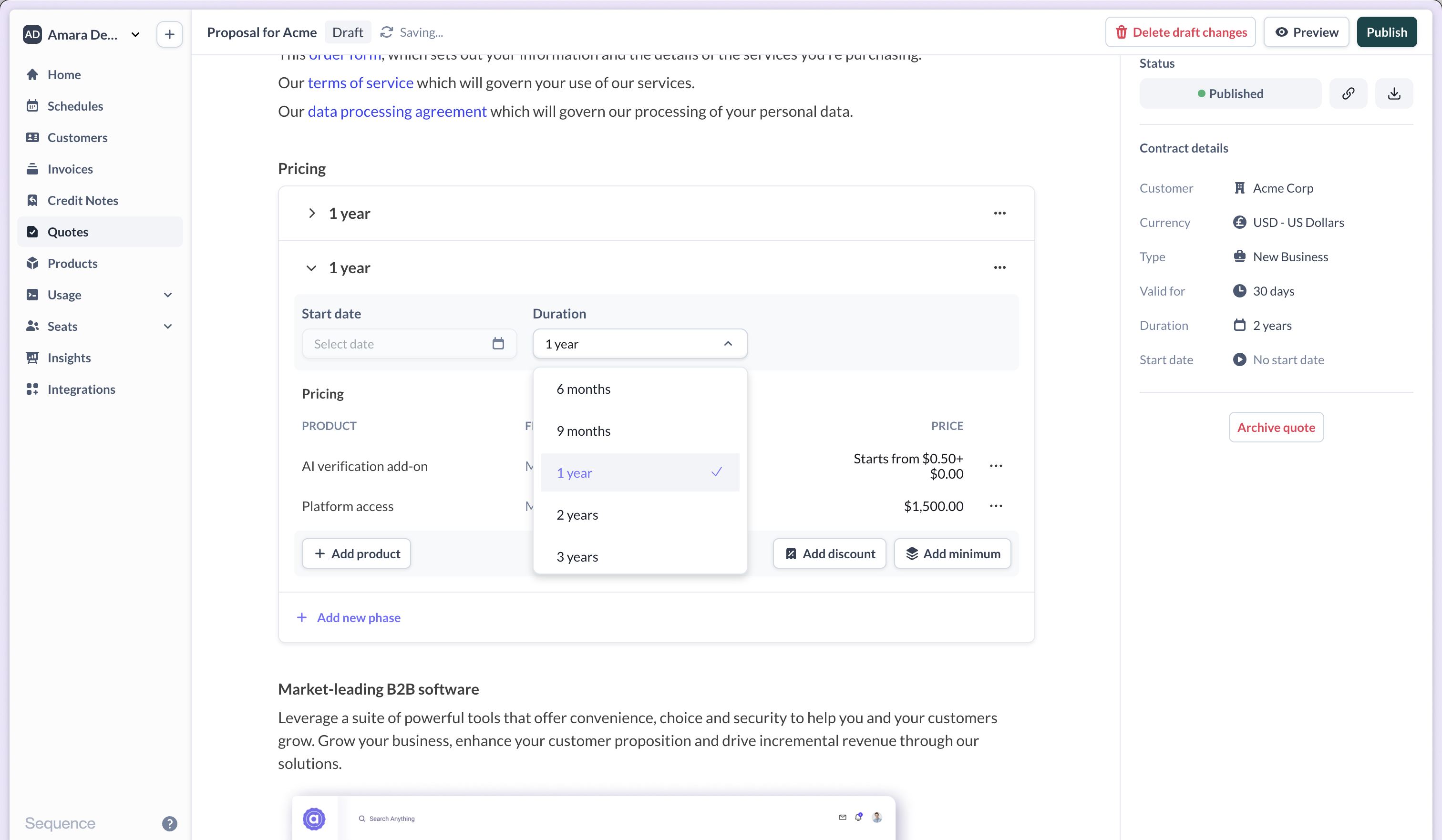 For example, your proposal may include two one year phases, with a scheduled price increase in year two. The start date of a subsequent phase is always anchored against the end date of the previous phase.
### Payment terms
Set payment terms on quotes to define when invoices are due. Choose from Net 30, Net 60, or enter custom terms.
Payment terms configured on a quote automatically transfer to the billing schedule when the quote is accepted, ensuring consistency between the proposal and invoicing.
Payment terms set on quotes override account-level defaults for the resulting billing schedule.
### Sharing a quote with your customer
To share a quote with your customer, publish it. Use `Preview` to review the quote prior to publishing it. Publishing a quote will generate a shareable link for it. When you select `Publish` you have the option to send an email notification to your customer with a custom message. Once published, you can also download a PDF version of the quote.
For example, your proposal may include two one year phases, with a scheduled price increase in year two. The start date of a subsequent phase is always anchored against the end date of the previous phase.
### Payment terms
Set payment terms on quotes to define when invoices are due. Choose from Net 30, Net 60, or enter custom terms.
Payment terms configured on a quote automatically transfer to the billing schedule when the quote is accepted, ensuring consistency between the proposal and invoicing.
Payment terms set on quotes override account-level defaults for the resulting billing schedule.
### Sharing a quote with your customer
To share a quote with your customer, publish it. Use `Preview` to review the quote prior to publishing it. Publishing a quote will generate a shareable link for it. When you select `Publish` you have the option to send an email notification to your customer with a custom message. Once published, you can also download a PDF version of the quote.
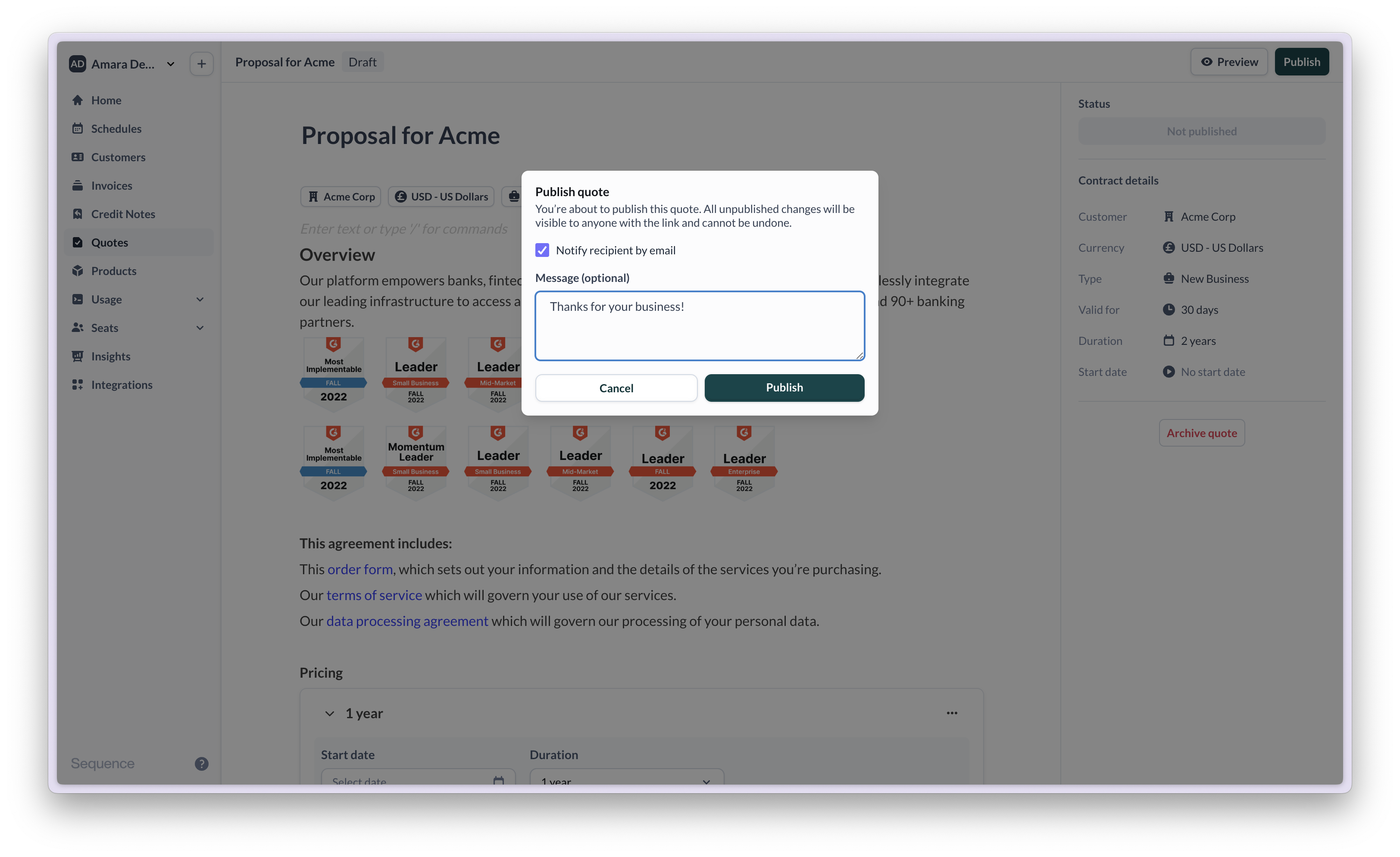 If you have e-signatures enabled, you can collect signatures from your customer in just a few clicks. Sequence provides a native [e-signature integration](/cpq/esignature) powered by Dropbox Sign.