> ## Documentation Index
> Fetch the complete documentation index at: https://docs.sequencehq.com/llms.txt
> Use this file to discover all available pages before exploring further.
# E-signature
> Create a frictionless signing experience with compliant e-signatures powered by Dropbox Sign
Sequence uses Dropbox Sign to collect secure and compliant electronic signatures.
## E-signature workflow
Add recipients who will need to sign the quote. You can also select an internal countersigner who will sign on behalf of your company.
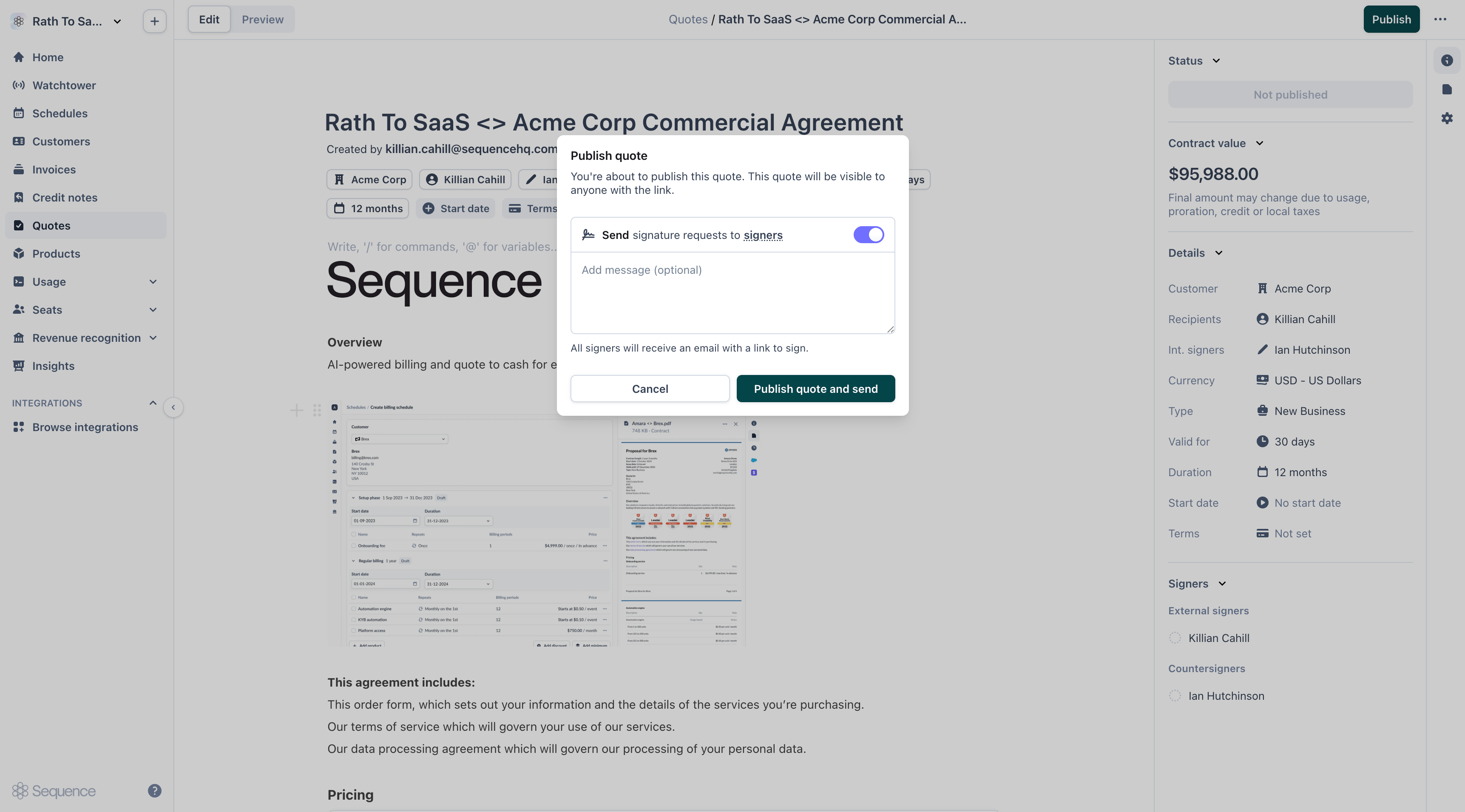
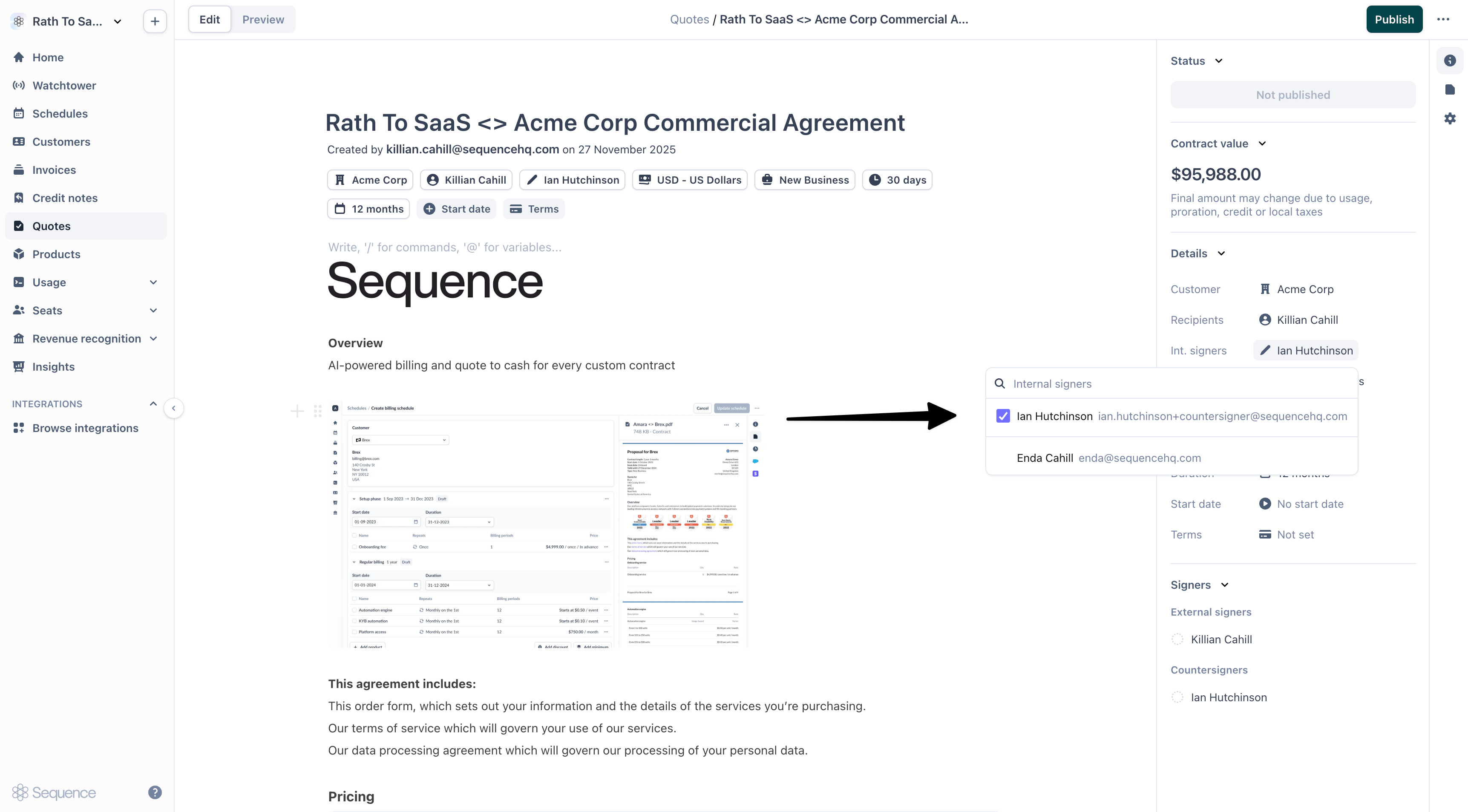 Enable **Send signature requests to signers** to automatically send email notifications to all signers. You can optionally add a custom message to the notification.
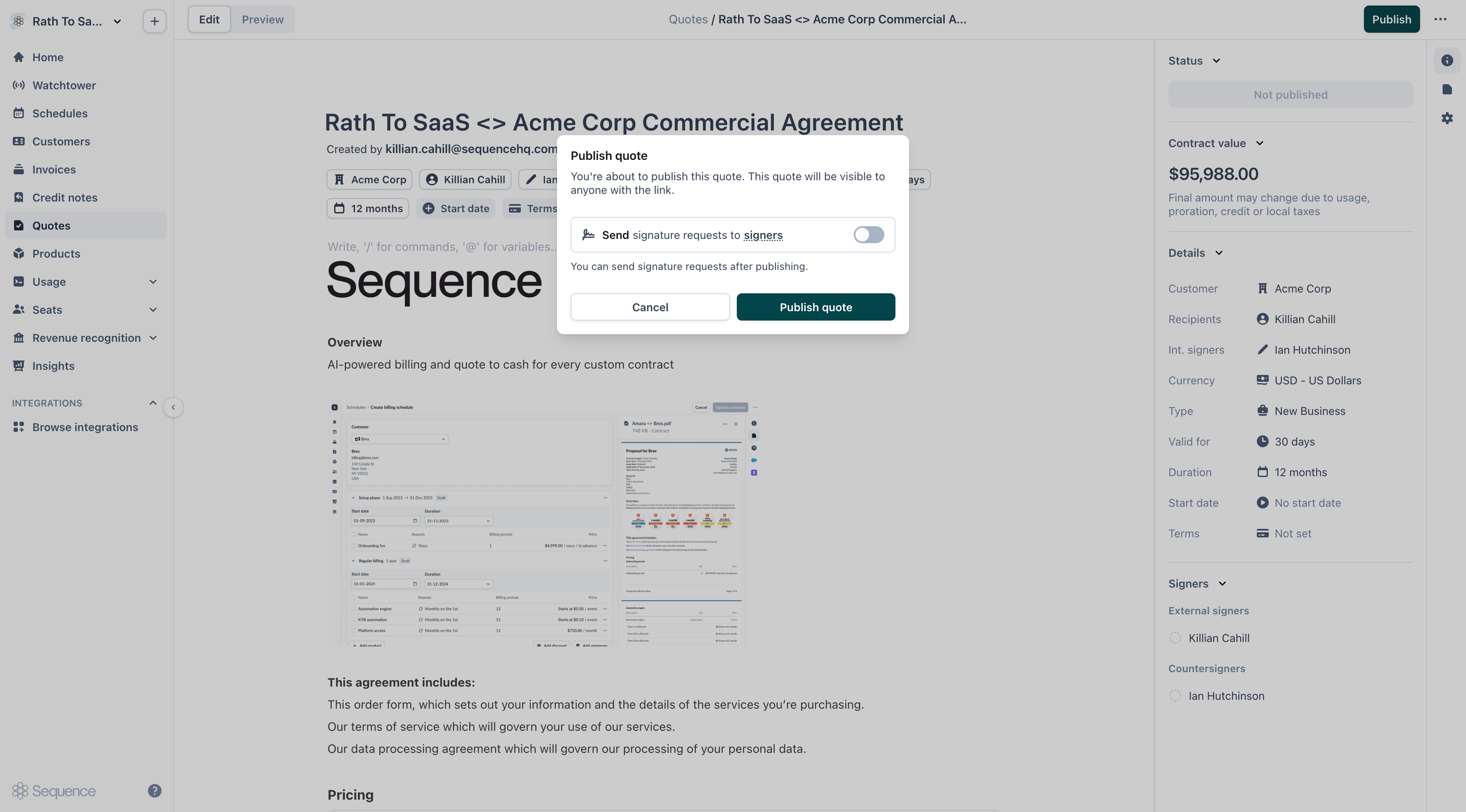
 Disable **Send signature requests to signers** to publish the quote as a shareable link. You can send signature requests later.
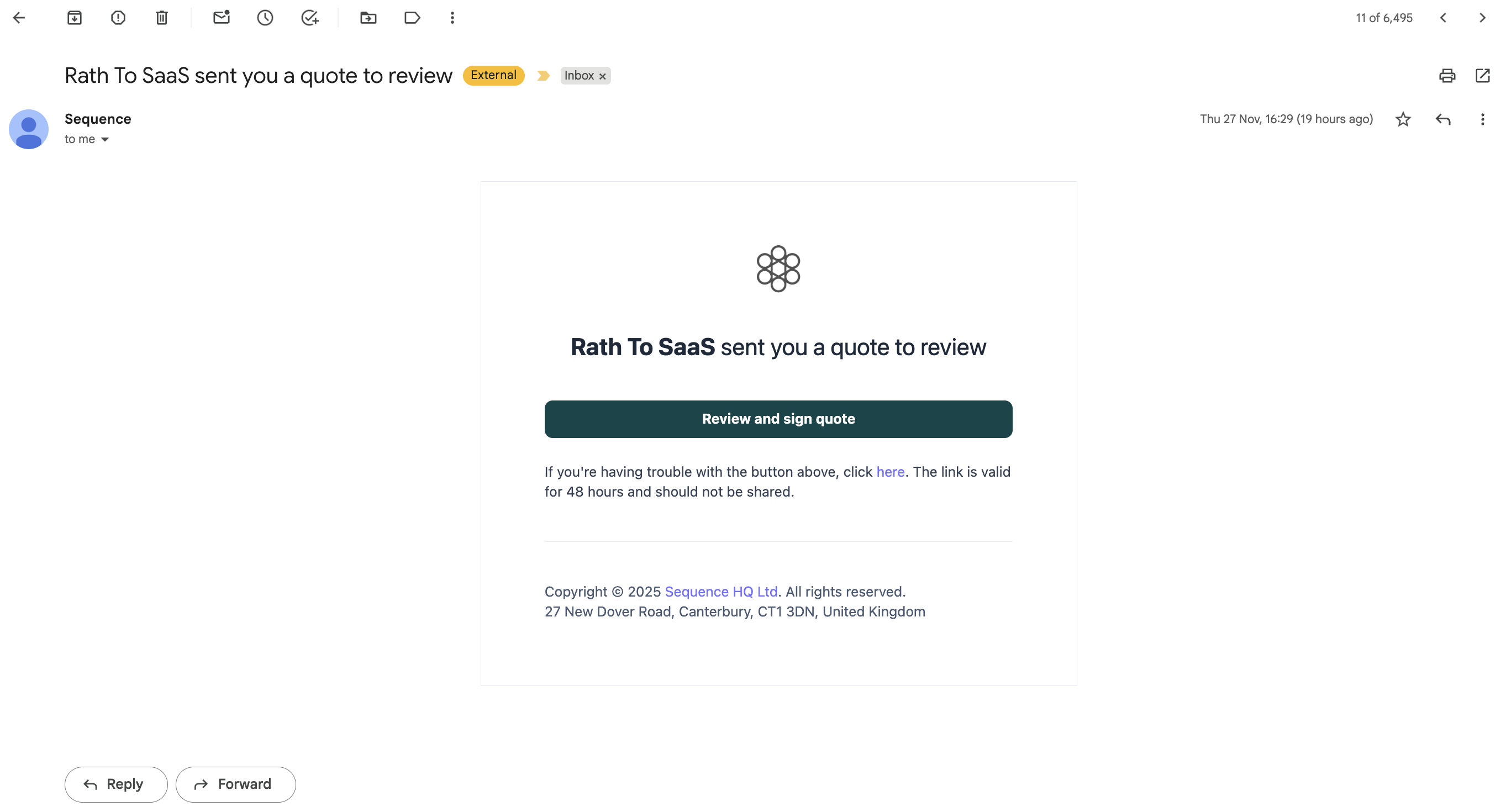
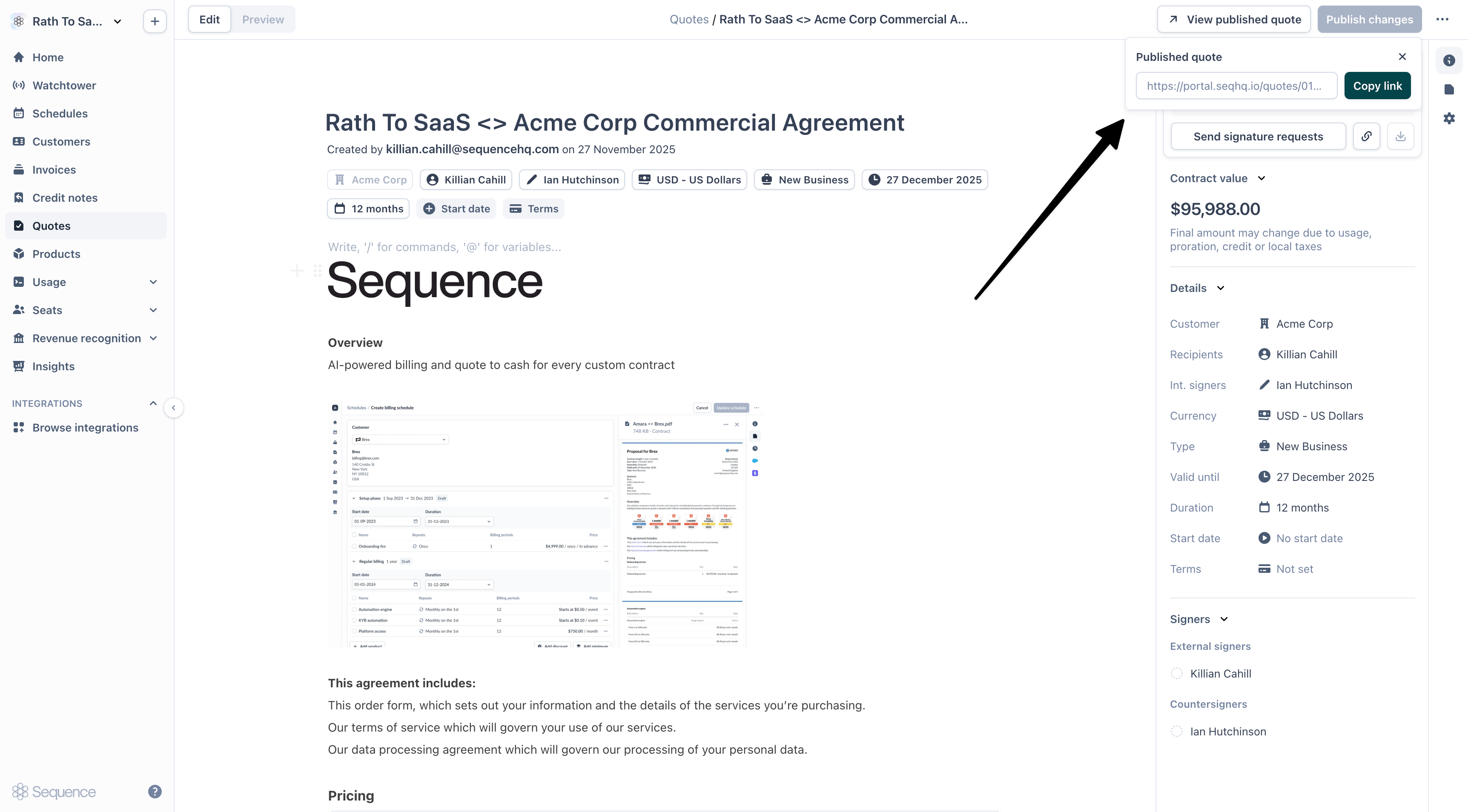 If you sent signature requests, recipients will receive an email with a link to review and sign the quote.
 If you published a shareable link, customers can access the quote and click **Review and sign** to trigger authentication emails.
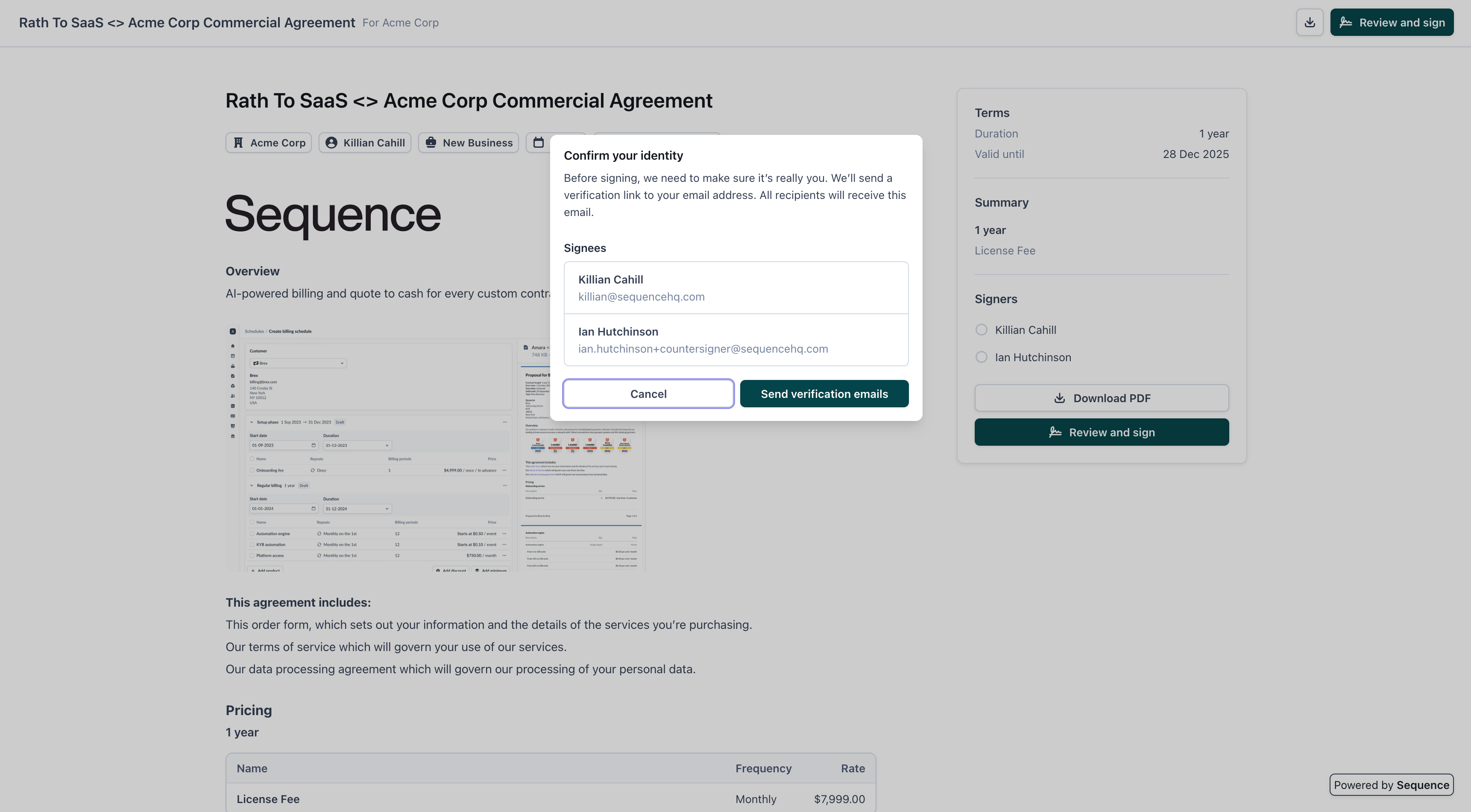 All signing happens directly within the Sequence quote interface. Recipients complete the following steps:
Click **Review and sign** to begin the signing process.
All signing happens directly within the Sequence quote interface. Recipients complete the following steps:
Click **Review and sign** to begin the signing process.
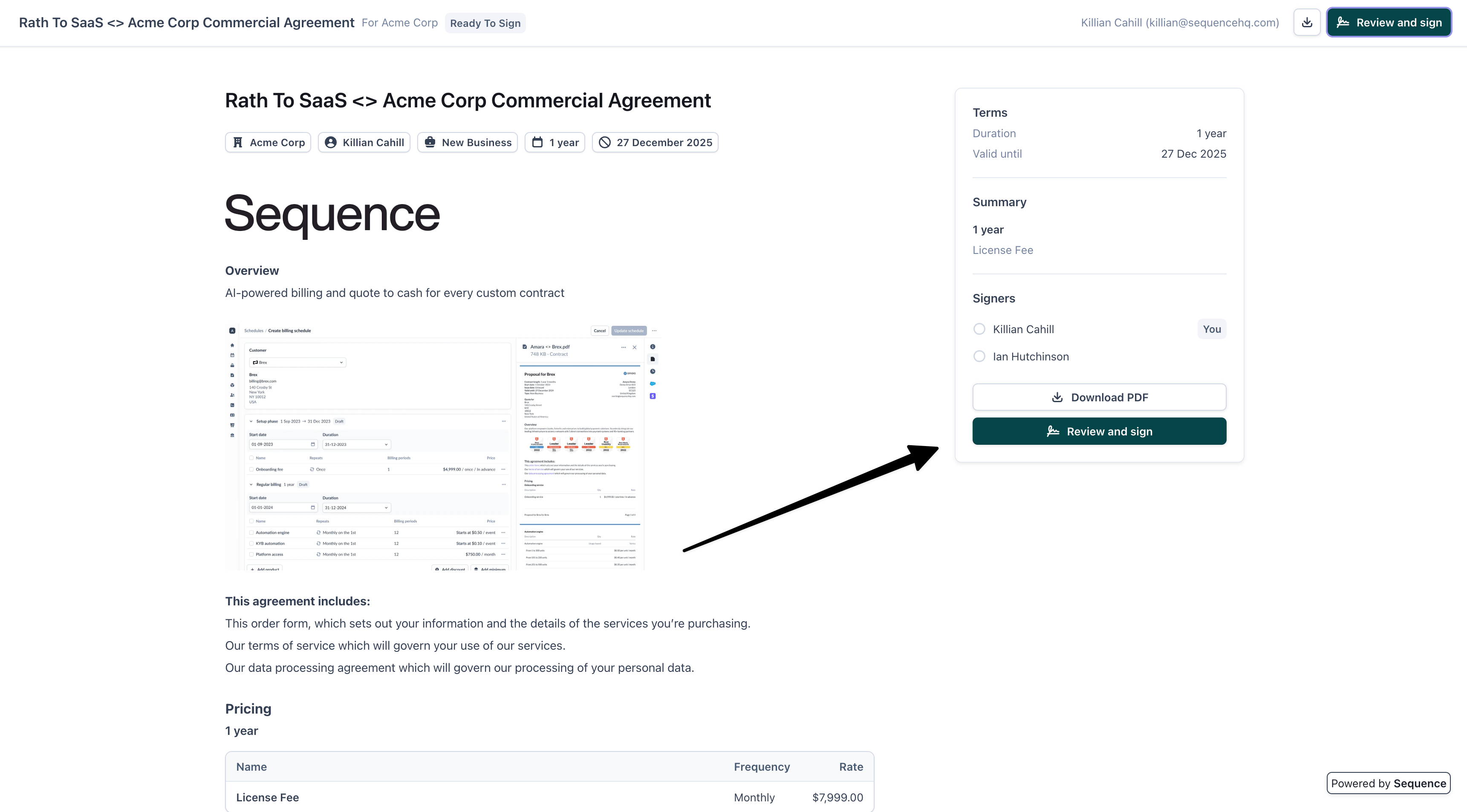 Review the quote details and click **Get started** to proceed.
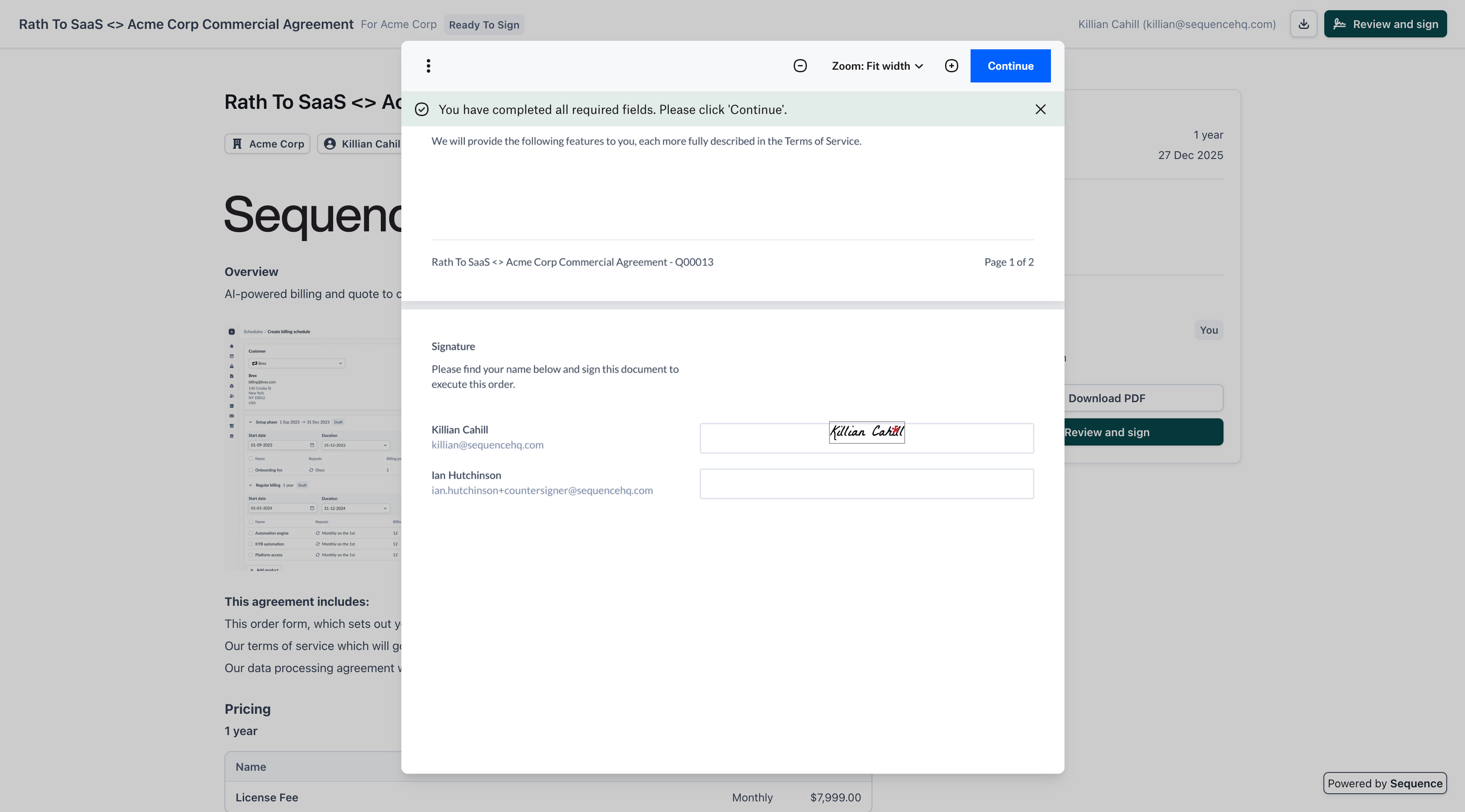
 The signing interface displays all signers. Click **Click to sign** to add your signature.
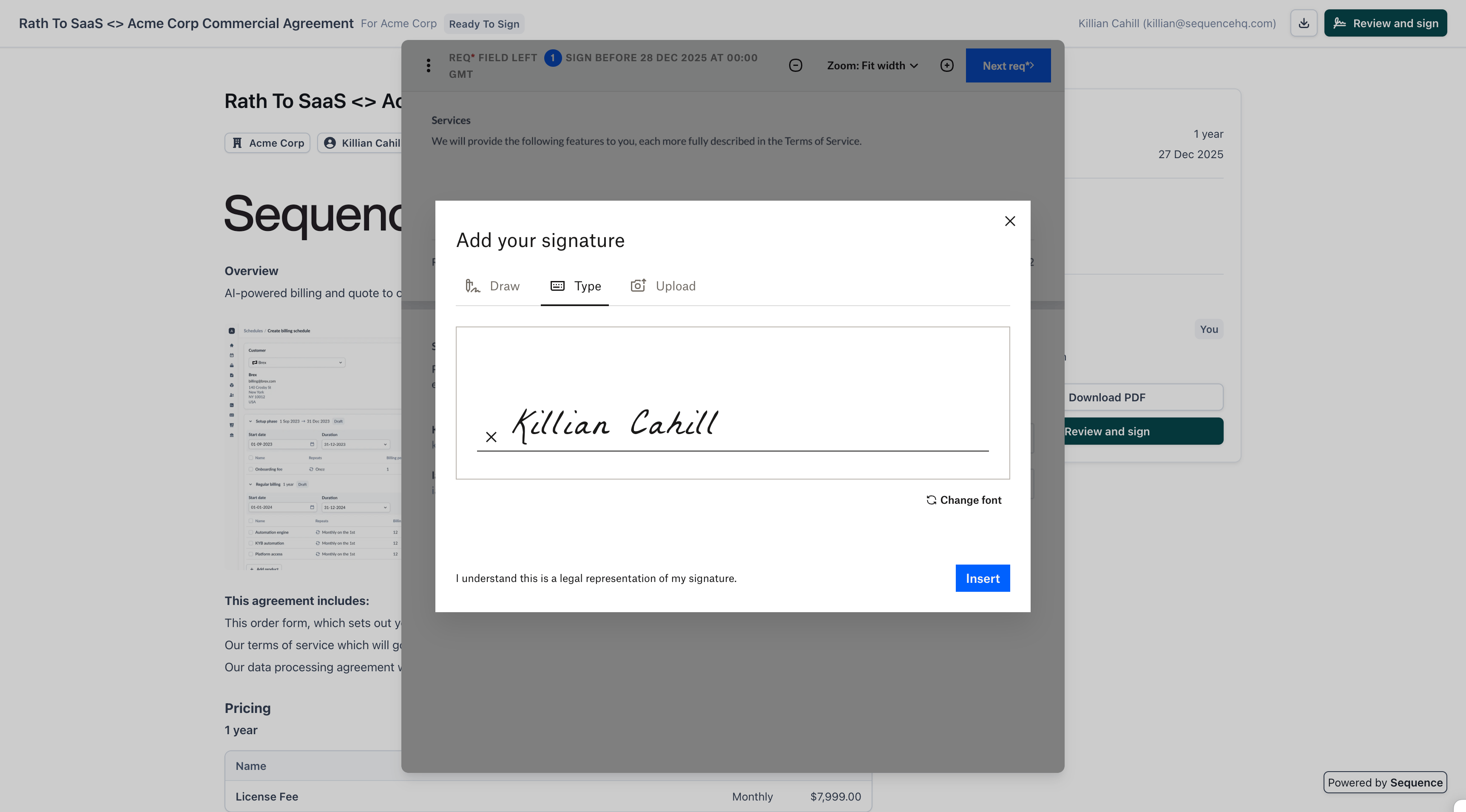
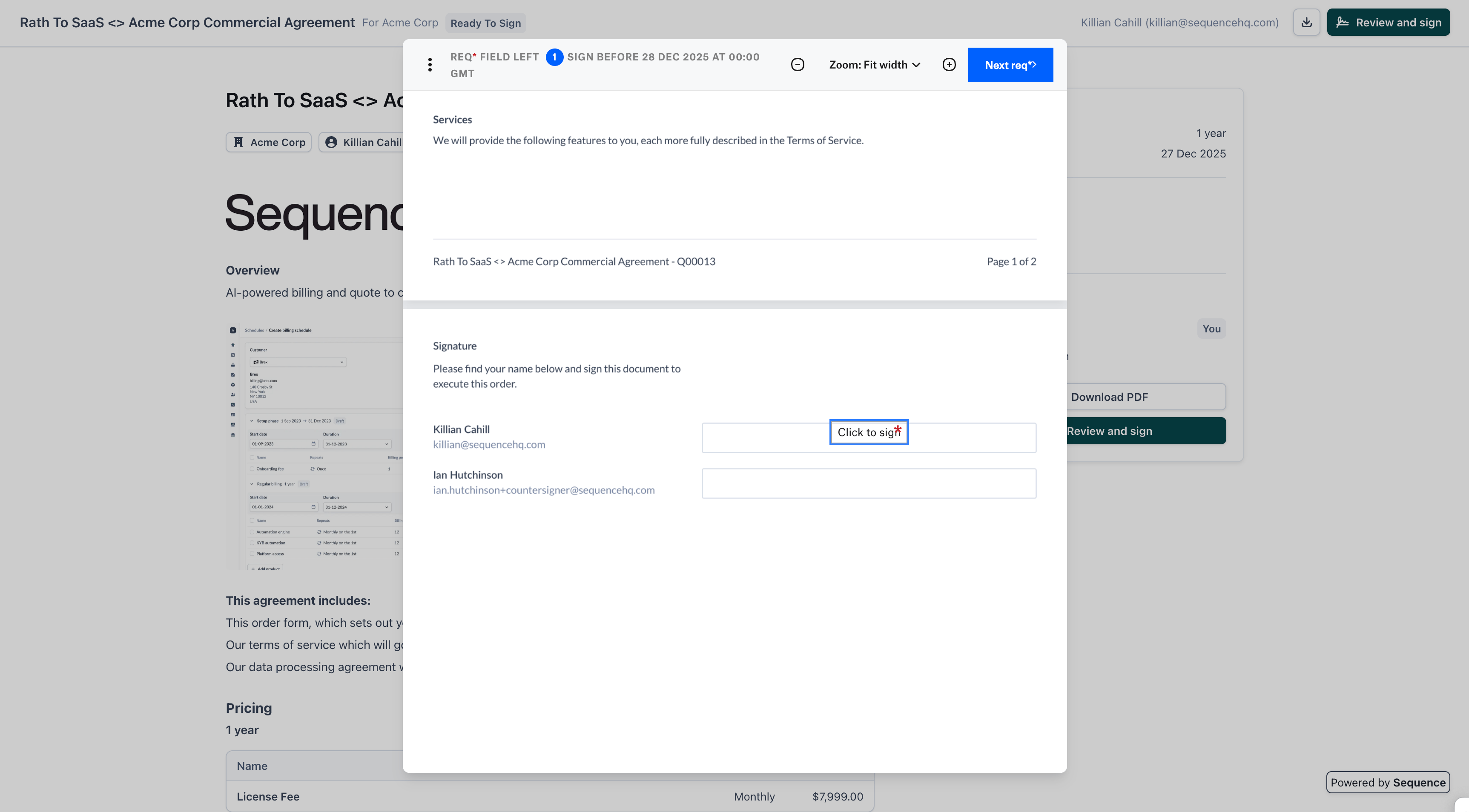 Choose to draw, type, or upload your signature. Enter or create your signature and click **Insert** to continue.
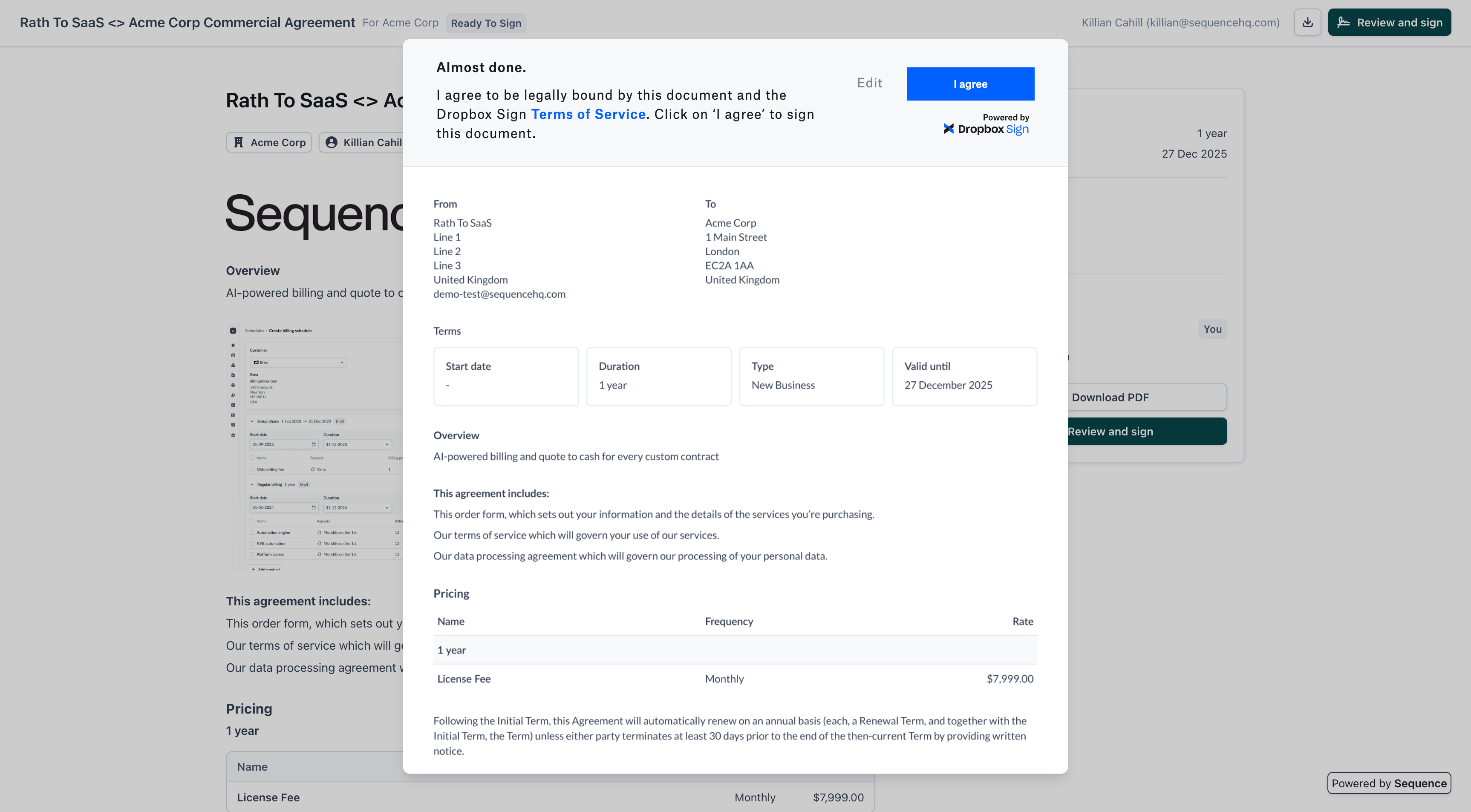
 Review the legal agreement and click **I agree** to sign the document.
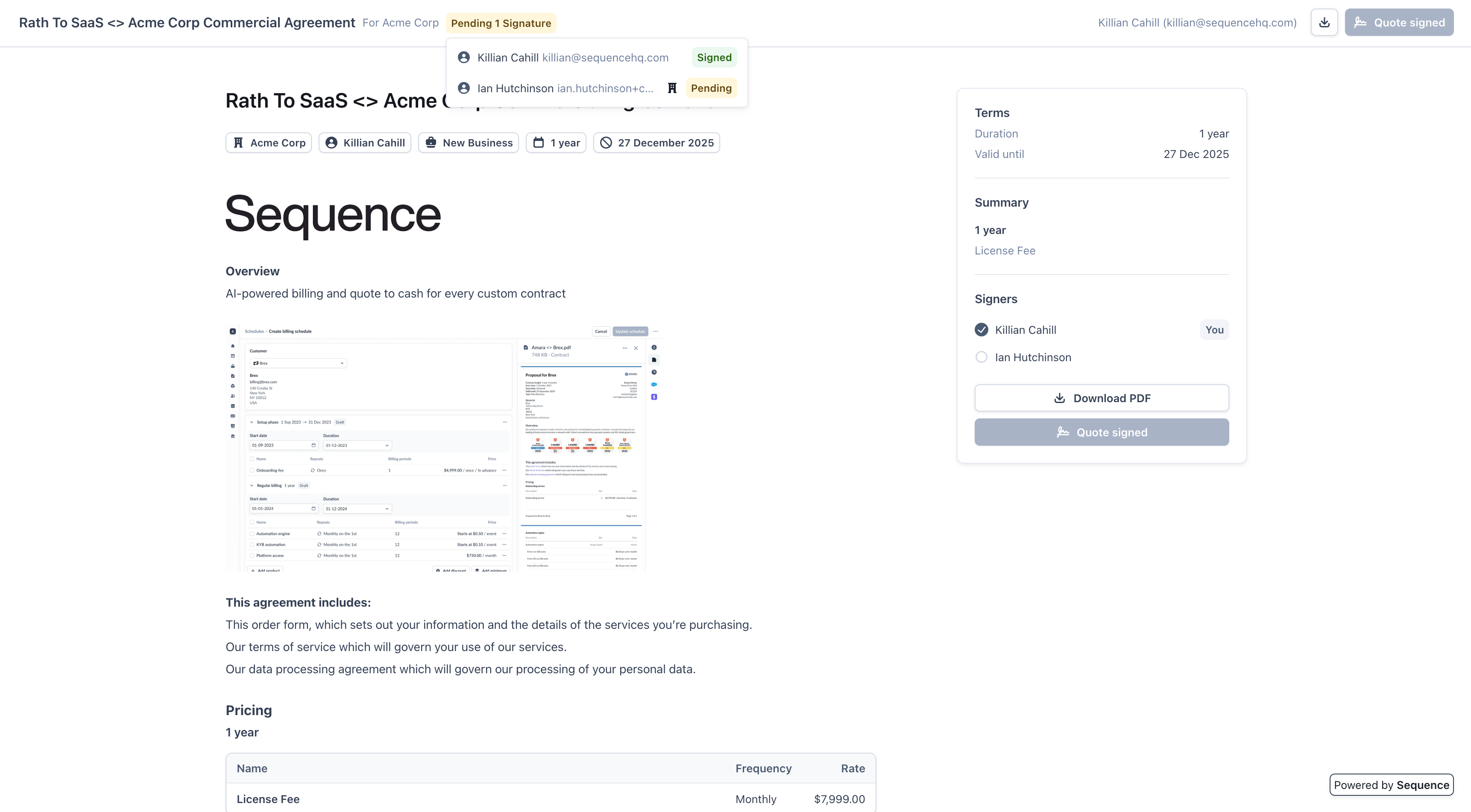
 Once the first recipient has signed, the quote status updates to **Pending 1 Signature**. The signed recipient is marked with a check mark.
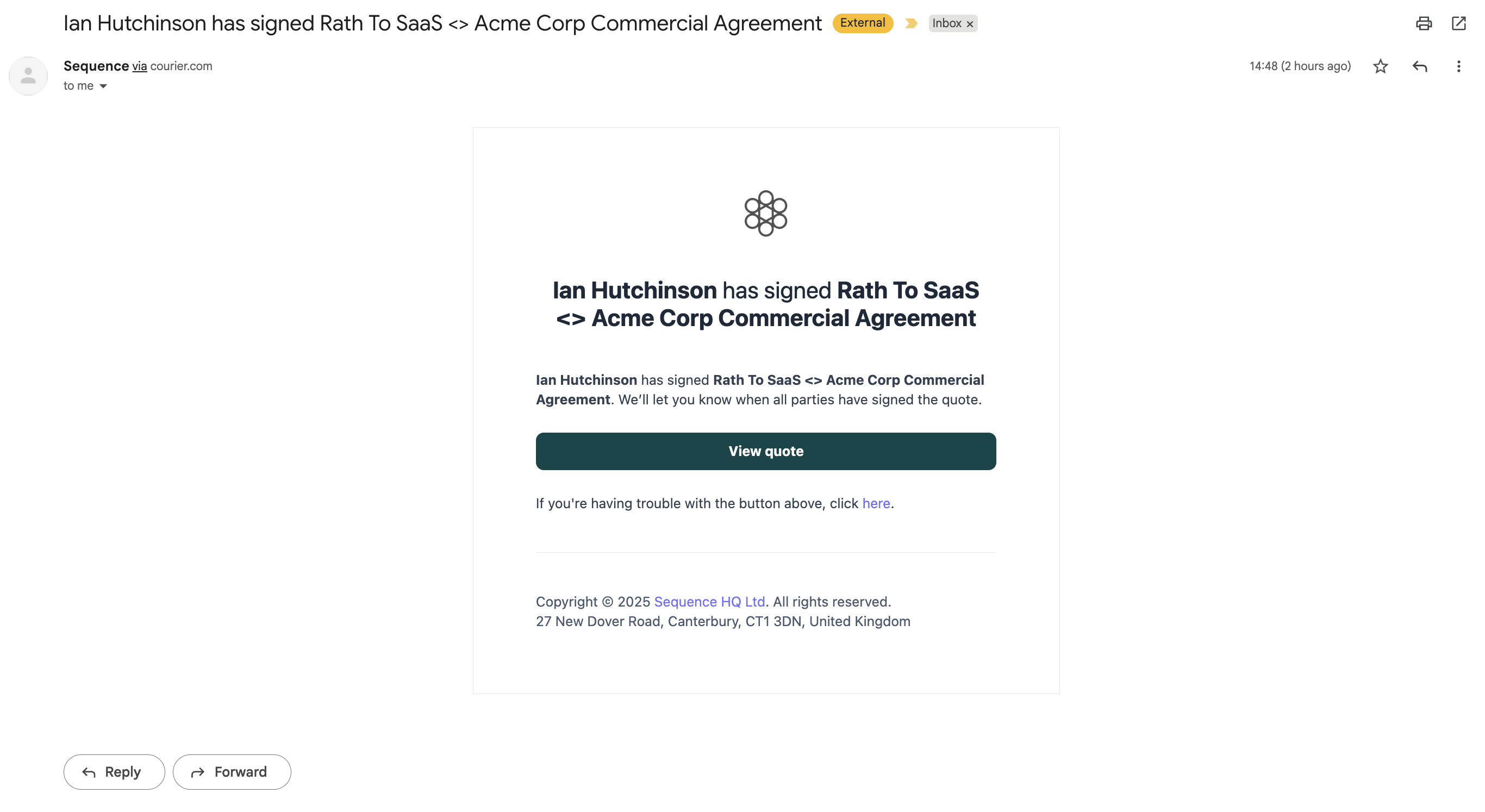
 When a signer completes their signature, the quote owner receives an email notification.
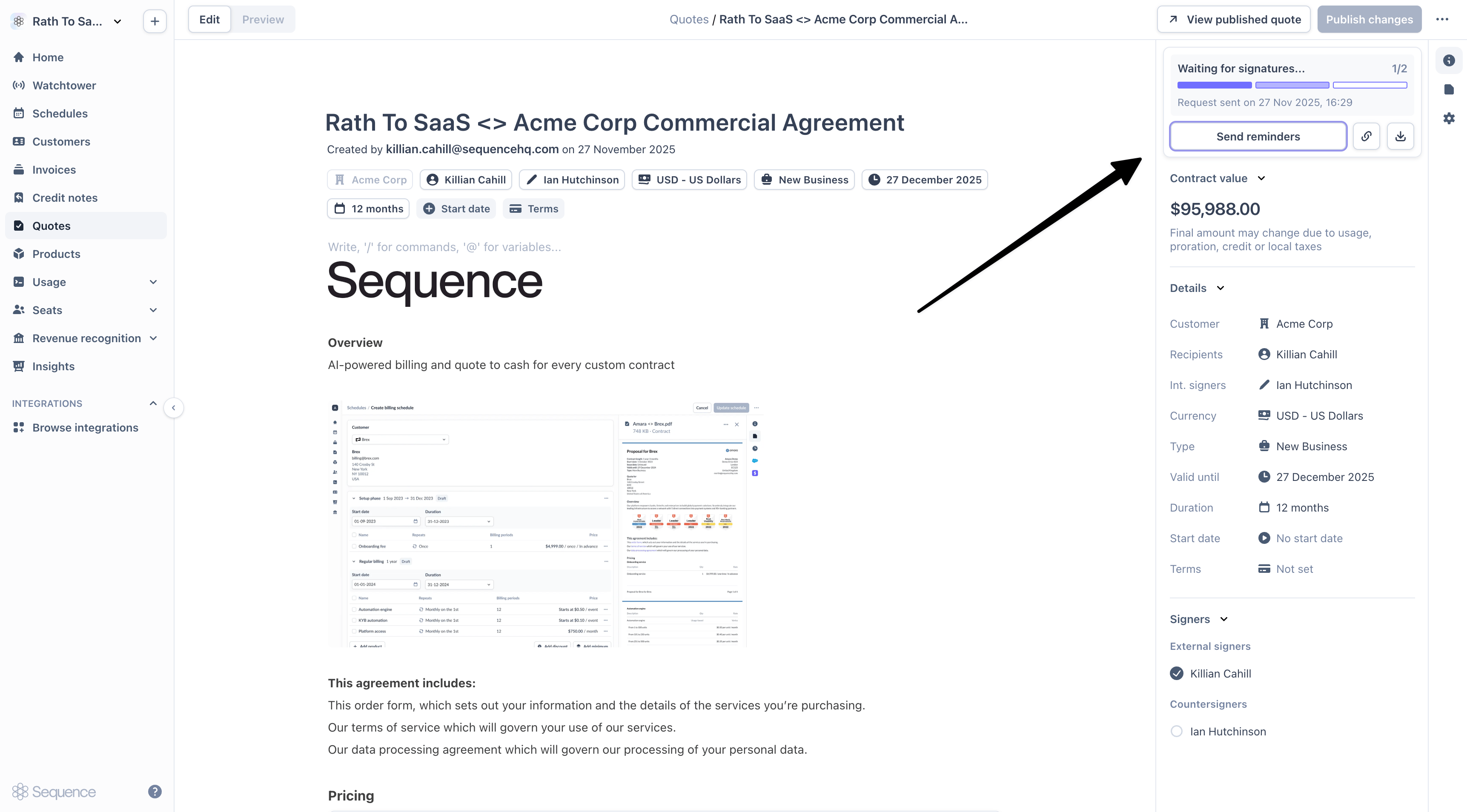
 For pending signatures, you can send reminder emails to signers who haven't signed yet.
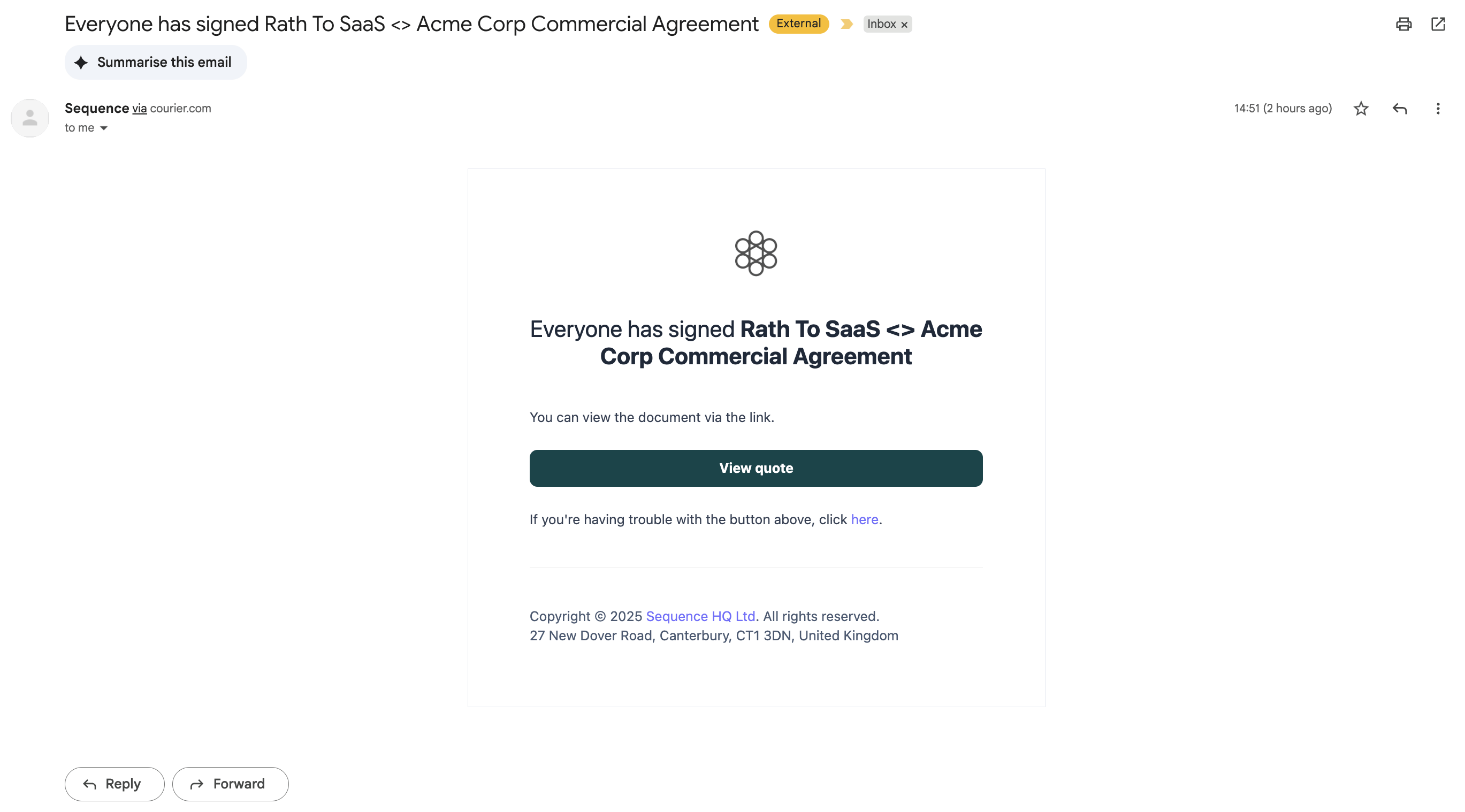
 Once all recipients have signed, the quote is fully executed. You'll receive a final confirmation email and can view the signed contract.
All signers receive a confirmation email when the quote is fully signed.
Once all recipients have signed, the quote is fully executed. You'll receive a final confirmation email and can view the signed contract.
All signers receive a confirmation email when the quote is fully signed.
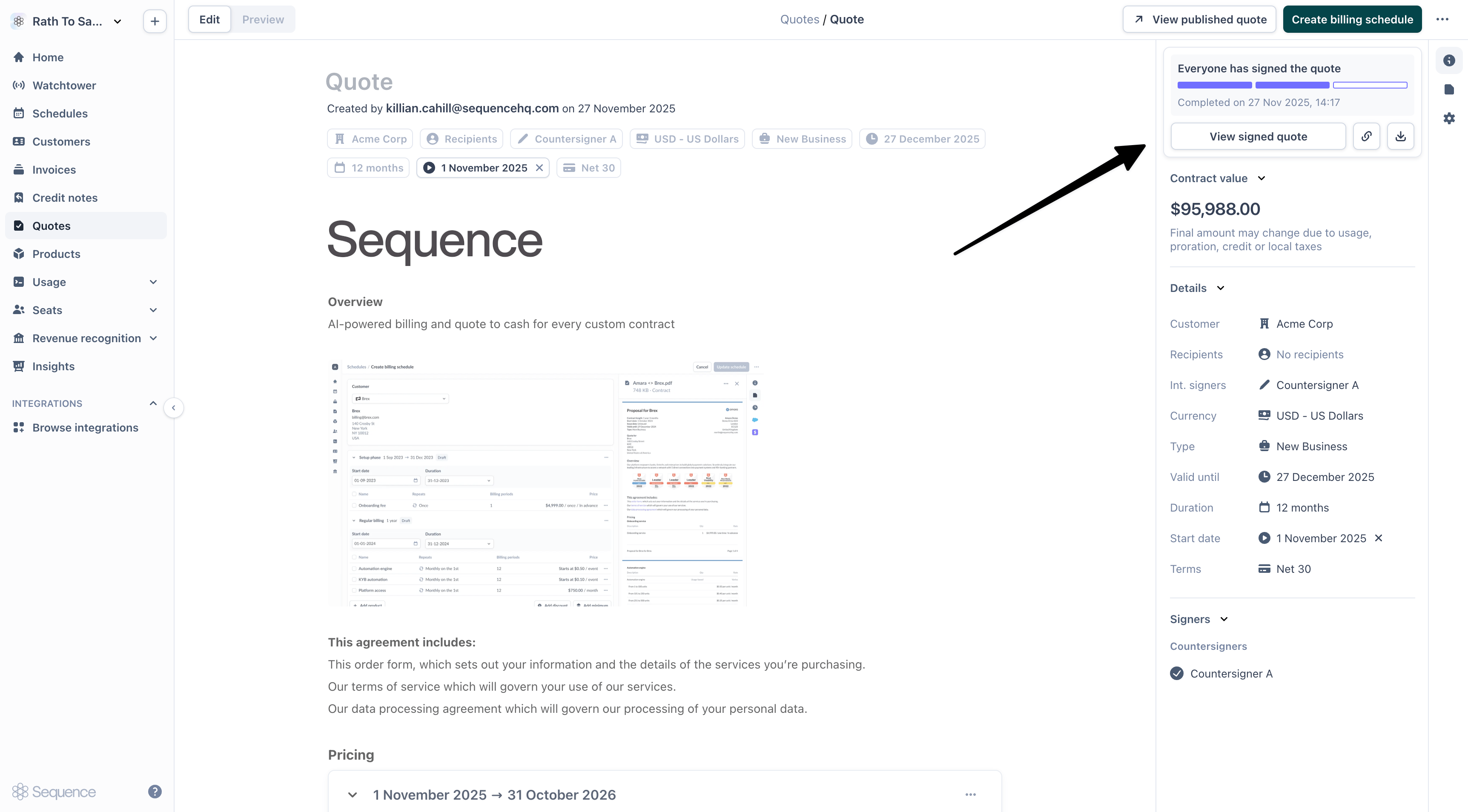
 The dashboard shows the completed status with all signers marked as complete. You can now view the signed quote and create a billing schedule.
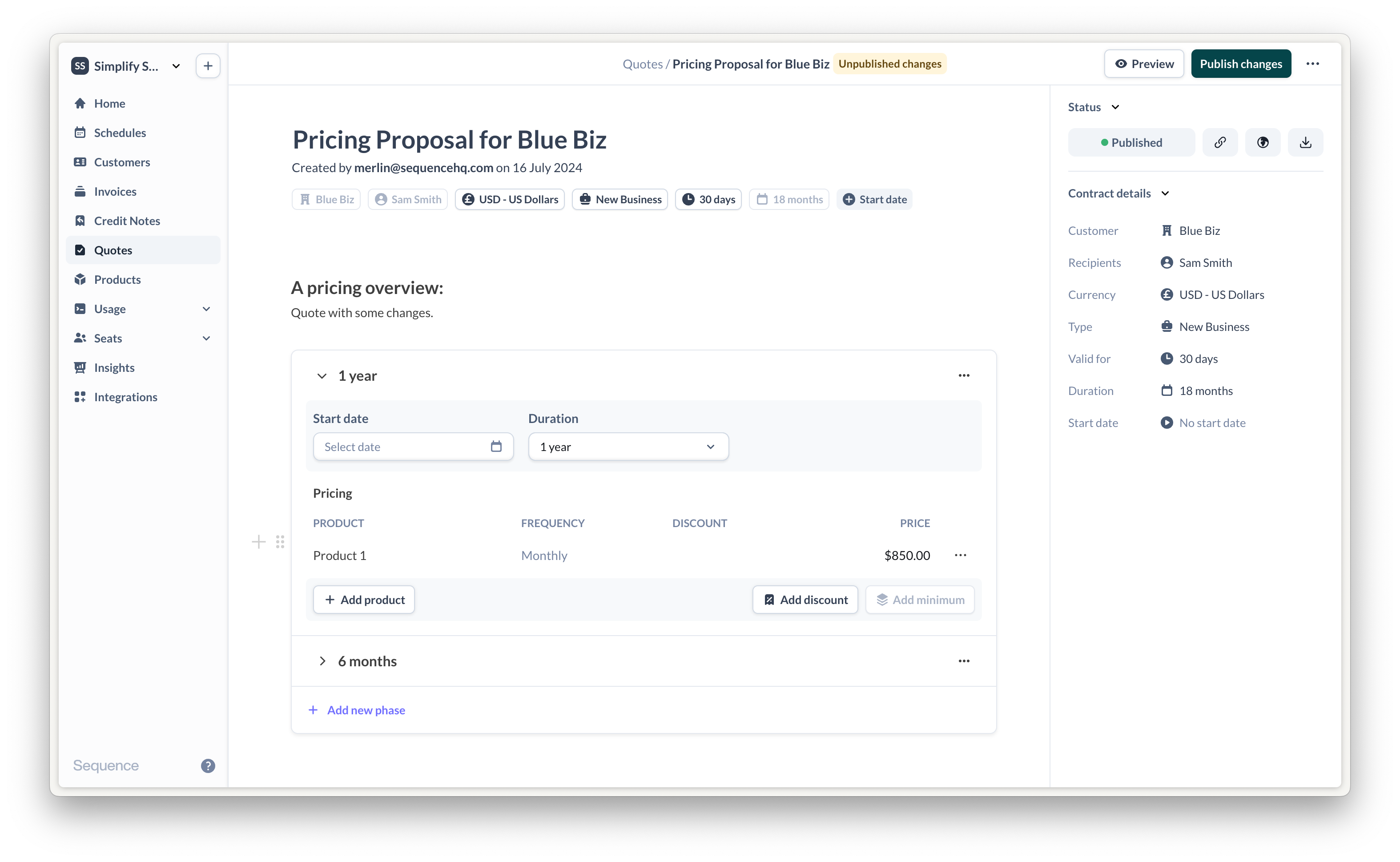
 ## Making changes to a published quote
You can make changes to both draft and published quotes. Making changes to a published quote requires the quote to be republished. Any signature attempts by your customer will be canceled and the quote will need to be signed again.
## Making changes to a published quote
You can make changes to both draft and published quotes. Making changes to a published quote requires the quote to be republished. Any signature attempts by your customer will be canceled and the quote will need to be signed again.
 ## Enabling and disabling e-signatures
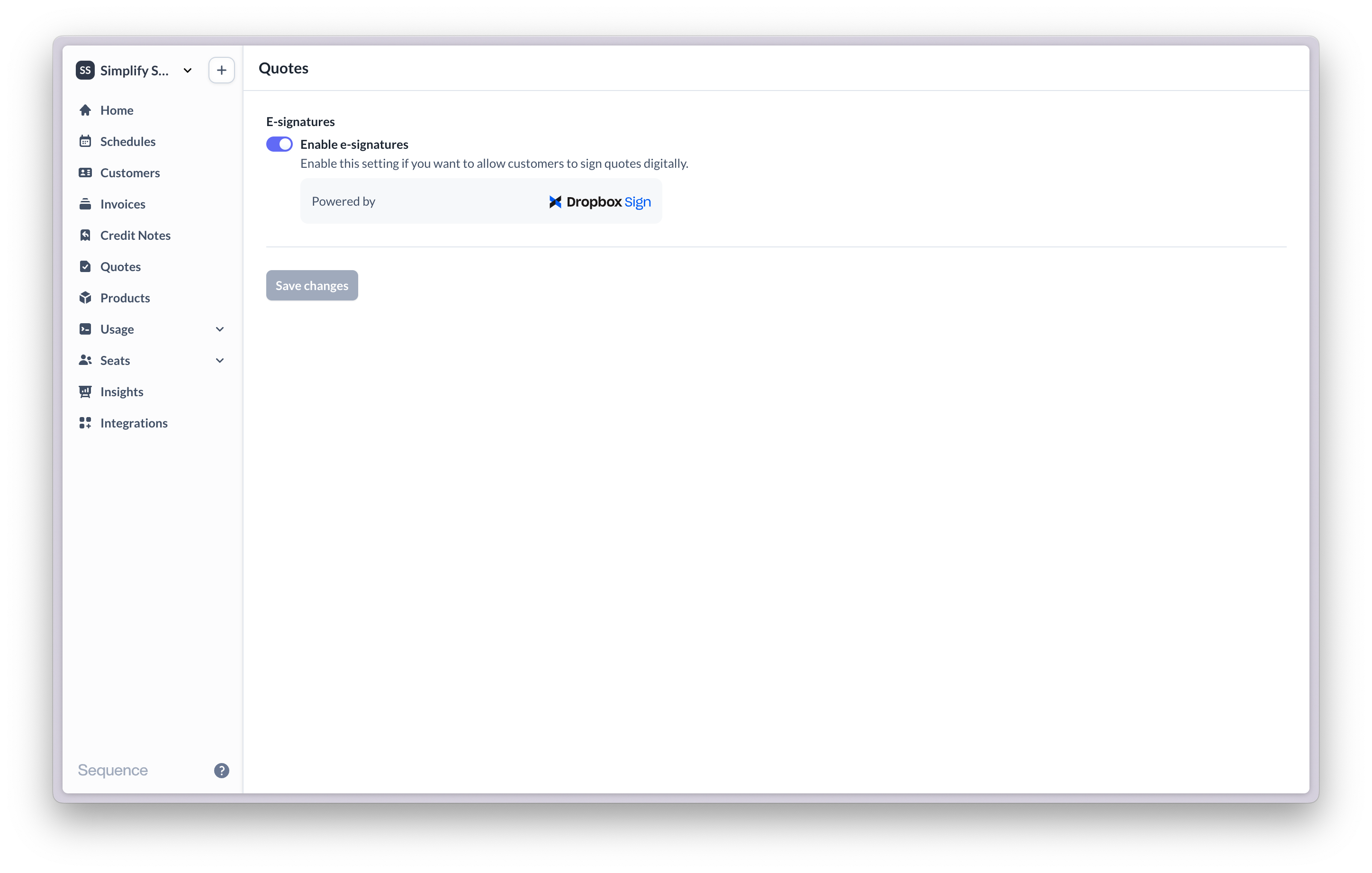
By default, e-signatures are disabled. To enable e-signatures, go to **Settings > Quotes**. Enabling or disabling e-signatures only applies to future quotes. While e-signatures are disabled, your customers will not be able to accept or sign the quote via Sequence. You can still mark quotes as accepted from the Sequence dashboard.
## Enabling and disabling e-signatures
By default, e-signatures are disabled. To enable e-signatures, go to **Settings > Quotes**. Enabling or disabling e-signatures only applies to future quotes. While e-signatures are disabled, your customers will not be able to accept or sign the quote via Sequence. You can still mark quotes as accepted from the Sequence dashboard.
 ## Countersigning a quote
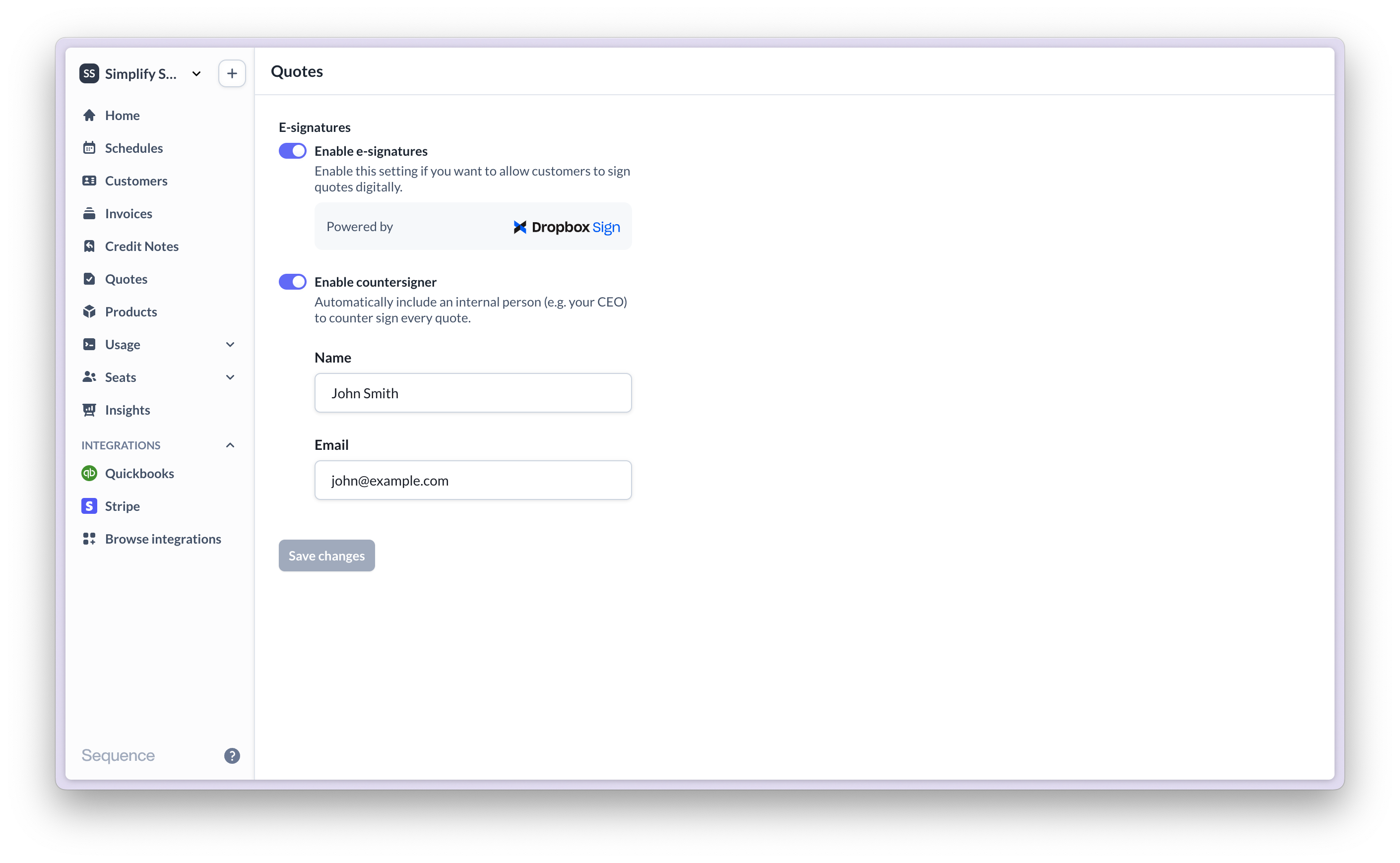
Enable the countersigner setting to automatically add an internal signer (e.g. CEO) to every quote by default.
## Countersigning a quote
Enable the countersigner setting to automatically add an internal signer (e.g. CEO) to every quote by default.
 ## Compliance & security
Sequence e-signatures are powered by Dropbox Sign. Learn more about Dropbox Sign's compliance and legality [here](https://www.dropboxsign.com/about/]legal).
## Compliance & security
Sequence e-signatures are powered by Dropbox Sign. Learn more about Dropbox Sign's compliance and legality [here](https://www.dropboxsign.com/about/]legal).
 ## Frequently asked questions
You can add another recipient and republish the quote. Users who signed the quote already will need to re-sign.
No. Dropbox Sign is natively integrated into Sequence CPQ and no account is required.
Archive the quote. Archiving the quote will cancel the signature request.
## Frequently asked questions
You can add another recipient and republish the quote. Users who signed the quote already will need to re-sign.
No. Dropbox Sign is natively integrated into Sequence CPQ and no account is required.
Archive the quote. Archiving the quote will cancel the signature request.