> ## Documentation Index
> Fetch the complete documentation index at: https://docs.sequencehq.com/llms.txt
> Use this file to discover all available pages before exploring further.
# GoCardless
> Integrate with GoCardless to collect bank payments through Sequence, manage customer mandates, and keep invoice payment status up to date.
 **Use the GoCardless integration to**:
* Turn on GoCardless as a payment option on Sequence invoices and billing schedules
* Let customers pay through the customer portal using GoCardless’ hosted payment flow
* Update invoice payment status in Sequence when a payment completes
* View and manage customer mandates, including cancelling them when needed
## Start guide
Follow the steps below to get started:
1. Go to **Integrations** and select **GoCardless**.
2. Click **Connect to GoCardless** and complete the GoCardless onboarding flow.
3. Once connected, enable GoCardless on one-time invoices or billing schedules to start collecting payments.
**Use the GoCardless integration to**:
* Turn on GoCardless as a payment option on Sequence invoices and billing schedules
* Let customers pay through the customer portal using GoCardless’ hosted payment flow
* Update invoice payment status in Sequence when a payment completes
* View and manage customer mandates, including cancelling them when needed
## Start guide
Follow the steps below to get started:
1. Go to **Integrations** and select **GoCardless**.
2. Click **Connect to GoCardless** and complete the GoCardless onboarding flow.
3. Once connected, enable GoCardless on one-time invoices or billing schedules to start collecting payments.
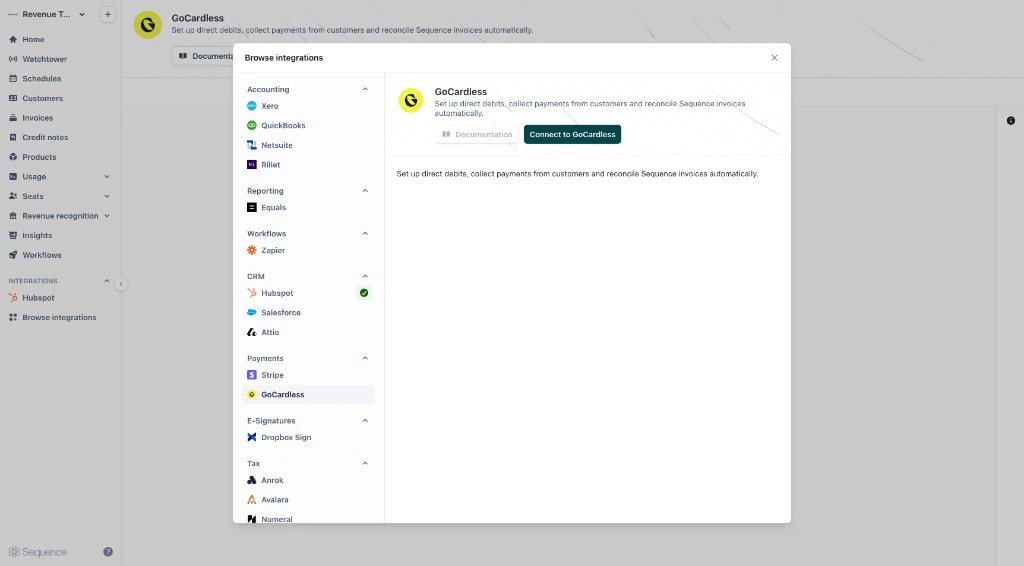 ### Connect a new or existing GoCardless account
You can connect:
* **A new GoCardless account**: choose **Sign up** during onboarding.
* **An existing GoCardless account**: sign in and connect your account.
When onboarding is complete, you are redirected back to Sequence.
## Using GoCardless in Sequence
GoCardless is available in two places:
* **One-time invoices**
* **Billing schedules** (for invoices generated automatically over time)
## Collecting payments with GoCardless
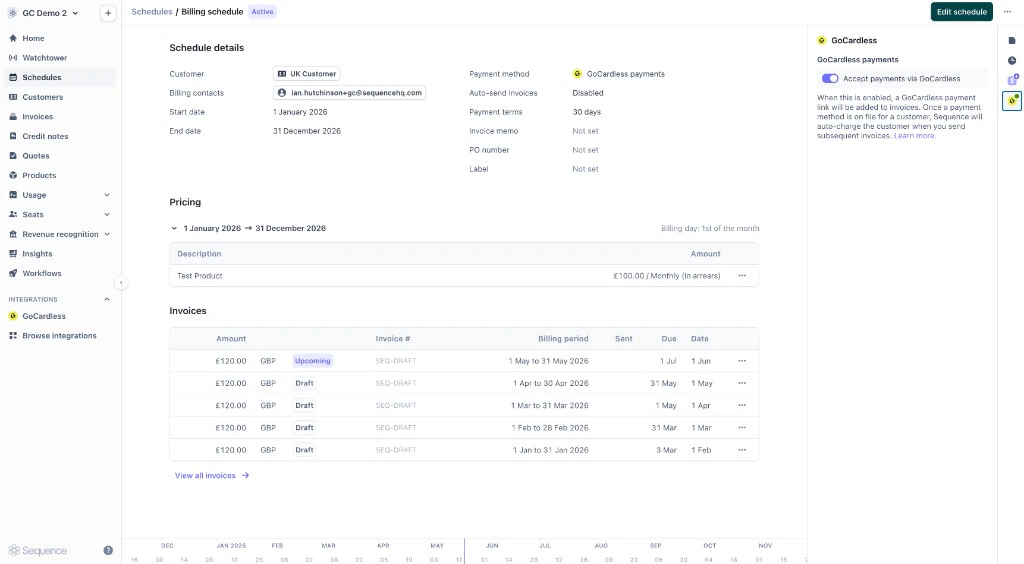
Turn on **Accept payments via GoCardless** on a billing schedule or invoice, including drafts. If the customer’s country or the invoice currency is not supported, the toggle stays off and Sequence explains why.
### Connect a new or existing GoCardless account
You can connect:
* **A new GoCardless account**: choose **Sign up** during onboarding.
* **An existing GoCardless account**: sign in and connect your account.
When onboarding is complete, you are redirected back to Sequence.
## Using GoCardless in Sequence
GoCardless is available in two places:
* **One-time invoices**
* **Billing schedules** (for invoices generated automatically over time)
## Collecting payments with GoCardless
Turn on **Accept payments via GoCardless** on a billing schedule or invoice, including drafts. If the customer’s country or the invoice currency is not supported, the toggle stays off and Sequence explains why.
 ## Country and currency requirements
Whether you can use GoCardless depends on the **customer’s country** and the **invoice currency**.
Sequence checks this in the invoice editor and billing schedule editor. If GoCardless is not available, the toggle is disabled and you see a short explanation.
### One-time invoices
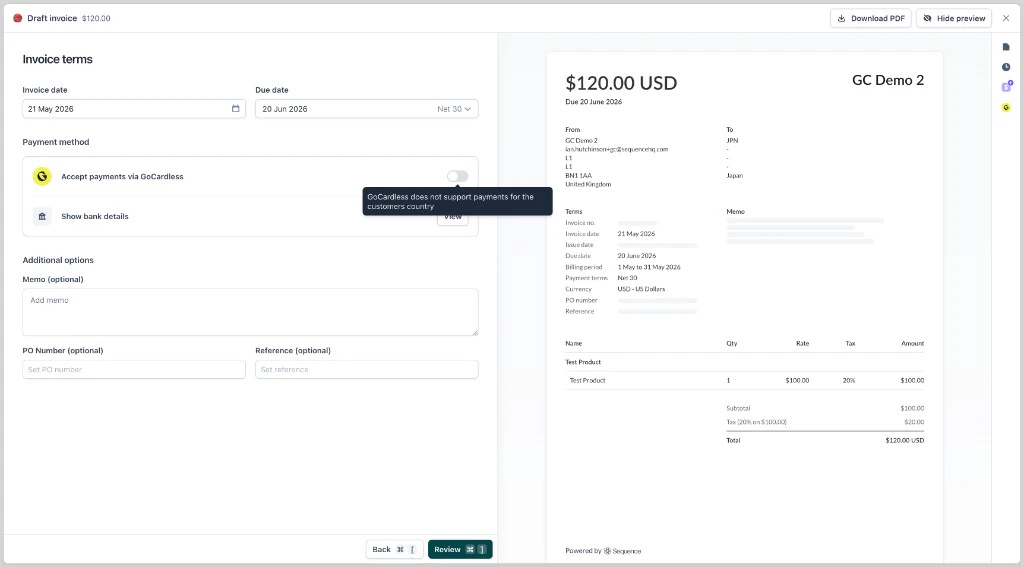
On one-time invoices, GoCardless may be unavailable when:
* The **customer’s country** is not supported (for example, a customer in Japan)
* The **invoice currency** is not supported (for example, JPY for a UK customer)
## Country and currency requirements
Whether you can use GoCardless depends on the **customer’s country** and the **invoice currency**.
Sequence checks this in the invoice editor and billing schedule editor. If GoCardless is not available, the toggle is disabled and you see a short explanation.
### One-time invoices
On one-time invoices, GoCardless may be unavailable when:
* The **customer’s country** is not supported (for example, a customer in Japan)
* The **invoice currency** is not supported (for example, JPY for a UK customer)
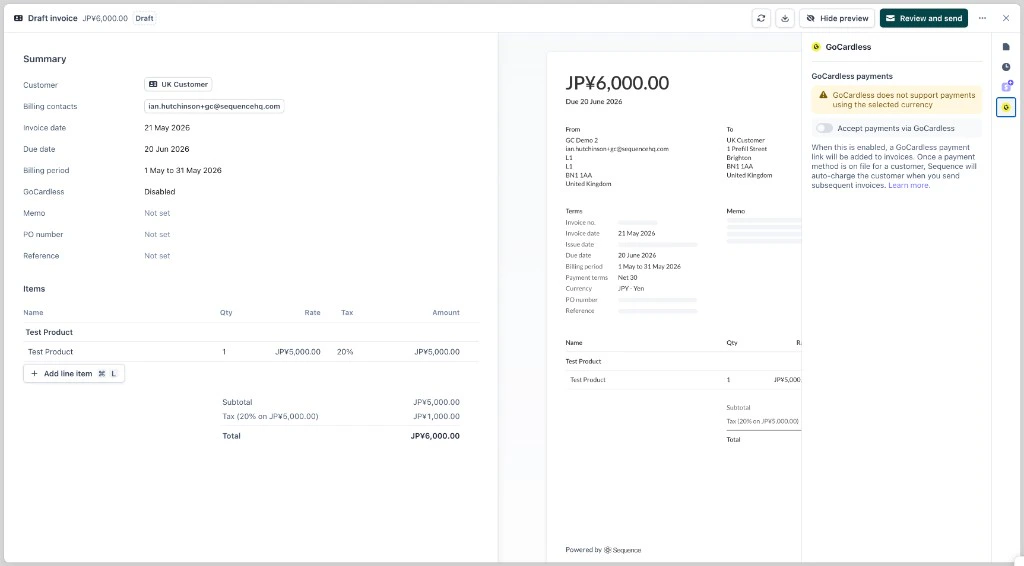 After you enable GoCardless on an invoice, Sequence locks the currency so it cannot be changed to one GoCardless does not support.
### Billing schedules
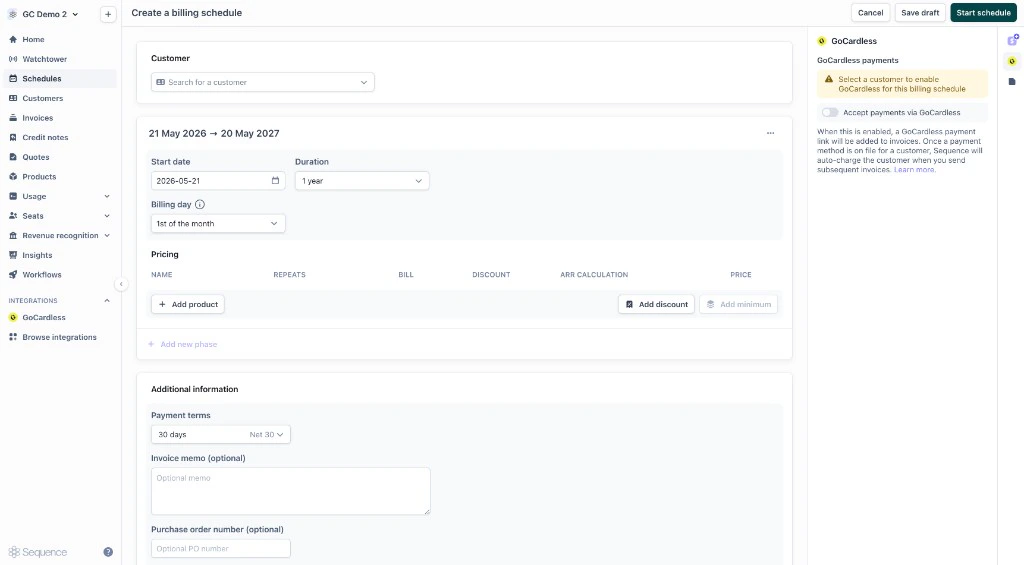
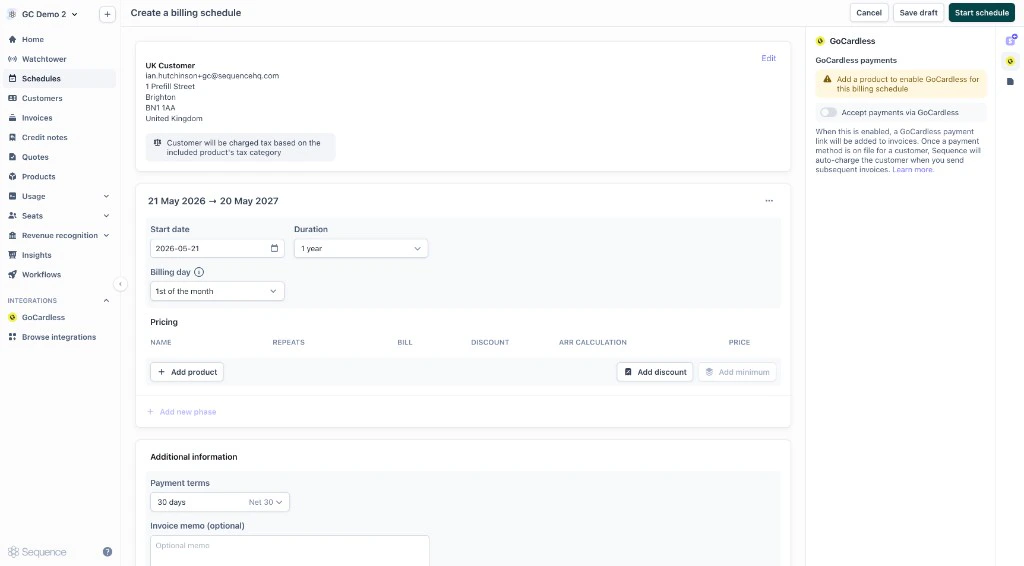
On billing schedules, you can enable GoCardless once Sequence has enough information to check eligibility:
1. **Select a customer** so Sequence can check their country.
2. **Add a product** so Sequence knows which currency the schedule uses.
After you enable GoCardless on an invoice, Sequence locks the currency so it cannot be changed to one GoCardless does not support.
### Billing schedules
On billing schedules, you can enable GoCardless once Sequence has enough information to check eligibility:
1. **Select a customer** so Sequence can check their country.
2. **Add a product** so Sequence knows which currency the schedule uses.
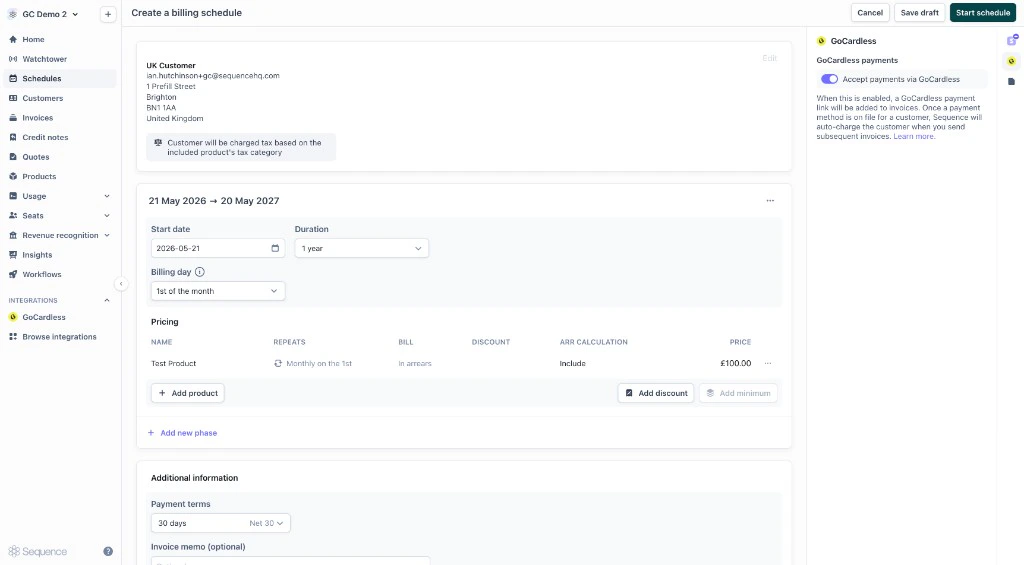 When you start the schedule, draft invoices inherit GoCardless as a payment method.
## Example payment flow
Customers pay through the Sequence customer portal.
When you send the invoice, your customer receives an email with a link to the customer portal.
When you start the schedule, draft invoices inherit GoCardless as a payment method.
## Example payment flow
Customers pay through the Sequence customer portal.
When you send the invoice, your customer receives an email with a link to the customer portal.
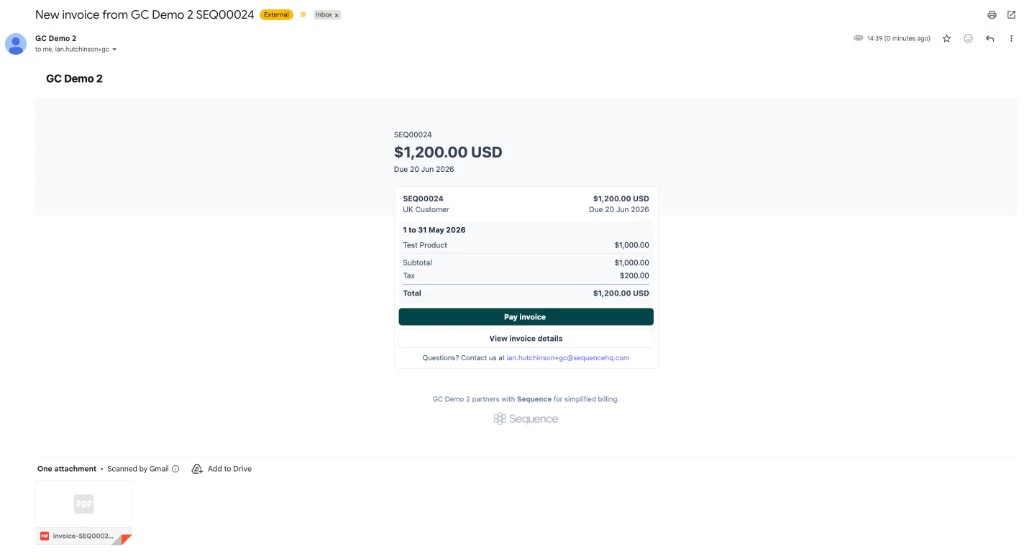 In the portal, the customer can view the invoice, download the PDF, and click **Pay invoice**.
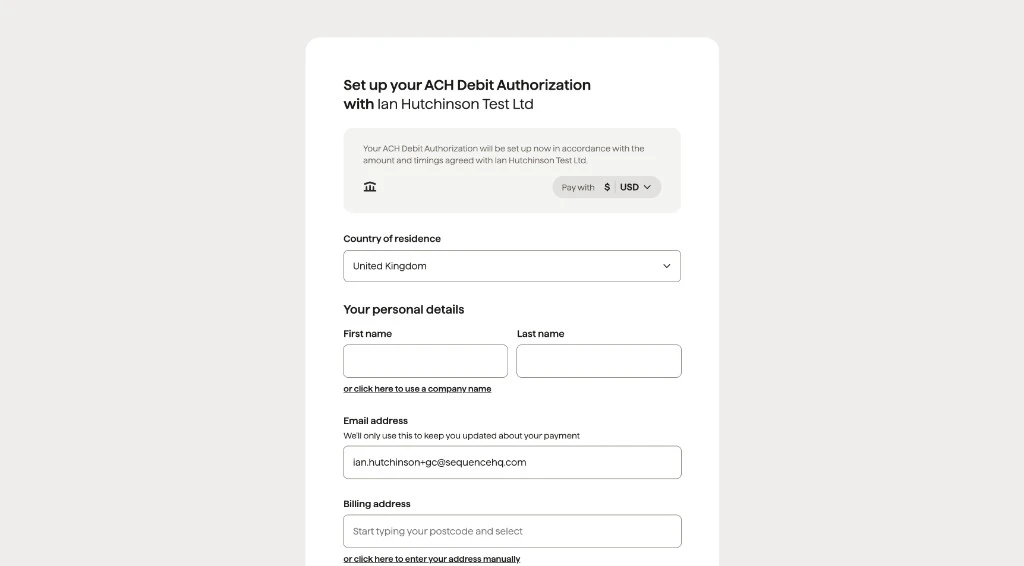
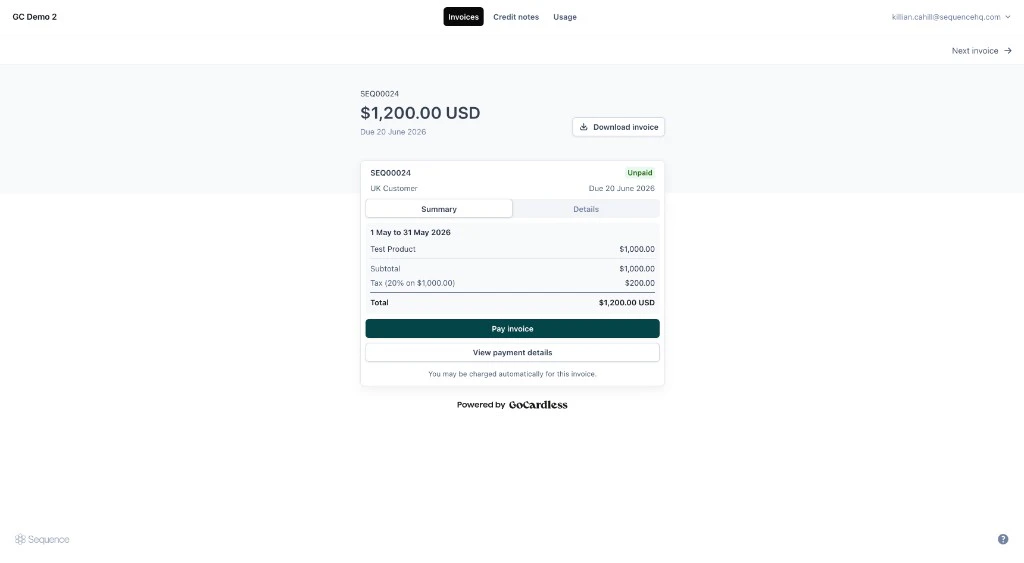 **Pay invoice** opens the GoCardless hosted payment flow. The customer completes the steps to authorize payment (for example, setting up a UK direct debit or a US ACH debit). They are then returned to the customer portal. Where supported, Sequence sends customer details to GoCardless to reduce manual entry. When payment completes, the invoice status updates in Sequence automatically.
 ## Mandates
A **mandate** is your customer’s authorization for GoCardless to collect future bank debits.
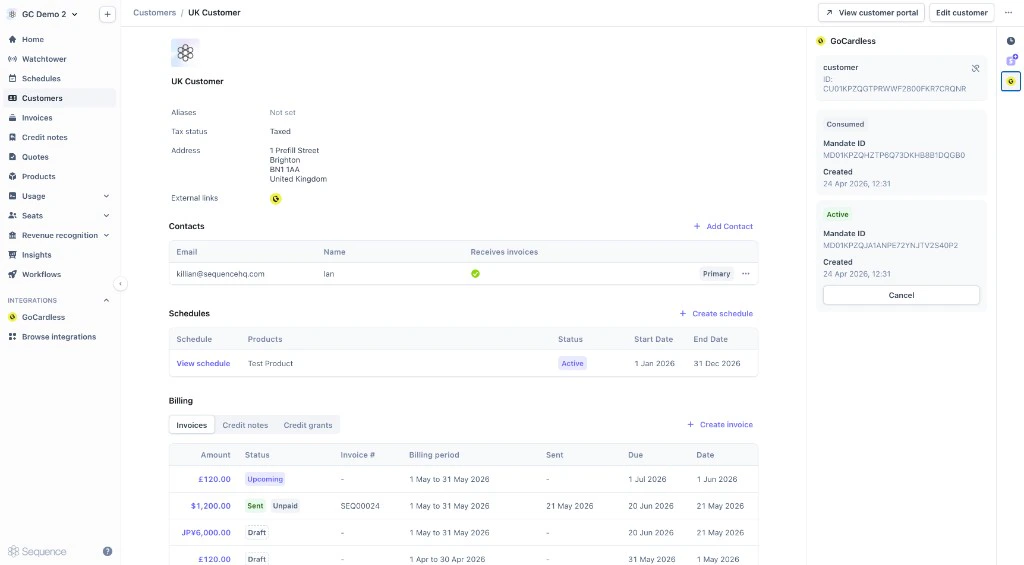
After a customer pays or completes an authorization, their GoCardless customer ID and mandates appear on the **customer** page in Sequence.
## Mandates
A **mandate** is your customer’s authorization for GoCardless to collect future bank debits.
After a customer pays or completes an authorization, their GoCardless customer ID and mandates appear on the **customer** page in Sequence.
 ### Mandate statuses
A customer may have more than one mandate. Common statuses:
| Status | What it means |
| ------------ | ---------------------------------------------------------------------------------------------------- |
| **Active** | Set up and ready for future payments. |
| **Consumed** | Used for a one-off payment, such as an instant payment in supported regions. |
| **Pending** | Still being set up, common when instant payments are not available (for example, some US ACH flows). |
In regions that support instant payments, you may see a **consumed** mandate from the first payment and a separate **active** or **pending** mandate for ongoing direct debit.
### Cancel a mandate
Select **Cancel** next to the mandate on the customer page.
## Linking Sequence customers to GoCardless
In most cases, Sequence creates a GoCardless customer when you first take a payment. You do not need to link customers manually.
If you already have customers in GoCardless, you can link them to Sequence customers so that:
* The GoCardless customer is associated with the right Sequence customer
* Existing mandates appear on the Sequence customer, so you can keep collecting without asking the customer to authorize again
### Mandate statuses
A customer may have more than one mandate. Common statuses:
| Status | What it means |
| ------------ | ---------------------------------------------------------------------------------------------------- |
| **Active** | Set up and ready for future payments. |
| **Consumed** | Used for a one-off payment, such as an instant payment in supported regions. |
| **Pending** | Still being set up, common when instant payments are not available (for example, some US ACH flows). |
In regions that support instant payments, you may see a **consumed** mandate from the first payment and a separate **active** or **pending** mandate for ongoing direct debit.
### Cancel a mandate
Select **Cancel** next to the mandate on the customer page.
## Linking Sequence customers to GoCardless
In most cases, Sequence creates a GoCardless customer when you first take a payment. You do not need to link customers manually.
If you already have customers in GoCardless, you can link them to Sequence customers so that:
* The GoCardless customer is associated with the right Sequence customer
* Existing mandates appear on the Sequence customer, so you can keep collecting without asking the customer to authorize again
 ## Frequently asked questions
GoCardless is only available when the customer’s country and the invoice currency are both supported. On billing schedules, you may also need to select a customer and add a product first so Sequence can check eligibility.
After you enable GoCardless, Sequence locks the currency so it cannot be changed to an unsupported currency.
Customers pay in the Sequence customer portal. **Pay invoice** opens the GoCardless hosted flow, then returns them to the portal.
Mandates are listed on the customer page with a status such as Active, Consumed, or Pending. You can cancel an active mandate from the customer page.
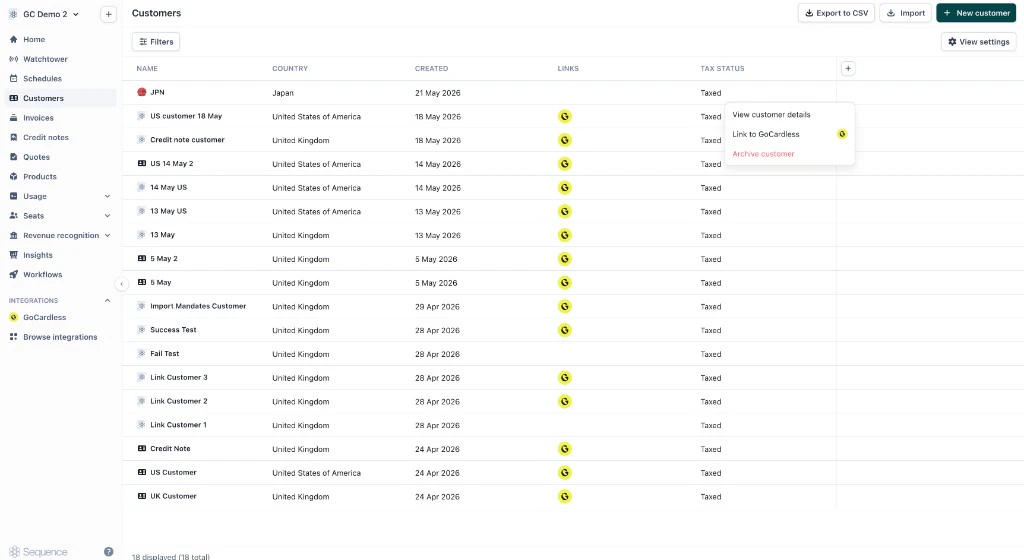
Yes. From the customers table, open the menu for a customer and choose **Link to GoCardless**. This associates the Sequence customer with an existing GoCardless customer and brings across existing mandates where available.
## Frequently asked questions
GoCardless is only available when the customer’s country and the invoice currency are both supported. On billing schedules, you may also need to select a customer and add a product first so Sequence can check eligibility.
After you enable GoCardless, Sequence locks the currency so it cannot be changed to an unsupported currency.
Customers pay in the Sequence customer portal. **Pay invoice** opens the GoCardless hosted flow, then returns them to the portal.
Mandates are listed on the customer page with a status such as Active, Consumed, or Pending. You can cancel an active mandate from the customer page.
Yes. From the customers table, open the menu for a customer and choose **Link to GoCardless**. This associates the Sequence customer with an existing GoCardless customer and brings across existing mandates where available.