> ## Documentation Index
> Fetch the complete documentation index at: https://docs.sequencehq.com/llms.txt
> Use this file to discover all available pages before exploring further.
# Numeral
> Integrate with Numeral to automatically calculate sales tax for invoices.
 Connect Numeral to your Sequence account and automate sales tax calculations, ensuring compliance with tax regulations across all jurisdictions where you do business.
### Capabilities
**Automated tax calculations**: Calculate precise tax rates based on customer addresses and product categories
Connect Numeral to your Sequence account and automate sales tax calculations, ensuring compliance with tax regulations across all jurisdictions where you do business.
### Capabilities
**Automated tax calculations**: Calculate precise tax rates based on customer addresses and product categories
**Tax return filing**: Automatically handle tax return filing after sales clear through the platform
**Product management**: Manage product tax categories and handle refunds seamlessly
**Exempt customer handling**: Efficiently manage tax-exempt customers across multiple jurisdictions
### Integration setup
Before integrating with Numeral you must ensure that your customers in Sequence have unique email addresses.
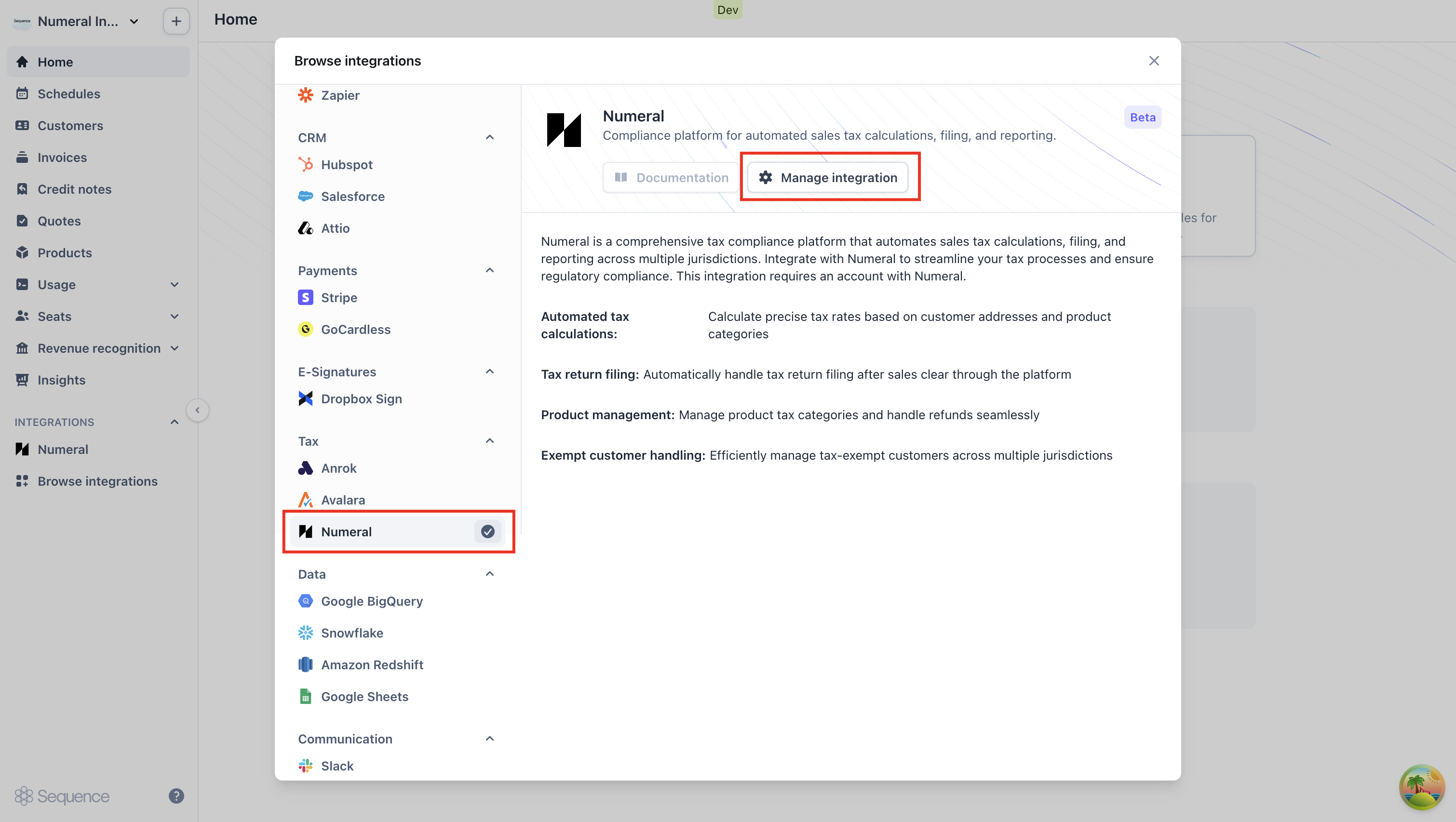
Navigate to "Browse integrations", locate Numeral in the Tax section, and click "Manage integration".
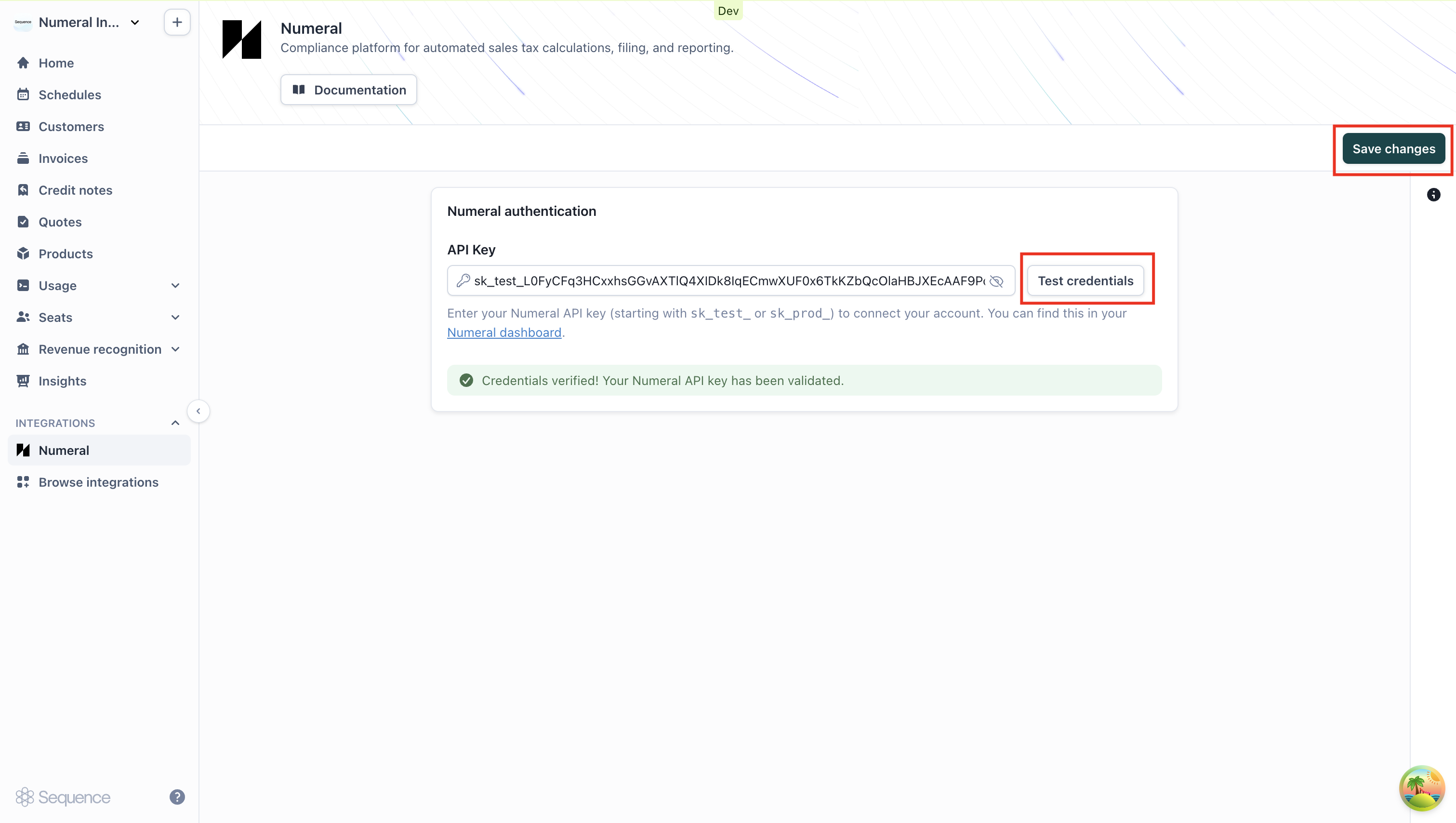
 Paste your Numeral API key into the field provided and click "Test credentials" to verify the connection. Once validated, click "Save changes" to activate the integration. Your API key can be found in the Developers tab of your Numeral dashboard.
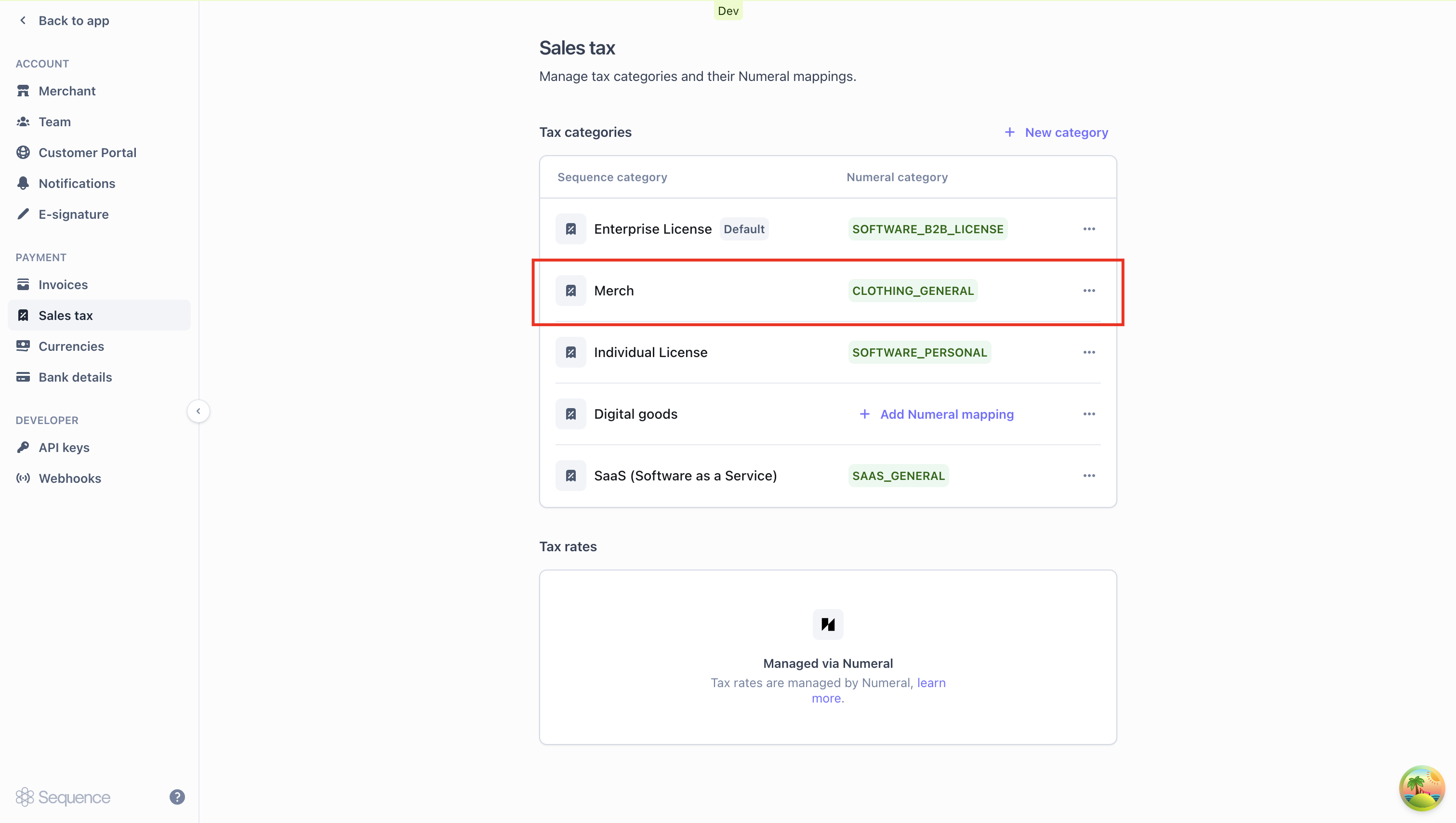
 Navigate to Settings > Sales Tax to view your existing Sequence tax categories. With Numeral connected, these categories will now be managed through Numeral product categories rather than custom rates.
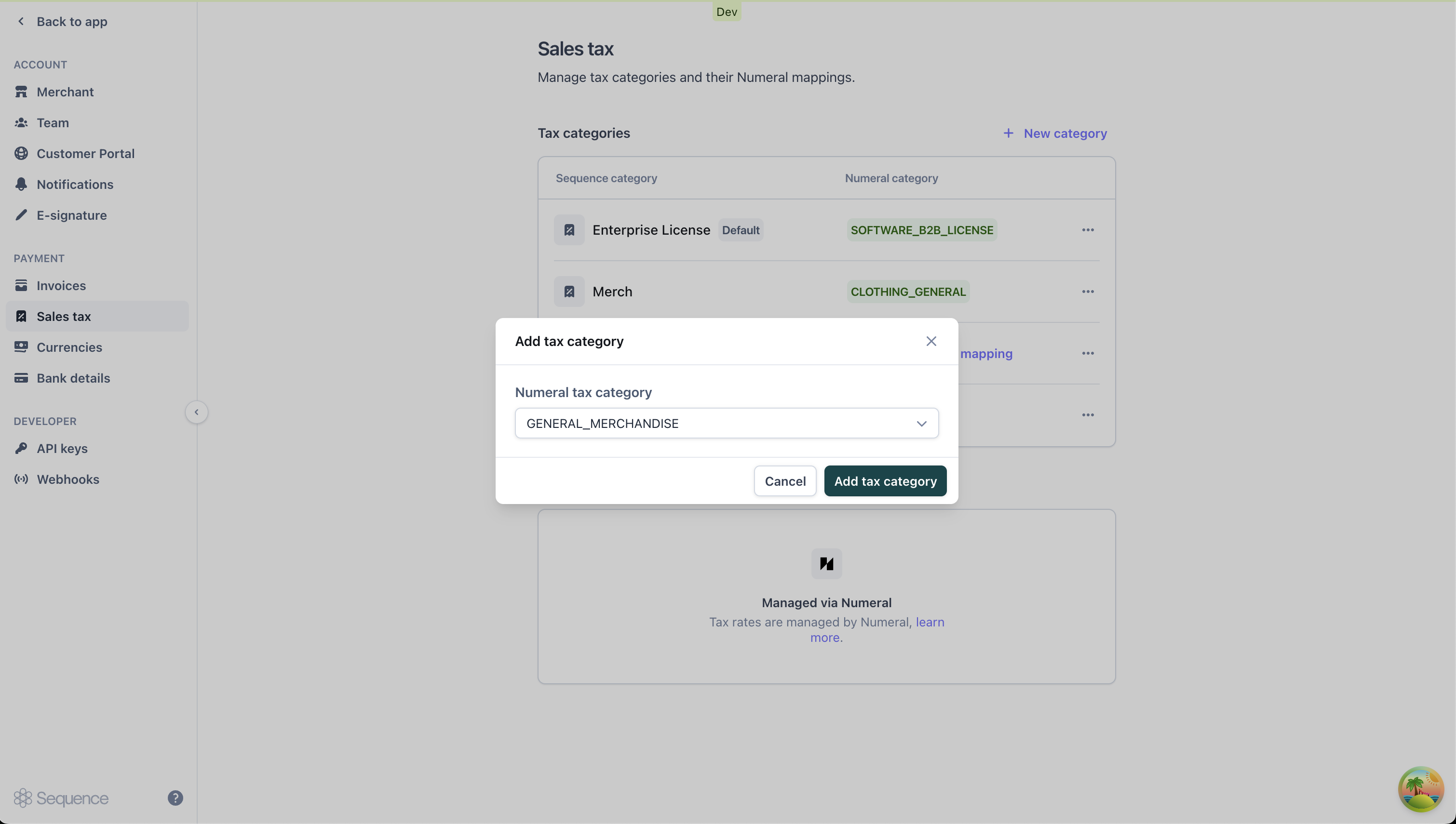
 Click the "+ Add Numeral mapping" button for each active tax category to map it to the appropriate Numeral product category.
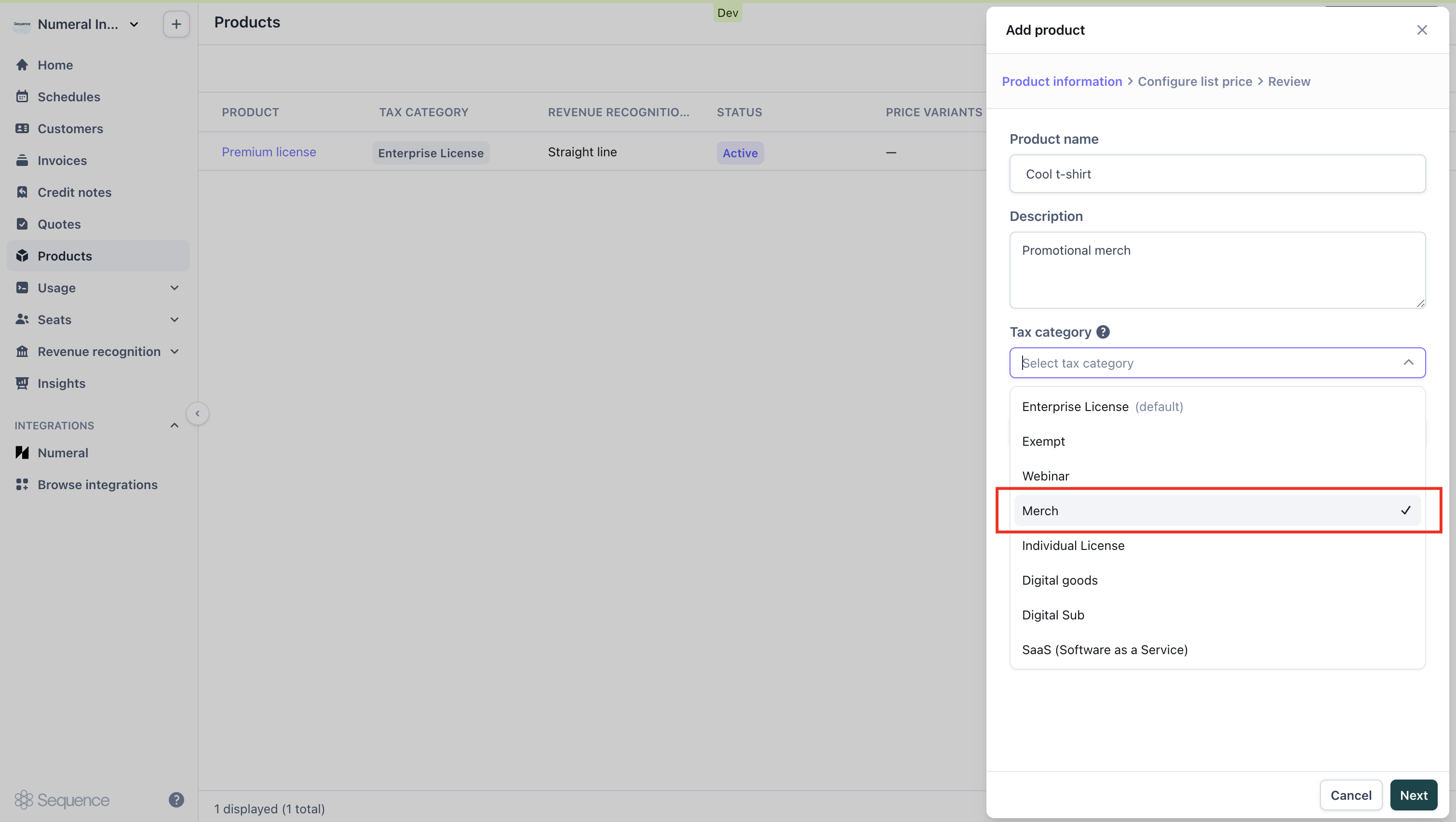
 Navigate to your Products catalog and assign tax categories to each product. For automatic tax calculation to work on a product, its tax category must have a corresponding Numeral product category mapping.
 Your Numeral integration is now active and ready to calculate sales tax automatically.
### Calculating sales tax with Numeral
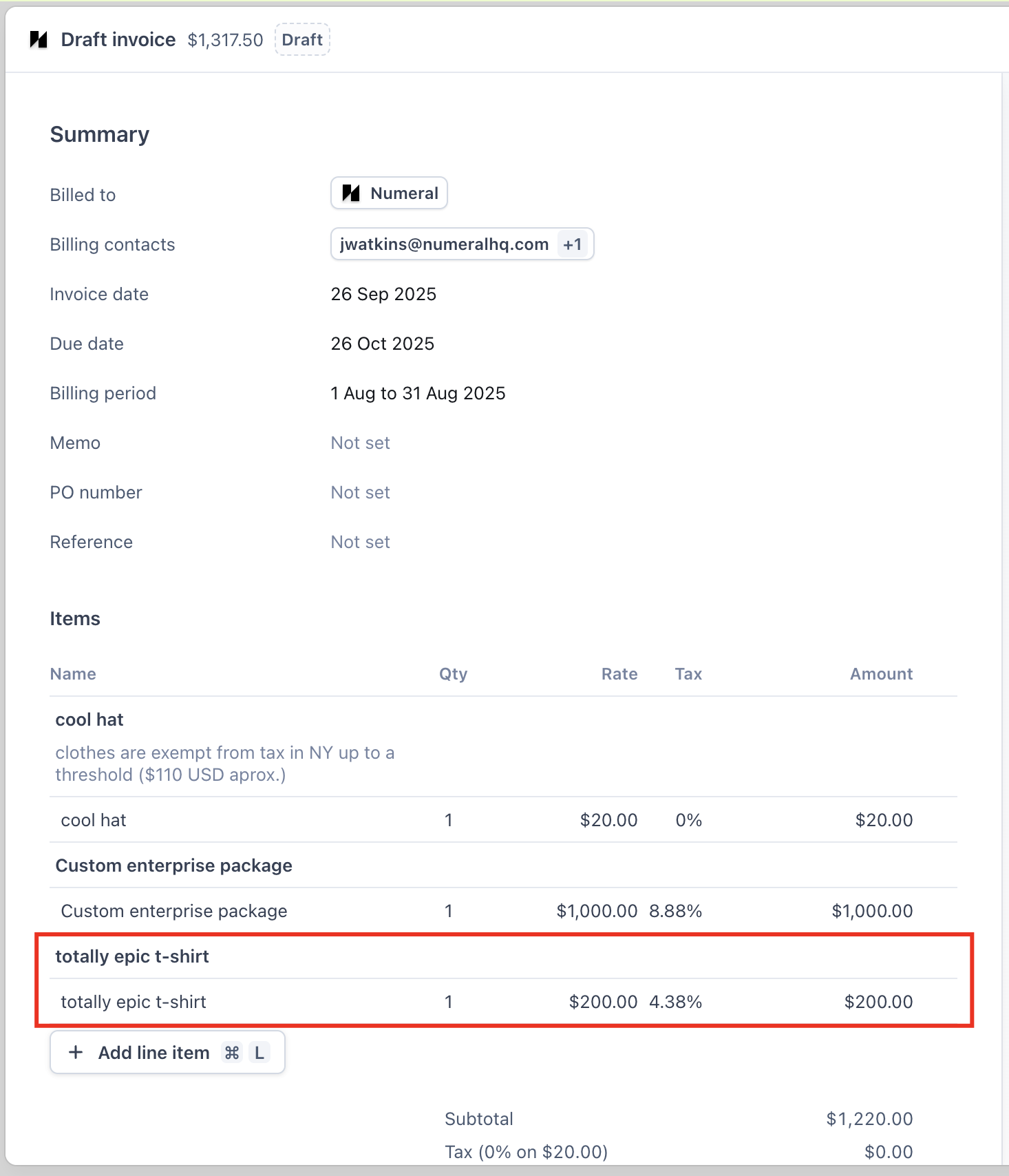
With Numeral connected, sales tax will be calculated automatically for all draft invoices. The tax amount is determined by several key factors:
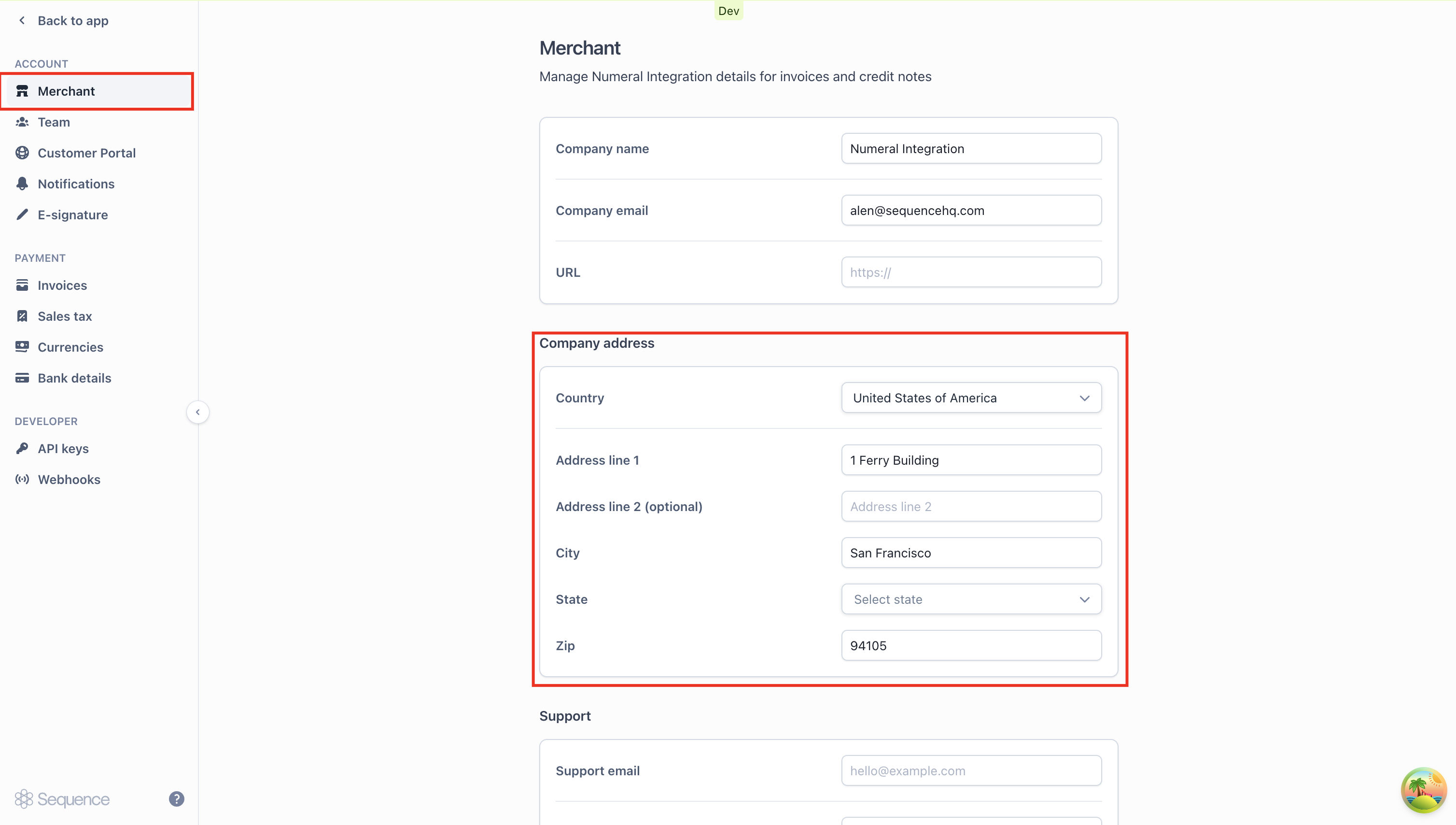
* The origin address configured in Settings > Merchant > Address
* Your customer's billing location and their tax exemption status
* Which Numeral product category is mapped to each line item's tax category
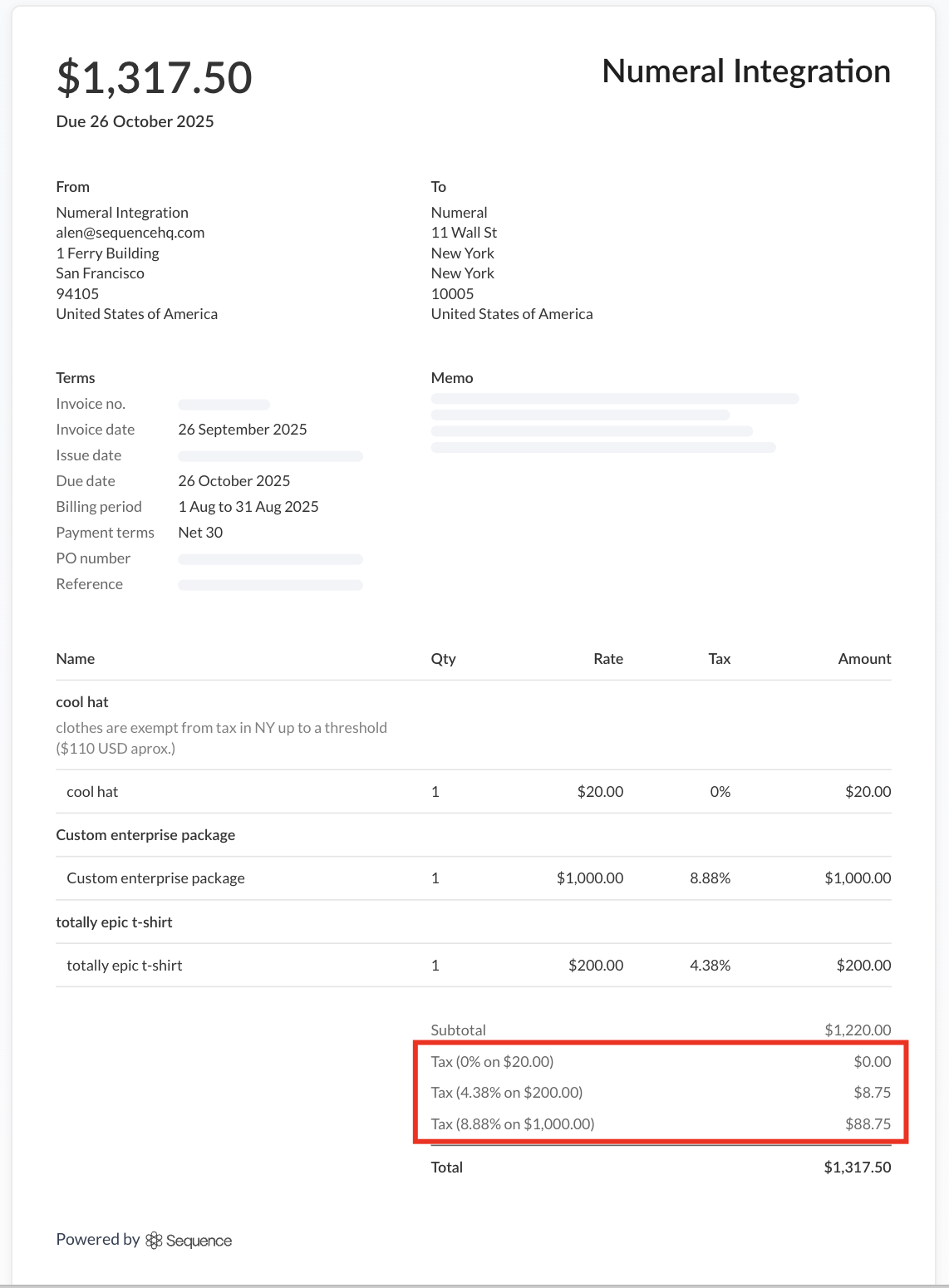
Sales tax is computed automatically and appears as a line item on your invoices, based on the Numeral product categories you've configured.
 Tax calculations appear clearly on the PDF invoices your customers receive.
 ### Troubleshooting
Verify that your API key follows the correct format. Test environment keys begin with `sk_test_` while production keys start with `sk_prod_`. Retrieve your API key from the Developers tab in your Numeral dashboard.
Double-check your merchant address configuration at Settings > Merchant > Address. This location serves as the point of origin for all tax calculations.
### Troubleshooting
Verify that your API key follows the correct format. Test environment keys begin with `sk_test_` while production keys start with `sk_prod_`. Retrieve your API key from the Developers tab in your Numeral dashboard.
Double-check your merchant address configuration at Settings > Merchant > Address. This location serves as the point of origin for all tax calculations.
 If product categories fail to load when adding mappings, check the following:
* Confirm your API key is saved correctly
* Verify you have an active Numeral subscription
* Check your network connectivity
Still having issues? Try disconnecting and reconnecting the integration, or contact our support team for assistance.
### Frequently asked questions (FAQ)
Not at all. The integration works by mapping your Sequence tax categories to Numeral product categories. When an invoice is generated, Numeral uses the product category associated with each line item's tax category to calculate the appropriate tax.
Numeral provides comprehensive coverage across many product types:
* **SaaS & Digital**: SAAS\_GENERAL, SOFTWARE\_DOWNLOAD, DIGITAL\_AUDIO\_STREAMED, DIGITAL\_VIDEO\_STREAMED
* **Clothing**: CLOTHING\_GENERAL, CLOTHING\_ATHLETIC, CLOTHING\_JEWELRY
* **Food & Beverage**: FOOD\_GENERAL, BEVERAGE\_SOFT\_DRINK, BEER
* **Books & Media**: BOOKS, MAGAZINE, NEWSPAPER
* **General**: GENERAL\_MERCHANDISE, EXEMPT, SHIPPING
The full catalog of available categories appears when you create a new mapping in Settings > Sales Tax.
Simply set a customer's tax status to "Exempt" in their customer profile. Numeral will then apply the appropriate tax exemptions when calculating their invoices, based on their status and geographic location.
Absolutely. Numeral handles tax calculations across many different jurisdictions worldwide. Just make sure both your merchant address and customer addresses are accurately entered for precise tax computation.
Disconnecting Numeral returns your account to manual tax management mode with custom tax rates. Your existing tax category mappings remain intact, but automatic tax calculation via Numeral will stop.
Connect a Numeral test API key (beginning with `sk_test_`) to your Sequence Sandbox. Then create sample invoices using various product categories and customer addresses to confirm calculations are working correctly.
If product categories fail to load when adding mappings, check the following:
* Confirm your API key is saved correctly
* Verify you have an active Numeral subscription
* Check your network connectivity
Still having issues? Try disconnecting and reconnecting the integration, or contact our support team for assistance.
### Frequently asked questions (FAQ)
Not at all. The integration works by mapping your Sequence tax categories to Numeral product categories. When an invoice is generated, Numeral uses the product category associated with each line item's tax category to calculate the appropriate tax.
Numeral provides comprehensive coverage across many product types:
* **SaaS & Digital**: SAAS\_GENERAL, SOFTWARE\_DOWNLOAD, DIGITAL\_AUDIO\_STREAMED, DIGITAL\_VIDEO\_STREAMED
* **Clothing**: CLOTHING\_GENERAL, CLOTHING\_ATHLETIC, CLOTHING\_JEWELRY
* **Food & Beverage**: FOOD\_GENERAL, BEVERAGE\_SOFT\_DRINK, BEER
* **Books & Media**: BOOKS, MAGAZINE, NEWSPAPER
* **General**: GENERAL\_MERCHANDISE, EXEMPT, SHIPPING
The full catalog of available categories appears when you create a new mapping in Settings > Sales Tax.
Simply set a customer's tax status to "Exempt" in their customer profile. Numeral will then apply the appropriate tax exemptions when calculating their invoices, based on their status and geographic location.
Absolutely. Numeral handles tax calculations across many different jurisdictions worldwide. Just make sure both your merchant address and customer addresses are accurately entered for precise tax computation.
Disconnecting Numeral returns your account to manual tax management mode with custom tax rates. Your existing tax category mappings remain intact, but automatic tax calculation via Numeral will stop.
Connect a Numeral test API key (beginning with `sk_test_`) to your Sequence Sandbox. Then create sample invoices using various product categories and customer addresses to confirm calculations are working correctly.