> ## Documentation Index
> Fetch the complete documentation index at: https://docs.sequencehq.com/llms.txt
> Use this file to discover all available pages before exploring further.
# Salesforce
> Enhance your Salesforce workflows with Sequence quoting and real-time billing data
 Sequence’s Salesforce integration allows your Sales reps to easily create quotes, convert them to
billing schedules and track invoices and usage throughout a contract, all from within Salesforce.
This enables a frictionless flow from Sales to Finance to operationalize billing for new deals and
maintain an up-to-date view of the customer in Salesforce to inform future upsells and renewals.
**Use the Salesforce integration to:**
## Getting started
Sequence comes with a [Salesforce managed package](https://help.salesforce.com/s/articleView?id=sf.s1_branded_apps_managed_package_about.htm\&language=en_US)
defining a set of custom components in your Salesforce environment:
* [Custom objects](/integrations/salesforce#data-model) for Sequence quotes, billing schedule and invoices
* [Custom Flow actions](/integrations/salesforce#create-sequence-customers-and-billing-schedules-via-salesforce-flow) for creating Sequence customers and billing schedules
from Salesforce via [Salesforce Flow](https://developer.salesforce.com/developer-centers/flow)
Reach out to the Sequence team for an installation link, and follow the [installation guide](/integrations/salesforce#salesforce-package-installation-guide).
Please note that a different installation link is required for your Salesforce production and developer accounts.
To successfully sync data to Salesforce, the multi-currency feature needs to be enabled in your Salesforce account, and the required currencies need to be added ([learn more](https://help.salesforce.com/s/articleView?language=en_US\&id=000381840\&type=1)).
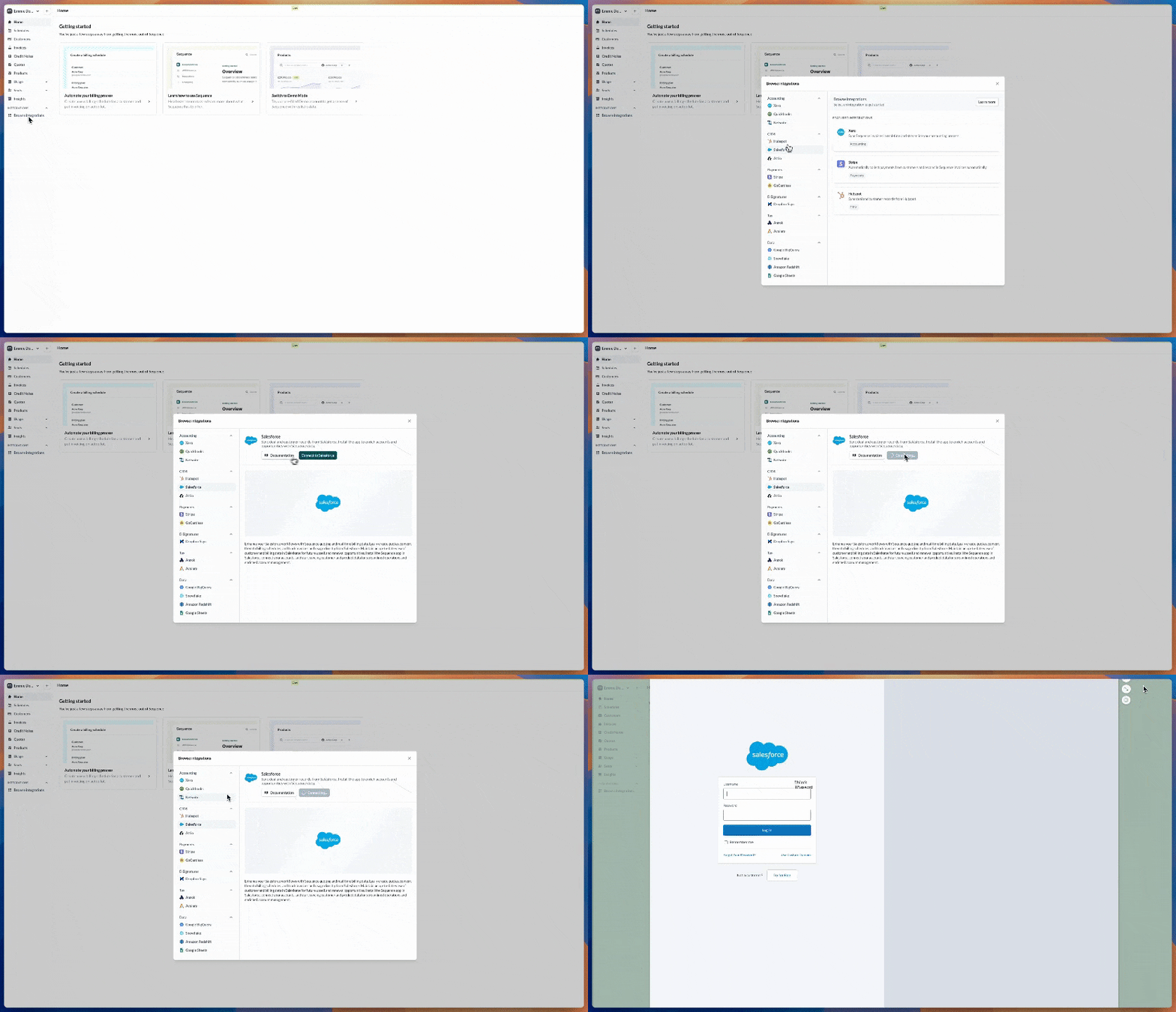
From the Integrations page, select Salesforce and Connect. Choose the Salesforce account you want to connect and complete the
authorization flow.
Sequence’s Salesforce integration allows your Sales reps to easily create quotes, convert them to
billing schedules and track invoices and usage throughout a contract, all from within Salesforce.
This enables a frictionless flow from Sales to Finance to operationalize billing for new deals and
maintain an up-to-date view of the customer in Salesforce to inform future upsells and renewals.
**Use the Salesforce integration to:**
## Getting started
Sequence comes with a [Salesforce managed package](https://help.salesforce.com/s/articleView?id=sf.s1_branded_apps_managed_package_about.htm\&language=en_US)
defining a set of custom components in your Salesforce environment:
* [Custom objects](/integrations/salesforce#data-model) for Sequence quotes, billing schedule and invoices
* [Custom Flow actions](/integrations/salesforce#create-sequence-customers-and-billing-schedules-via-salesforce-flow) for creating Sequence customers and billing schedules
from Salesforce via [Salesforce Flow](https://developer.salesforce.com/developer-centers/flow)
Reach out to the Sequence team for an installation link, and follow the [installation guide](/integrations/salesforce#salesforce-package-installation-guide).
Please note that a different installation link is required for your Salesforce production and developer accounts.
To successfully sync data to Salesforce, the multi-currency feature needs to be enabled in your Salesforce account, and the required currencies need to be added ([learn more](https://help.salesforce.com/s/articleView?language=en_US\&id=000381840\&type=1)).
From the Integrations page, select Salesforce and Connect. Choose the Salesforce account you want to connect and complete the
authorization flow.
 Sequence customers are mapped 1:1 to Salesforce accounts. All billing data synced from Sequence to Salesforce
is automatically associated with the corresponding account.
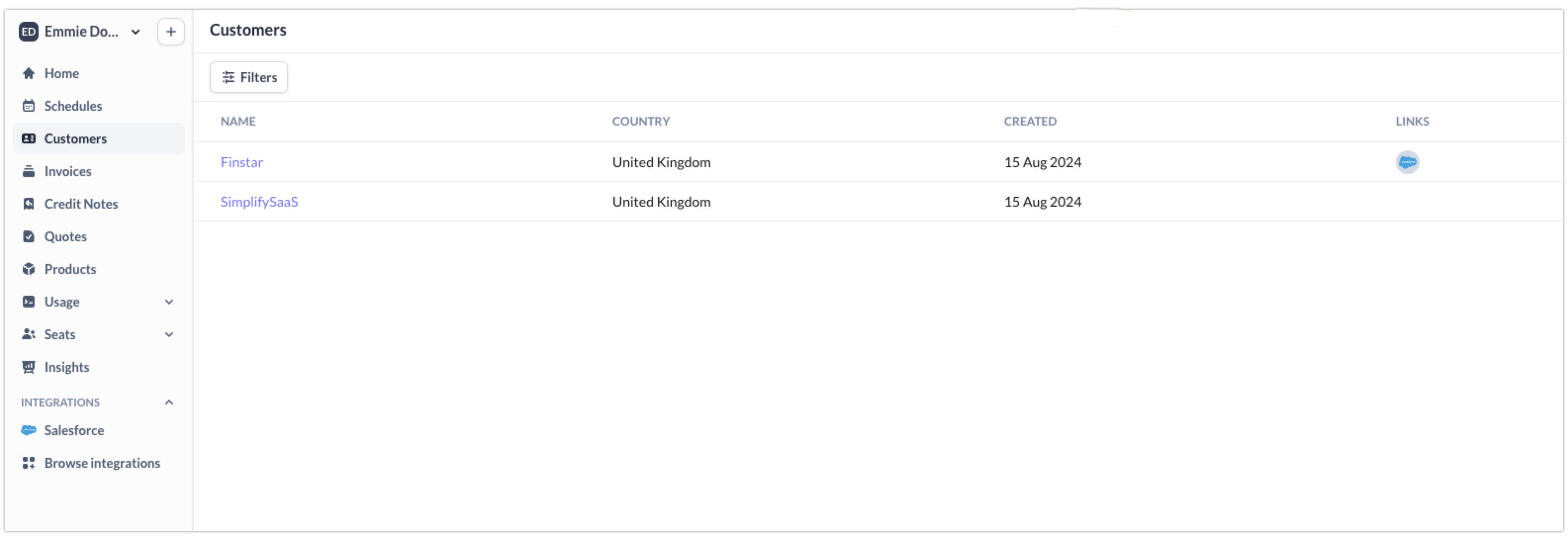
To manage links between Sequence customers and Salesforce accounts, navigate to the Customers tab. Your linked customers are
marked with a Salesforce icon.
Sequence customers are mapped 1:1 to Salesforce accounts. All billing data synced from Sequence to Salesforce
is automatically associated with the corresponding account.
To manage links between Sequence customers and Salesforce accounts, navigate to the Customers tab. Your linked customers are
marked with a Salesforce icon.
 To link a new customer, select `Link account` from the sidebar on the right and enter a Salesforce Account ID.
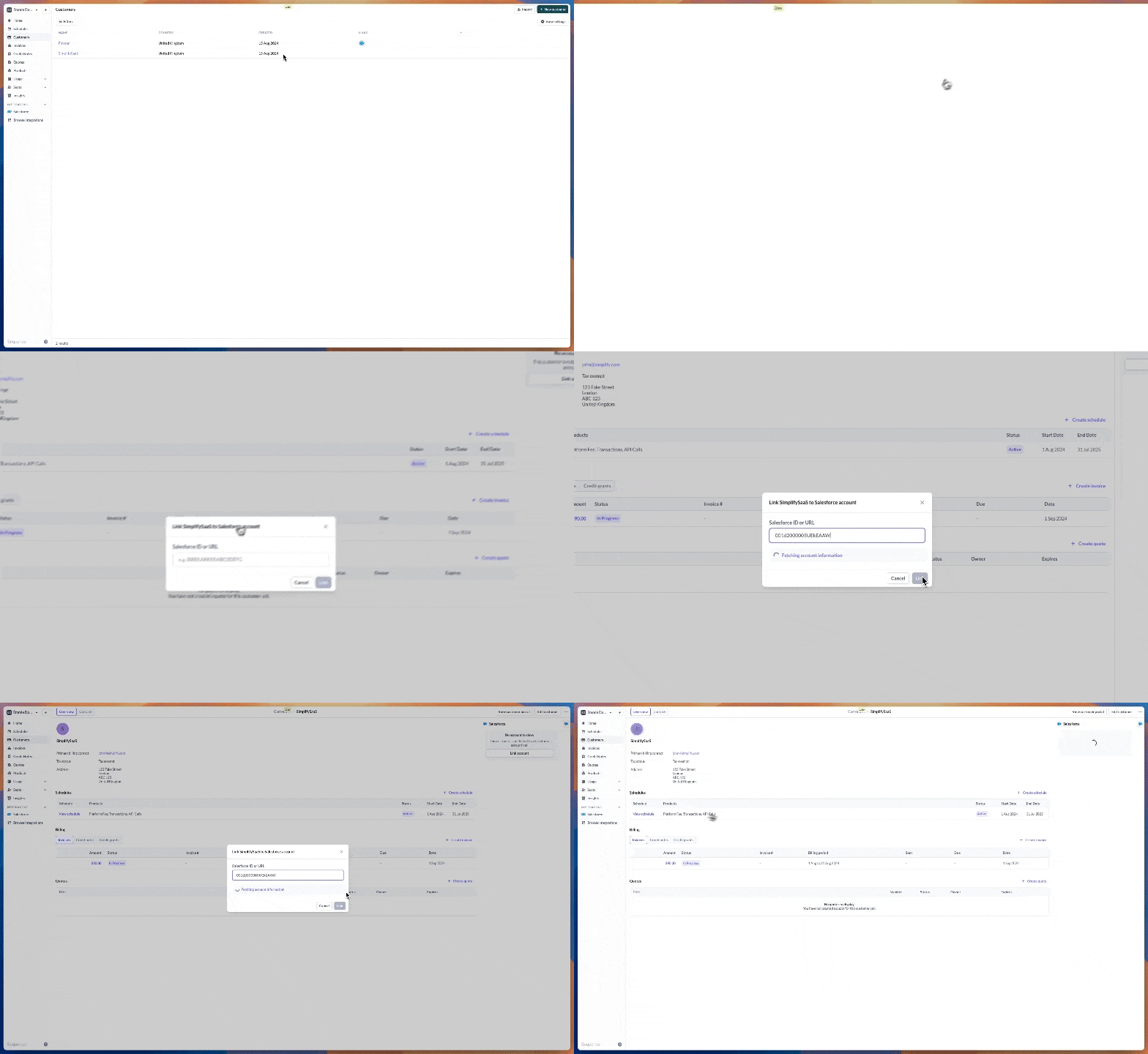 You can find the ID of a Salesforce account in the URL of the account page in Salesforce, e.g.
`https://yourInstance.lightning.force.com/lightning/r/Account//view`
When you create this link, Sequence automatically syncs all historical billing schedules and invoices
for this customers into Salesforce, with a reference to the linked account.
If you use custom Flow actions to create Sequence customers from Salesforce, you can automatically
assign this link at customer creation. This way you won't have to manually link new customers to Salesforce accounts
## Sync billing data from Sequence to Salesforce
With the integration set up, Sequence will automatically sync new billing schedules and invoices from Sequence
to Salesforce. All Salesforce records created this way include a reference to the respective accounts.
You can find the ID of a Salesforce account in the URL of the account page in Salesforce, e.g.
`https://yourInstance.lightning.force.com/lightning/r/Account//view`
When you create this link, Sequence automatically syncs all historical billing schedules and invoices
for this customers into Salesforce, with a reference to the linked account.
If you use custom Flow actions to create Sequence customers from Salesforce, you can automatically
assign this link at customer creation. This way you won't have to manually link new customers to Salesforce accounts
## Sync billing data from Sequence to Salesforce
With the integration set up, Sequence will automatically sync new billing schedules and invoices from Sequence
to Salesforce. All Salesforce records created this way include a reference to the respective accounts.
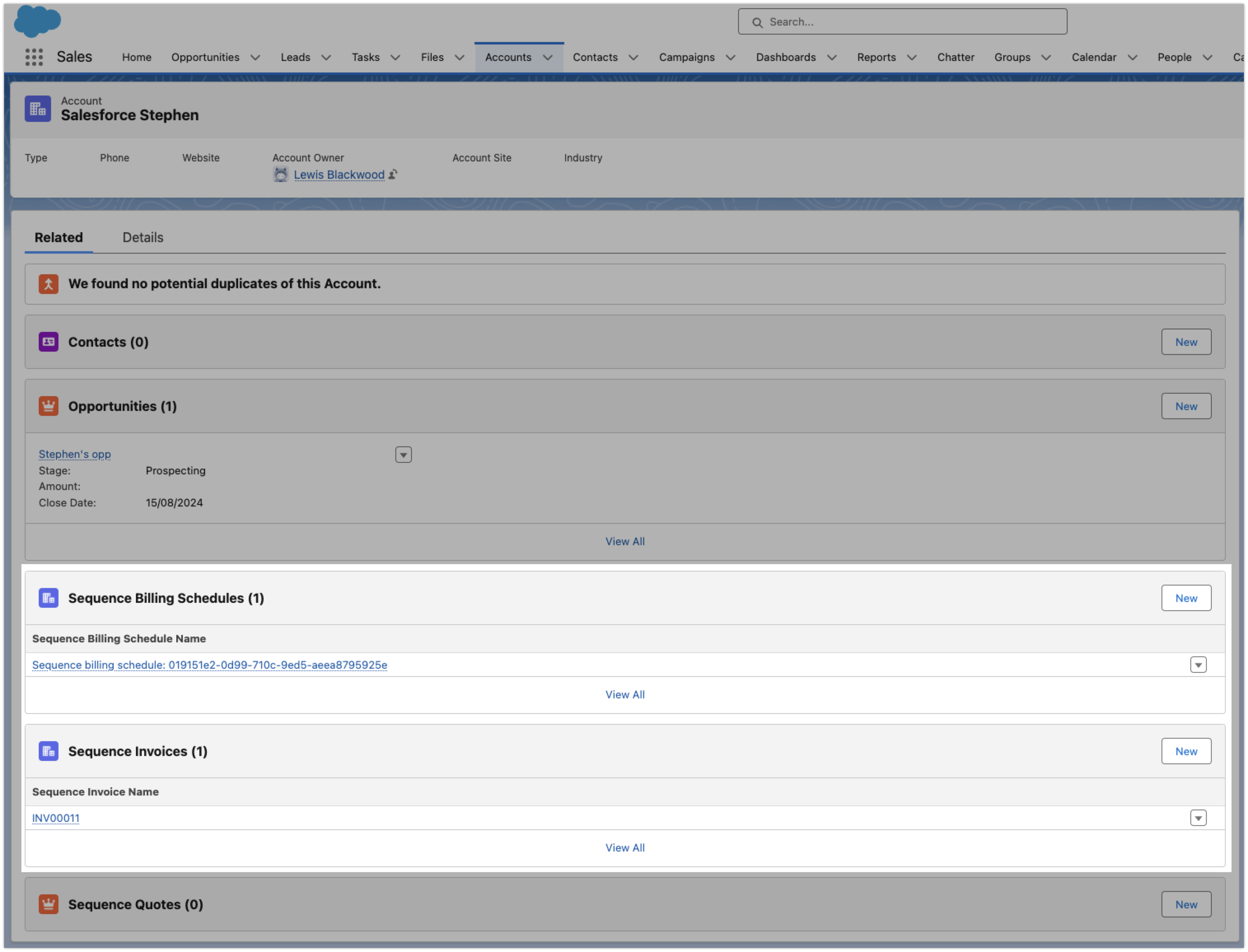
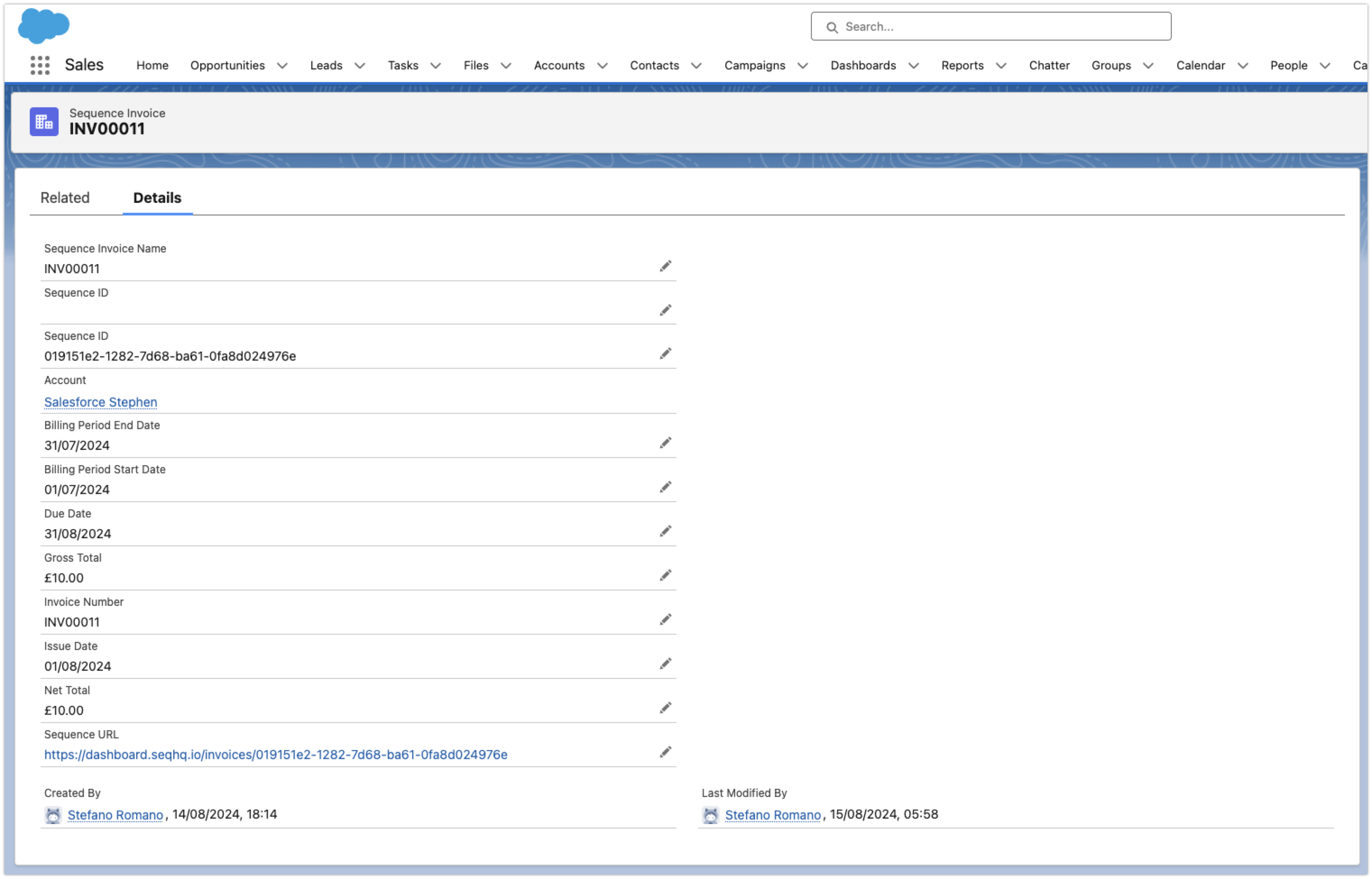
Sequence syncs data to Salesforce in real-time. A billing schedule is synced when you start it or update it.
An invoice is synced when you finalize or send it.
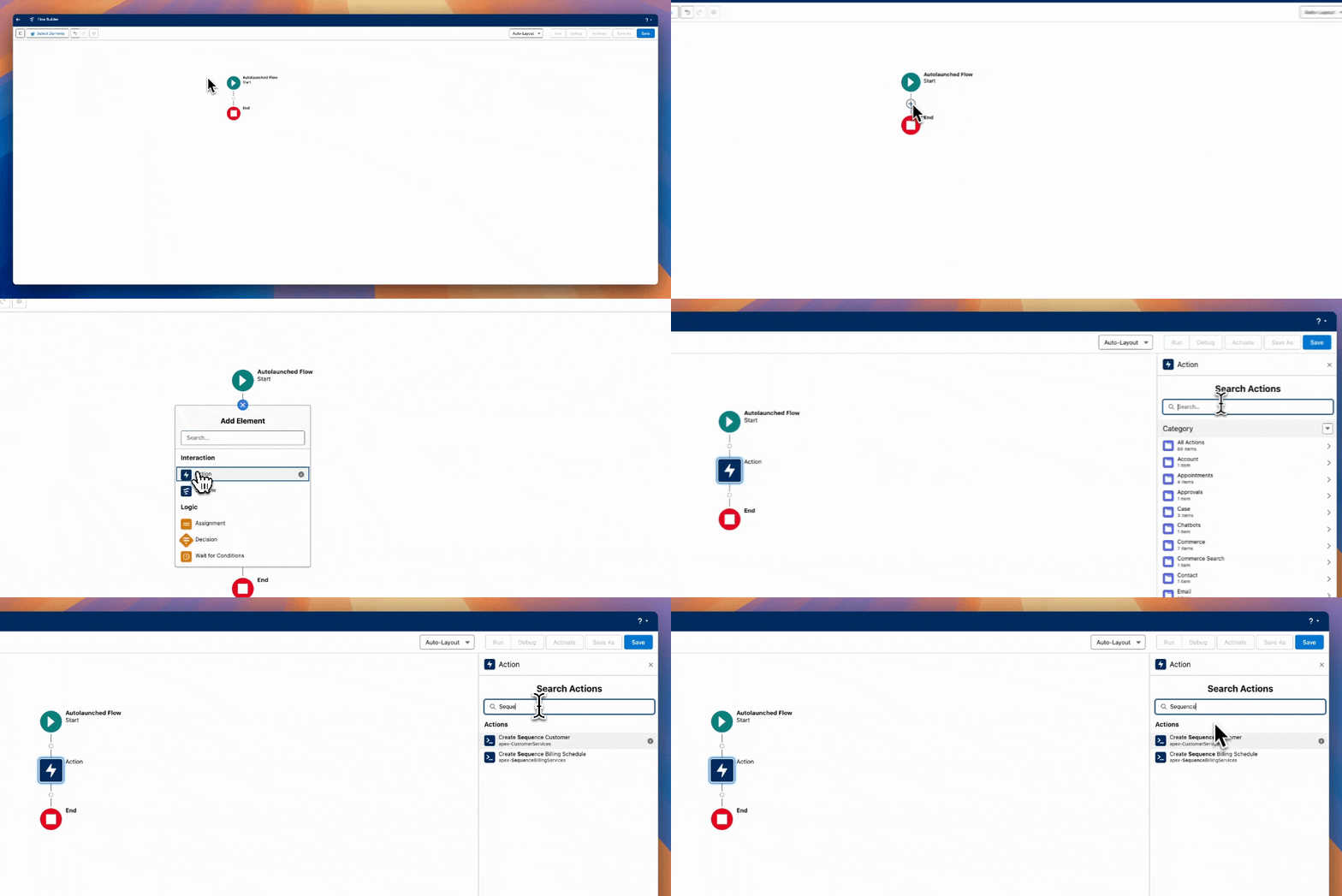
## Create Sequence customers and billing schedules via Salesforce Flow
The Sequence Salesforce package includes 2 custom Apex actions that allow you to interact with the Sequence API from
Salesforce Flow: **Create Sequence Customer** and **Create Sequence Billing Schedule**. You can access
these actions in the flow builder by adding an Action node to your flow.
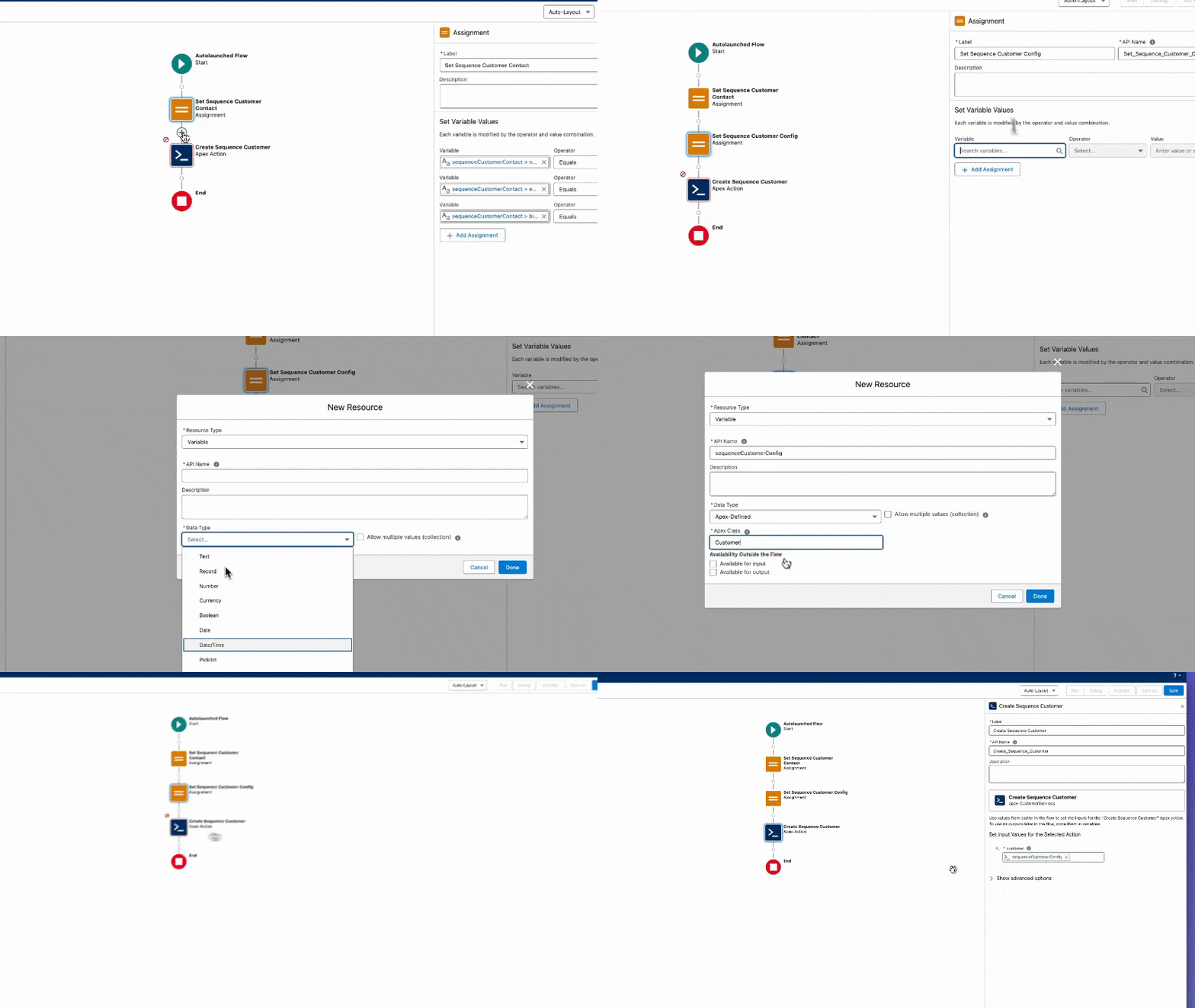
 The action inputs match the API specifications for the [create customer](https://docs.sequencehq.com/reference/latest/customer/create-customer)
and [create billing schedule](https://docs.sequencehq.com/reference/latest/billing/create-billing-schedule) endpoints respectively.
The package includes custom Apex classes to represent these inputs. Use Assignment nodes to set these variables in your flow.
The action inputs match the API specifications for the [create customer](https://docs.sequencehq.com/reference/latest/customer/create-customer)
and [create billing schedule](https://docs.sequencehq.com/reference/latest/billing/create-billing-schedule) endpoints respectively.
The package includes custom Apex classes to represent these inputs. Use Assignment nodes to set these variables in your flow.
 The package also includes a few sample flows that can be used as a reference or starting point:
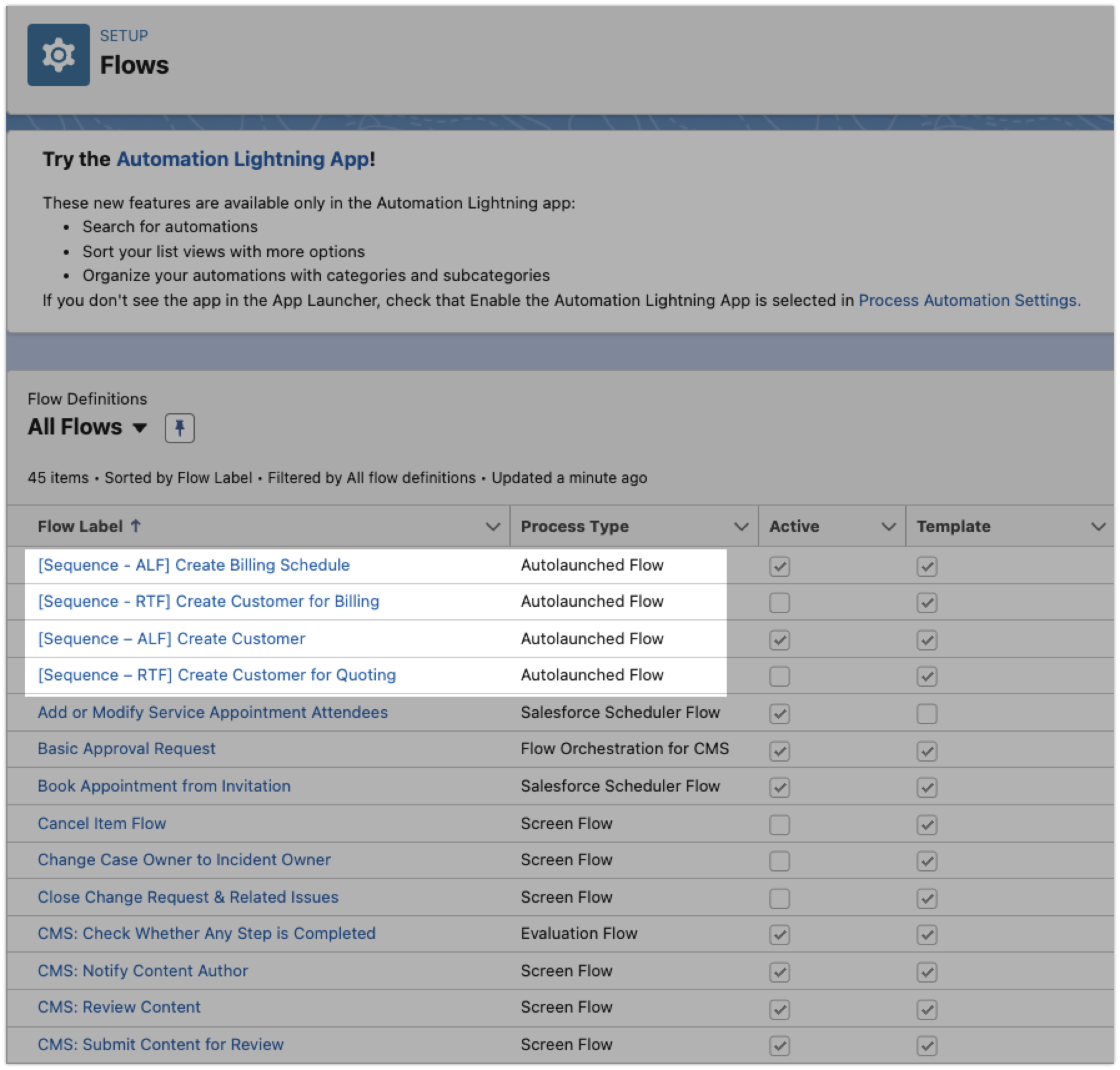 * **Create Customer** (auto-launched flow): creates a Sequence customer given an account record and a contact record in Salesforce
* **Create Billing Schedule** (auto-launched flow): creates an empty Sequence billing schedule for a given Sequence customer ID and billing schedule start date
* **Create customer for Quoting** (record-triggered flow): creates a Sequence customer when an opportunity enters "Proposal/Price Quote" stage
* **Create customer for Billing** (record-triggered flow): creates both a Sequence customer and a Sequence billing schedule when an opportunity is closed-won
The sample and record-triggered Flows that create customers rely on the **`Sequence Customer ID`** field on the Account. **If the field is empty**, the Flow creates a new Sequence customer and writes the new ID back to the Account. **If the field is already populated**, the Flow treats the account as already linked and **does not** create another customer.
**Auto-create customer** Flows require a **complete Billing Address**, a **Sequence Billing Contact** with **Mailing Address**, and **two-letter ISO** country codes (`FR`, `US`, not full names) on **every address** the Flow uses (billing and mailing). **Record-triggered** Flows run when an Opportunity is **updated** to a stage such as **Proposal/Price Quote** or **Closed Won**: **save those Account and contact values before** you move the Opportunity to that stage. Updating the stage first can yield an incorrect customer, or the Flow may **fail silently** with no error in the UI. If customers are missing in Sequence, re-check addresses and the billing contact.
For an in-depth overview how to work with Sequence custom actions, watch the video walkthrough below.
## Use Sequence CPQ from Salesforce
The Sequence Salesforce package comes with a custom button to launch the Sequence quote builder. Add the button
to your opportunity page layout to create a Sequence quote for your customer directly from Salesforce.
* **Create Customer** (auto-launched flow): creates a Sequence customer given an account record and a contact record in Salesforce
* **Create Billing Schedule** (auto-launched flow): creates an empty Sequence billing schedule for a given Sequence customer ID and billing schedule start date
* **Create customer for Quoting** (record-triggered flow): creates a Sequence customer when an opportunity enters "Proposal/Price Quote" stage
* **Create customer for Billing** (record-triggered flow): creates both a Sequence customer and a Sequence billing schedule when an opportunity is closed-won
The sample and record-triggered Flows that create customers rely on the **`Sequence Customer ID`** field on the Account. **If the field is empty**, the Flow creates a new Sequence customer and writes the new ID back to the Account. **If the field is already populated**, the Flow treats the account as already linked and **does not** create another customer.
**Auto-create customer** Flows require a **complete Billing Address**, a **Sequence Billing Contact** with **Mailing Address**, and **two-letter ISO** country codes (`FR`, `US`, not full names) on **every address** the Flow uses (billing and mailing). **Record-triggered** Flows run when an Opportunity is **updated** to a stage such as **Proposal/Price Quote** or **Closed Won**: **save those Account and contact values before** you move the Opportunity to that stage. Updating the stage first can yield an incorrect customer, or the Flow may **fail silently** with no error in the UI. If customers are missing in Sequence, re-check addresses and the billing contact.
For an in-depth overview how to work with Sequence custom actions, watch the video walkthrough below.
## Use Sequence CPQ from Salesforce
The Sequence Salesforce package comes with a custom button to launch the Sequence quote builder. Add the button
to your opportunity page layout to create a Sequence quote for your customer directly from Salesforce.
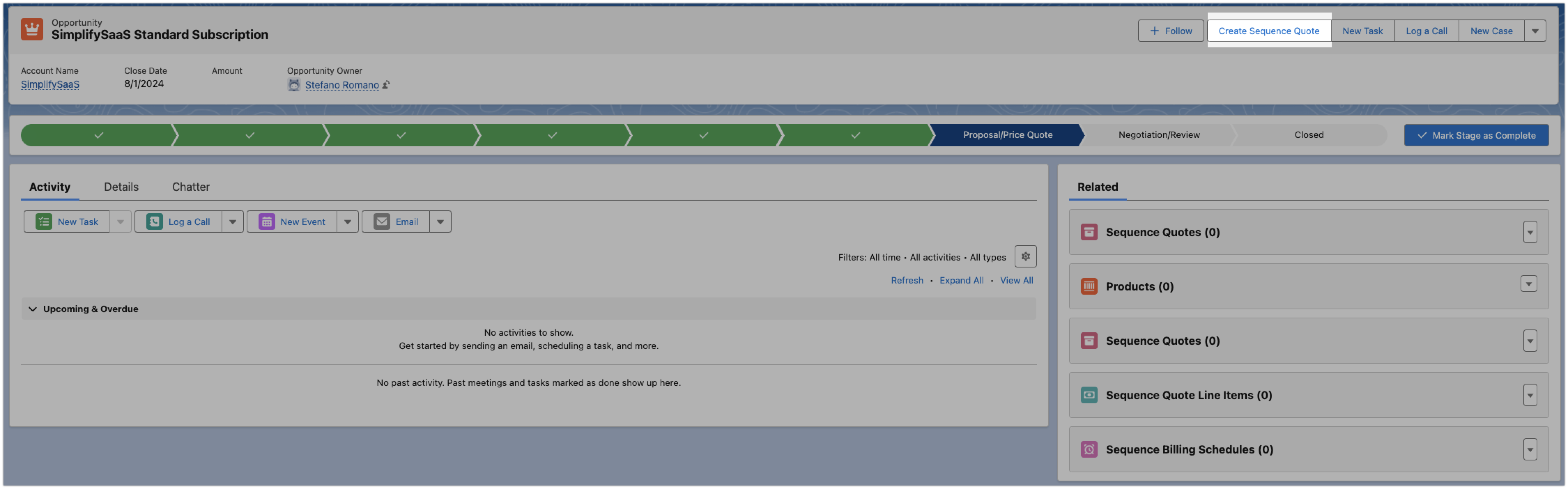
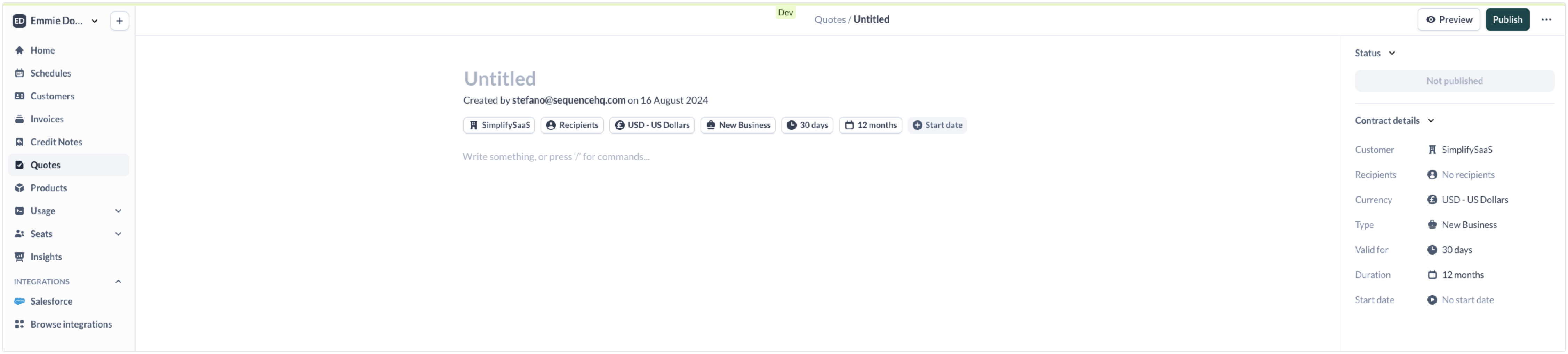
When the quote is published, Sequence syncs it back to Salesforce under the original opportunity.
## Salesforce package installation guide
Reach out to the Sequence team to obtain an installation link.
Follow the installation link and complete the Salesforce sign-in flow.
Follow the installation link and complete the Salesforce sign-in flow if you are not already signed in.
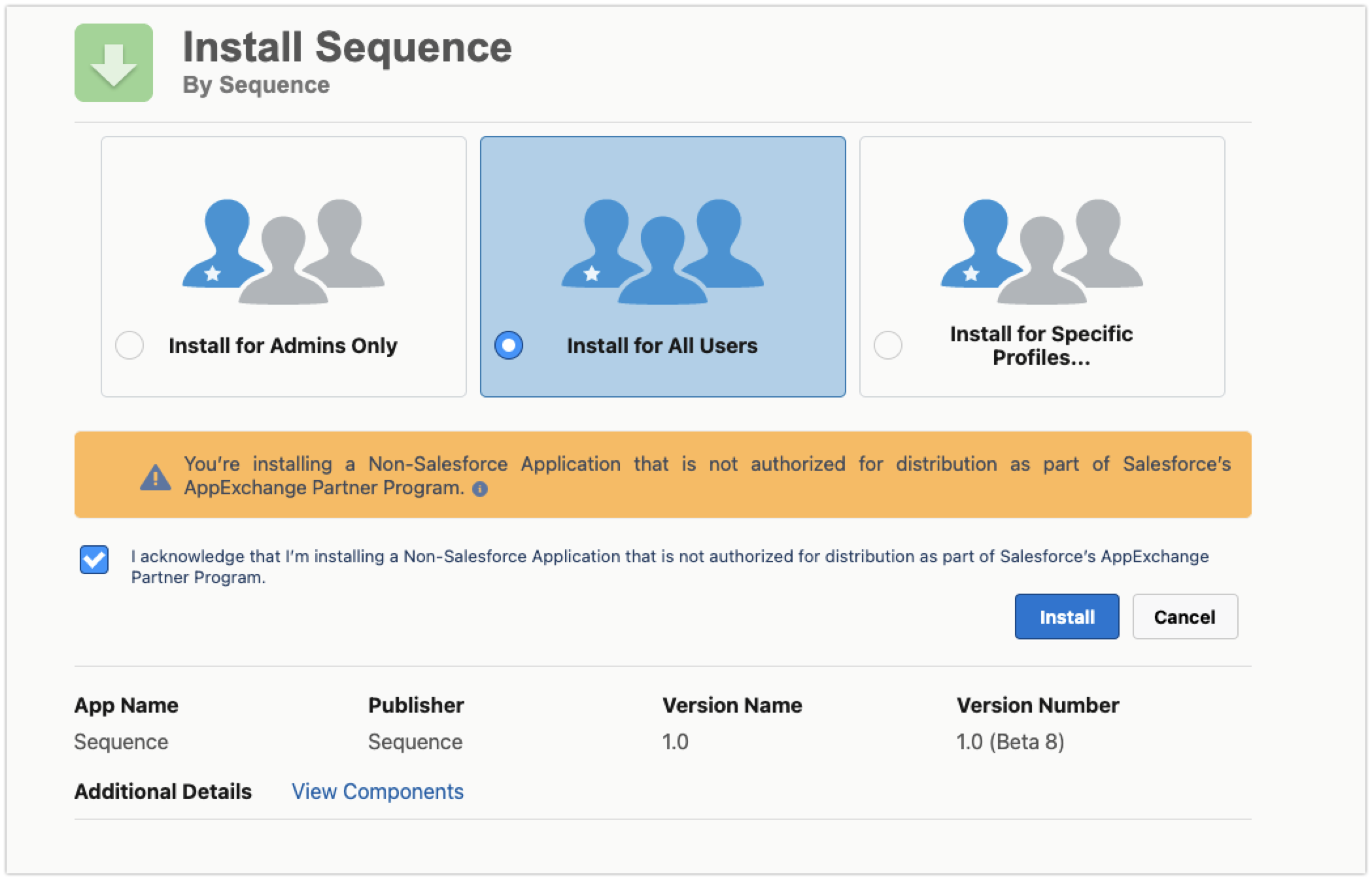
Choose **Install for All Users**, approve the installation, and click **Install**.
 Multi-currency must be enabled for billing schedules and other objects to sync correctly between Sequence and Salesforce. Complete this step **before** you connect Salesforce to Sequence in the Sequence app.
1. In Salesforce **Setup**, use Quick Find to search **Company Information**.
2. Open **Company Information** and click **Edit**.
3. Check **Activate Multiple Currencies** and click **Save**.
Then configure which currencies exist and their rates:
1. In **Setup**, search **Manage Currencies**.
2. Click **New** to add the required currencies and set conversion rates.
For background, see Salesforce’s guide to [multiple currencies](https://help.salesforce.com/s/articleView?language=en_US\&id=000381840\&type=1).
Set up access to the Sequence API:
1. In Sequence, go to **Settings** -> **API keys** and generate a new API key to be used by Salesforce.
2. Make note of the client ID and secret key.
3. In Salesforce, go to **Setup** -> **Custom Metadata Types**.
4. Click **Manage Records** next to **Sequence Integration Settings**.
Multi-currency must be enabled for billing schedules and other objects to sync correctly between Sequence and Salesforce. Complete this step **before** you connect Salesforce to Sequence in the Sequence app.
1. In Salesforce **Setup**, use Quick Find to search **Company Information**.
2. Open **Company Information** and click **Edit**.
3. Check **Activate Multiple Currencies** and click **Save**.
Then configure which currencies exist and their rates:
1. In **Setup**, search **Manage Currencies**.
2. Click **New** to add the required currencies and set conversion rates.
For background, see Salesforce’s guide to [multiple currencies](https://help.salesforce.com/s/articleView?language=en_US\&id=000381840\&type=1).
Set up access to the Sequence API:
1. In Sequence, go to **Settings** -> **API keys** and generate a new API key to be used by Salesforce.
2. Make note of the client ID and secret key.
3. In Salesforce, go to **Setup** -> **Custom Metadata Types**.
4. Click **Manage Records** next to **Sequence Integration Settings**.
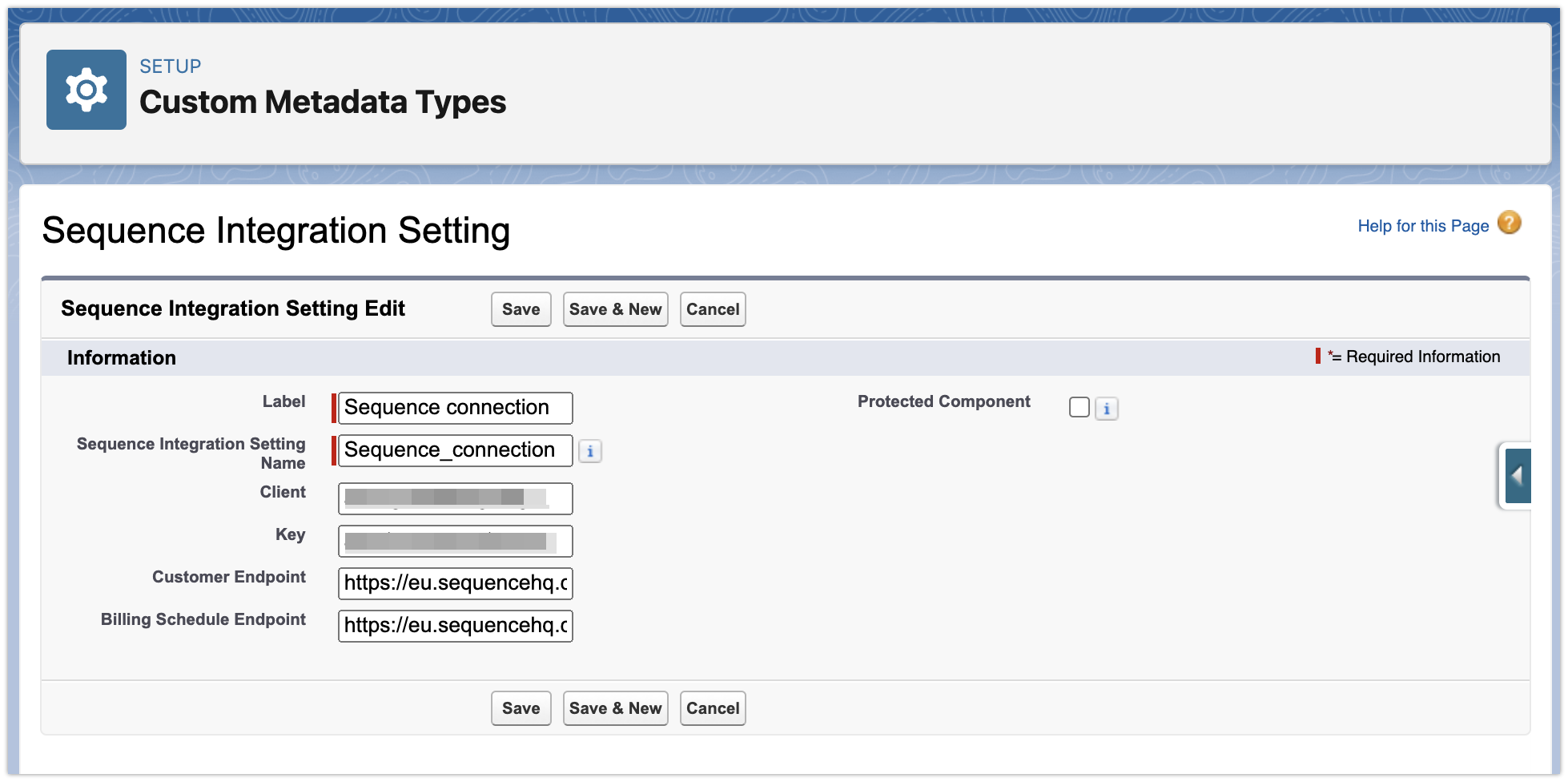
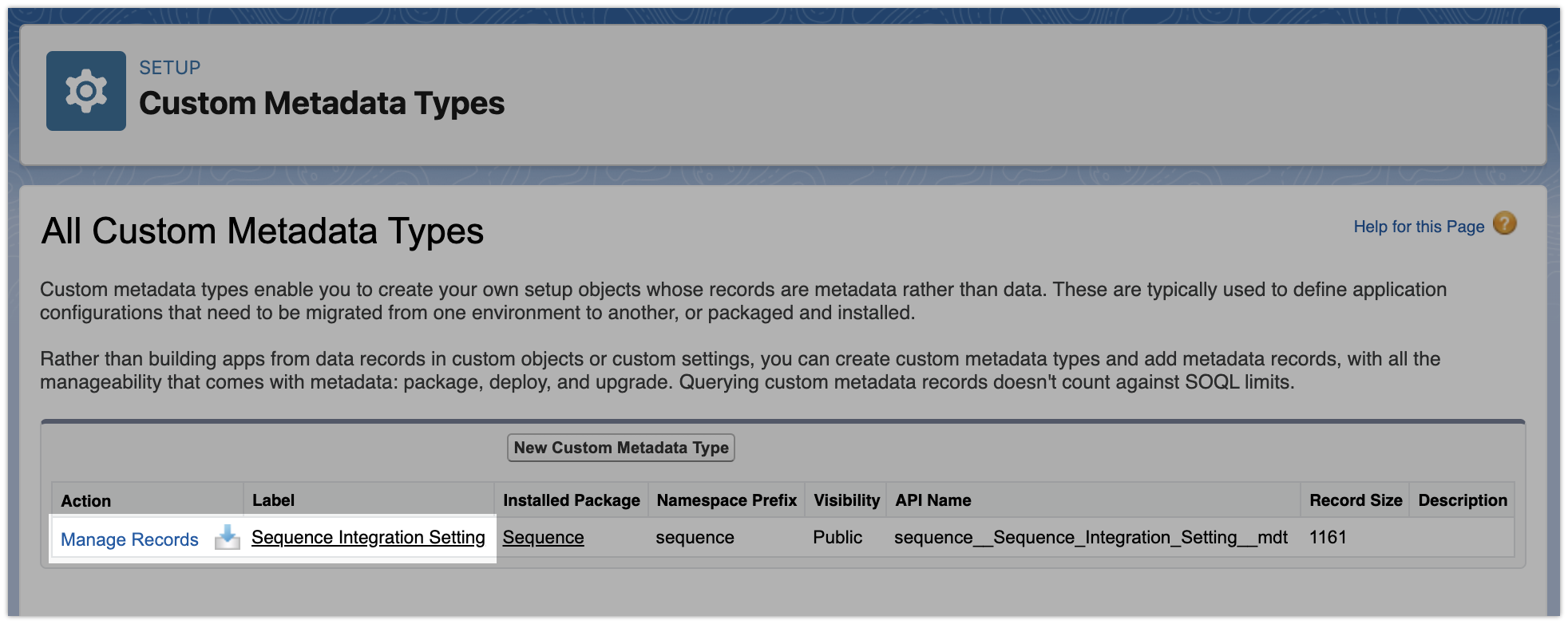 Create a new record with your client ID and key pair. By default the endpoint URLs are prepopulated with Sequence's production endpoint URLs.
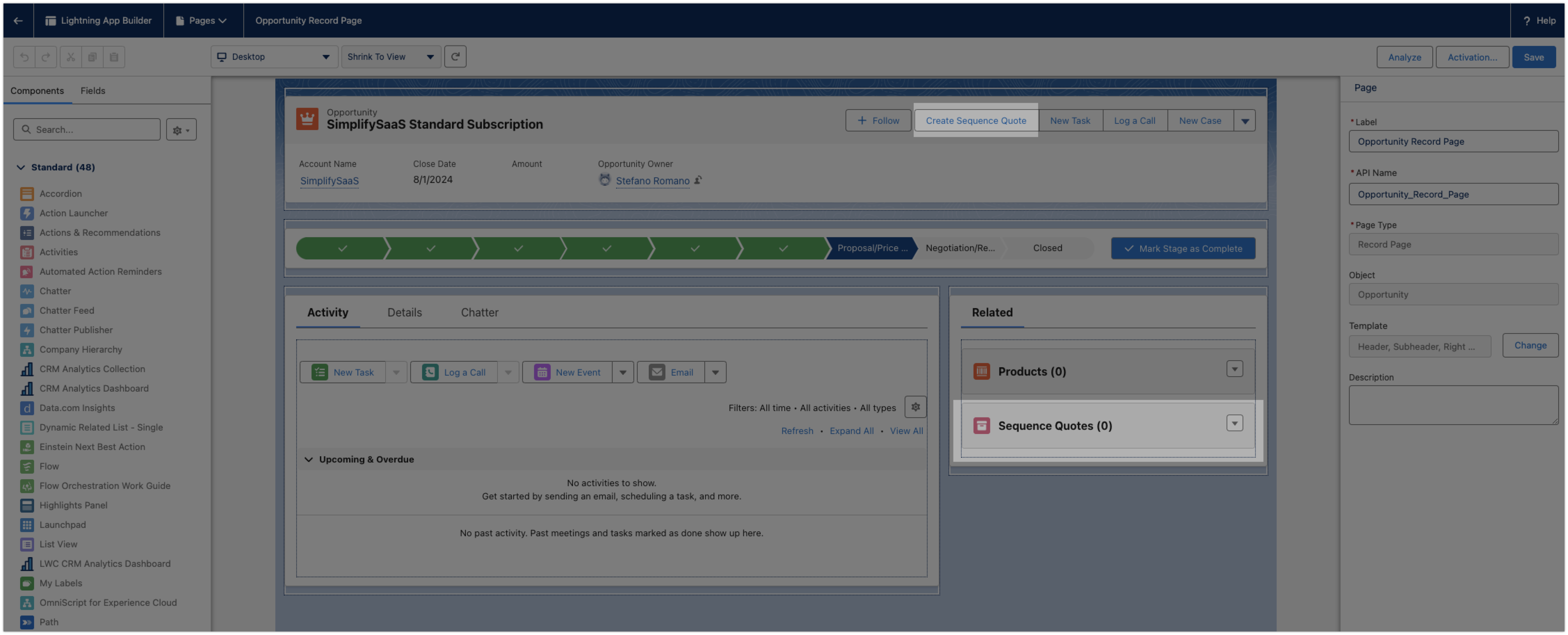
 Add Sequence custom components to your page layouts. For example:
* **Account page layout:** Sequence **Billing Schedules**, **Invoices**, **Quotes**, and the **Sequence Billing Contact** field.
* **Opportunity page layout:** Sequence **Quotes** and the **Create Sequence Quote** button.
After installation, **page layouts are not updated automatically**. A Salesforce admin must add the relevant components manually. Adding **Sequence Billing Contact** to the Account layout is **required**. The Flow templates use this field to determine the billing contact when creating a Sequence customer.
Package installation creates the objects, Flow actions, sample Flows, and custom fields; layout placement is always a separate manual step.
Add Sequence custom components to your page layouts. For example:
* **Account page layout:** Sequence **Billing Schedules**, **Invoices**, **Quotes**, and the **Sequence Billing Contact** field.
* **Opportunity page layout:** Sequence **Quotes** and the **Create Sequence Quote** button.
After installation, **page layouts are not updated automatically**. A Salesforce admin must add the relevant components manually. Adding **Sequence Billing Contact** to the Account layout is **required**. The Flow templates use this field to determine the billing contact when creating a Sequence customer.
Package installation creates the objects, Flow actions, sample Flows, and custom fields; layout placement is always a separate manual step.
 ## Sequence Salesforce data model
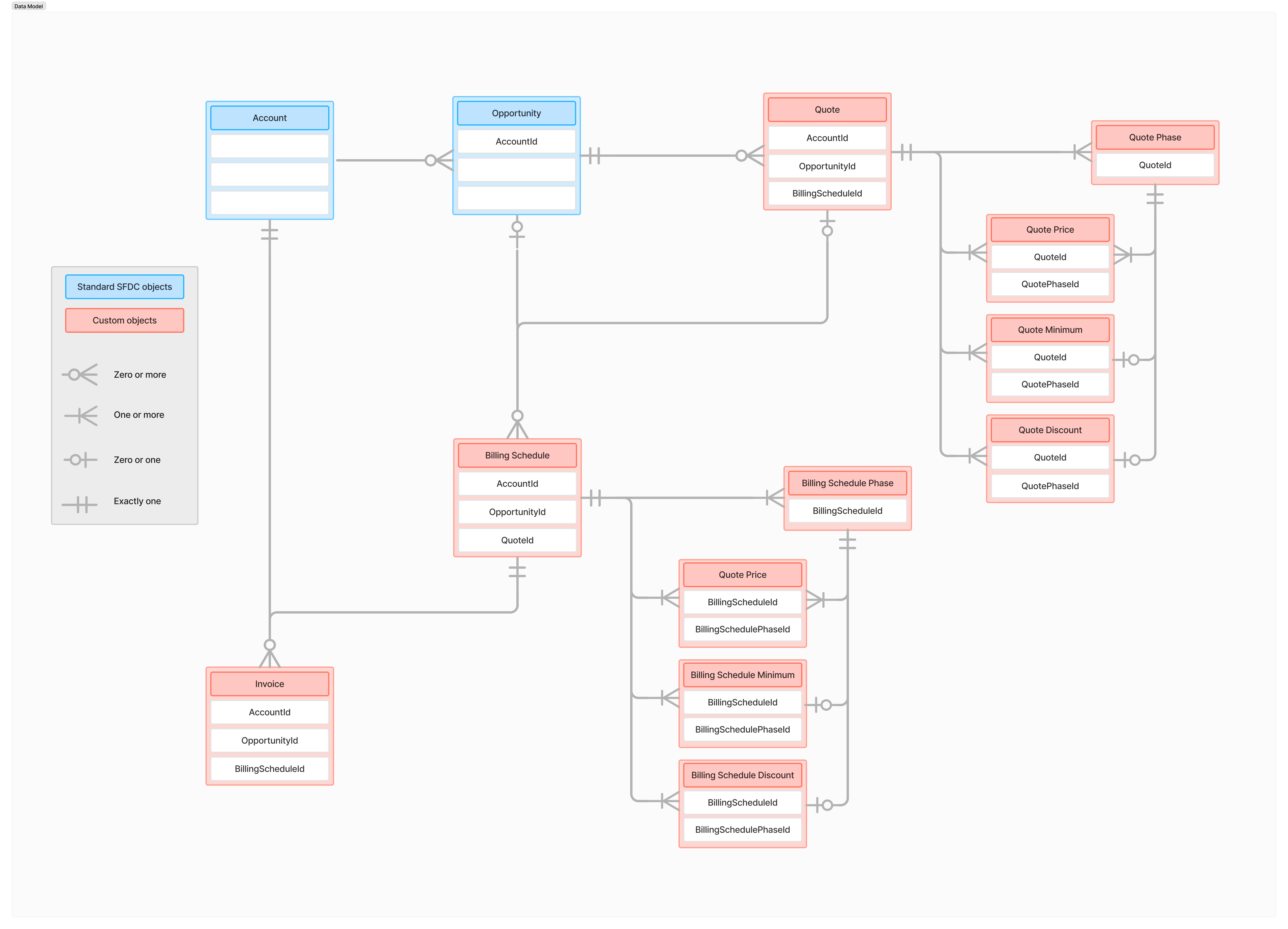
The data model for the custom objects in the package is illustrated below.
* Billing schedules, invoices and quotes are related to accounts
* Billing schedule and quotes are also related to opportunities
* The pricing details of quotes and billing schedules are captured by a set of related objects: phases, prices, minimums and discounts
## Sequence Salesforce data model
The data model for the custom objects in the package is illustrated below.
* Billing schedules, invoices and quotes are related to accounts
* Billing schedule and quotes are also related to opportunities
* The pricing details of quotes and billing schedules are captured by a set of related objects: phases, prices, minimums and discounts
 ## Frequently asked questions
The Salesforce package adds a **Sequence Customer ID** custom field to the Account object. Flows that create customers check this field:
* If **Sequence Customer ID** is **empty**, the Flow **creates** a new Sequence customer and **writes the ID back** to the Account.
* If **Sequence Customer ID** is **already populated**, the Flow **stops** and **skips** customer creation. The account is treated as already linked.
That is how the integration avoids pushing the same Salesforce account into Sequence multiple times.
The Salesforce package adds a custom field called **Sequence Billing Contact** to the Account object. Add this field to the **Account page layout** (see the installation guide). Once added, users can select a contact as the Sequence billing contact. The Flow templates use this field by default to determine the billing contact when creating a Sequence customer. You can change the Flow to use a different contact or field if needed.
Update the default Opportunity page layout to include **Quotes** and the **Create Sequence Quote** button from the package. The button opens a **blank quote** by default with the **customer pre-assigned**.
You can **initiate the customer link from Salesforce** rather than Sequence, but **the link must exist on both sides**. The managed package adds **Sequence Customer ID** on the Account object, which you can bulk-populate with the **Data Import Wizard** or **Data Loader**. You must also create the corresponding link **in Sequence** via the **API**, a **script**, or **manually in the Sequence dashboard**.
Reach out to our team for help during onboarding. In practice:
1. **In Salesforce**, populate **Sequence Customer ID** on each Account in bulk as needed. The Data Import Wizard is built into Salesforce (no extra install), supports up to 50,000 records per run, and uses a CSV. Export accounts from Salesforce, add Sequence customer IDs (for example from a CSV export in the Sequence dashboard), and import to update Accounts. Our team can help match Salesforce accounts to Sequence customers.
2. **In Sequence**, link each customer to the Salesforce account via the **dashboard**, **API**, or a **script**. Sequence can assist with **manual linking in the Sequence dashboard** during the initial setup phase if needed.
## Troubleshooting
This could be for a number of reasons:
1. An issue with the Flow configuration
2. Missing or incomplete data on the Account: Sequence expects a **complete Billing Address** and a designated **Sequence Billing Contact** with a **Mailing Address**. The **country** on **every address** involved must be a **two-letter ISO code** (for example `FR`, `US`, not full country names). When these are wrong or incomplete, customer creation from Flow can **fail silently** with **no visible error message**. Verify addresses and the billing contact even if the Flow appears to run.
3. A country on an address was not in ISO 2-letter format (for example use `FR` for France).
For the quote to launch in Sequence, the account in Salesforce must be linked to an existing Sequence customer. If you're using the provided Salesforce Flow templates, consider creating a customer in Sequence once a Salesforce opportunity moves to `Negotiation/Proposal` stage (i.e. prior to moving to `Closed won`). This ensures the customer is linked and ready to receive a sales proposal via Sequence.
For Sequence objects to sync back to Salesforce, you need to have the multi-currency setting enabled in your Salesforce environment (see above). If you're still seeing sync errors, please get in touch with our team.
## Frequently asked questions
The Salesforce package adds a **Sequence Customer ID** custom field to the Account object. Flows that create customers check this field:
* If **Sequence Customer ID** is **empty**, the Flow **creates** a new Sequence customer and **writes the ID back** to the Account.
* If **Sequence Customer ID** is **already populated**, the Flow **stops** and **skips** customer creation. The account is treated as already linked.
That is how the integration avoids pushing the same Salesforce account into Sequence multiple times.
The Salesforce package adds a custom field called **Sequence Billing Contact** to the Account object. Add this field to the **Account page layout** (see the installation guide). Once added, users can select a contact as the Sequence billing contact. The Flow templates use this field by default to determine the billing contact when creating a Sequence customer. You can change the Flow to use a different contact or field if needed.
Update the default Opportunity page layout to include **Quotes** and the **Create Sequence Quote** button from the package. The button opens a **blank quote** by default with the **customer pre-assigned**.
You can **initiate the customer link from Salesforce** rather than Sequence, but **the link must exist on both sides**. The managed package adds **Sequence Customer ID** on the Account object, which you can bulk-populate with the **Data Import Wizard** or **Data Loader**. You must also create the corresponding link **in Sequence** via the **API**, a **script**, or **manually in the Sequence dashboard**.
Reach out to our team for help during onboarding. In practice:
1. **In Salesforce**, populate **Sequence Customer ID** on each Account in bulk as needed. The Data Import Wizard is built into Salesforce (no extra install), supports up to 50,000 records per run, and uses a CSV. Export accounts from Salesforce, add Sequence customer IDs (for example from a CSV export in the Sequence dashboard), and import to update Accounts. Our team can help match Salesforce accounts to Sequence customers.
2. **In Sequence**, link each customer to the Salesforce account via the **dashboard**, **API**, or a **script**. Sequence can assist with **manual linking in the Sequence dashboard** during the initial setup phase if needed.
## Troubleshooting
This could be for a number of reasons:
1. An issue with the Flow configuration
2. Missing or incomplete data on the Account: Sequence expects a **complete Billing Address** and a designated **Sequence Billing Contact** with a **Mailing Address**. The **country** on **every address** involved must be a **two-letter ISO code** (for example `FR`, `US`, not full country names). When these are wrong or incomplete, customer creation from Flow can **fail silently** with **no visible error message**. Verify addresses and the billing contact even if the Flow appears to run.
3. A country on an address was not in ISO 2-letter format (for example use `FR` for France).
For the quote to launch in Sequence, the account in Salesforce must be linked to an existing Sequence customer. If you're using the provided Salesforce Flow templates, consider creating a customer in Sequence once a Salesforce opportunity moves to `Negotiation/Proposal` stage (i.e. prior to moving to `Closed won`). This ensures the customer is linked and ready to receive a sales proposal via Sequence.
For Sequence objects to sync back to Salesforce, you need to have the multi-currency setting enabled in your Salesforce environment (see above). If you're still seeing sync errors, please get in touch with our team.