> ## Documentation Index
> Fetch the complete documentation index at: https://docs.sequencehq.com/llms.txt
> Use this file to discover all available pages before exploring further.
# Sphere
> Integrate with Sphere to automatically calculate and apply sales tax to invoices.
 Connect Sphere to calculate sales tax on your invoices based on your customer's location and tax legislation.
### Capabilities
**Automated tax calculations**: Tax is calculated on every invoice
Connect Sphere to calculate sales tax on your invoices based on your customer's location and tax legislation.
### Capabilities
**Automated tax calculations**: Tax is calculated on every invoice
**Up-to-date tax rates**: Sphere applies the correct rates per jurisdiction
**Customer and product sync**: Customers and products sync to Sphere automatically
**Bi-directional sync**: Keep Sequence and Sphere in sync
To use this integration, you need a Sphere account. Reach out to your Sphere representative to get started.
### Integration setup
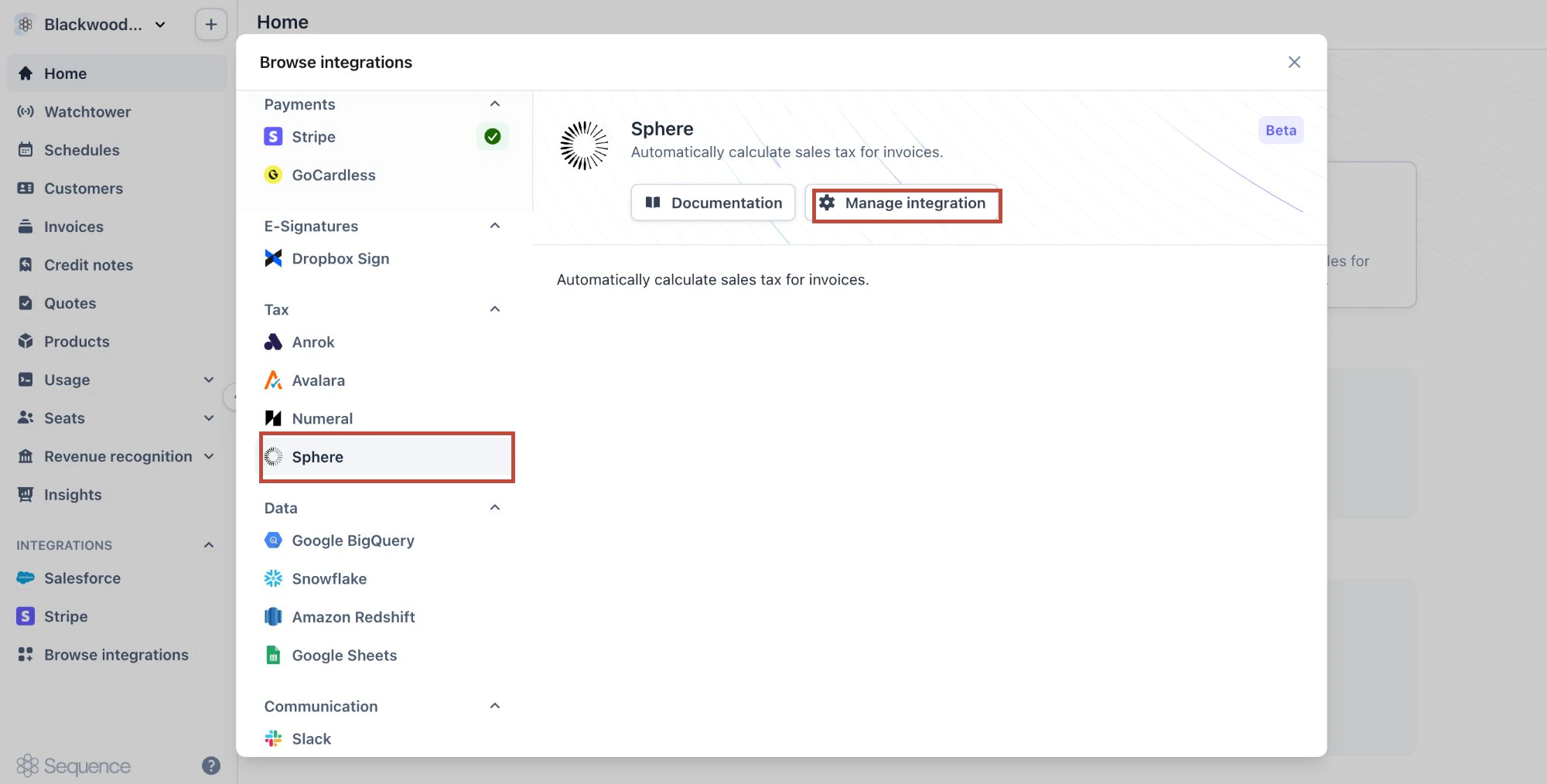
Navigate to "Browse integrations", locate Sphere in the Tax section, and click "Manage integration".
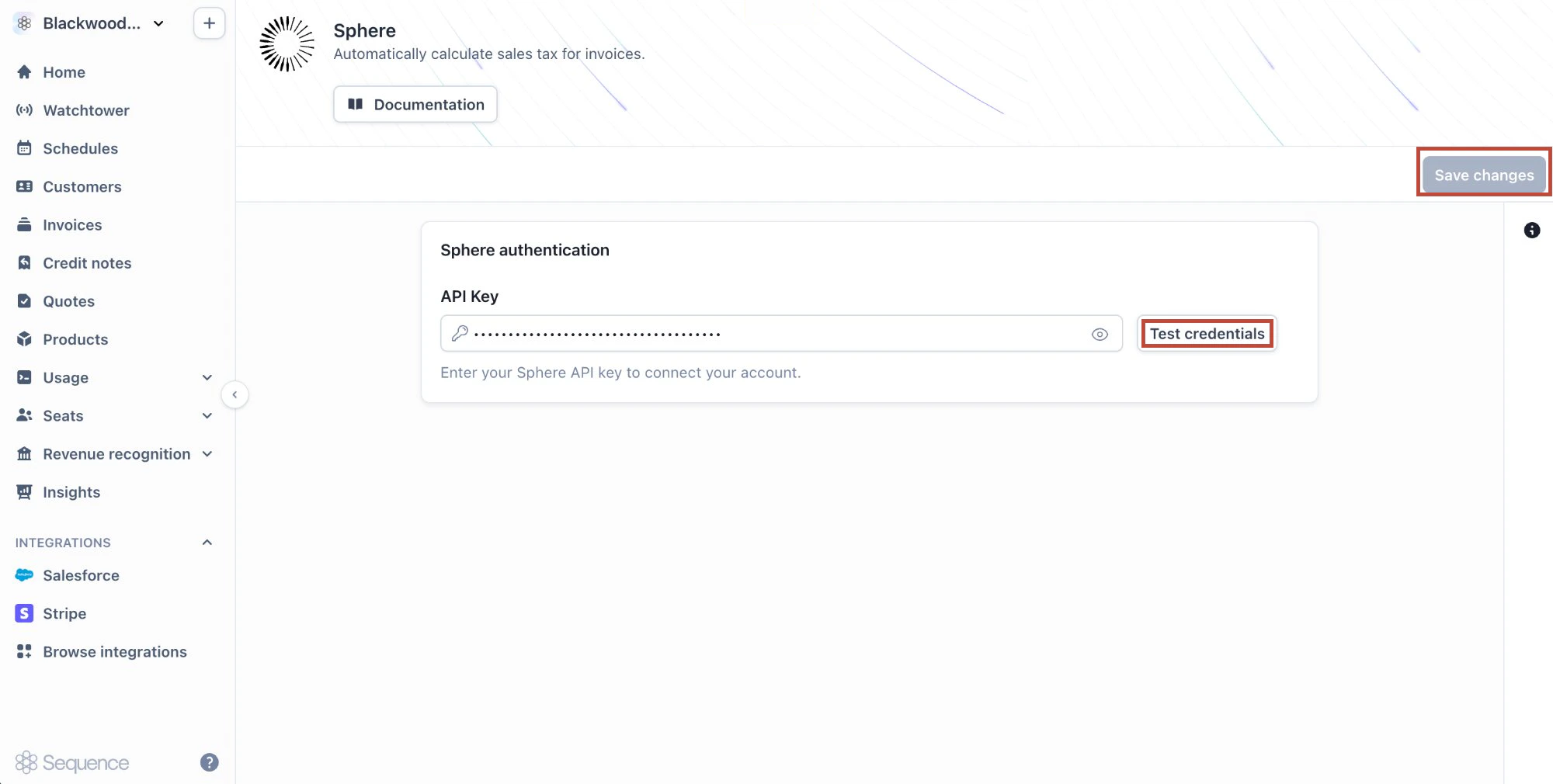
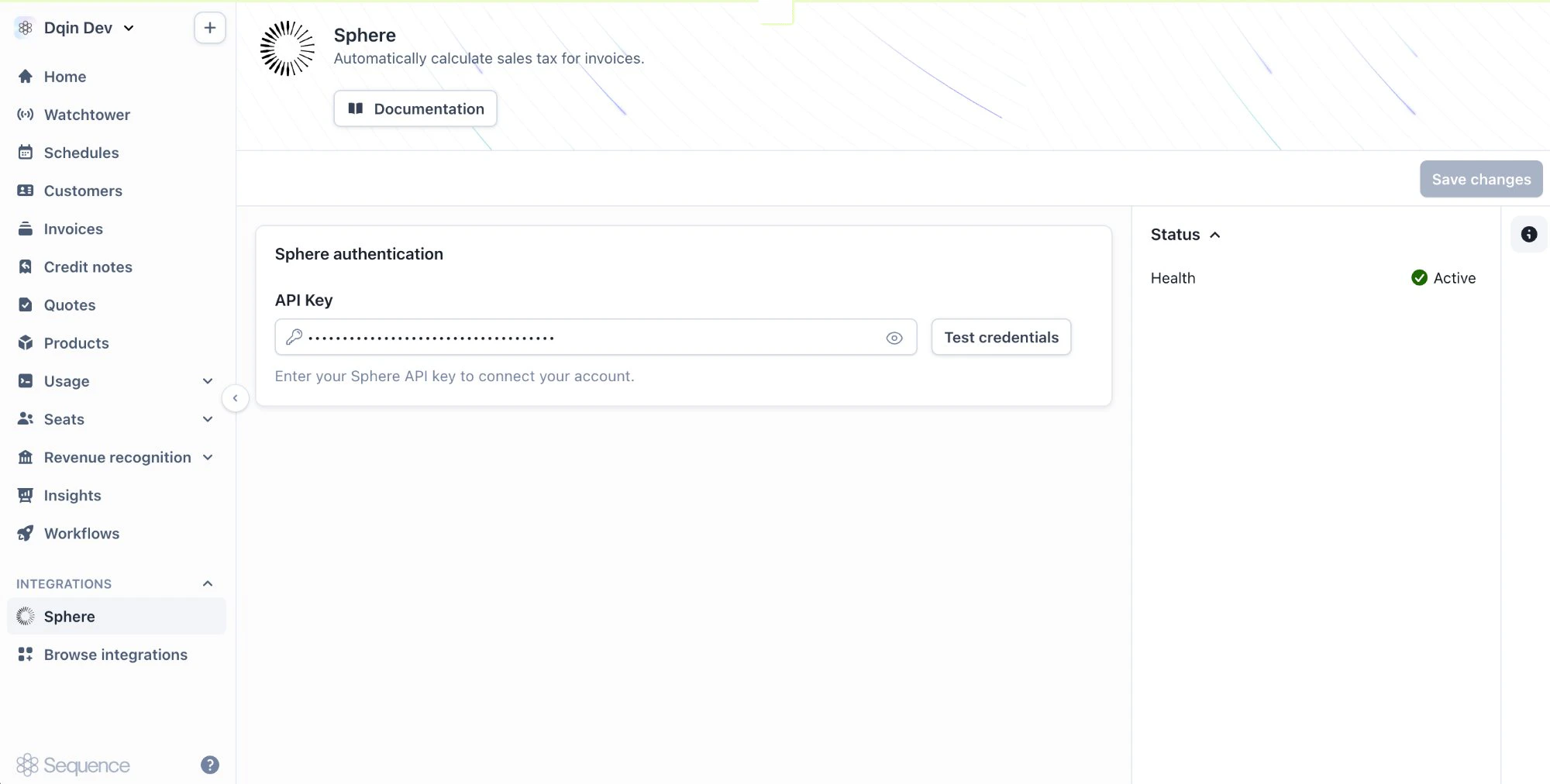
 Paste your Sphere API key into the field provided and click "Test credentials" to verify the connection. Once validated, click "Save changes" to activate the integration and wait for the connection to complete before moving on.
 Every product in a billing schedule must have a tax category assigned in Sequence, unless the customer is tax exempt.
Assign any tax category to each product. Sphere calculates the actual rate based on your customer's location.
If you are an existing Sequence customer connecting Sphere, make sure every product you actively use has a tax category assigned. Go to Settings > Products to review and update any products that are missing one.
If you are setting up Sequence for the first time, we recommend creating a single tax category (e.g. **Sphere**) and assigning it to all your products. Sphere will override this with the correct rate at invoice time.
To enable bi-directional sync, provide your Sequence API key to your Sphere representative so they can configure the connection on the Sphere side. This ensures your data stays in sync across both platforms.
You can find your Sequence API key under Settings > API keys.
### How it works
**Customer and product sync**
When you connect Sphere, existing customers and products sync automatically. New customers and updates sync as they're created.
New customers and product updates will show the Sphere link indicator in the dashboard. For existing customers, the indicator may take a moment to appear.
**Tax rates on invoices**
Once Sphere is connected, tax is calculated automatically on every invoice. Sphere determines the correct rate based on your customer's location and tax legislation.
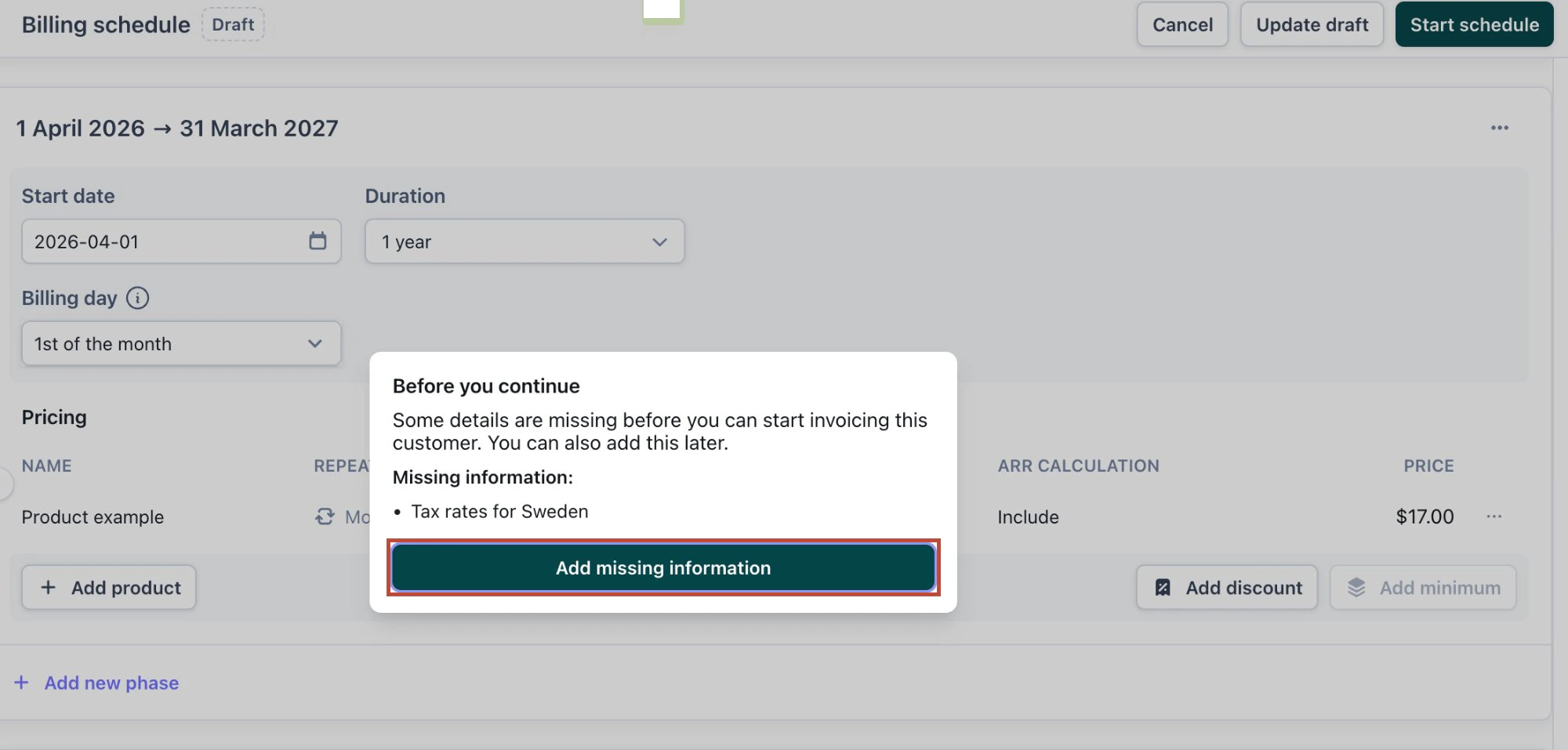
When creating a billing schedule, you may be prompted to enter a tax rate percentage if none has been configured for that customer's country. Enter any value; Sphere will overwrite it with the correct rate when the invoice is generated.
Every product in a billing schedule must have a tax category assigned in Sequence, unless the customer is tax exempt.
Assign any tax category to each product. Sphere calculates the actual rate based on your customer's location.
If you are an existing Sequence customer connecting Sphere, make sure every product you actively use has a tax category assigned. Go to Settings > Products to review and update any products that are missing one.
If you are setting up Sequence for the first time, we recommend creating a single tax category (e.g. **Sphere**) and assigning it to all your products. Sphere will override this with the correct rate at invoice time.
To enable bi-directional sync, provide your Sequence API key to your Sphere representative so they can configure the connection on the Sphere side. This ensures your data stays in sync across both platforms.
You can find your Sequence API key under Settings > API keys.
### How it works
**Customer and product sync**
When you connect Sphere, existing customers and products sync automatically. New customers and updates sync as they're created.
New customers and product updates will show the Sphere link indicator in the dashboard. For existing customers, the indicator may take a moment to appear.
**Tax rates on invoices**
Once Sphere is connected, tax is calculated automatically on every invoice. Sphere determines the correct rate based on your customer's location and tax legislation.
When creating a billing schedule, you may be prompted to enter a tax rate percentage if none has been configured for that customer's country. Enter any value; Sphere will overwrite it with the correct rate when the invoice is generated.
 ### FAQ
Go to Settings > Products, find the product, and assign any tax category. The choice does not affect the calculation; Sphere determines the rate.
Update it at Settings > Merchant > Address. Tax calculations use this as the point of origin.
No. Customers and products sync automatically. Assign a tax category to each product in Sequence; Sphere calculates the rate from the product and customer location.
Set the customer's tax status to "Exempt" in their profile. Sphere applies the appropriate exemptions.
Share your Sequence API key (Settings > API keys) with your Sphere representative so they can complete the setup on their side.
Contact the Sequence team. Your account will return to manual tax management.
### FAQ
Go to Settings > Products, find the product, and assign any tax category. The choice does not affect the calculation; Sphere determines the rate.
Update it at Settings > Merchant > Address. Tax calculations use this as the point of origin.
No. Customers and products sync automatically. Assign a tax category to each product in Sequence; Sphere calculates the rate from the product and customer location.
Set the customer's tax status to "Exempt" in their profile. Sphere applies the appropriate exemptions.
Share your Sequence API key (Settings > API keys) with your Sphere representative so they can complete the setup on their side.
Contact the Sequence team. Your account will return to manual tax management.