> ## Documentation Index
> Fetch the complete documentation index at: https://docs.sequencehq.com/llms.txt
> Use this file to discover all available pages before exploring further.
# Xero
> Sync Sequence invoices in real-time and streamline your accounting process.
 ## Manage links to Xero
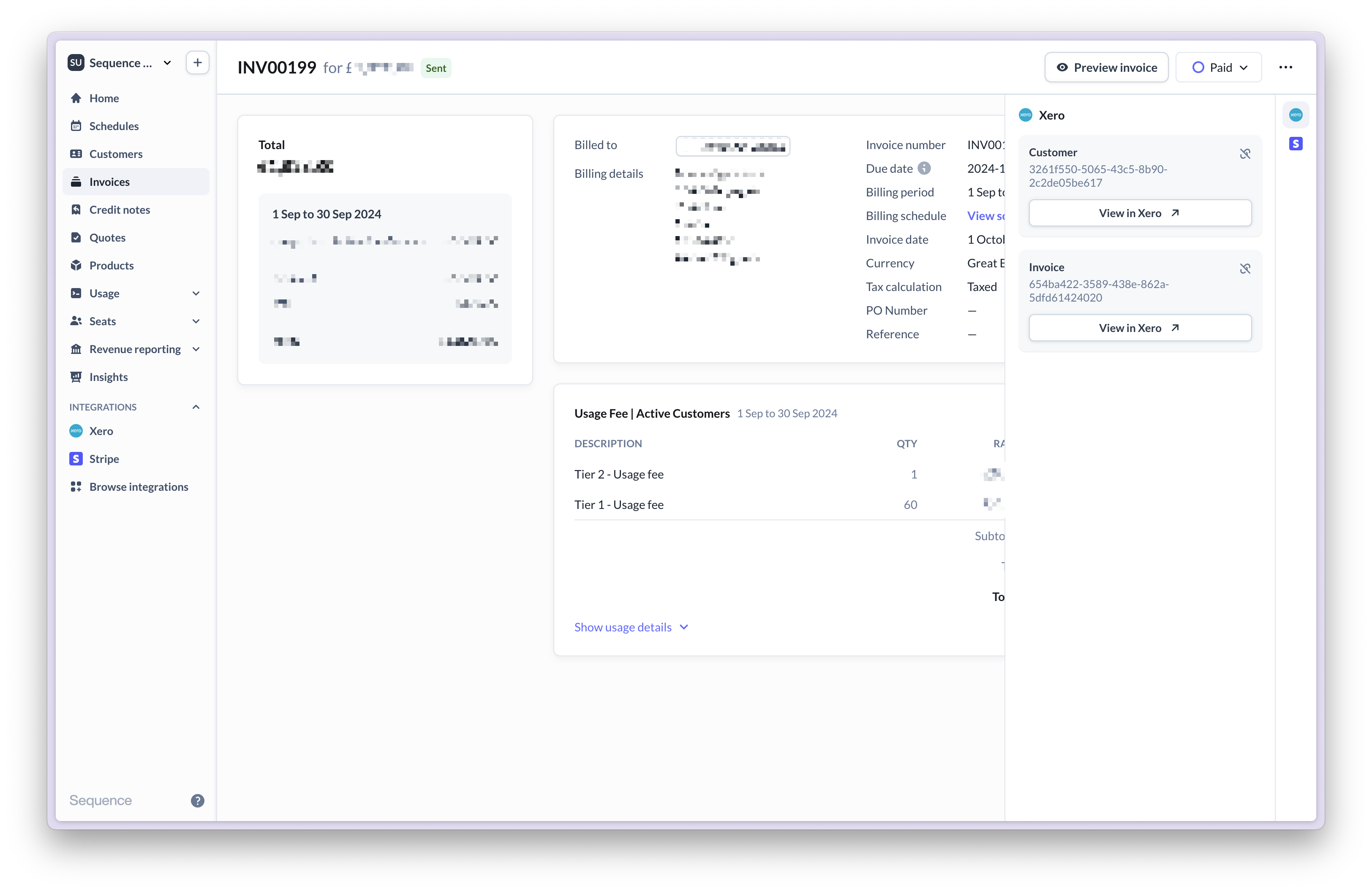
Sequence natively syncs customers and invoices to Xero. When viewing customers or invoices, open the sidebar to see whether an object is linked or synced.
## Manage links to Xero
Sequence natively syncs customers and invoices to Xero. When viewing customers or invoices, open the sidebar to see whether an object is linked or synced.
 ## Start guide
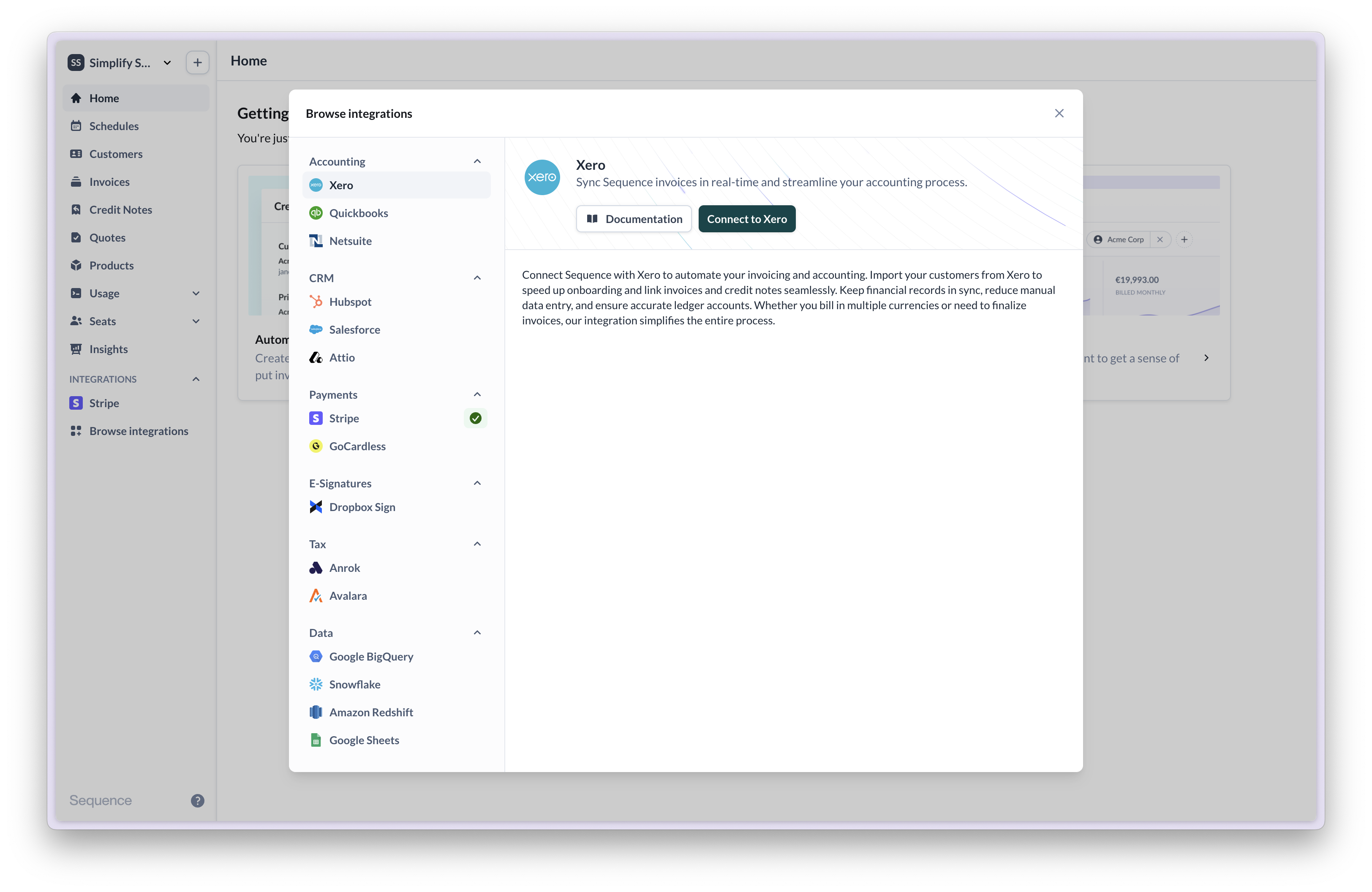
Connecting your Xero account to Sequence is simple. Go to the Integrations tab to get started.
## Start guide
Connecting your Xero account to Sequence is simple. Go to the Integrations tab to get started.
 By default, Xero only supports one currency. If you bill customers in multiple currencies, you may need to upgrade your [Xero plan](https://www.xero.com/uk/accounting-software/use-multiple-currencies/).
1. Click the button to connect to Xero.
2. Select the organization to which you want to connect. For testing, it is recommended to connect to a test Xero Demo Company if you are using the sandbox environment.
By default, Xero only supports one currency. If you bill customers in multiple currencies, you may need to upgrade your [Xero plan](https://www.xero.com/uk/accounting-software/use-multiple-currencies/).
1. Click the button to connect to Xero.
2. Select the organization to which you want to connect. For testing, it is recommended to connect to a test Xero Demo Company if you are using the sandbox environment.
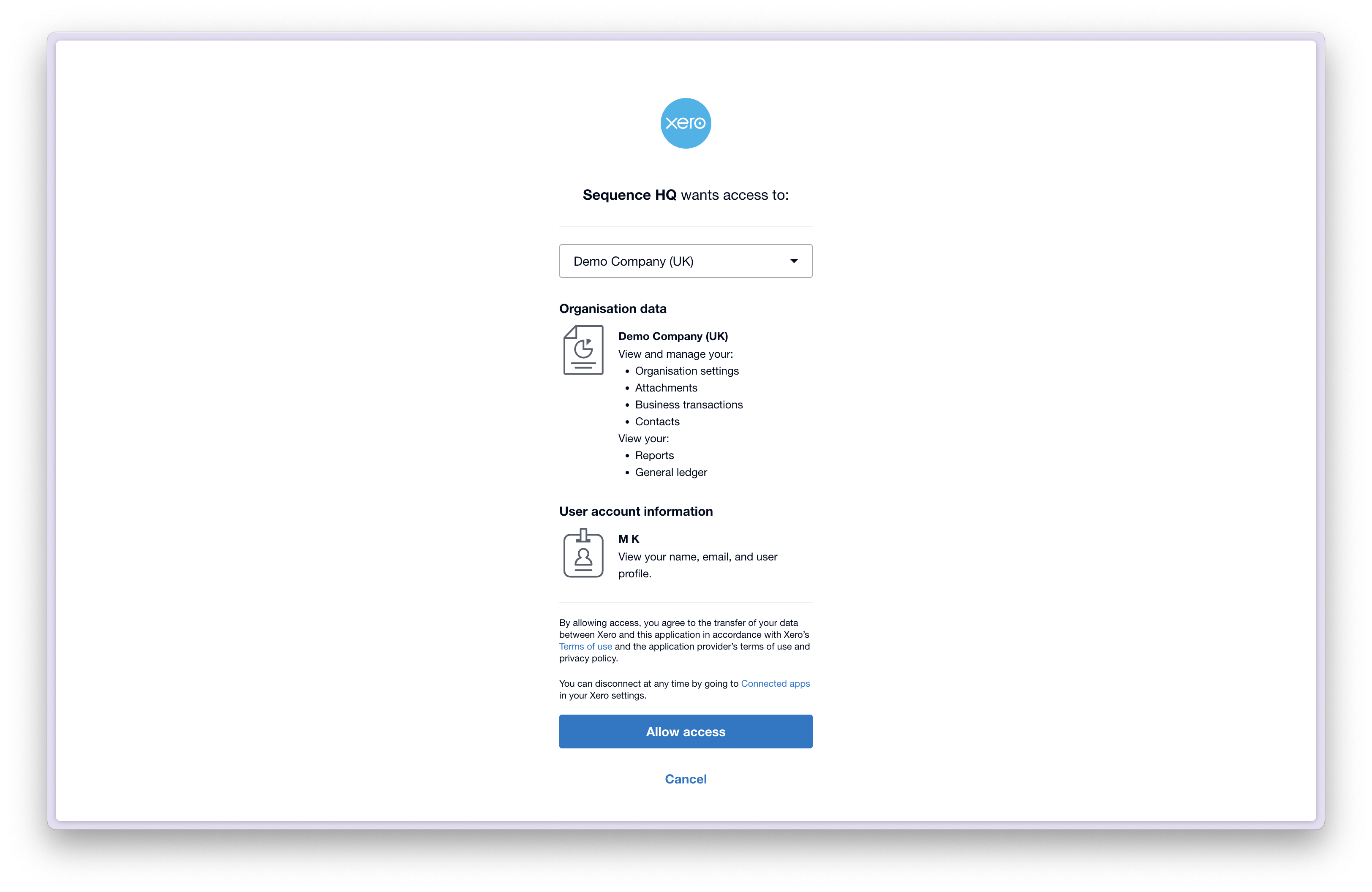 3. Authorize the connection.
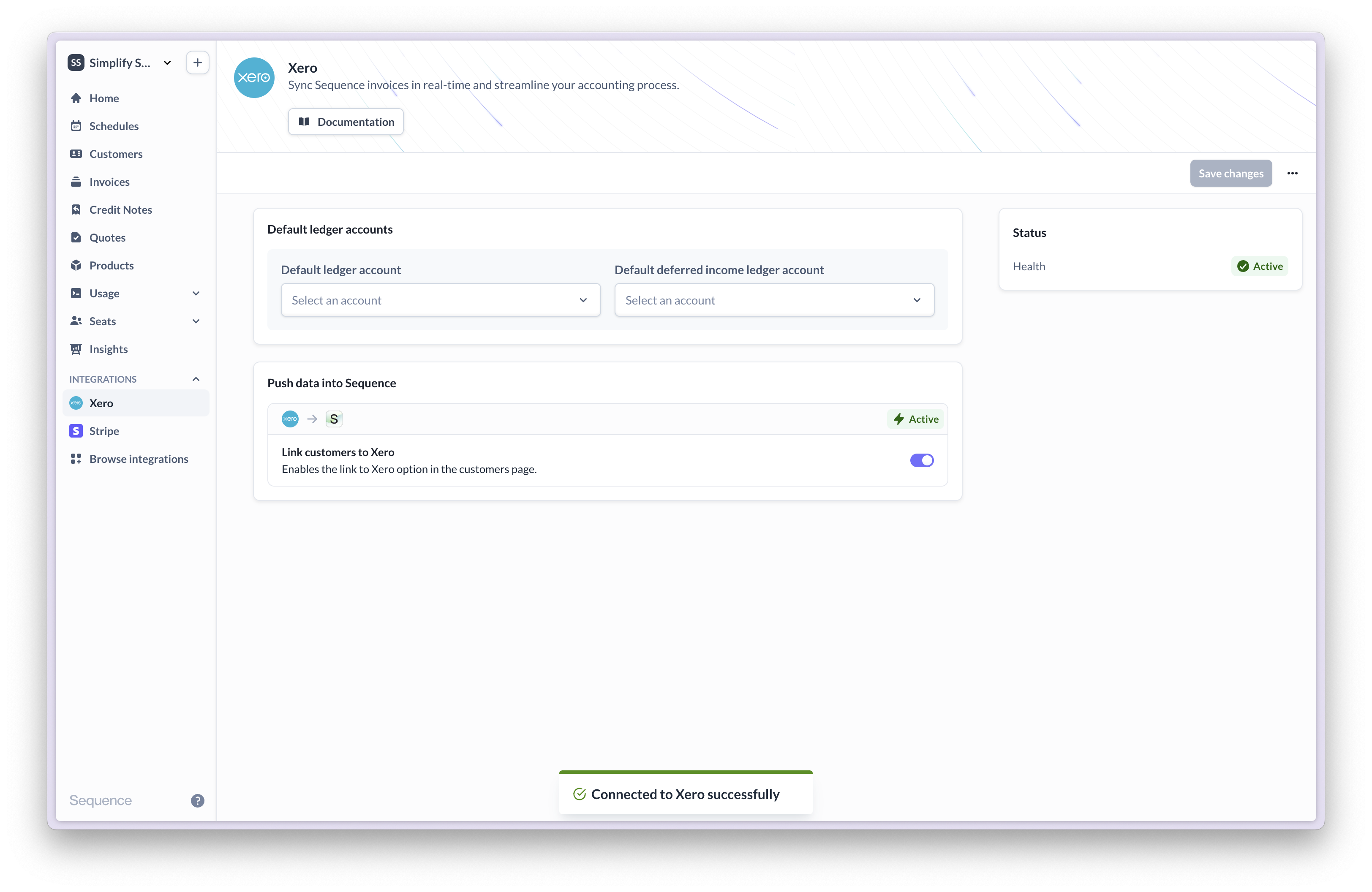 4. Set up your default ledger accounts. See more under ledger accounts [ledger accounts](#ledger-accounts)
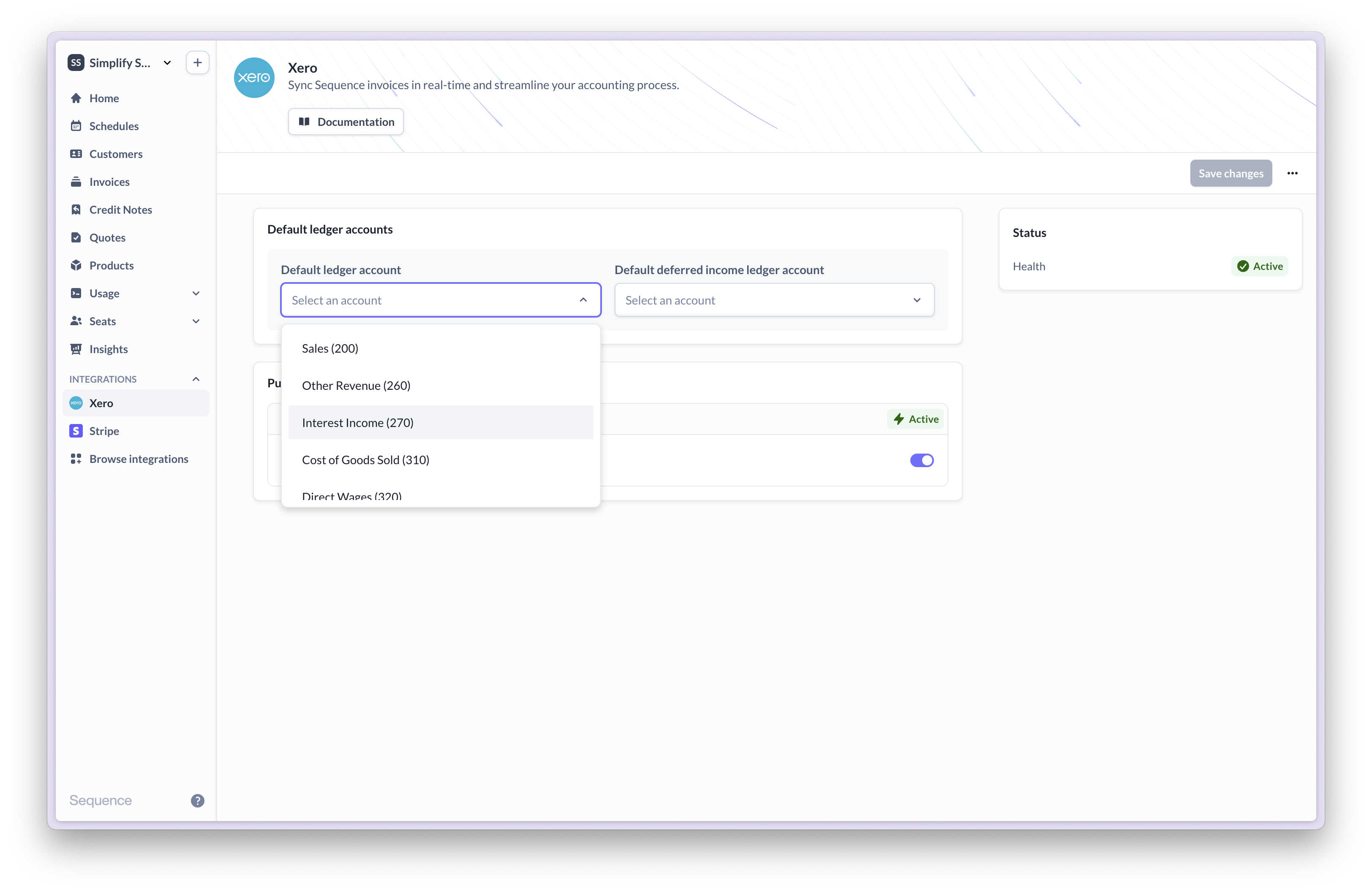 ## Import customers from Xero
You can import customers from Xero into Sequence in order to speed up your onboarding. In order for an invoice or credit note to be synced the end-customer must be linked to a customer in Xero.
You can import some or all of your customers directly from Xero using the customer import tool. In order to be valid for invoicing in Sequence every customer needs the following:
* A primary address
* A primary email address
The primary address must have the following fields:
* First line
* Town/city
* Postal/zip code
* A valid country (Sequence uses the [alpha-2 country code](https://en.wikipedia.org/wiki/ISO_3166-1_alpha-2) format)
If a customer is invalid the reason will be provided, allowing you to update the customer in Xero and reload before importing.
## Import customers from Xero
You can import customers from Xero into Sequence in order to speed up your onboarding. In order for an invoice or credit note to be synced the end-customer must be linked to a customer in Xero.
You can import some or all of your customers directly from Xero using the customer import tool. In order to be valid for invoicing in Sequence every customer needs the following:
* A primary address
* A primary email address
The primary address must have the following fields:
* First line
* Town/city
* Postal/zip code
* A valid country (Sequence uses the [alpha-2 country code](https://en.wikipedia.org/wiki/ISO_3166-1_alpha-2) format)
If a customer is invalid the reason will be provided, allowing you to update the customer in Xero and reload before importing.
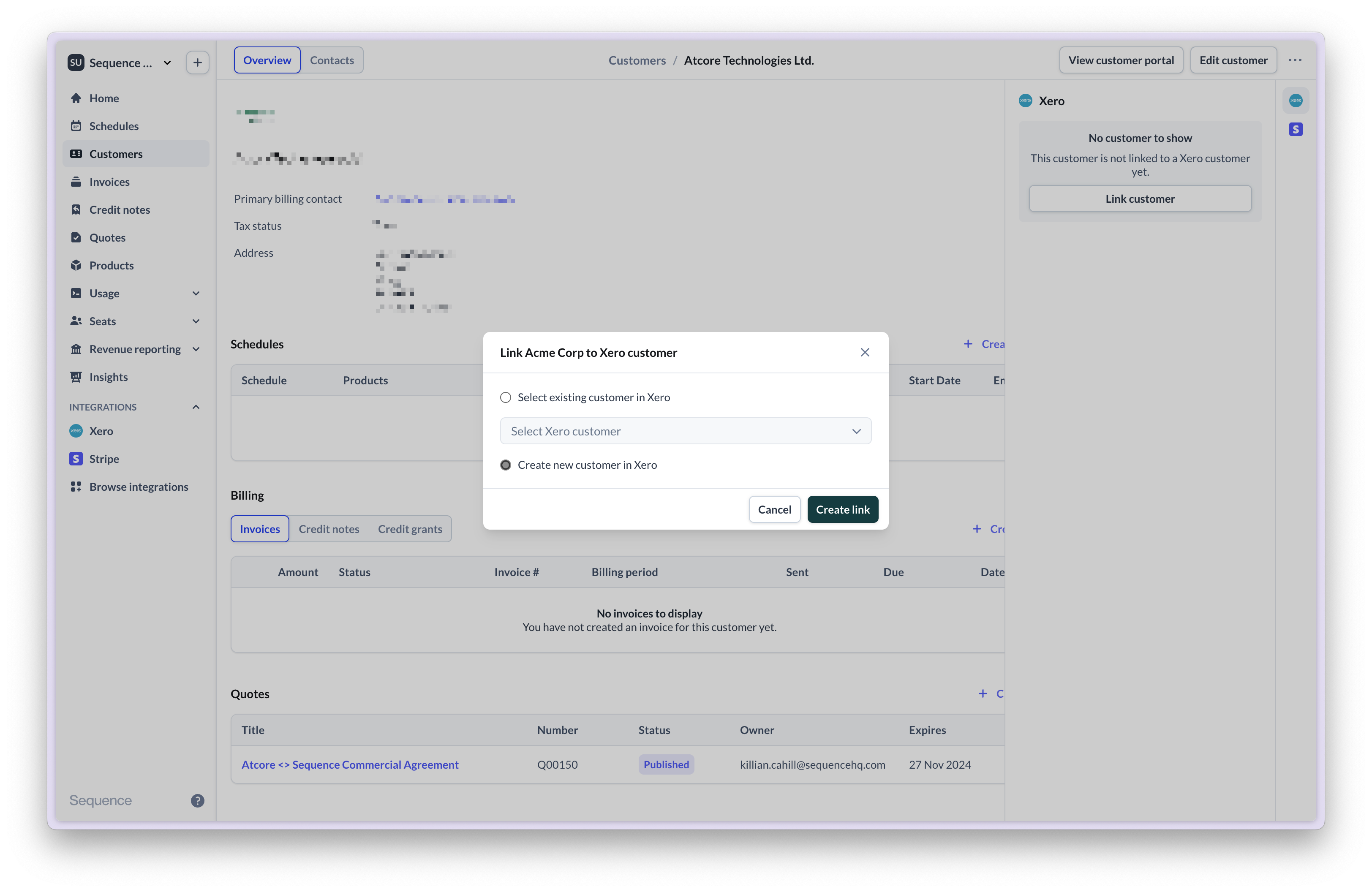
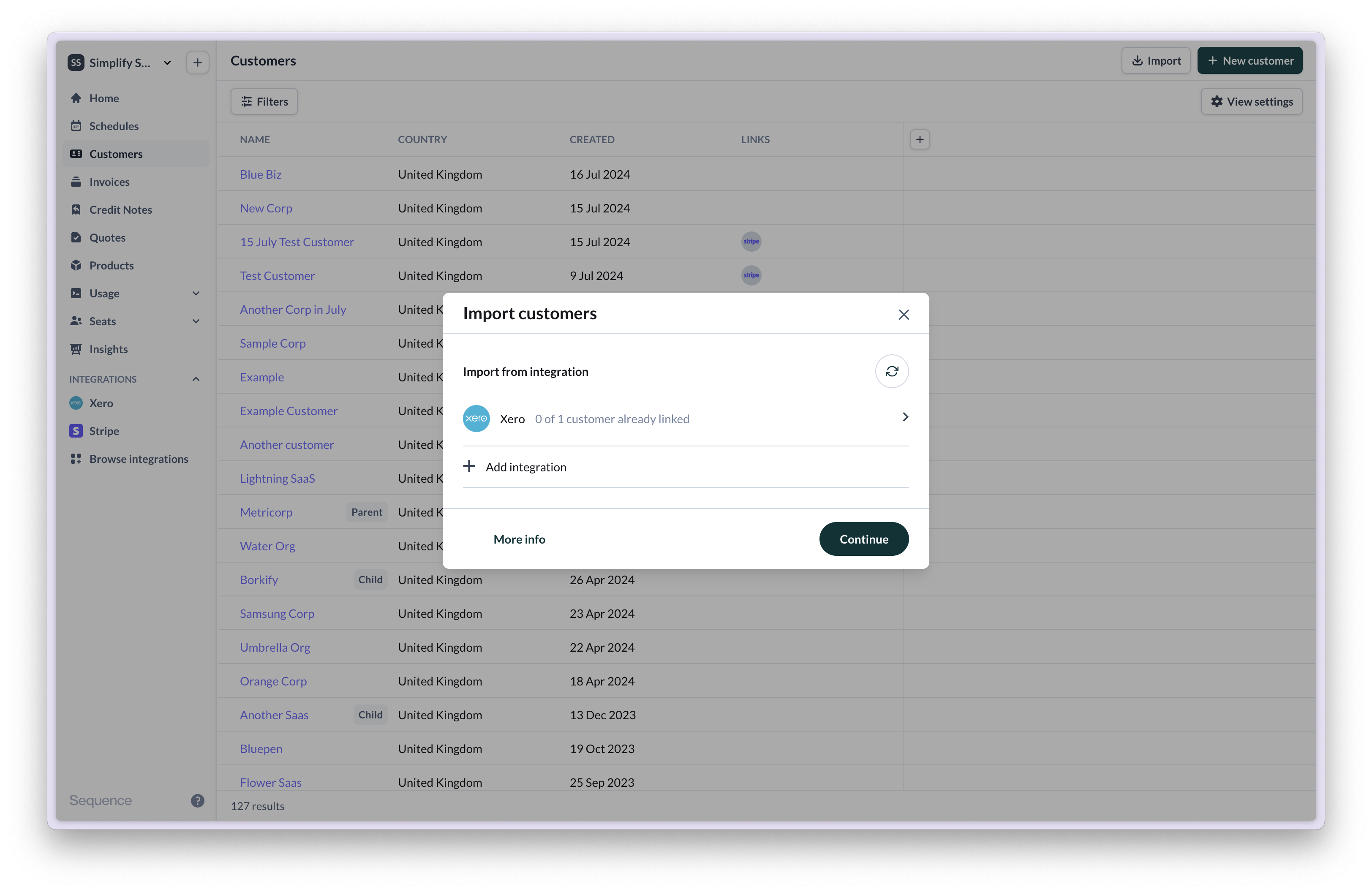 If you want to link an existing customer to Xero you can select them in the Sequence customer view and choose to which Xero customer you want to link them.
In Xero, contacts can be customers and/or suppliers. Sequence only imports customer records. For a Xero contact to become a customer, at least one invoice needs to be issued for them.
To add and link a net new customer to Xero and Sequence, create them in Sequence first and then link them to the corresponding contact in Xero. Alternatively, you can create a mock invoice for the contact in Xero to turn them into a customer (at this point, this is the only way to create a new customer in Xero).
If you want to link an existing customer to Xero you can select them in the Sequence customer view and choose to which Xero customer you want to link them.
In Xero, contacts can be customers and/or suppliers. Sequence only imports customer records. For a Xero contact to become a customer, at least one invoice needs to be issued for them.
To add and link a net new customer to Xero and Sequence, create them in Sequence first and then link them to the corresponding contact in Xero. Alternatively, you can create a mock invoice for the contact in Xero to turn them into a customer (at this point, this is the only way to create a new customer in Xero).
 ## Push customers into Xero
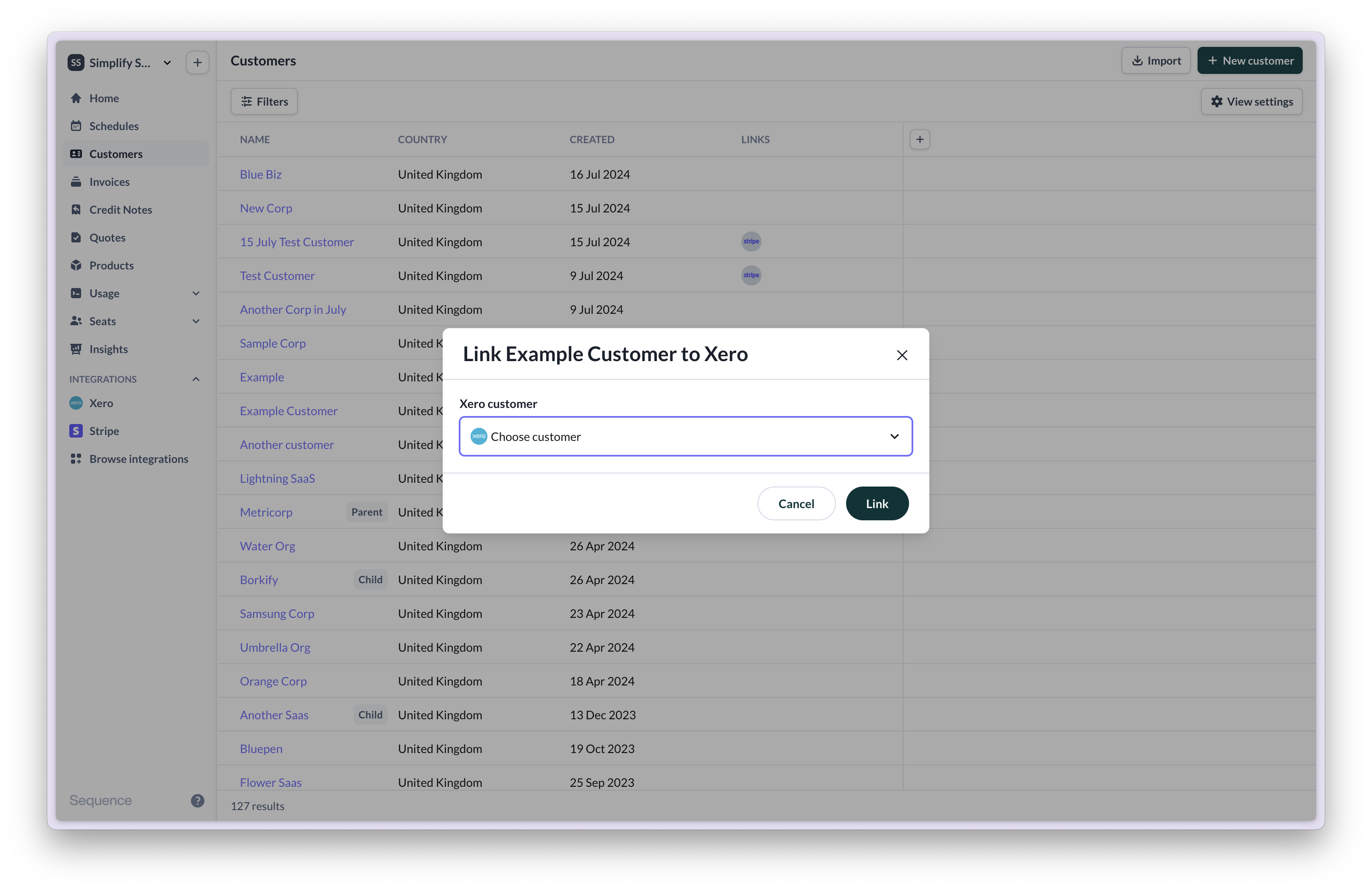
When you create a new customer in Sequence, you can push them into Xero to ensure invoices are synced.
## Push customers into Xero
When you create a new customer in Sequence, you can push them into Xero to ensure invoices are synced.
 ## Ledger accounts
Whenever you create an invoice in Xero each line item is linked to a ledger account. This allows you to categorize the items.
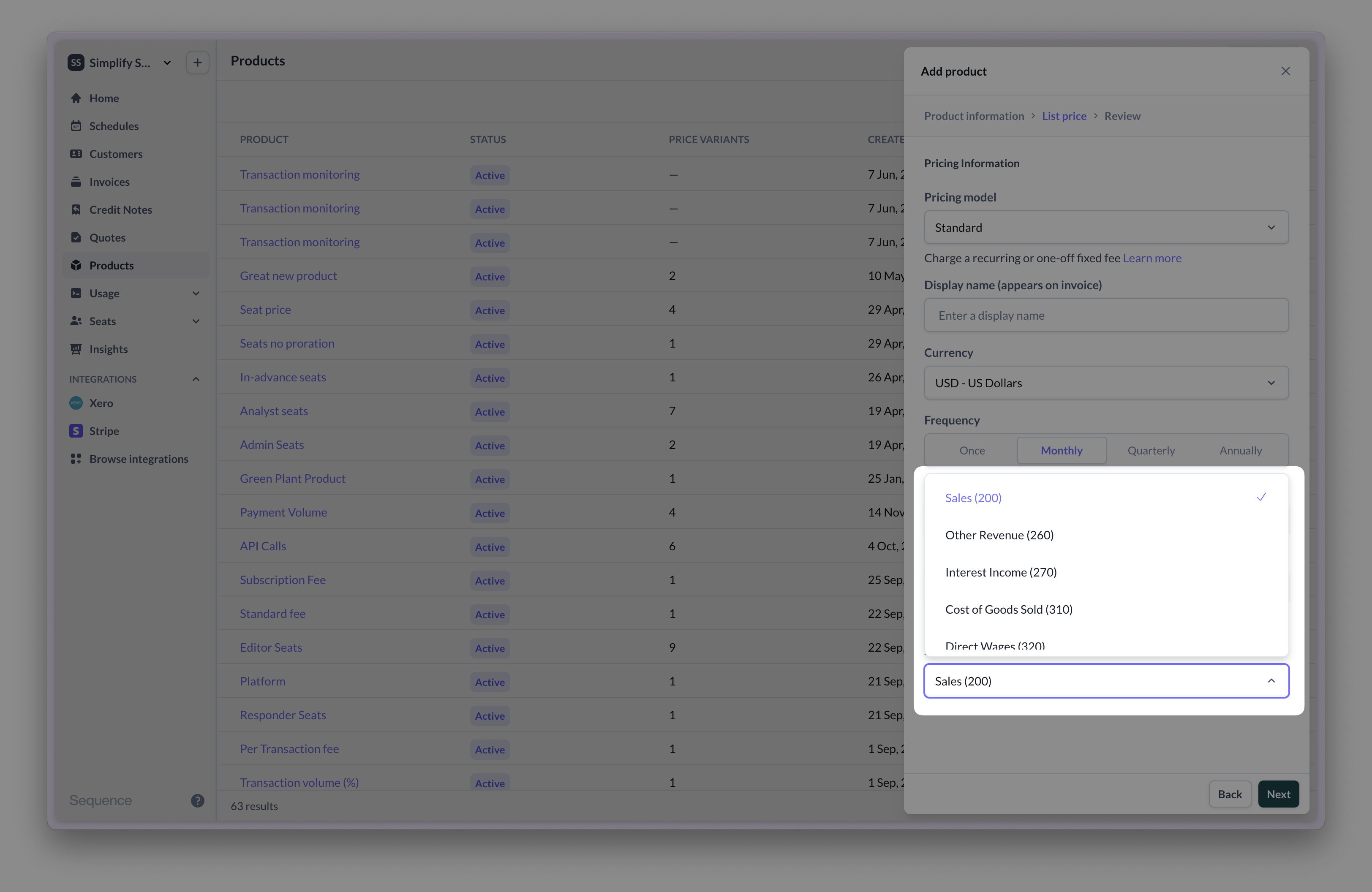
Similarly in Sequence you will need to link each line item to a ledger account in Xero. In order to speed this up you can set a default ledger account in your integration settings. This can be overridden for individual line items.
When you create a new product, set its Xero ledger account. This will apply to any prices and generated line items on invoices.
## Ledger accounts
Whenever you create an invoice in Xero each line item is linked to a ledger account. This allows you to categorize the items.
Similarly in Sequence you will need to link each line item to a ledger account in Xero. In order to speed this up you can set a default ledger account in your integration settings. This can be overridden for individual line items.
When you create a new product, set its Xero ledger account. This will apply to any prices and generated line items on invoices.
 Set a ledger account for a specific invoice line item:
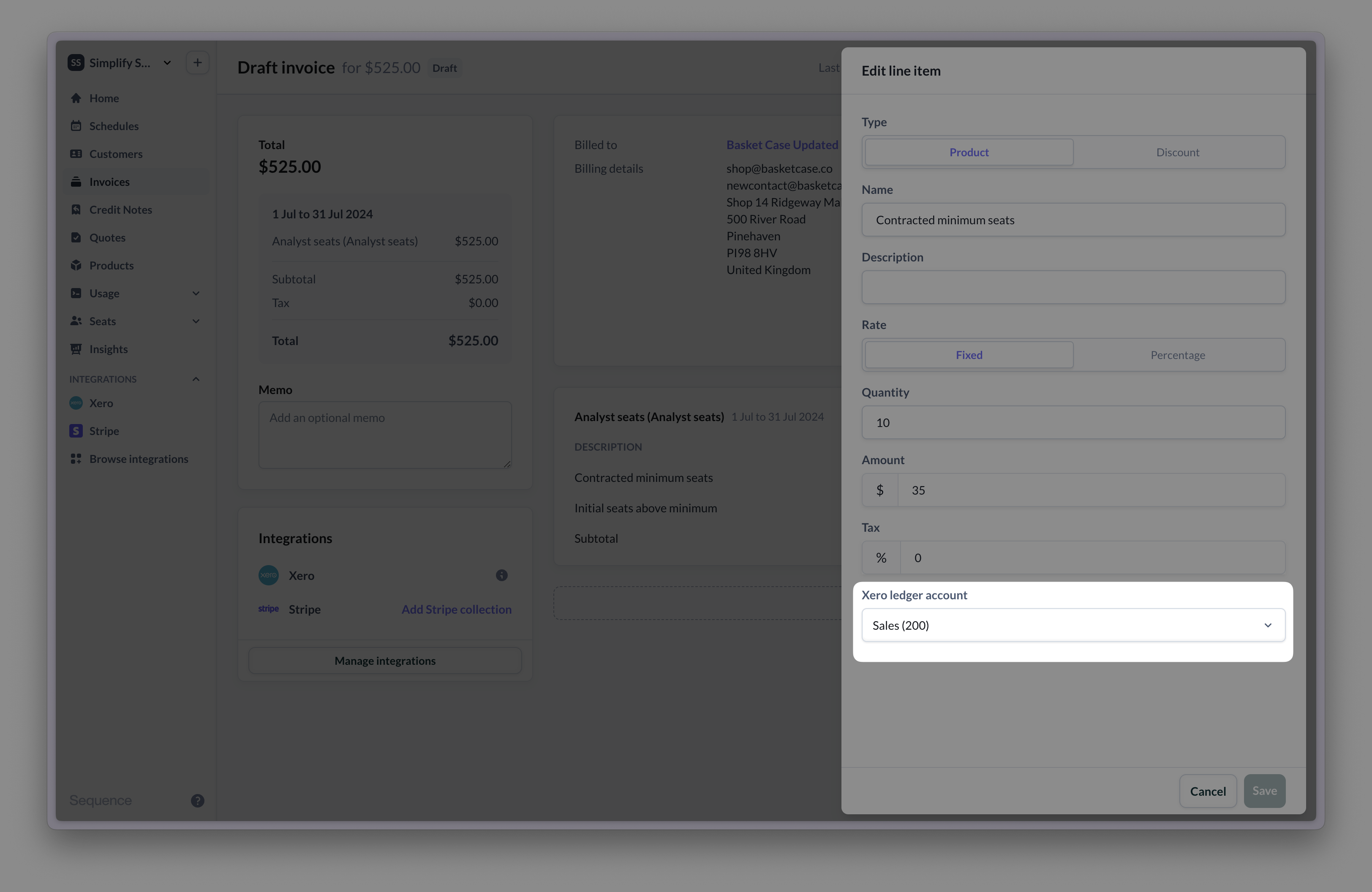 If you have existing products, billing schedules, invoices and/or credit notes in Sequence at the time when you connect your Xero account then setting a default ledger account will allow the integration to begin working straight away. All existing line items will be linked to the default ledger account. These can then be updated on an individual basis either in a plan, invoice or credit note as shown above.
## Tax
For taxable customers, Sequence will not provide a specific tax code when syncing invoices to Xero. Xero will apply the default tax code for a line item's ledger account.
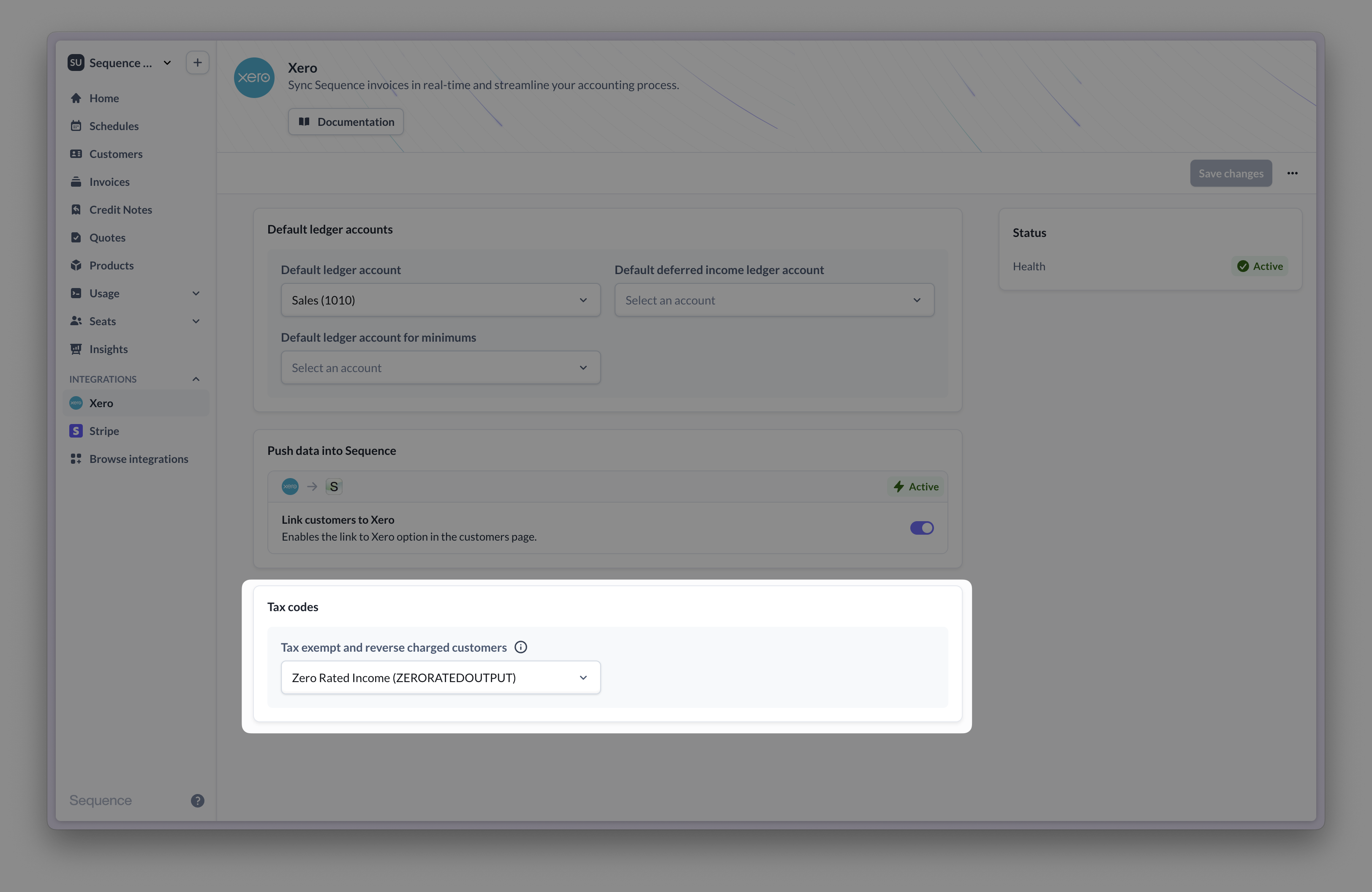
For tax exempt and reverse charged customers, Sequence will override the tax code to be 'NONE'. You can change this value in your Xero settings.
If you have existing products, billing schedules, invoices and/or credit notes in Sequence at the time when you connect your Xero account then setting a default ledger account will allow the integration to begin working straight away. All existing line items will be linked to the default ledger account. These can then be updated on an individual basis either in a plan, invoice or credit note as shown above.
## Tax
For taxable customers, Sequence will not provide a specific tax code when syncing invoices to Xero. Xero will apply the default tax code for a line item's ledger account.
For tax exempt and reverse charged customers, Sequence will override the tax code to be 'NONE'. You can change this value in your Xero settings.
 ## Syncing invoices
Whenever an invoice is finalized or sent from Sequence it will automatically get pushed to Xero. The issue and due dates will be set to a dummy date of 1st January 3000 in Xero until you send the invoice, at which point we will update these. This will be overwritten with the correct dates when the invoice is sent. If you subsequently send the invoice via Sequence it will get marked as sent in Xero. Similarly if the invoice is marked as sent in Xero, then the status will be updated in Sequence.
Sending an invoice marks it as sent in Xero. You can navigate from the invoice in Xero to Sequence and vice versa.
## Syncing invoices
Whenever an invoice is finalized or sent from Sequence it will automatically get pushed to Xero. The issue and due dates will be set to a dummy date of 1st January 3000 in Xero until you send the invoice, at which point we will update these. This will be overwritten with the correct dates when the invoice is sent. If you subsequently send the invoice via Sequence it will get marked as sent in Xero. Similarly if the invoice is marked as sent in Xero, then the status will be updated in Sequence.
Sending an invoice marks it as sent in Xero. You can navigate from the invoice in Xero to Sequence and vice versa.
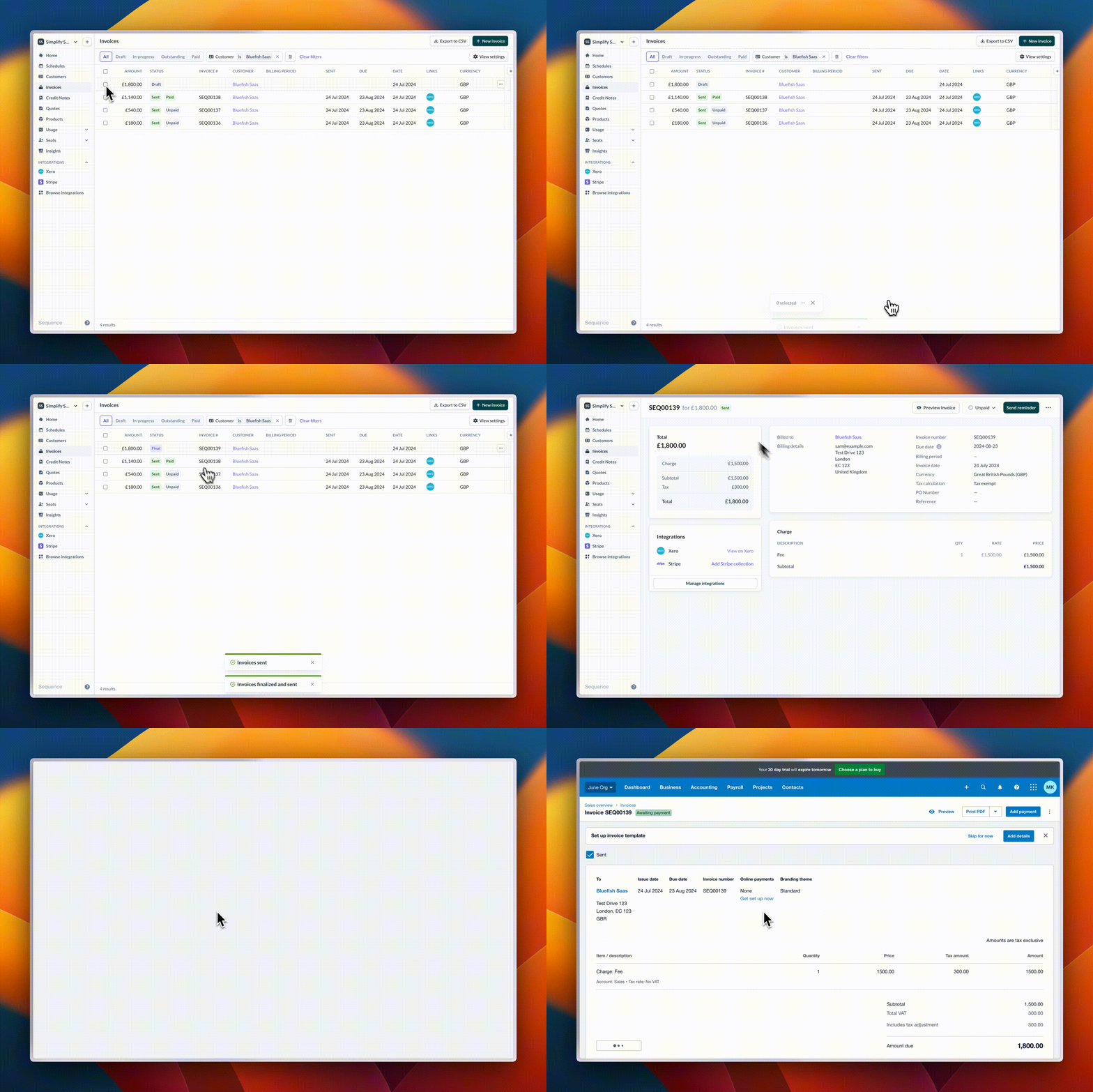 Once an invoice has been pushed to Xero you can reconcile it against payments.
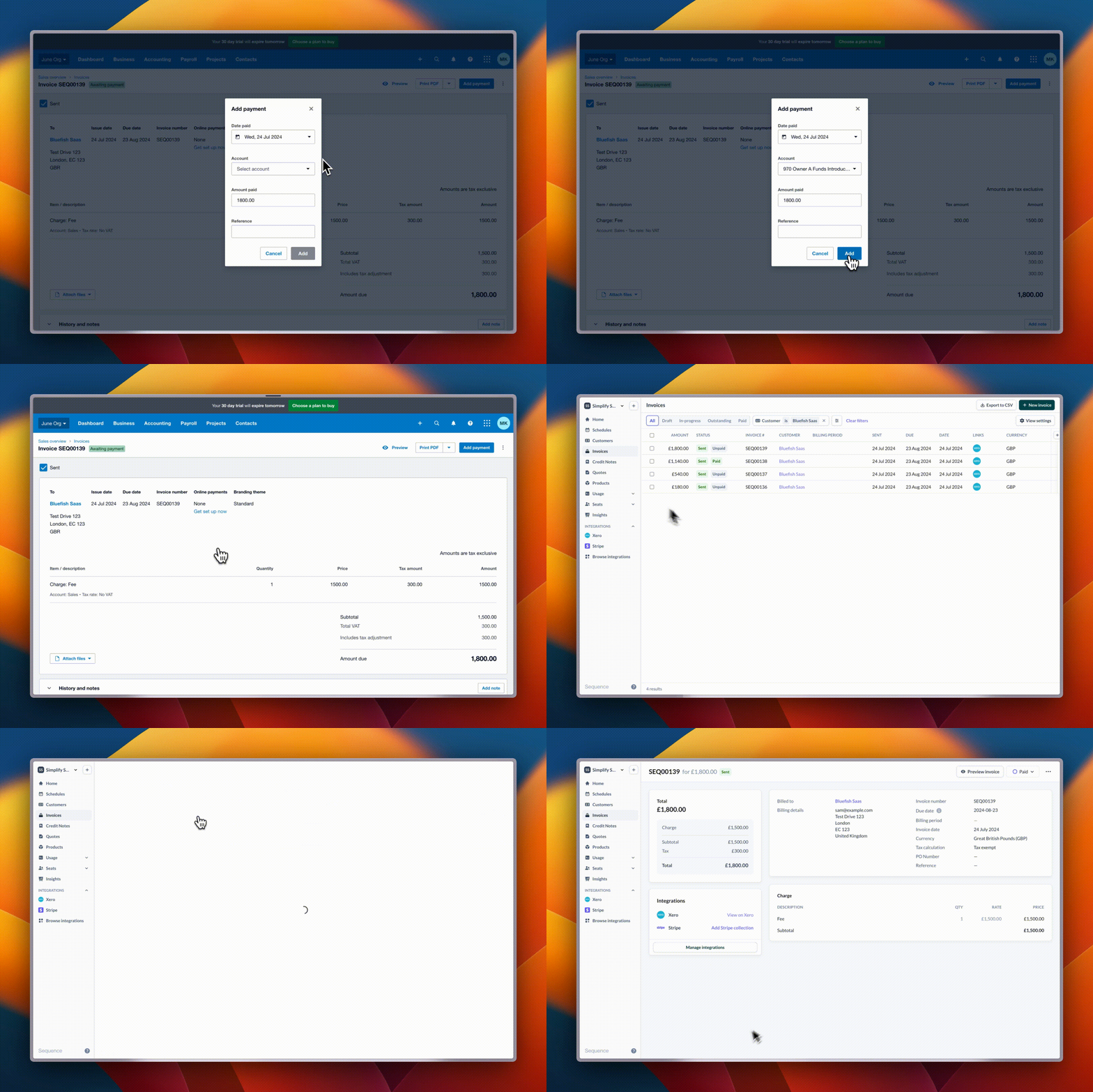
For invoices with a Stripe payment link, Sequence will sync the payment status from Stripe (and ignore the payment status in Xero). You need to reconcile your invoice in Xero separately in this case and additionally mark as paid in Sequence if the payment landed directly in your bank account without going via Stripe.
For regular invoices without a Stripe payment link, Sequence will sync the payment status from Xero.
Once an invoice has been pushed to Xero you can reconcile it against payments.
For invoices with a Stripe payment link, Sequence will sync the payment status from Stripe (and ignore the payment status in Xero). You need to reconcile your invoice in Xero separately in this case and additionally mark as paid in Sequence if the payment landed directly in your bank account without going via Stripe.
For regular invoices without a Stripe payment link, Sequence will sync the payment status from Xero.
 ## Syncing credit notes
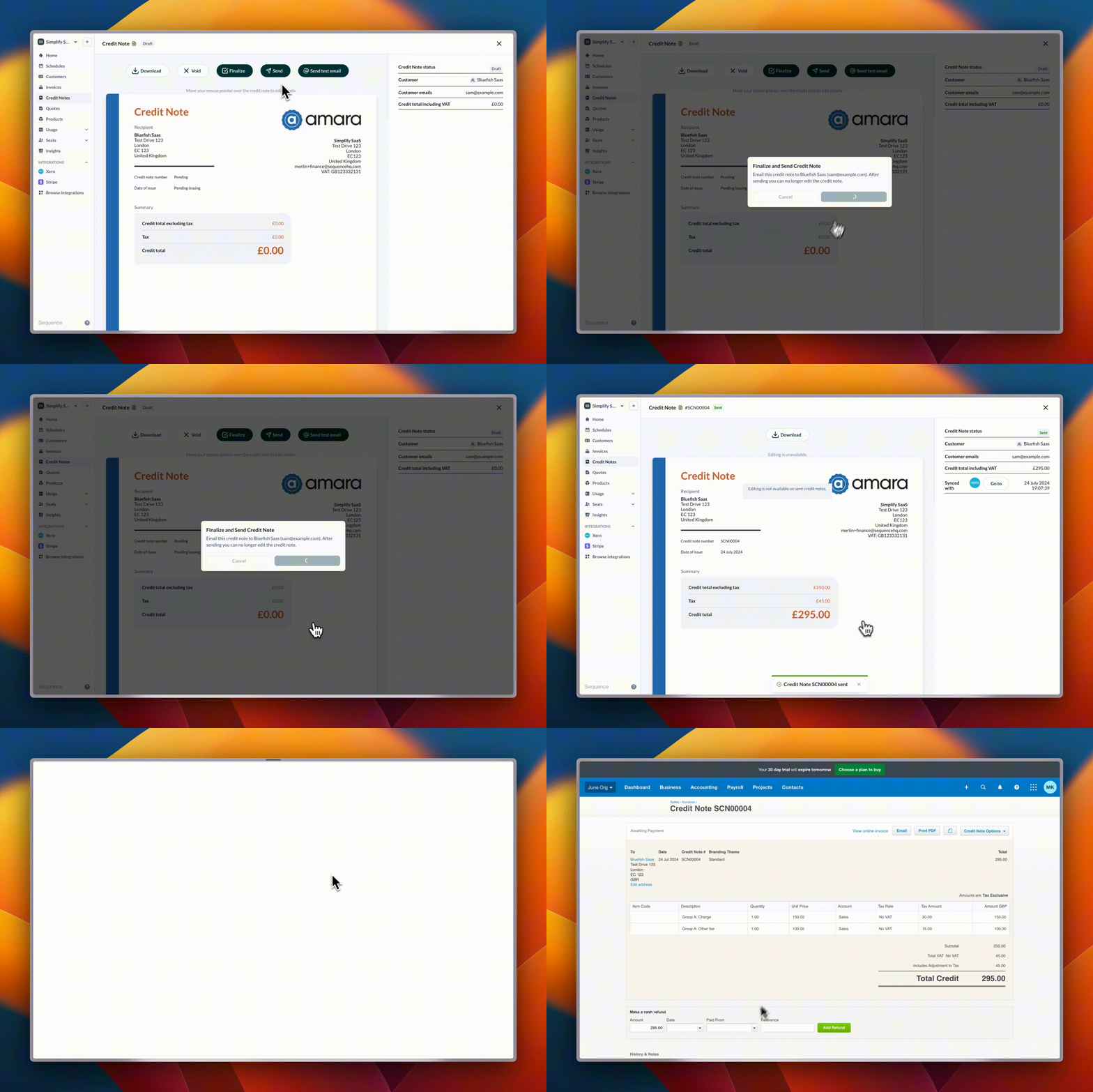
Whenever a credit note is finalized in Sequence it will automatically get pushed to Xero. The issue and due dates will be set to a dummy date of 1st January 3000 in Xero until you send the credit note, at which point we will update these. This will be overwritten with the correct dates when the credit note is sent. If you subsequently send the credit note via Sequence it will get marked as sent in Xero. Similarly if the credit note is marked as sent in Xero, then the status will be updated in Sequence.
You can navigate from the credit note in Xero to Sequence and vice versa.
## Syncing credit notes
Whenever a credit note is finalized in Sequence it will automatically get pushed to Xero. The issue and due dates will be set to a dummy date of 1st January 3000 in Xero until you send the credit note, at which point we will update these. This will be overwritten with the correct dates when the credit note is sent. If you subsequently send the credit note via Sequence it will get marked as sent in Xero. Similarly if the credit note is marked as sent in Xero, then the status will be updated in Sequence.
You can navigate from the credit note in Xero to Sequence and vice versa.
 ## Rounding behaviour in Xero
By default, Xero only supports two decimal points. When an invoice is pushed from Sequence into Xero, line item amounts with more than two decimal points (e.g. £0.0003 per event) are therefore flattened into a line item with a quantity of 1 to avoid discrepancies in the total. For example, an invoice line item with a quantity of 500 and a unit-rate of £0.001 will reflect in Xero as a quantity of 1 with a £0.50 rate.
## Multi-currency transactions in Xero
Xero’s multi-currency feature will auto convert transactions in different currencies. Separate journals for each currency are not required. For tracking different kinds of revenue, you can use tracking categories (similar to tags or labels in Xero) or you can use account codes (specific codes for products).
## Revenue recognition mappings
Map Sequence's deferred and recognized revenue accounts to Xero account codes on the **Account / Revenue recognition** page.
## Rounding behaviour in Xero
By default, Xero only supports two decimal points. When an invoice is pushed from Sequence into Xero, line item amounts with more than two decimal points (e.g. £0.0003 per event) are therefore flattened into a line item with a quantity of 1 to avoid discrepancies in the total. For example, an invoice line item with a quantity of 500 and a unit-rate of £0.001 will reflect in Xero as a quantity of 1 with a £0.50 rate.
## Multi-currency transactions in Xero
Xero’s multi-currency feature will auto convert transactions in different currencies. Separate journals for each currency are not required. For tracking different kinds of revenue, you can use tracking categories (similar to tags or labels in Xero) or you can use account codes (specific codes for products).
## Revenue recognition mappings
Map Sequence's deferred and recognized revenue accounts to Xero account codes on the **Account / Revenue recognition** page.
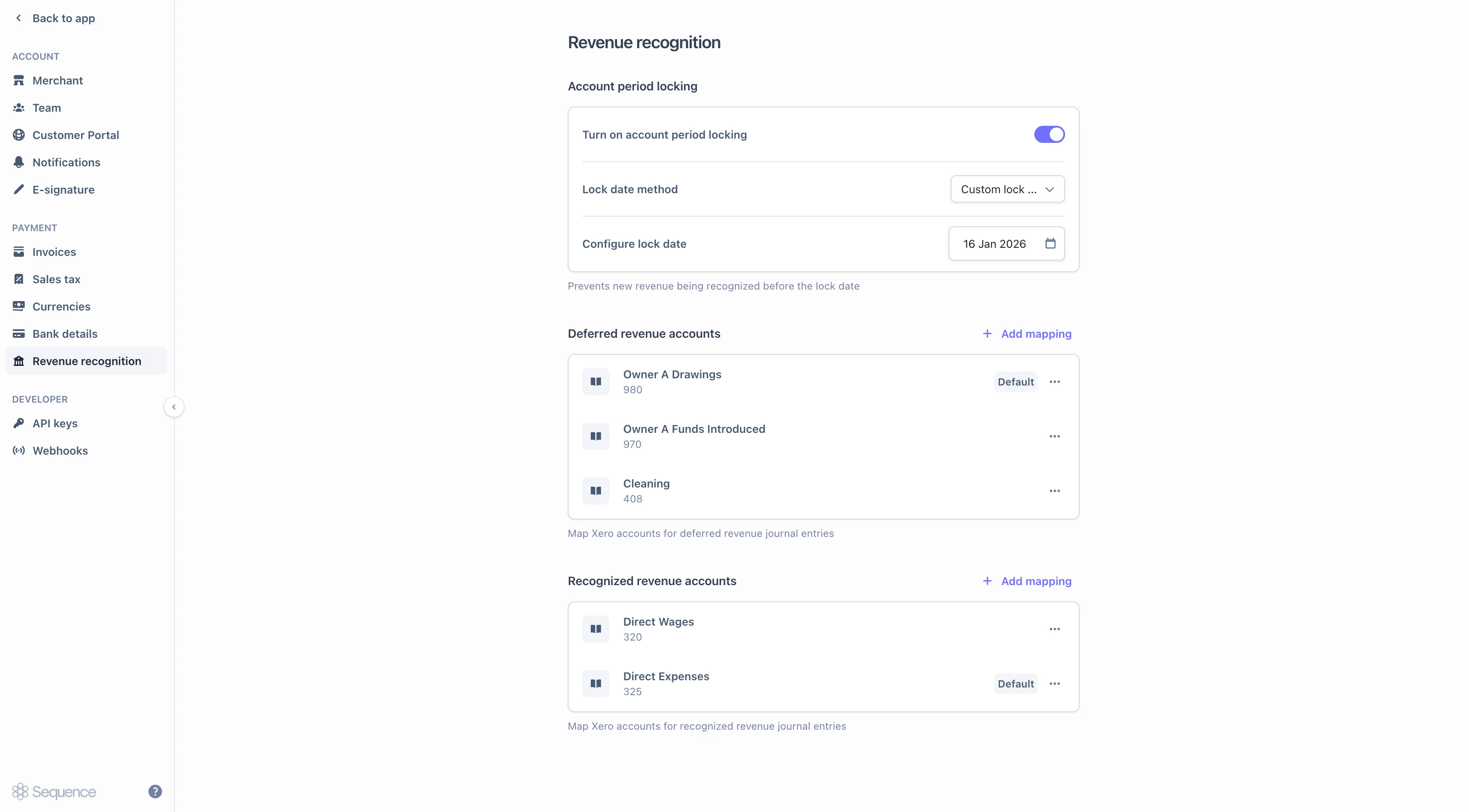 Two mapping sections cover the journal accounts you'll typically need:
* **Deferred revenue accounts**: the Xero accounts that hold deferred revenue (liability side).
* **Recognized revenue accounts**: the Xero accounts that hold recognized revenue (income side).
You can register multiple Xero accounts in each section. Each journal entry takes its Xero account code from the **product-level mapping** for that ledger account, set on the product itself.
Product mappings are read when a recognition charge is created. Updates apply to new charges; existing charges keep the mapping they were created with.
## Revenue recognition CSV export
The Xero-formatted journal export produces a CSV that's directly importable as a **Manual Journals** file in Xero. Columns follow Xero's published template (`*Narration`, `*Date`, `Description`, `*AccountCode`, `*TaxRate`, `*Amount`, plus tracking columns).
See [Journal reports](/revenue-recognition/journal-report) for filters, async download, and the full column list.
### Aggregation levels
The export supports daily, monthly, and per-customer-per-product-monthly aggregation:
| Aggregation | Behaviour |
| ----------------------------------- | -------------------------------------------------------------------------------------------------------------------------------------------------------------------- |
| **Daily** | One entry per journal per day. The default; produces the most detail. |
| **Monthly** | Daily journals collapsed into monthly totals per journal grouping. |
| **Monthly by customer and product** | Monthly totals scoped to each customer and product combination. Useful for accounts that want a finer-grained monthly rollup than a single total per ledger account. |
### Sign convention
Sequence's internal ledger uses an explicit `Direction` (Debit or Credit). When generating the Xero export, the amount is signed according to each Xero account's **normal balance**:
* Debiting a debit-normal account produces a positive amount.
* Crediting a credit-normal account produces a positive amount.
* Crediting a debit-normal account produces a negative amount.
* Debiting a credit-normal account produces a negative amount.
This matches what Xero expects on import, so journals load without manual sign correction.
### Rounding
Amounts are rounded to two decimal places. Trailing decimal zeroes are stripped where appropriate to match Xero's display.
### Credit notes without an accounting date
If a credit note has no accounting date set (e.g., it pre-dates the field being required), the export falls back to the credit note's **issue date** for the journal date.
Two mapping sections cover the journal accounts you'll typically need:
* **Deferred revenue accounts**: the Xero accounts that hold deferred revenue (liability side).
* **Recognized revenue accounts**: the Xero accounts that hold recognized revenue (income side).
You can register multiple Xero accounts in each section. Each journal entry takes its Xero account code from the **product-level mapping** for that ledger account, set on the product itself.
Product mappings are read when a recognition charge is created. Updates apply to new charges; existing charges keep the mapping they were created with.
## Revenue recognition CSV export
The Xero-formatted journal export produces a CSV that's directly importable as a **Manual Journals** file in Xero. Columns follow Xero's published template (`*Narration`, `*Date`, `Description`, `*AccountCode`, `*TaxRate`, `*Amount`, plus tracking columns).
See [Journal reports](/revenue-recognition/journal-report) for filters, async download, and the full column list.
### Aggregation levels
The export supports daily, monthly, and per-customer-per-product-monthly aggregation:
| Aggregation | Behaviour |
| ----------------------------------- | -------------------------------------------------------------------------------------------------------------------------------------------------------------------- |
| **Daily** | One entry per journal per day. The default; produces the most detail. |
| **Monthly** | Daily journals collapsed into monthly totals per journal grouping. |
| **Monthly by customer and product** | Monthly totals scoped to each customer and product combination. Useful for accounts that want a finer-grained monthly rollup than a single total per ledger account. |
### Sign convention
Sequence's internal ledger uses an explicit `Direction` (Debit or Credit). When generating the Xero export, the amount is signed according to each Xero account's **normal balance**:
* Debiting a debit-normal account produces a positive amount.
* Crediting a credit-normal account produces a positive amount.
* Crediting a debit-normal account produces a negative amount.
* Debiting a credit-normal account produces a negative amount.
This matches what Xero expects on import, so journals load without manual sign correction.
### Rounding
Amounts are rounded to two decimal places. Trailing decimal zeroes are stripped where appropriate to match Xero's display.
### Credit notes without an accounting date
If a credit note has no accounting date set (e.g., it pre-dates the field being required), the export falls back to the credit note's **issue date** for the journal date.