> ## Documentation Index
> Fetch the complete documentation index at: https://docs.sequencehq.com/llms.txt
> Use this file to discover all available pages before exploring further.
# Roles & Permissions
> Manage user access and permissions with finance-centric role-based access controls
 Control user access to Sequence with role-based permissions designed for finance teams. Roles & permissions prevent accidental changes, support audit trails, and enable workflows across your teams.
 ## Understanding roles & permissions
Sequence uses role-based access control (RBAC) to manage what users can see and do within your workspace. Each user can be assigned one or more roles, with permissions designed around common finance team structures.
| | |
| ------------------- | -------------------------------------------------------------------------------- |
| **Workspace** | Your Sequence account where roles are managed |
| **Role** | A collection of permissions that defines what a user can do |
| **Permission** | Specific access rights to resources and actions |
| **Resource** | Objects like customers, invoices, or billing schedules |
| **Action** | Operations like create, read, update, delete, or feature-specific actions |
| **Least privilege** | Users start with minimal access and are granted additional permissions as needed |
### Default user roles
Sequence provides four default roles that mirror common finance team structures. Users can be assigned multiple roles to customize their access level.
Full access to all resources and actions, including user management and system settings.
Complete access to billing operations with limited administrative capabilities.
Quote management and customer interaction focused permissions.
Read-only access across all resources for reporting and analysis.
## Permission matrix
The following table shows the specific permissions for each default role across Sequence resources:
| Resource or Action | Admin | Finance User | Sales User | View-only |
| --------------------------- | ------------- | ------------- | ------------- | ------------- |
| **Customers** | ✅ Full access | ✅ Full access | ✅ Full access | 👁️ View-only |
| **Billing Schedules** | ✅ Full access | ✅ Full access | 👁️ View-only | 👁️ View-only |
| **Start a schedule** | ✅ | ✅ | ❌ | ❌ |
| **Products & Pricing** | ✅ Full access | ✅ Full access | 👁️ View-only | 👁️ View-only |
| **Quotes** | ✅ Full access | 👁️ View-only | ✅ Full access | 👁️ View-only |
| **Publish quote** | ✅ | ❌ | ✅ | ❌ |
| **Accept quote** | ✅ | ❌ | ✅ | ❌ |
| **Execute quote** | ✅ | ✅ | ✅ | ❌ |
| **Invoices** | ✅ Full access | ✅ Full access | 👁️ View-only | 👁️ View-only |
| **Finalize & send invoice** | ✅ | ✅ | ❌ | ❌ |
| **Credit Notes** | ✅ Full access | ✅ Full access | 👁️ View-only | 👁️ View-only |
| **Usage & Events** | ✅ Full access | 👁️ View-only | 👁️ View-only | 👁️ View-only |
| **Revenue Recognition** | ✅ Full access | ✅ Full access | 👁️ View-only | 👁️ View-only |
| **Settings** | ✅ Full access | 👁️ View-only | 👁️ View-only | 👁️ View-only |
| **Invite users** | ✅ | ✅ | ✅ | ❌ |
| **Edit users** | ✅ | ❌ | ❌ | ❌ |
| **Integrations** | ✅ Full access | 👁️ View-only | 👁️ View-only | 👁️ View-only |
| **Discounts** | ✅ Full access | ✅ Full access | 👁️ View-only | 👁️ View-only |
| **Credit Grants** | ✅ Full access | ✅ Full access | 👁️ View-only | 👁️ View-only |
| **Tax Management** | ✅ Full access | ✅ Full access | 👁️ View-only | 👁️ View-only |
**Legend**: ✅ = Full CRUD access, 👁️ = View-only access, ❌ = No access
## Managing user roles
### Inviting new users
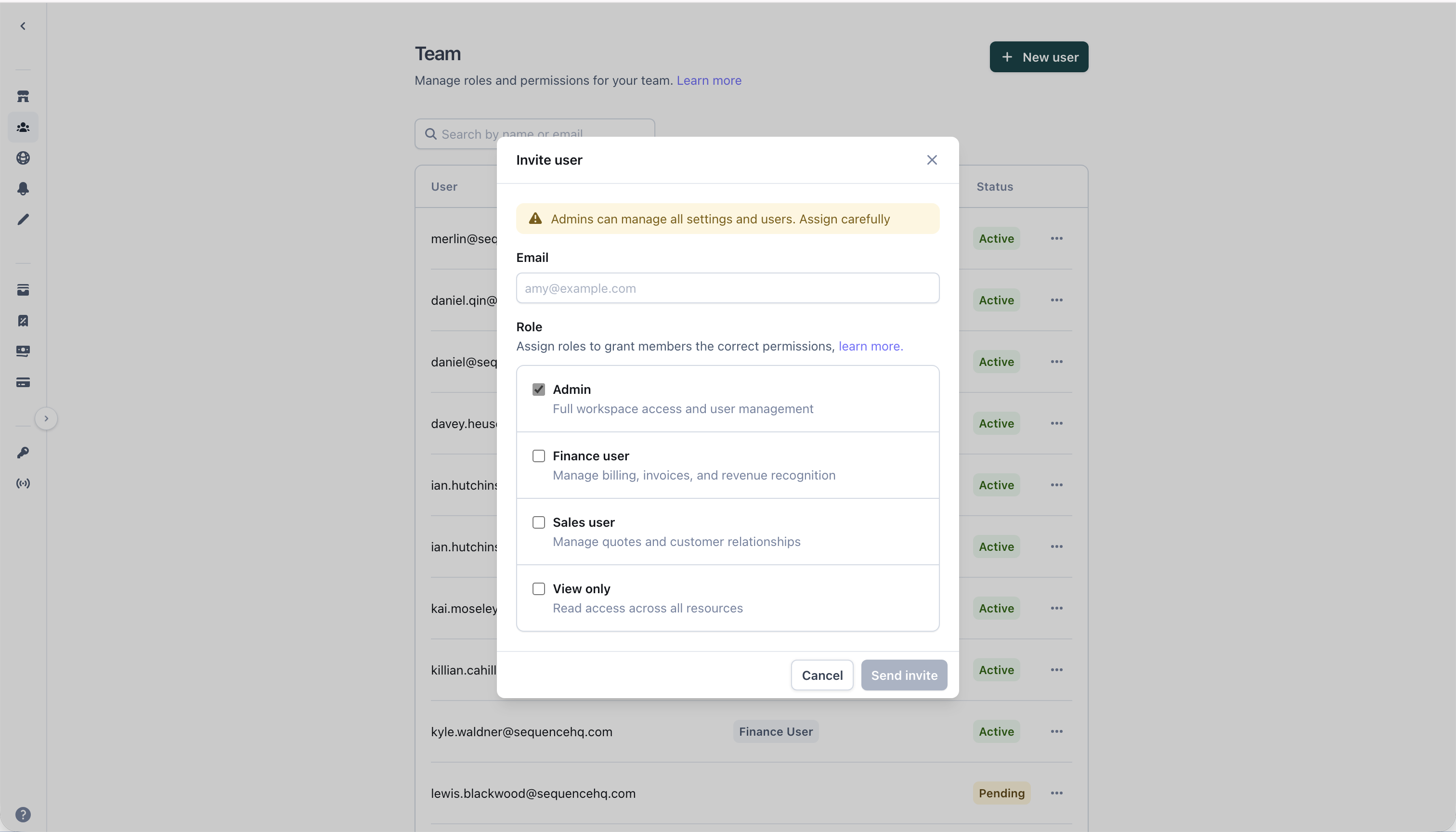
When inviting new users to your workspace, they are assigned the **View-only** role by default following the principle of least privilege. You can upgrade their permissions after they join.
Go to Settings > Users in your Sequence dashboard
Click "Invite User" and enter their email address
Select the appropriate role(s) for the new user
The user will receive an email invitation to join your workspace
### Updating user permissions
## Understanding roles & permissions
Sequence uses role-based access control (RBAC) to manage what users can see and do within your workspace. Each user can be assigned one or more roles, with permissions designed around common finance team structures.
| | |
| ------------------- | -------------------------------------------------------------------------------- |
| **Workspace** | Your Sequence account where roles are managed |
| **Role** | A collection of permissions that defines what a user can do |
| **Permission** | Specific access rights to resources and actions |
| **Resource** | Objects like customers, invoices, or billing schedules |
| **Action** | Operations like create, read, update, delete, or feature-specific actions |
| **Least privilege** | Users start with minimal access and are granted additional permissions as needed |
### Default user roles
Sequence provides four default roles that mirror common finance team structures. Users can be assigned multiple roles to customize their access level.
Full access to all resources and actions, including user management and system settings.
Complete access to billing operations with limited administrative capabilities.
Quote management and customer interaction focused permissions.
Read-only access across all resources for reporting and analysis.
## Permission matrix
The following table shows the specific permissions for each default role across Sequence resources:
| Resource or Action | Admin | Finance User | Sales User | View-only |
| --------------------------- | ------------- | ------------- | ------------- | ------------- |
| **Customers** | ✅ Full access | ✅ Full access | ✅ Full access | 👁️ View-only |
| **Billing Schedules** | ✅ Full access | ✅ Full access | 👁️ View-only | 👁️ View-only |
| **Start a schedule** | ✅ | ✅ | ❌ | ❌ |
| **Products & Pricing** | ✅ Full access | ✅ Full access | 👁️ View-only | 👁️ View-only |
| **Quotes** | ✅ Full access | 👁️ View-only | ✅ Full access | 👁️ View-only |
| **Publish quote** | ✅ | ❌ | ✅ | ❌ |
| **Accept quote** | ✅ | ❌ | ✅ | ❌ |
| **Execute quote** | ✅ | ✅ | ✅ | ❌ |
| **Invoices** | ✅ Full access | ✅ Full access | 👁️ View-only | 👁️ View-only |
| **Finalize & send invoice** | ✅ | ✅ | ❌ | ❌ |
| **Credit Notes** | ✅ Full access | ✅ Full access | 👁️ View-only | 👁️ View-only |
| **Usage & Events** | ✅ Full access | 👁️ View-only | 👁️ View-only | 👁️ View-only |
| **Revenue Recognition** | ✅ Full access | ✅ Full access | 👁️ View-only | 👁️ View-only |
| **Settings** | ✅ Full access | 👁️ View-only | 👁️ View-only | 👁️ View-only |
| **Invite users** | ✅ | ✅ | ✅ | ❌ |
| **Edit users** | ✅ | ❌ | ❌ | ❌ |
| **Integrations** | ✅ Full access | 👁️ View-only | 👁️ View-only | 👁️ View-only |
| **Discounts** | ✅ Full access | ✅ Full access | 👁️ View-only | 👁️ View-only |
| **Credit Grants** | ✅ Full access | ✅ Full access | 👁️ View-only | 👁️ View-only |
| **Tax Management** | ✅ Full access | ✅ Full access | 👁️ View-only | 👁️ View-only |
**Legend**: ✅ = Full CRUD access, 👁️ = View-only access, ❌ = No access
## Managing user roles
### Inviting new users
When inviting new users to your workspace, they are assigned the **View-only** role by default following the principle of least privilege. You can upgrade their permissions after they join.
Go to Settings > Users in your Sequence dashboard
Click "Invite User" and enter their email address
Select the appropriate role(s) for the new user
The user will receive an email invitation to join your workspace
### Updating user permissions
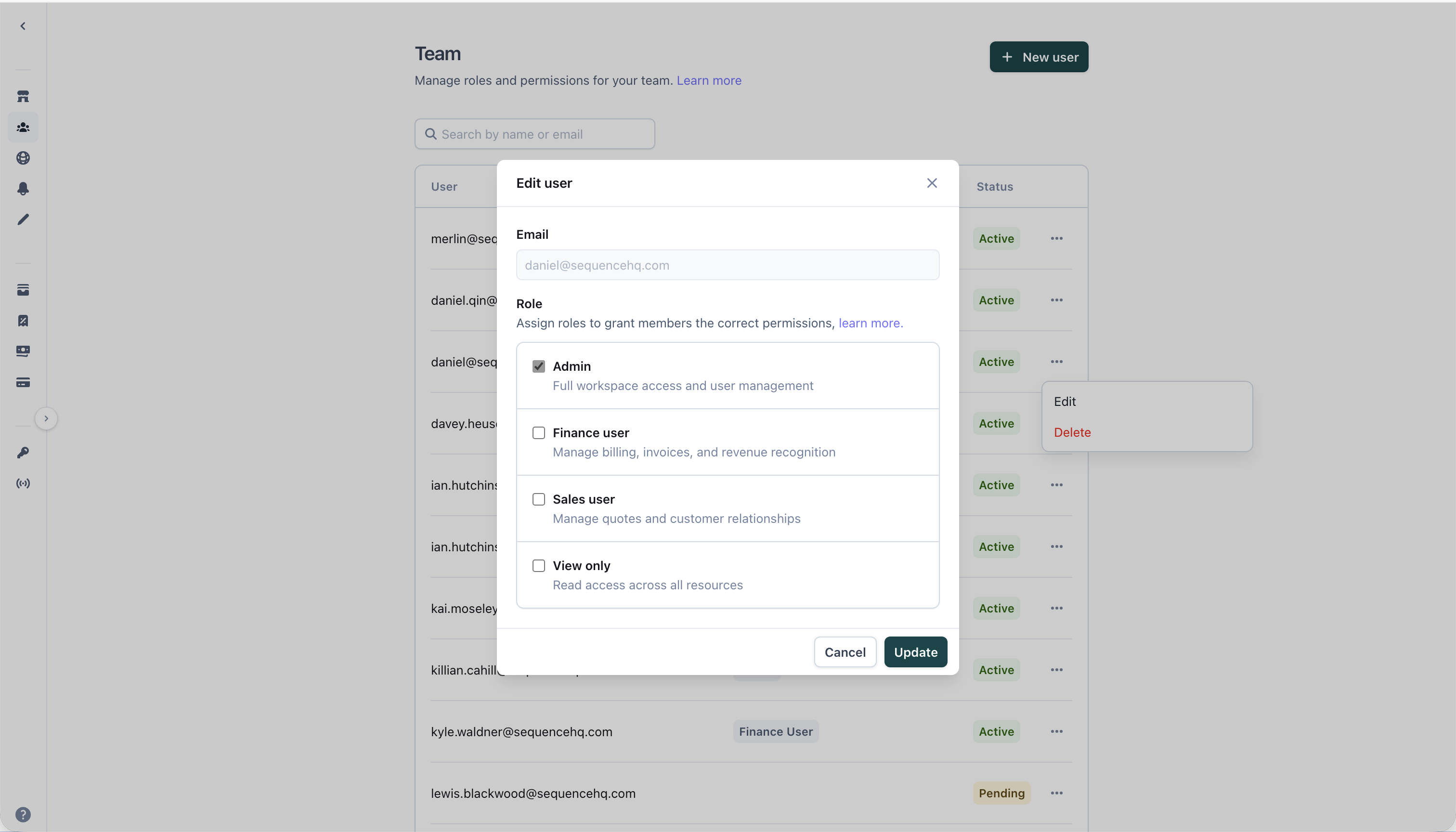 Existing users can be assigned multiple roles to customize their access level. Admin users can modify role assignments at any time.
## Security & compliance
### Audit trails
All user permission change actions are logged with role information for compliance and security auditing.
## Best practices
* Start with the most restrictive role appropriate for each user's job function
* Assign multiple roles only when necessary for cross-functional responsibilities
* Regularly review and audit user permissions
* Use View-only role for external stakeholders and reporting needs
* **Finance Users**: Day-to-day billing operations, invoice management, revenue recognition
* **Sales Users**: Quote creation and management, customer relationship activities
* **Admin**: System configuration, user management, integration setup
* **View-only**: Executives, analysts, and external auditors
* Maintain at least two admin users for redundancy
* Remove access immediately when team members leave
* Use View-only role for temporary or external access
## Frequently asked questions
Yes, users can be assigned multiple roles. Their effective permissions will be the union of all assigned roles.
Custom roles are not available in the initial release. The system is designed to support additional granular permissions in future updates.
Always maintain at least one active admin user. The system will prevent removing admin permissions from the last admin user.
Existing users can be assigned multiple roles to customize their access level. Admin users can modify role assignments at any time.
## Security & compliance
### Audit trails
All user permission change actions are logged with role information for compliance and security auditing.
## Best practices
* Start with the most restrictive role appropriate for each user's job function
* Assign multiple roles only when necessary for cross-functional responsibilities
* Regularly review and audit user permissions
* Use View-only role for external stakeholders and reporting needs
* **Finance Users**: Day-to-day billing operations, invoice management, revenue recognition
* **Sales Users**: Quote creation and management, customer relationship activities
* **Admin**: System configuration, user management, integration setup
* **View-only**: Executives, analysts, and external auditors
* Maintain at least two admin users for redundancy
* Remove access immediately when team members leave
* Use View-only role for temporary or external access
## Frequently asked questions
Yes, users can be assigned multiple roles. Their effective permissions will be the union of all assigned roles.
Custom roles are not available in the initial release. The system is designed to support additional granular permissions in future updates.
Always maintain at least one active admin user. The system will prevent removing admin permissions from the last admin user.