


- Turn on GoCardless as a payment option on Sequence invoices and billing schedules
- Let customers pay through the customer portal using GoCardless’ hosted payment flow
- Update invoice payment status in Sequence when a payment completes
- View and manage customer mandates, including canceling them when needed
Start guide
Follow the steps below to get started:- Go to Connectors and select GoCardless.
- Click Connect to GoCardless and complete the GoCardless onboarding flow.
- Once connected, enable GoCardless on one-time invoices or billing schedules to start collecting payments.
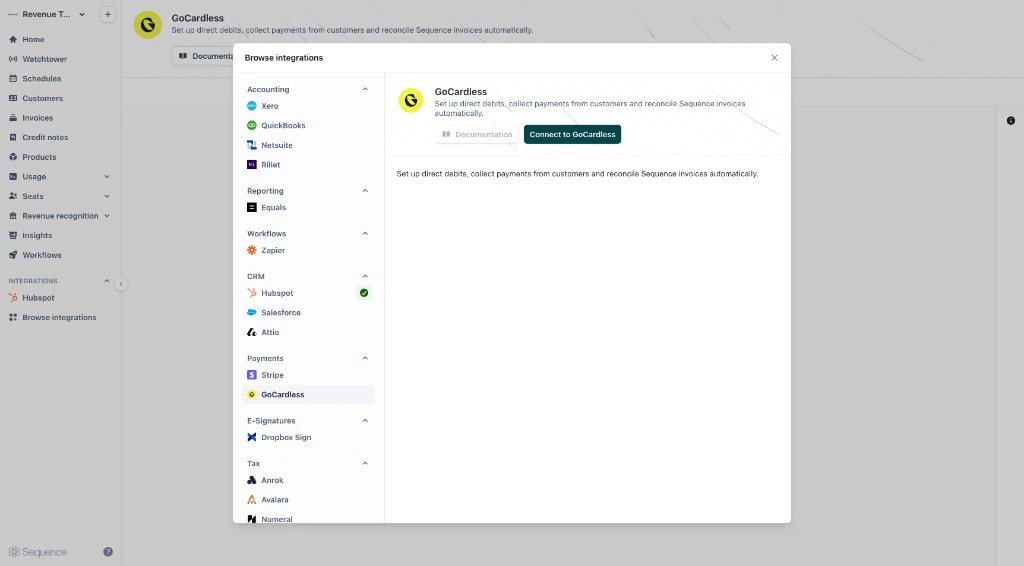
Connect a new or existing GoCardless account
You can connect:- A new GoCardless account: choose Sign up during onboarding.
- An existing GoCardless account: sign in and connect your account.
Using GoCardless in Sequence
GoCardless is available in two places:- One-time invoices
- Billing schedules (for invoices generated automatically over time)
Collecting payments with GoCardless
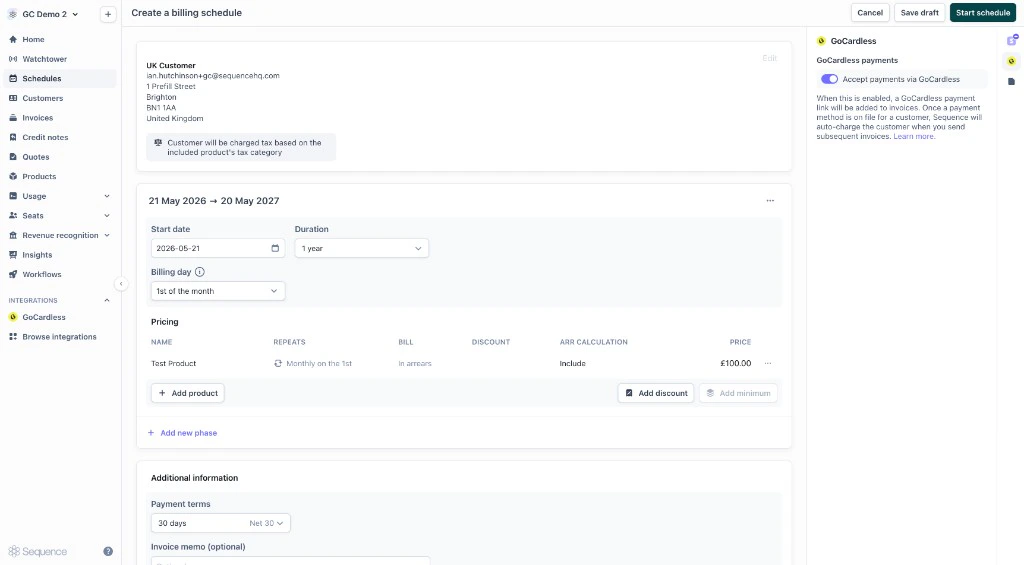
Turn on Accept payments via GoCardless on a billing schedule or invoice, including drafts. If the customer’s country or the invoice currency is not supported, the toggle stays off and Sequence explains why.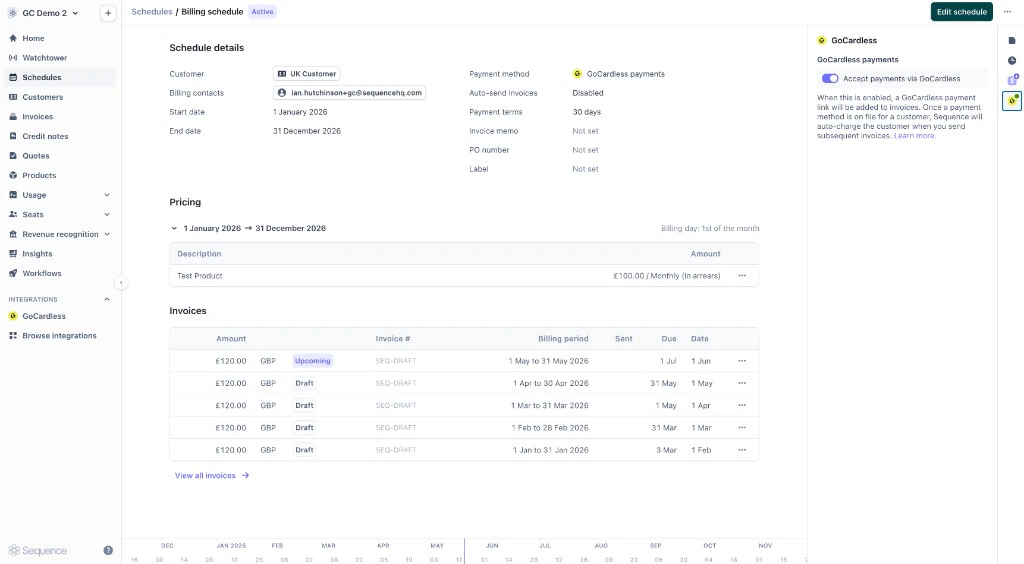
Country and currency requirements
Whether you can use GoCardless depends on the customer’s country and the invoice currency. Sequence checks this in the invoice editor and billing schedule editor. If GoCardless is not available, the toggle is disabled and you see a short explanation.One-time invoices
On one-time invoices, GoCardless may be unavailable when:- The customer’s country is not supported (for example, a customer in Japan)
- The invoice currency is not supported (for example, JPY for a UK customer)
- Unsupported country
- Unsupported currency
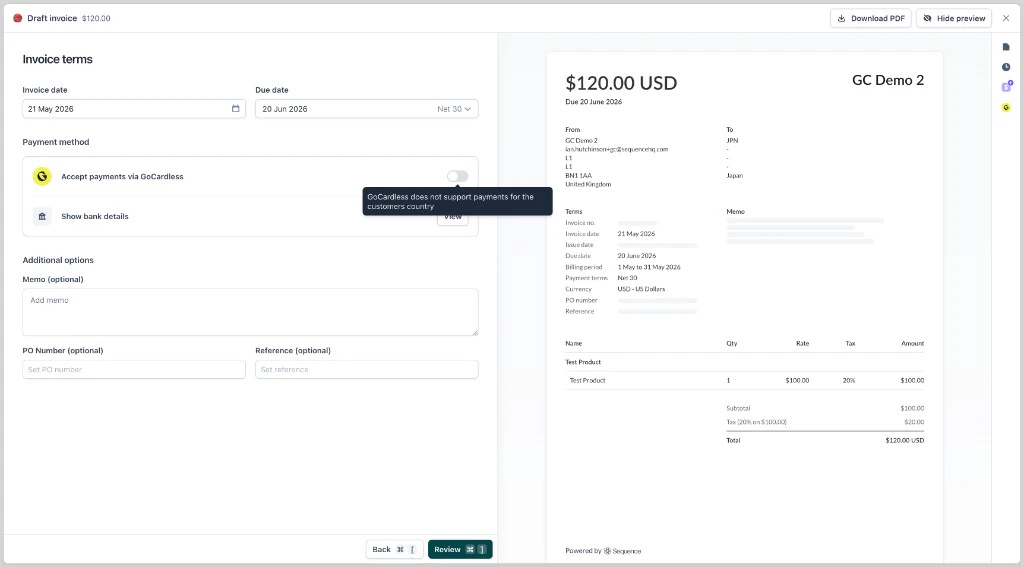
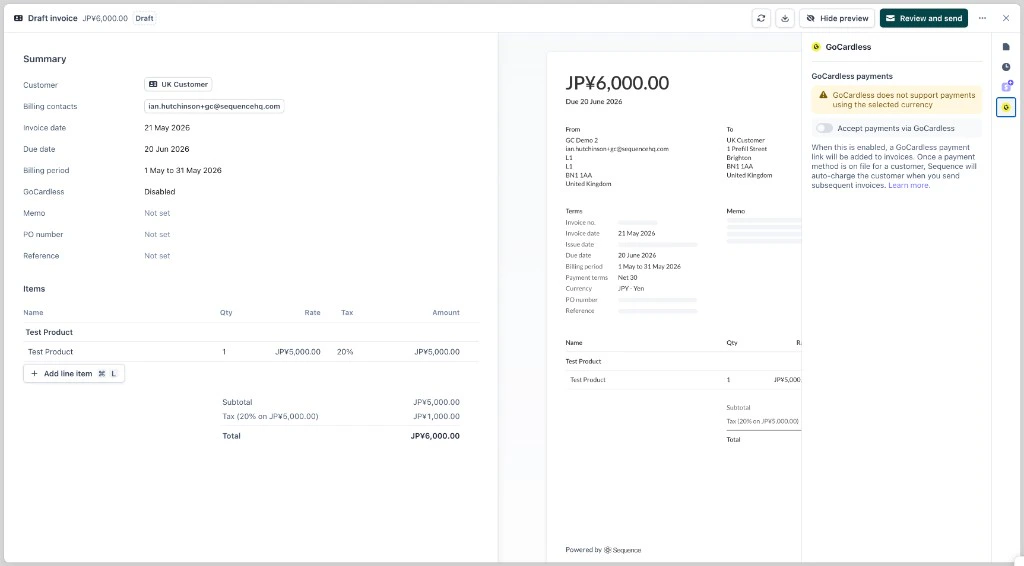
After you enable GoCardless on an invoice, Sequence locks the currency so it cannot be changed to one GoCardless does not support.
Billing schedules
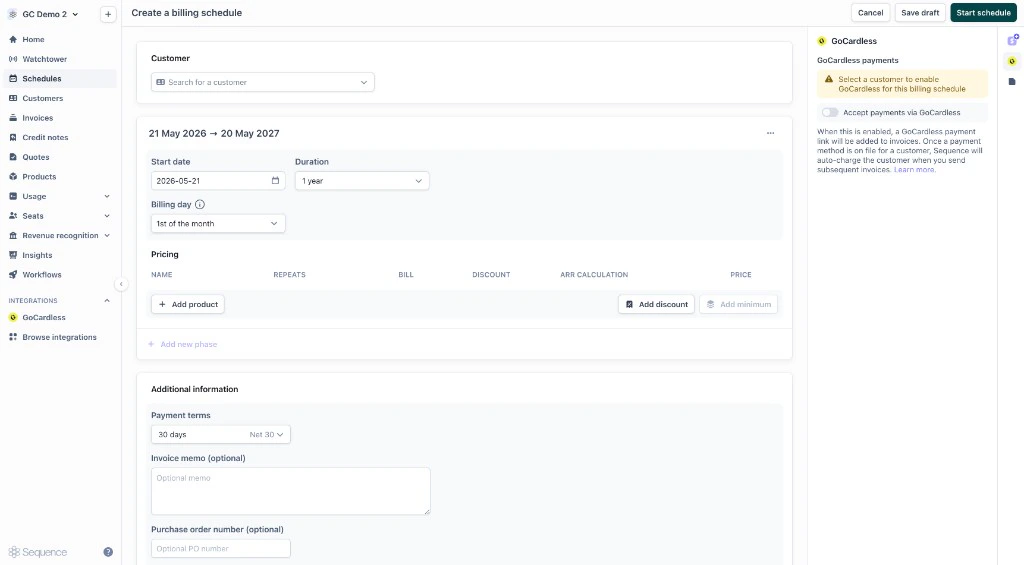
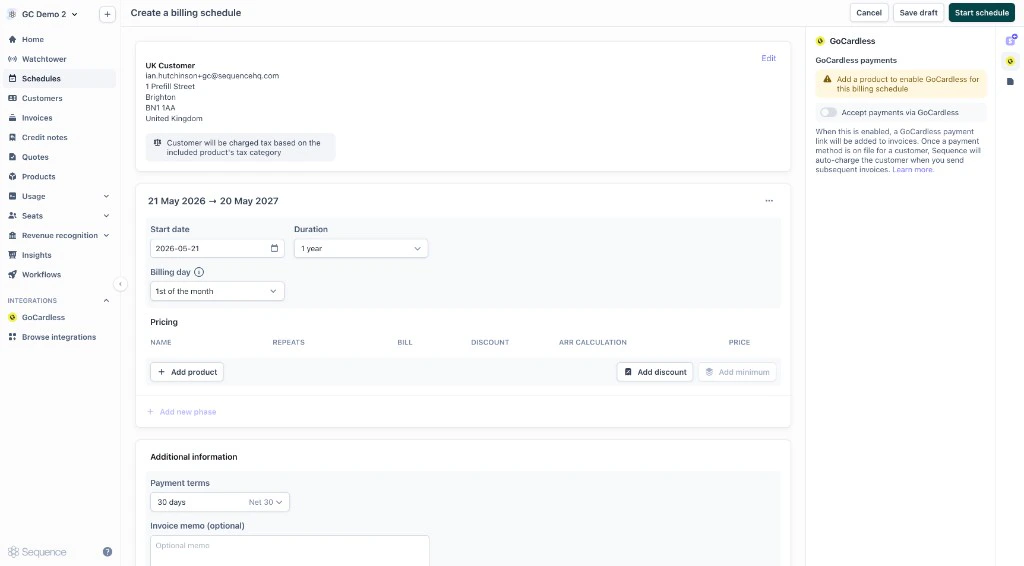
On billing schedules, you can enable GoCardless once Sequence has enough information to check eligibility:- Select a customer so Sequence can check their country.
- Add a product so Sequence knows which currency the schedule uses.
- Select a customer
- Add a product
- GoCardless enabled
Example payment flow
Customers pay through the Sequence customer portal.1
Send an invoice with GoCardless enabled
When you send the invoice, your customer receives an email with a link to the customer portal.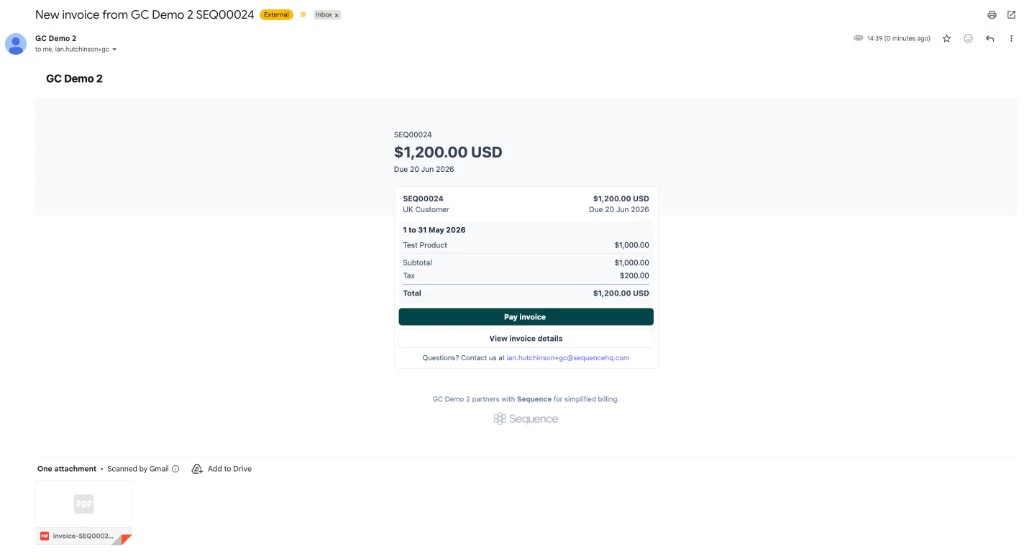
2
Customer opens the customer portal
In the portal, the customer can view the invoice, download the PDF, and click Pay invoice.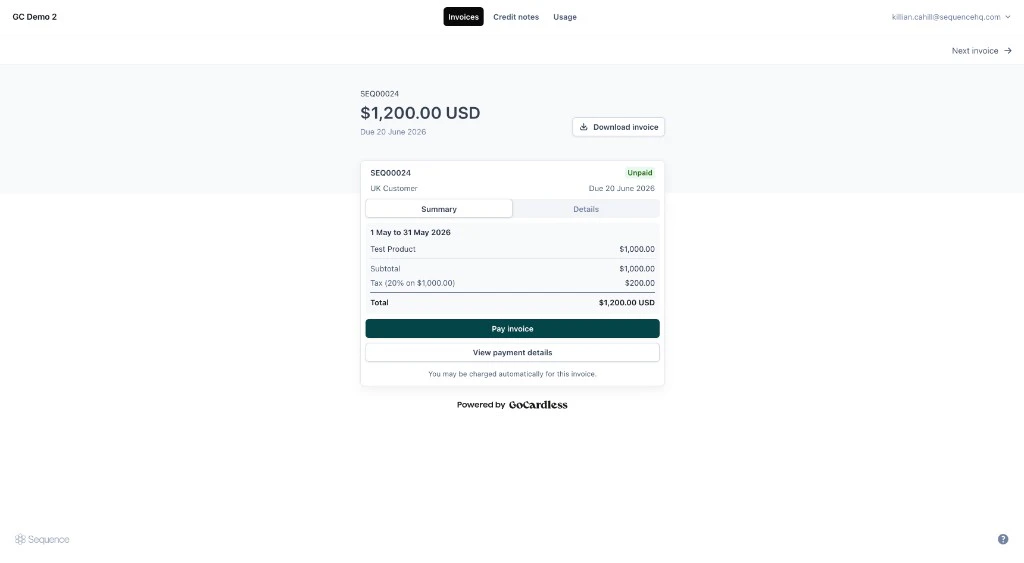
3
Customer completes payment in GoCardless
Pay invoice opens the GoCardless hosted payment flow. The customer completes the steps to authorize payment (for example, setting up a UK direct debit or a US ACH debit). They are then returned to the customer portal. Where supported, Sequence sends customer details to GoCardless to reduce manual entry. When payment completes, the invoice status updates in Sequence automatically.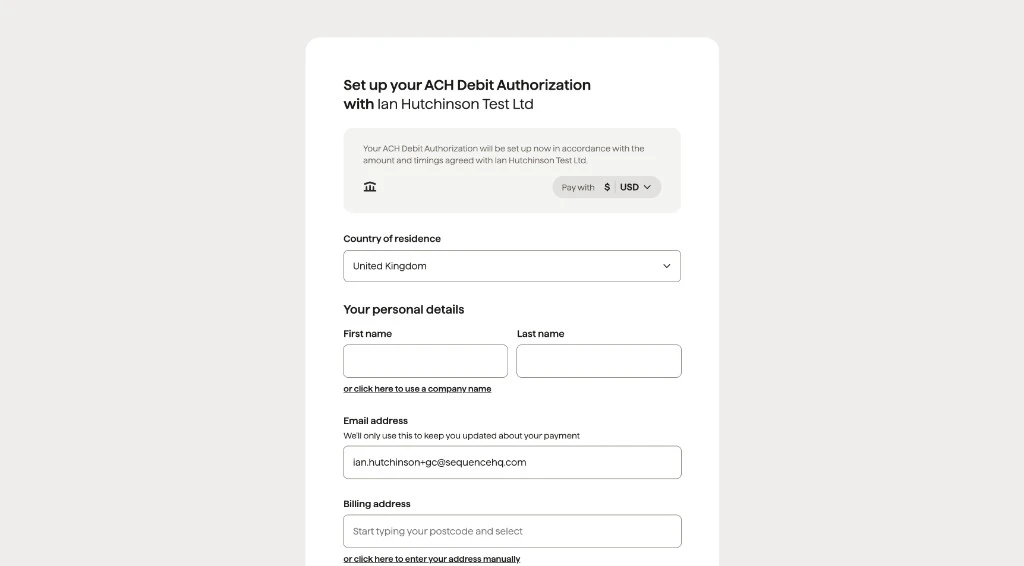
Mandates
A mandate is your customer’s authorization for GoCardless to collect future bank debits. After a customer pays or completes an authorization, their GoCardless customer ID and mandates appear on the customer page in Sequence.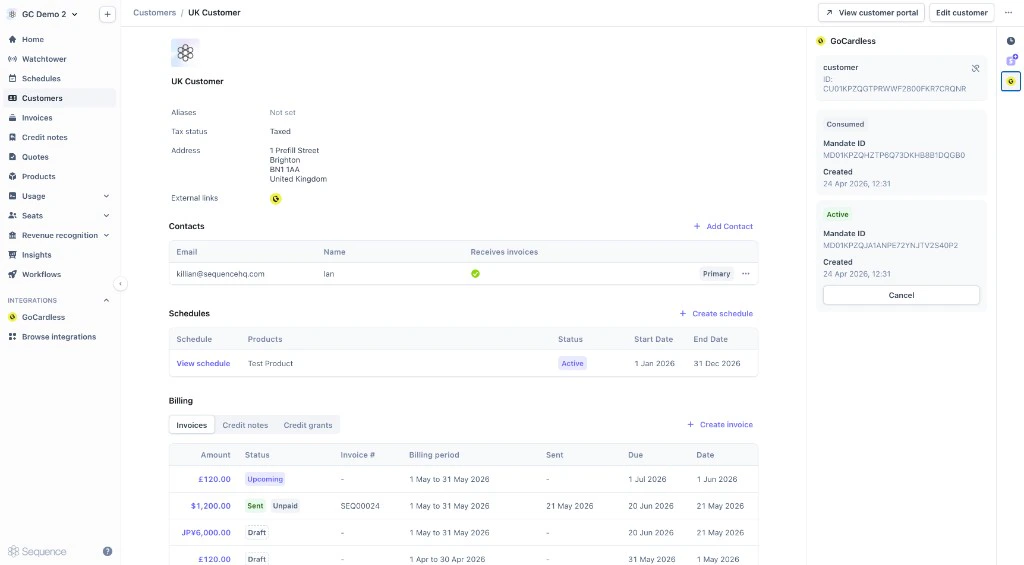
Mandate statuses
A customer may have more than one mandate. Common statuses:
In regions that support instant payments, you may see a consumed mandate from the first payment and a separate active or pending mandate for ongoing direct debit.
Cancel a mandate
Select Cancel next to the mandate on the customer page.Linking Sequence customers to GoCardless
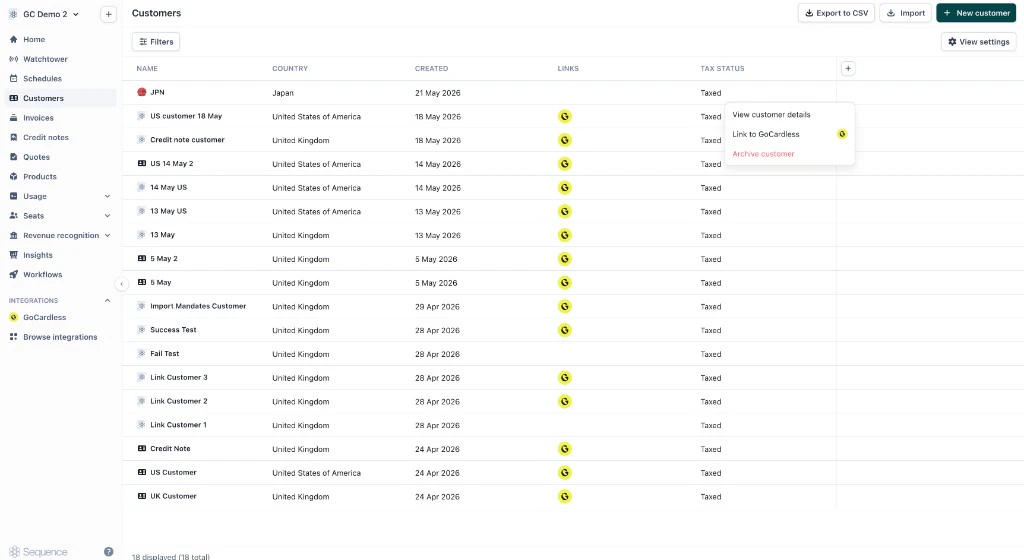
In most cases, Sequence creates a GoCardless customer when you first take a payment. You do not need to link customers manually. If you already have customers in GoCardless, you can link them to Sequence customers so that:- The GoCardless customer is associated with the right Sequence customer
- Existing mandates appear on the Sequence customer, so you can keep collecting without asking the customer to authorize again
Frequently asked questions
Why is “Accept payments via GoCardless” disabled?
Why is “Accept payments via GoCardless” disabled?
GoCardless is only available when the customer’s country and the invoice currency are both supported. On billing schedules, you may also need to select a customer and add a product first so Sequence can check eligibility.
Why is the invoice currency locked?
Why is the invoice currency locked?
After you enable GoCardless, Sequence locks the currency so it cannot be changed to an unsupported currency.
Where do customers pay?
Where do customers pay?
Customers pay in the Sequence customer portal. Pay invoice opens the GoCardless hosted flow, then returns them to the portal.
How do mandates work in Sequence?
How do mandates work in Sequence?
Mandates are listed on the customer page with a status such as Active, Consumed, or Pending. You can cancel an active mandate from the customer page.
Can I link existing GoCardless customers?
Can I link existing GoCardless customers?
Yes. From the customers table, open the menu for a customer and choose Link to GoCardless. This associates the Sequence customer with an existing GoCardless customer and brings across existing mandates where available.