

How it works
1
Trigger on a sent invoice
Create a workflow and choose the Invoice sent trigger. The workflow starts when Sequence sends an invoice to the customer. (Invoices you manually mark as sent do not trigger reminder workflows.)
2
Add Reminder nodes
Drop one or more Reminder nodes onto the canvas and connect them in order. Each node represents one reminder in your dunning sequence. For example, a nudge before the due date followed by escalating reminders after it.
3
Route by customer or invoice (optional)
Use a Switch node to send different customers or invoice sizes down different reminder paths.
4
Publish
Publish the workflow to make it live for every invoice sent from then on.
The Reminder node
The Reminder node packages a complete reminder step into a single node on the canvas. Internally it waits, checks the invoice is still owed, composes the email, optionally routes it for review, and sends it. Chain several Reminder nodes to model a full dunning sequence.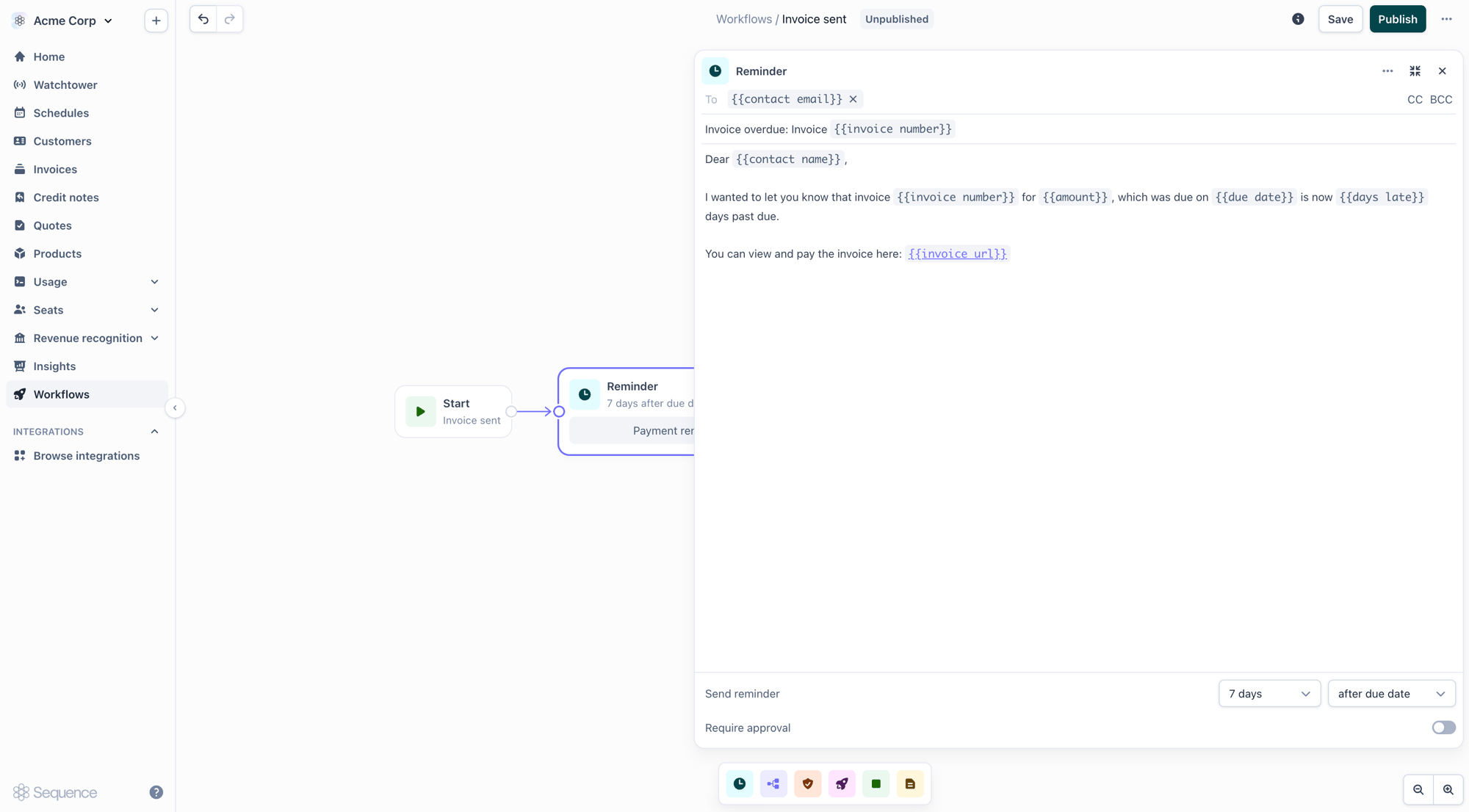
Timing
Each Reminder node has its own send timing:- Relative to the due date: a set number of days before or after the invoice due date (e.g. 7 days before, 1 day after).
- Immediately: send as soon as the run reaches the node.
The email
Configure the To, CC, BCC, Subject, and Body. Reminders are addressed to the customer’s billing contacts by default; add your own company address in CC so customers can reply directly to your team. The body supports template variables, which are filled in from the invoice and customer when the email is generated:
The invoice PDF and any attachments sent with the original invoice are attached automatically. Reminder emails are intentionally sent unstyled (plain). Our testing shows plain reminders are more effective at prompting payment.
If a template variable can’t be resolved (for example a typo or missing data), the reminder is routed to a review task instead of sending a broken email, even when review is otherwise turned off.
Require approval
Turn on Require approval to insert a human checkpoint: instead of sending automatically, the reminder is composed and paused as a task in Watchtower for the approvers you assign. See Reviewing reminders in Watchtower for the review-and-send path. With approval off, the reminder sends automatically once its timing is reached.Stopping automatically
While a Reminder node is waiting, Sequence keeps watching the invoice. If it’s paid, voided, or written off as uncollectible, the run ends on its own and no further reminders are sent.Reviewing reminders in Watchtower
When a reminder requires approval, assigned reviewers are notified by email and the reminder appears in Watchtower. From there it follows a three-step path before it reaches the customer.1
Flagged for review
The reminder lands in Watchtower as a task (e.g. “Invoice is 10 days overdue”), showing the drafted email, the recipient, and the attached invoice PDF.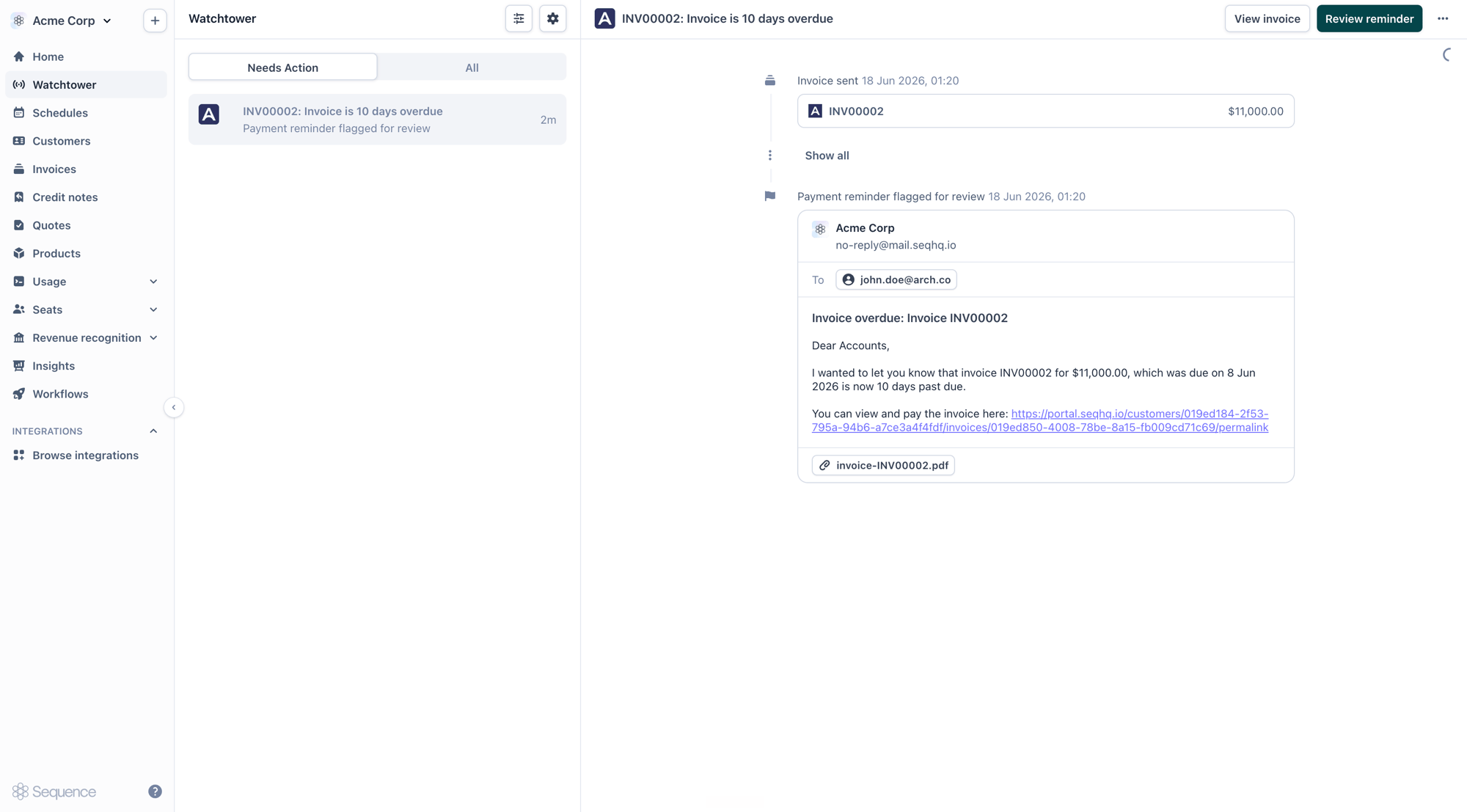
2
Review and edit
Open Review reminder to edit the recipients, subject, and body. A live preview on the right shows exactly what the customer will receive, including the invoice PDF.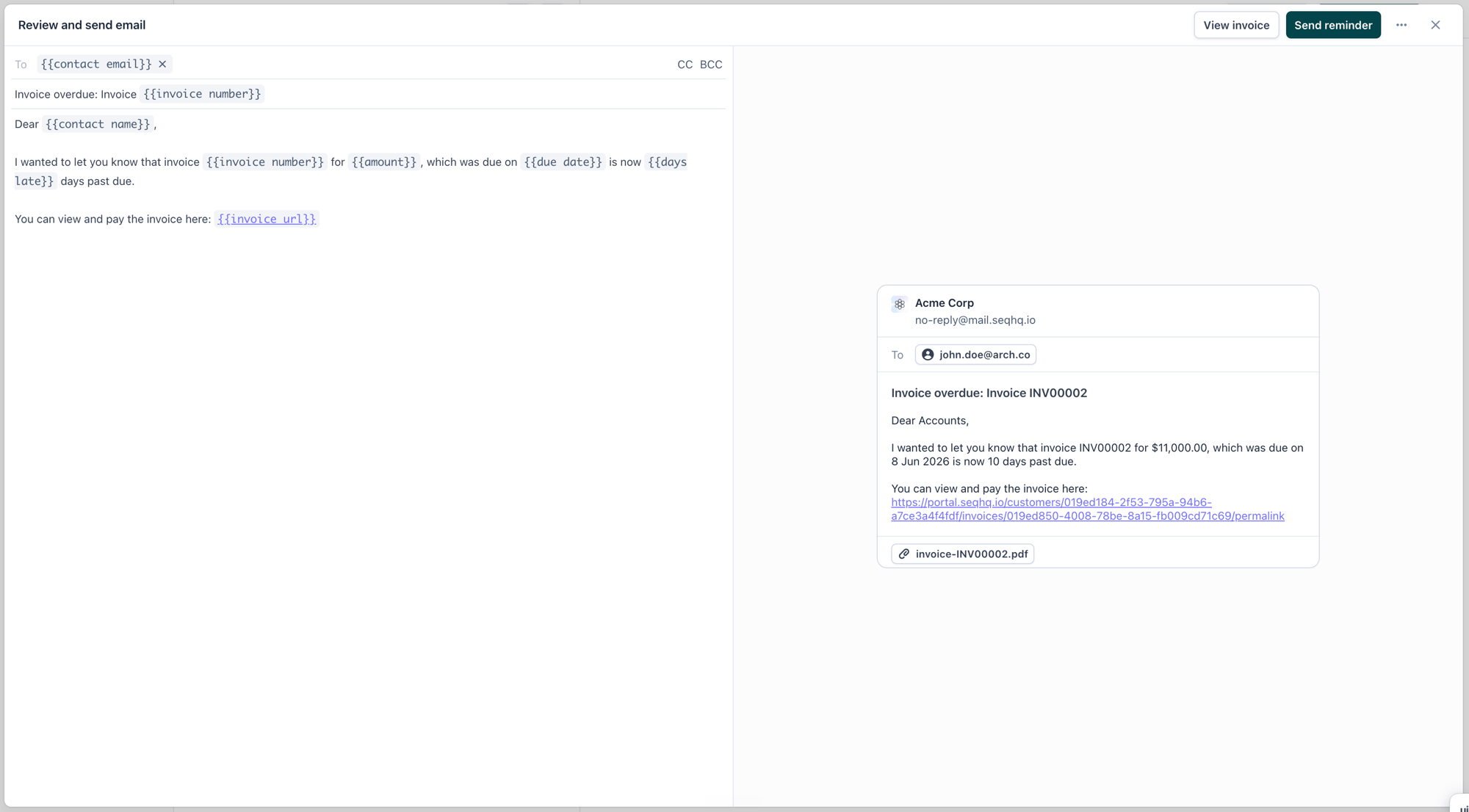
3
Send
Confirm to send the reminder to the customer, or cancel to stop it. Once sent, Watchtower records it in the execution summary.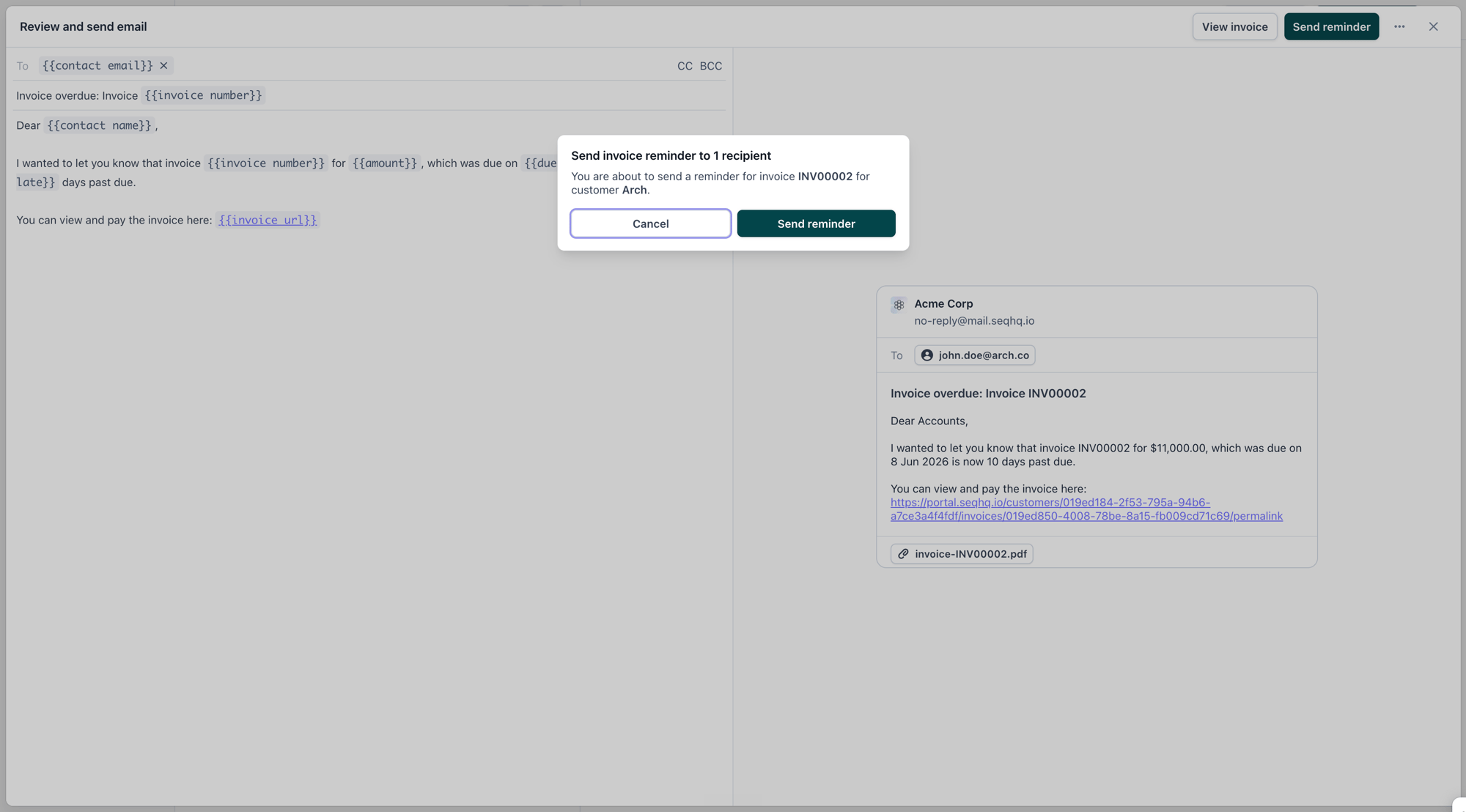
Routing by customer or invoice
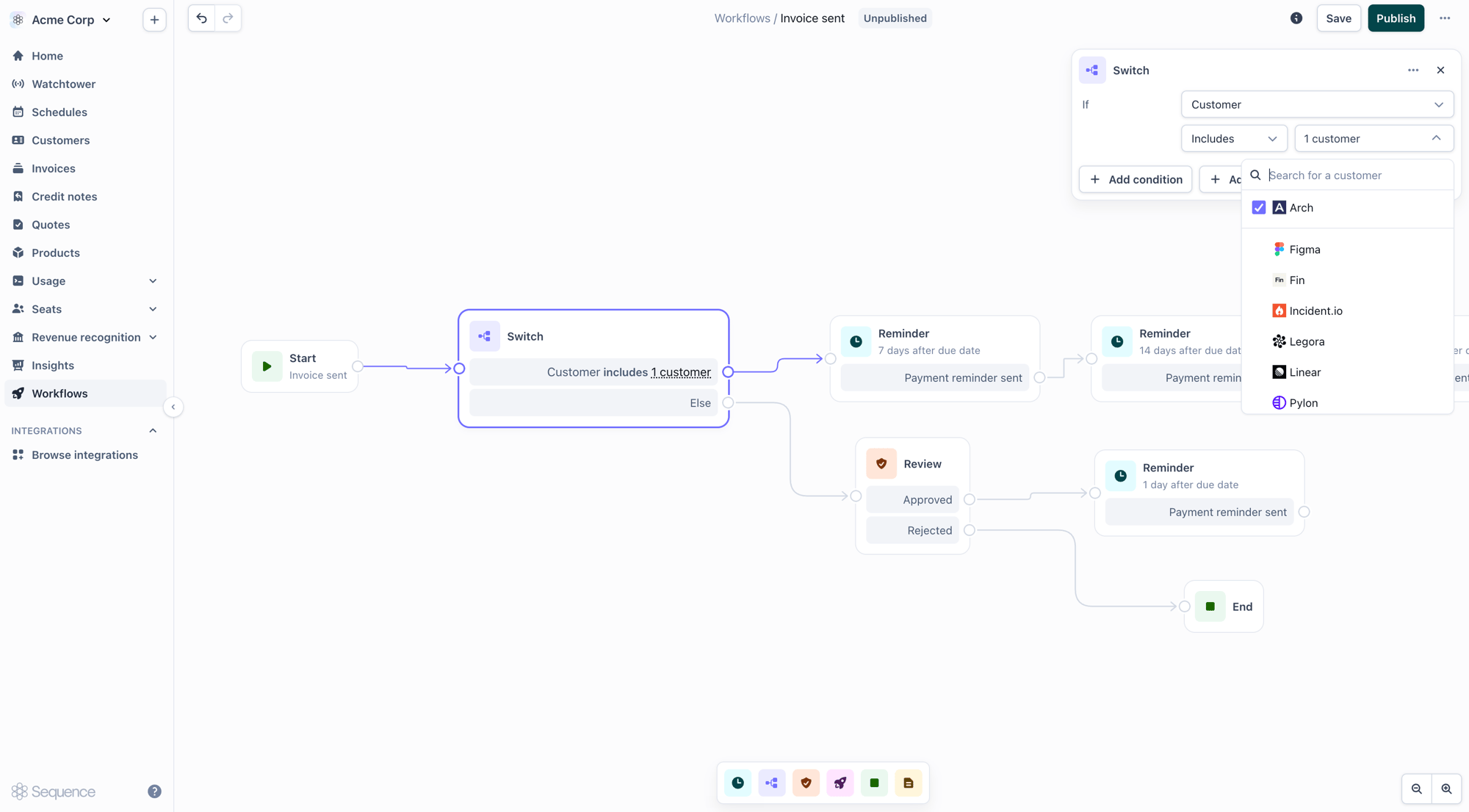
Add a Switch node to branch the dunning flow. Conditions relevant to reminders include:
For example, route high-value invoices through a path that requires approval, while smaller invoices send automatically.
Webhooks
Two webhook events let you observe dunning from external systems:
Subscribe to these in your notification policies to mirror reminders into a CRM, Slack, or your own dashboards.
Related
- Workflows: the visual builder, nodes, triggers, and publishing
- Watchtower: review and approve reminders, track runs
- Invoicing customers: send and manage the invoices reminders chase