


Manage links to Xero
Sequence natively syncs customers and invoices to Xero. When viewing customers or invoices, open the sidebar to see whether an object is linked or synced.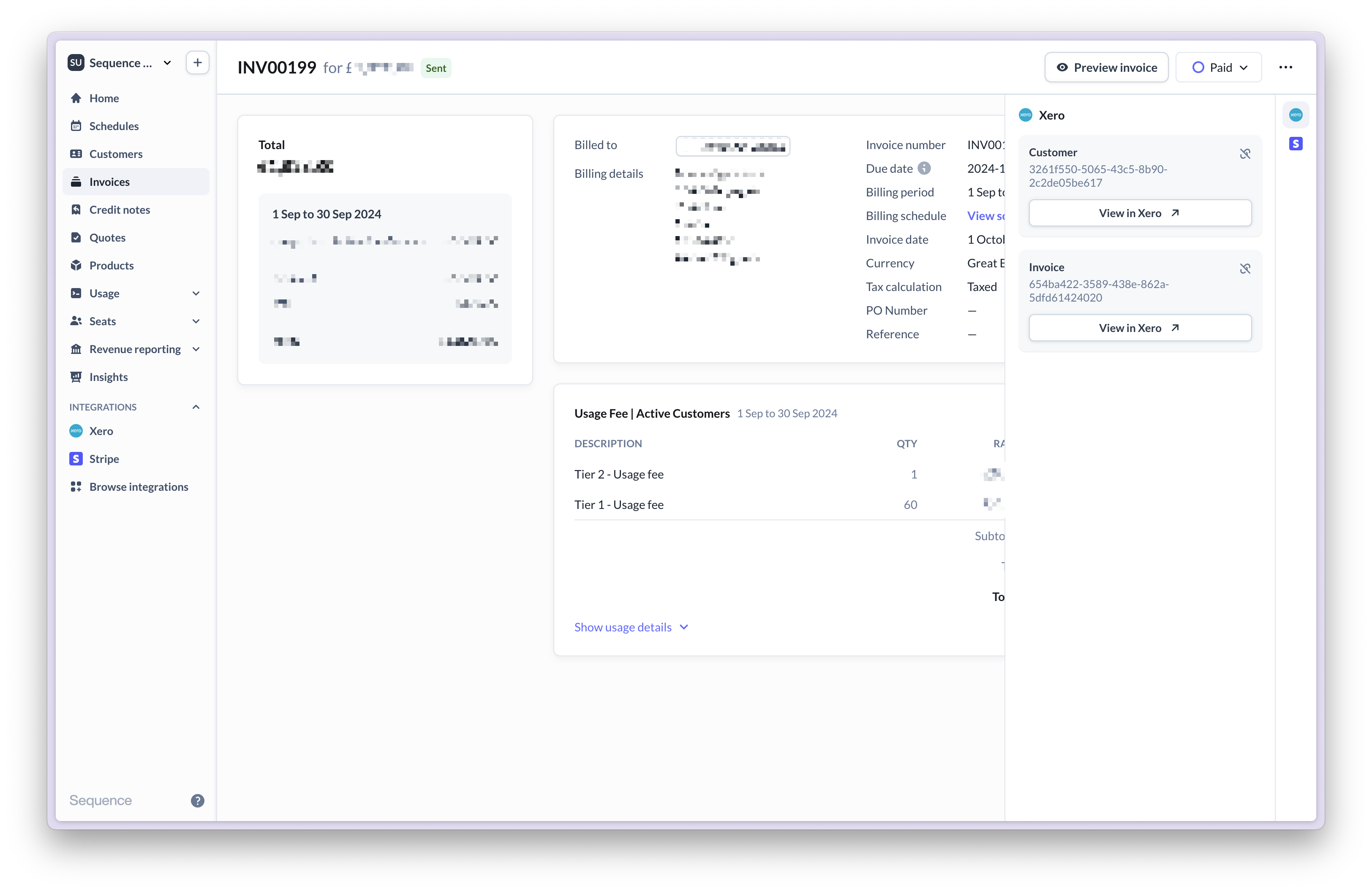
Start guide
Connecting your Xero account to Sequence is simple. Go to the Connectors tab to get started.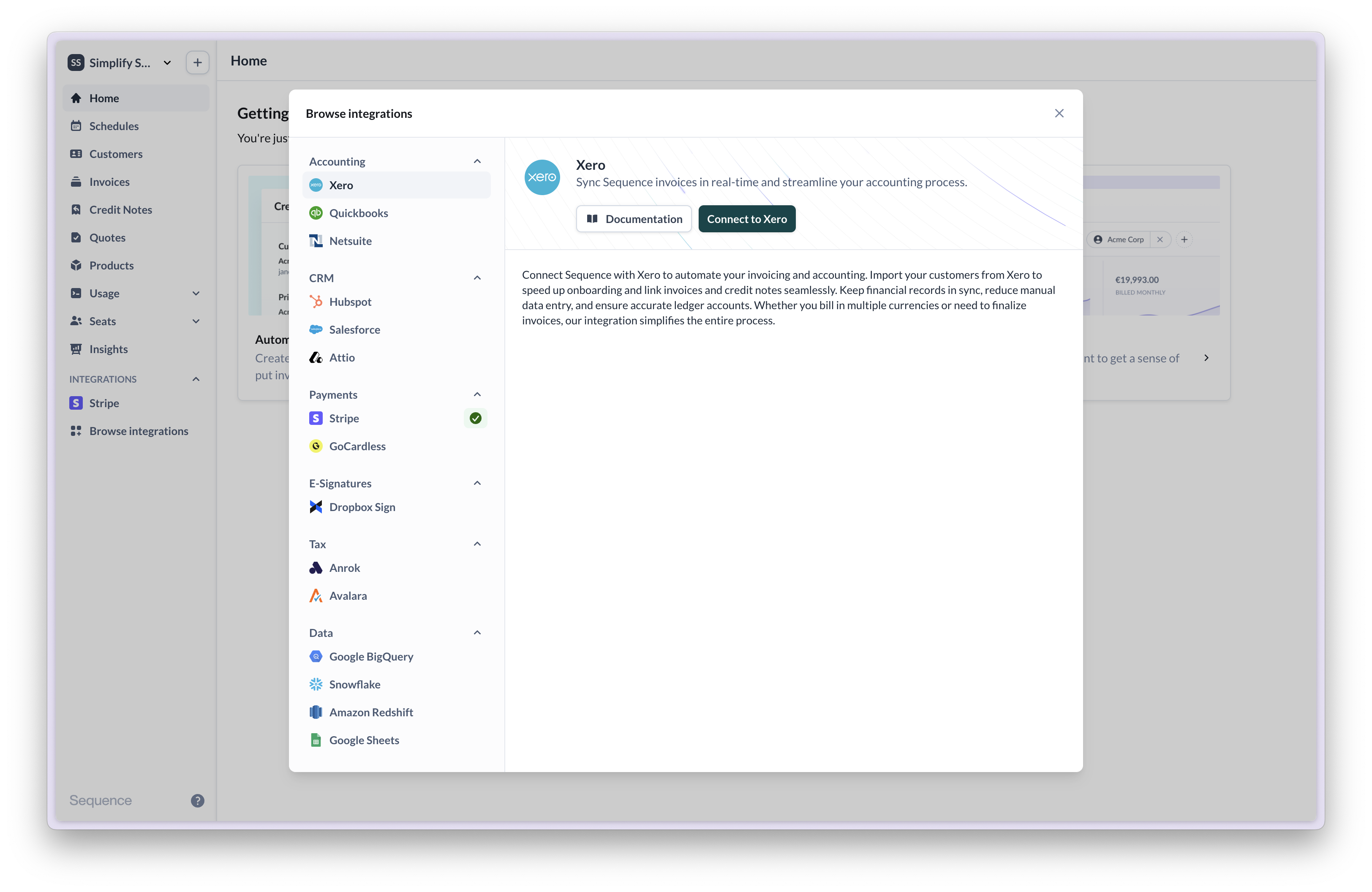
- Click the button to connect to Xero.
- Select the organization to which you want to connect. For testing, it is recommended to connect to a test Xero Demo Company if you are using the sandbox environment.
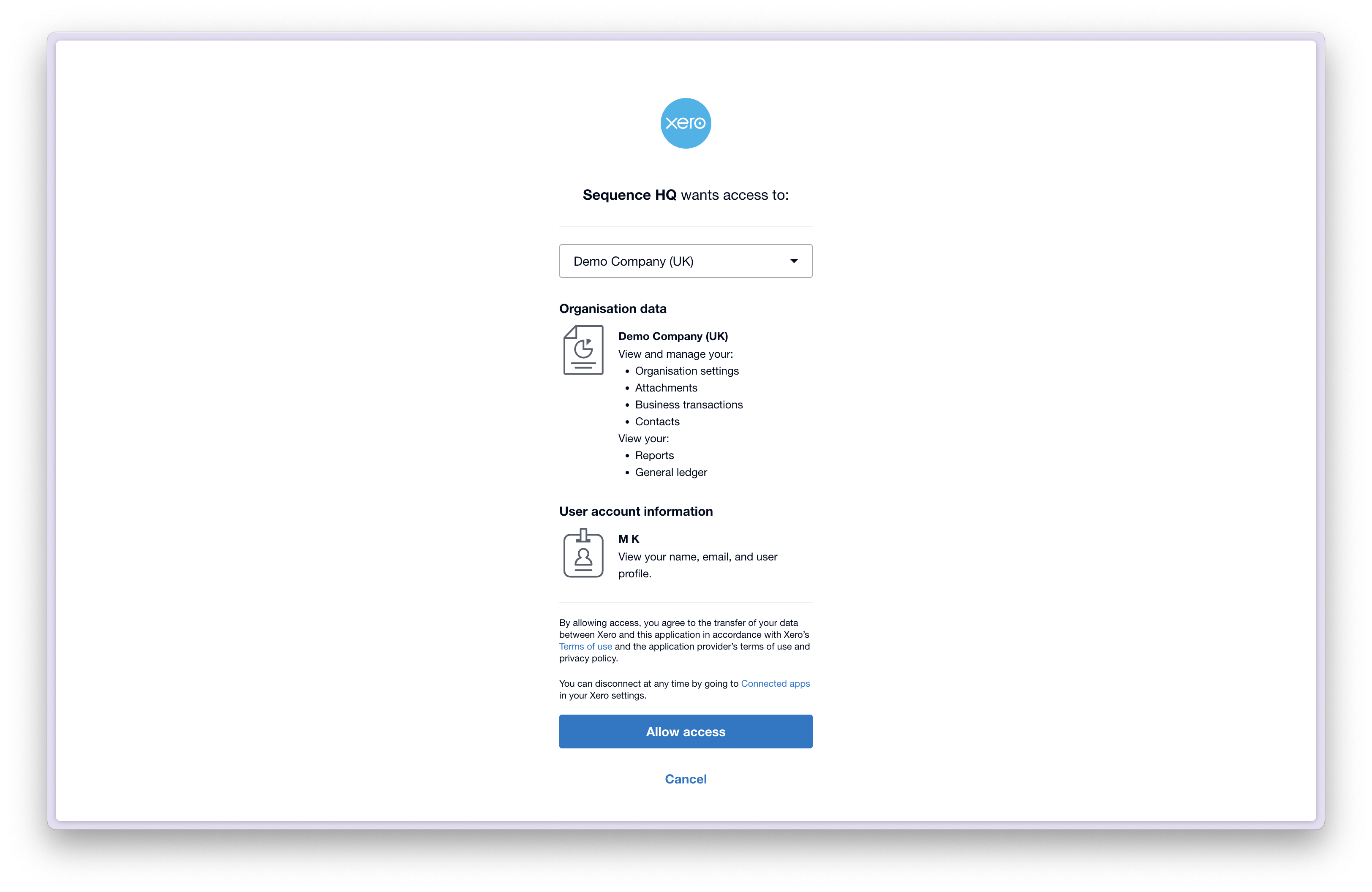
- Authorize the connection.
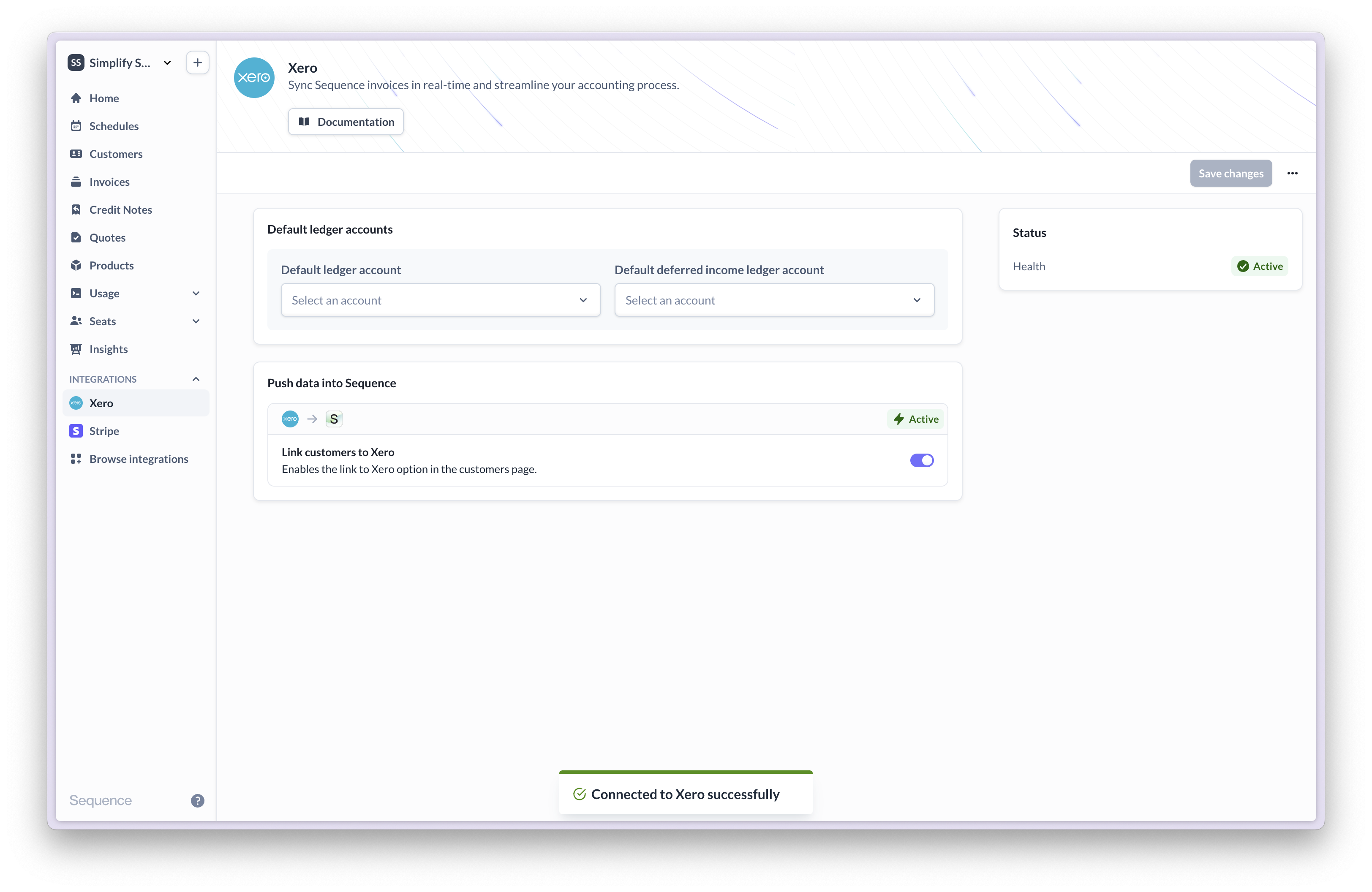
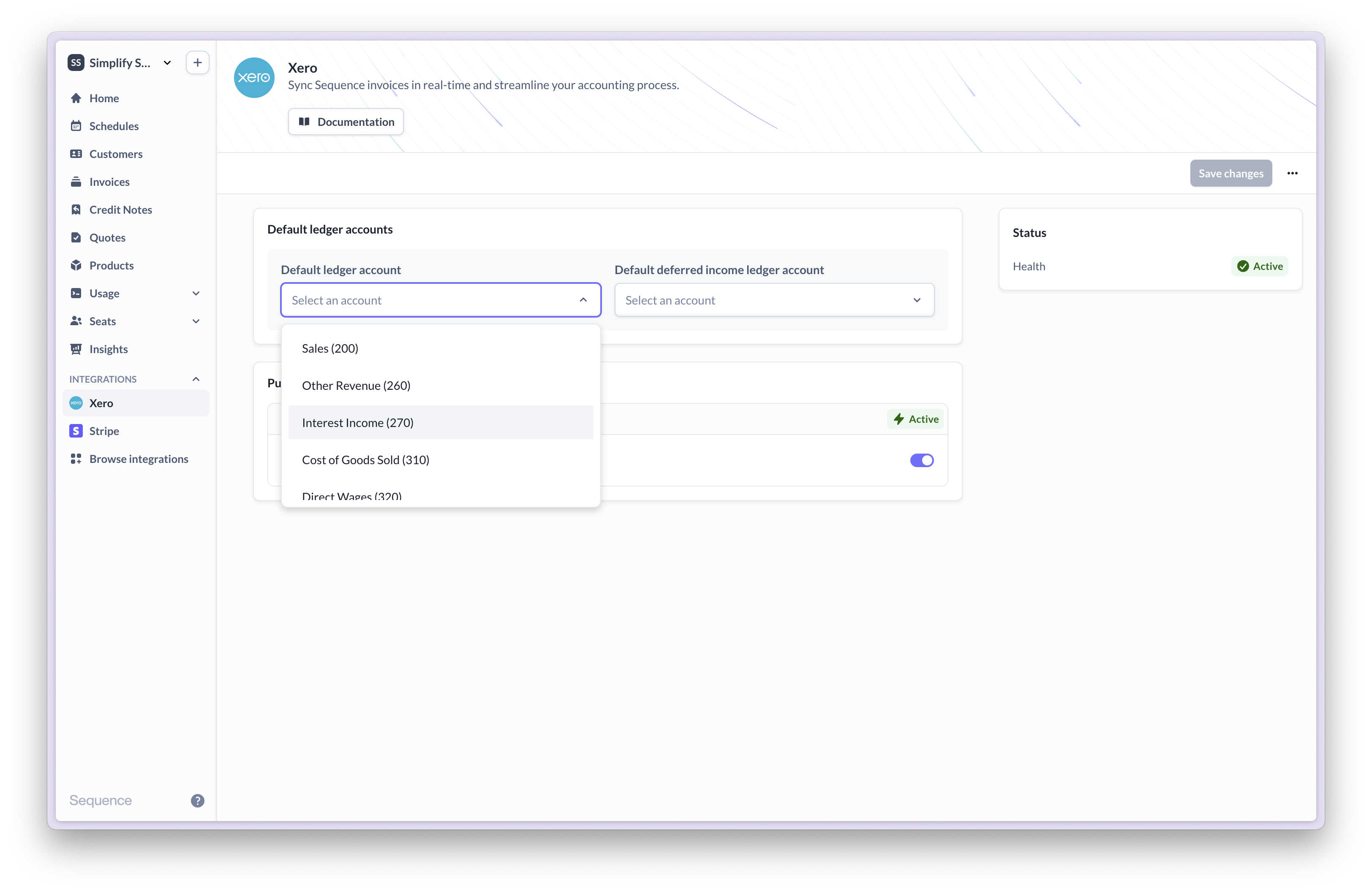
- Set up your default ledger accounts. See more under ledger accounts ledger accounts
Import customers from Xero
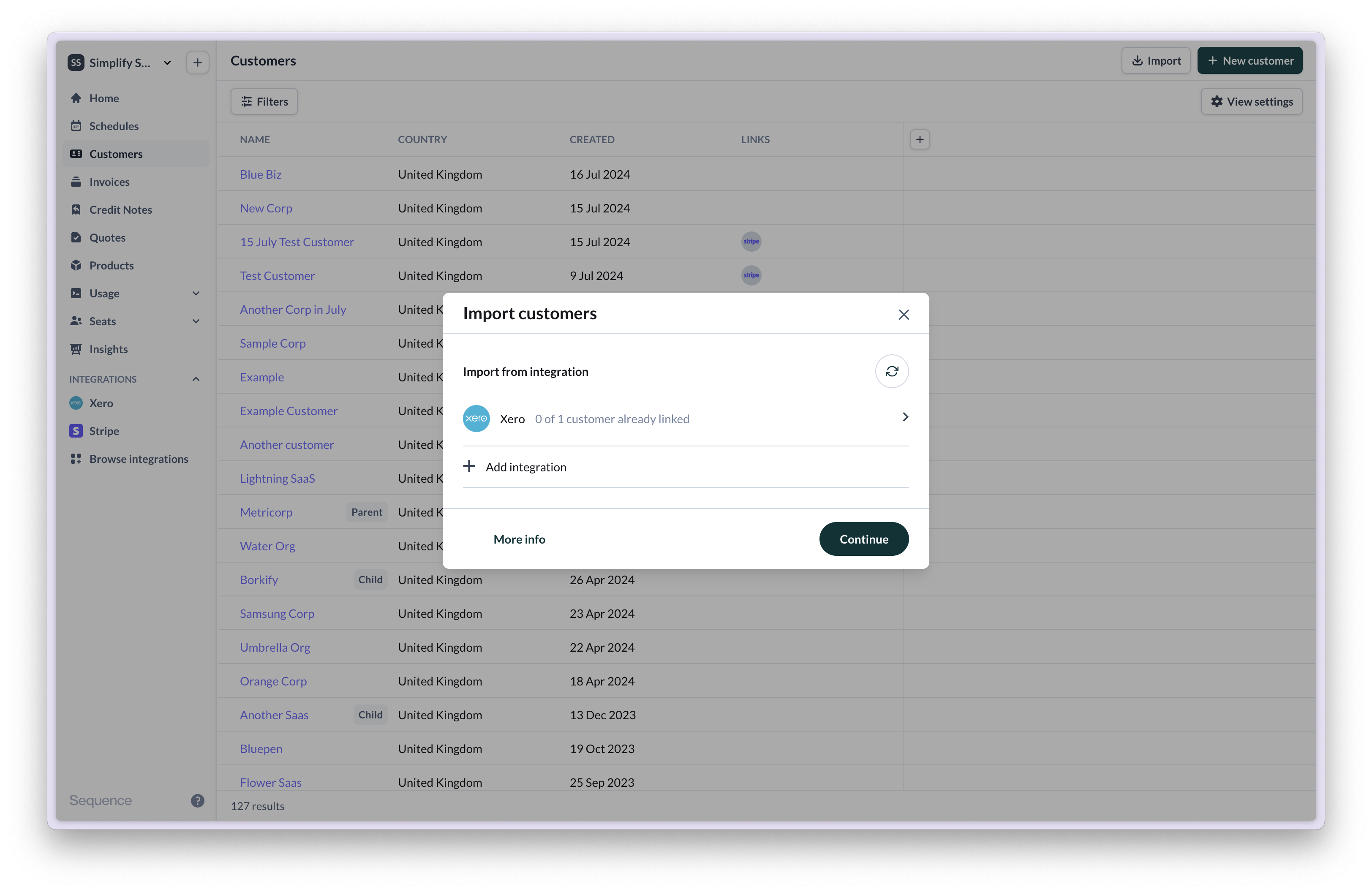
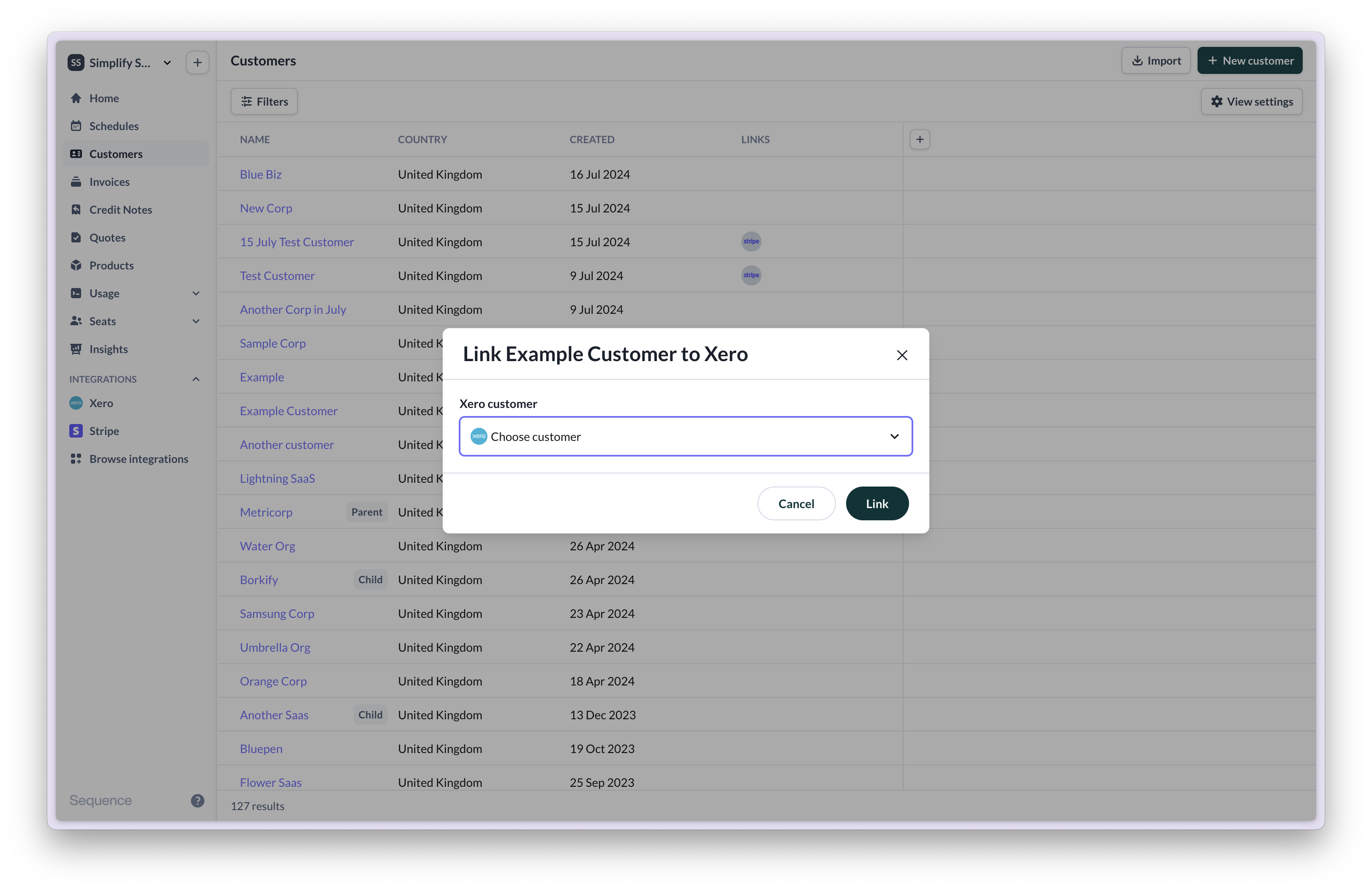
You can import customers from Xero into Sequence in order to speed up your onboarding. In order for an invoice or credit note to be synced the end-customer must be linked to a customer in Xero. You can import some or all of your customers directly from Xero using the customer import tool. In order to be valid for invoicing in Sequence every customer needs the following:- A primary address
- A primary email address
- First line
- Town/city
- Postal/zip code
- A valid country (Sequence uses the alpha-2 country code format)
Push customers into Xero
When you create a new customer in Sequence, you can push them into Xero to ensure invoices are synced.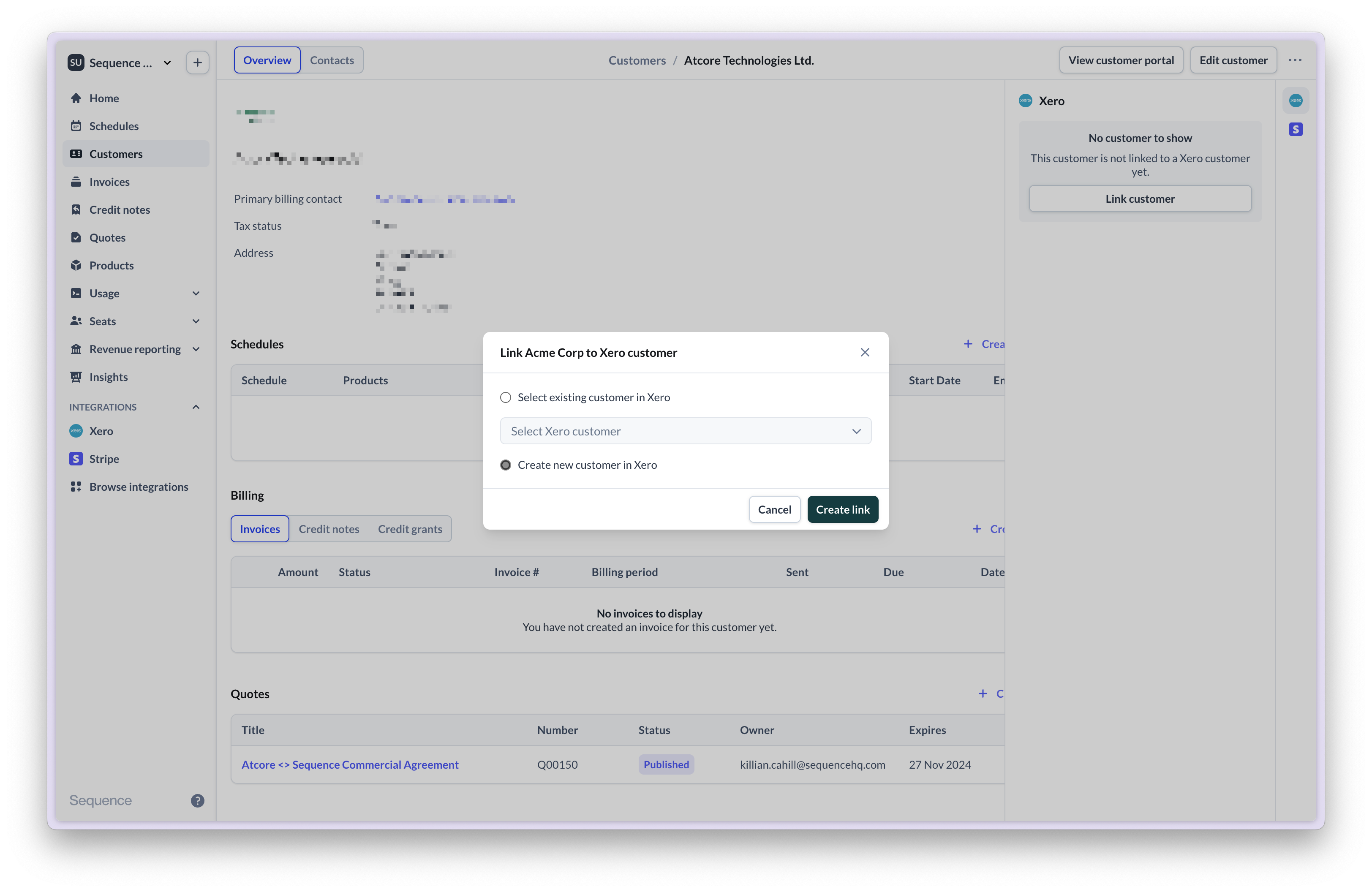
Ledger accounts
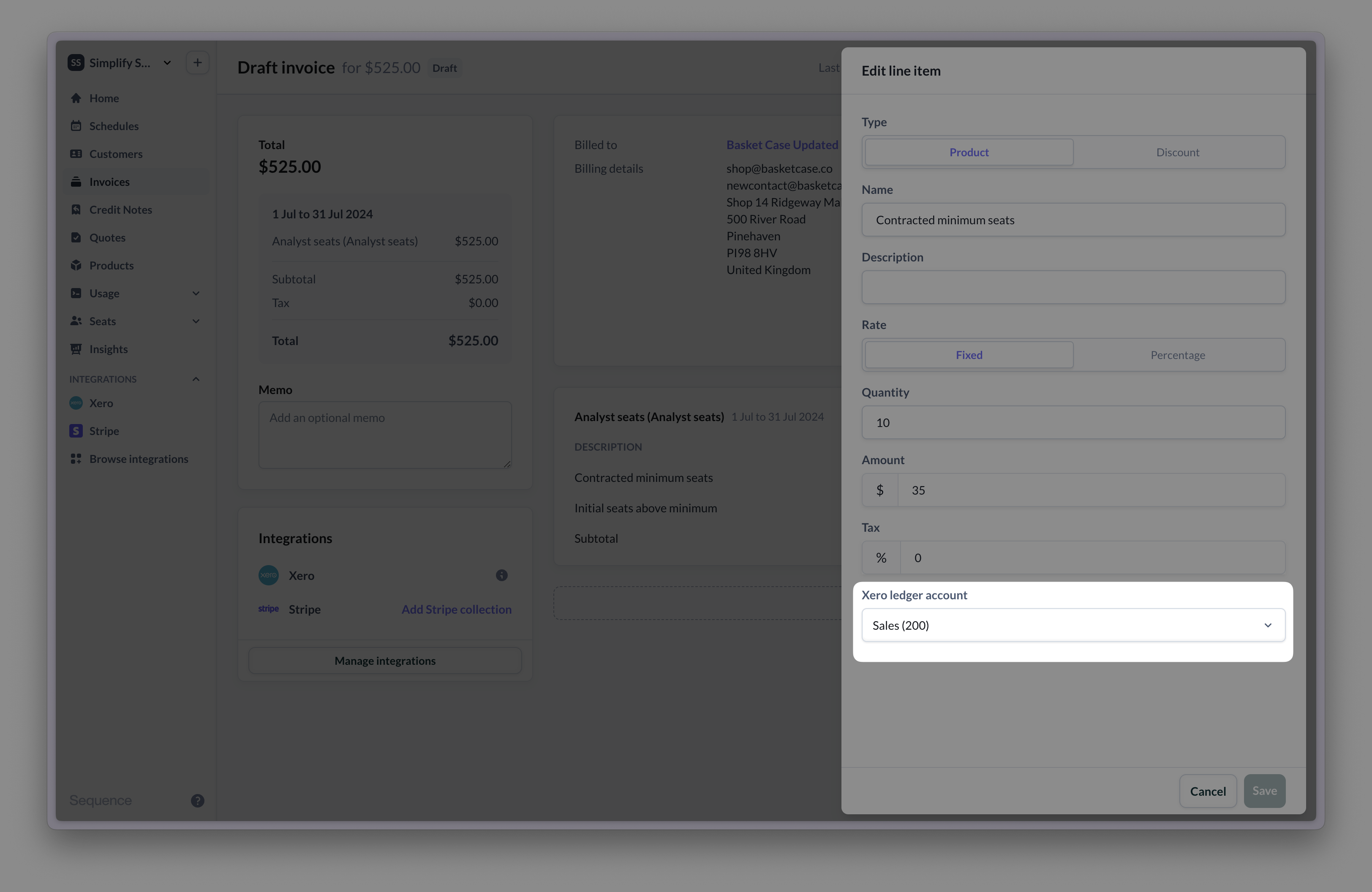
Whenever you create an invoice in Xero each line item is linked to a ledger account. This allows you to categorize the items. Similarly in Sequence you will need to link each line item to a ledger account in Xero. In order to speed this up you can set a default ledger account in your connector settings. This can be overridden for individual line items.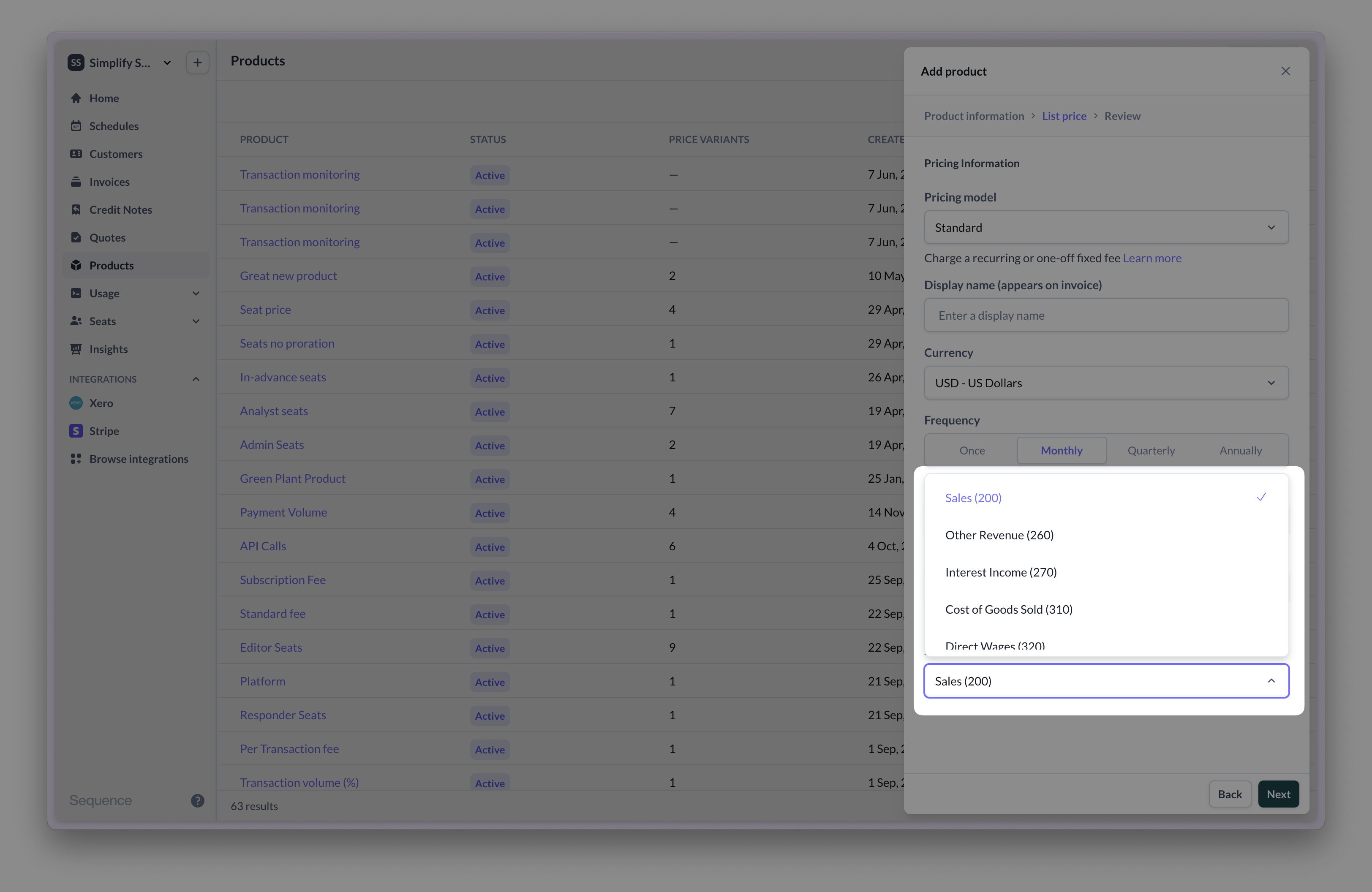
Tax
For taxable customers, Sequence will not provide a specific tax code when syncing invoices to Xero. Xero will apply the default tax code for a line item’s ledger account. For tax exempt and reverse charged customers, Sequence will override the tax code to be ‘NONE’. You can change this value in your Xero settings.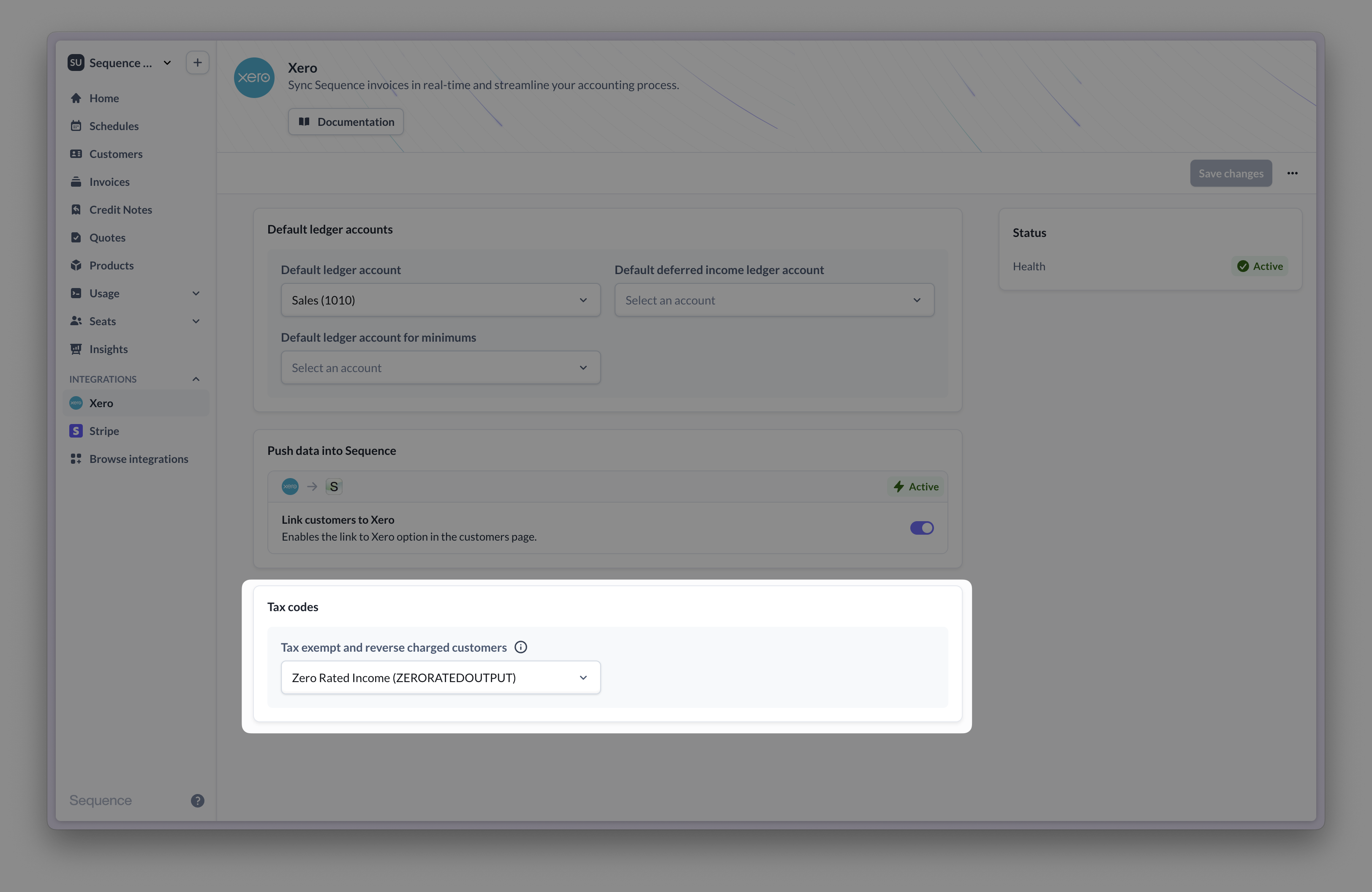
Syncing sales tax to Xero
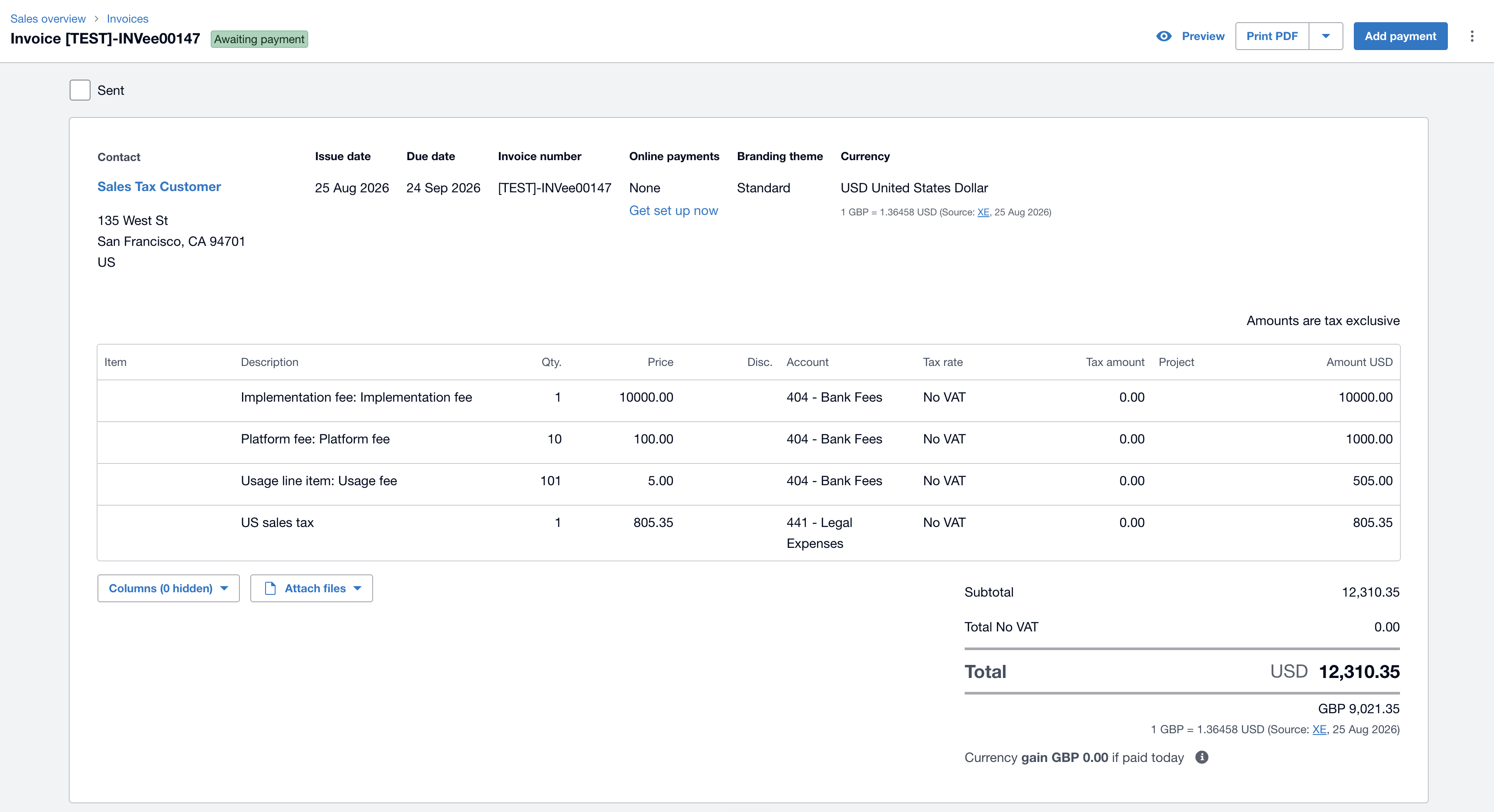
US and Canadian sales tax is assessed by state or province, so a single Xero tax rate can’t represent what was actually charged. Instead of letting that tax post through Xero’s tax rate system and onto your VAT return, set a tax liability ledger account and Sequence routes it to a dedicated line instead. Set the Tax liability ledger account in your connector settings, alongside your other default ledger accounts.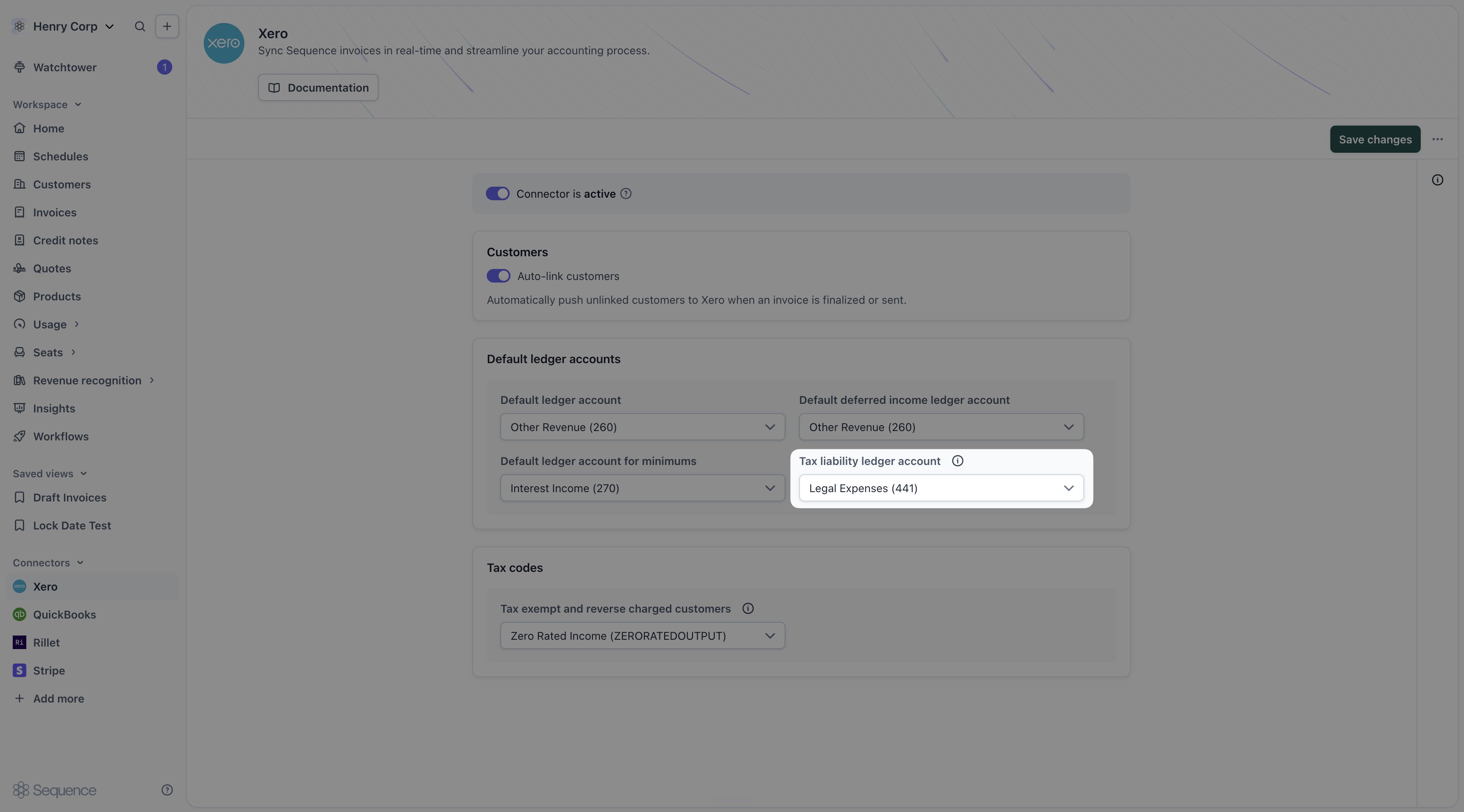
This only applies to customers billed in the US or Canada. Every other customer’s tax continues to sync as a Xero tax rate, unaffected by this setting.
- Each revenue line syncs with no tax rate and no tax amount.
- Sequence adds one extra line for the document’s whole tax amount, coded to the tax liability ledger account and labeled US sales tax or CA sales tax. It’s sent as a zero tax rate line, so it doesn’t add to Xero’s VAT return.
Syncing invoices
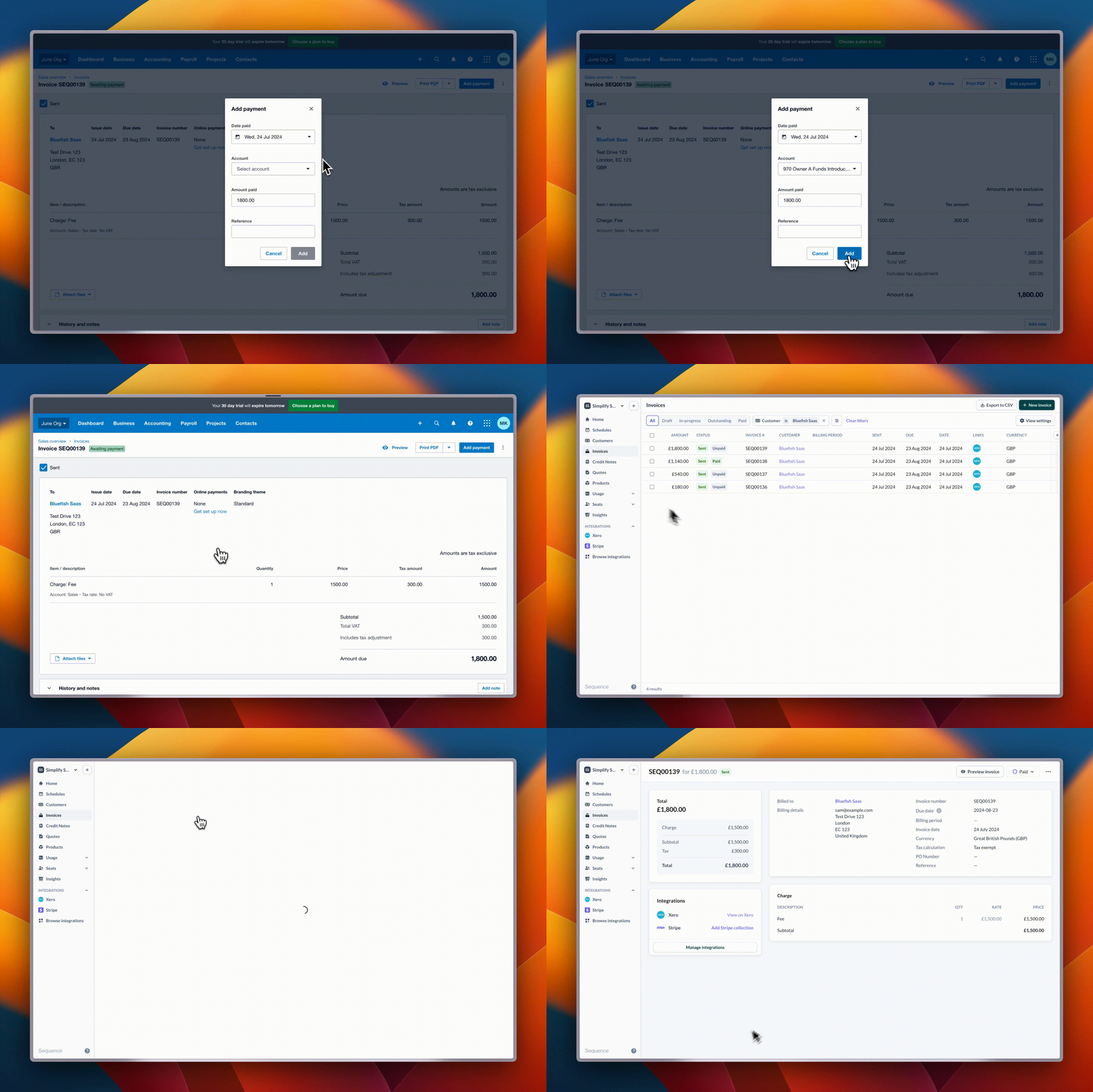
Whenever an invoice is finalized or sent from Sequence it will automatically get pushed to Xero. The issue and due dates will be set to a dummy date of 1st January 3000 in Xero until you send the invoice, at which point we will update these. This will be overwritten with the correct dates when the invoice is sent. If you subsequently send the invoice via Sequence it will get marked as sent in Xero. Similarly if the invoice is marked as sent in Xero, then the status will be updated in Sequence. Sending an invoice marks it as sent in Xero. You can navigate from the invoice in Xero to Sequence and vice versa.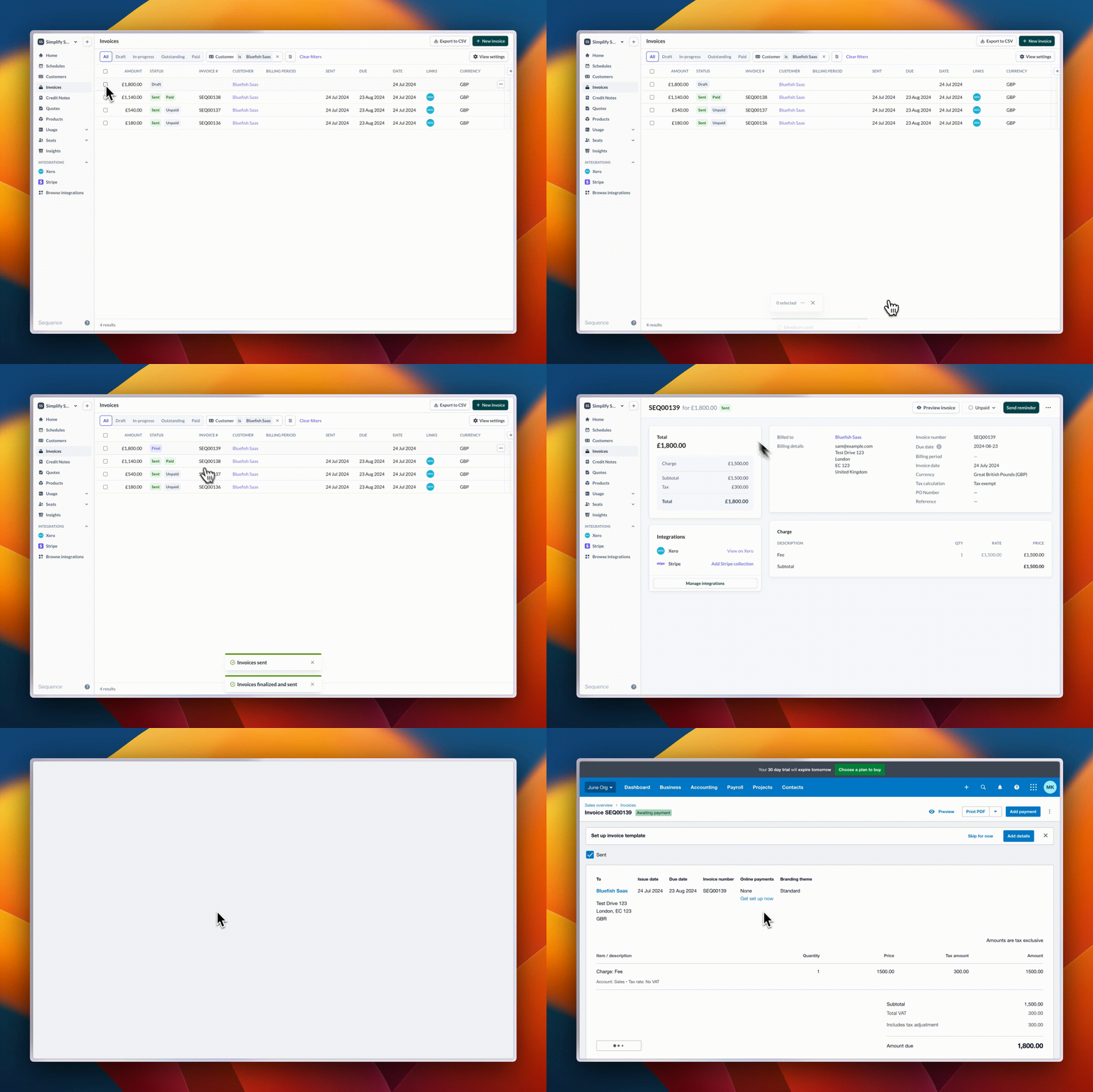
Syncing credit notes
Whenever a credit note is finalized in Sequence it will automatically get pushed to Xero. The issue and due dates will be set to a dummy date of 1st January 3000 in Xero until you send the credit note, at which point we will update these. This will be overwritten with the correct dates when the credit note is sent. If you subsequently send the credit note via Sequence it will get marked as sent in Xero. Similarly if the credit note is marked as sent in Xero, then the status will be updated in Sequence. You can navigate from the credit note in Xero to Sequence and vice versa.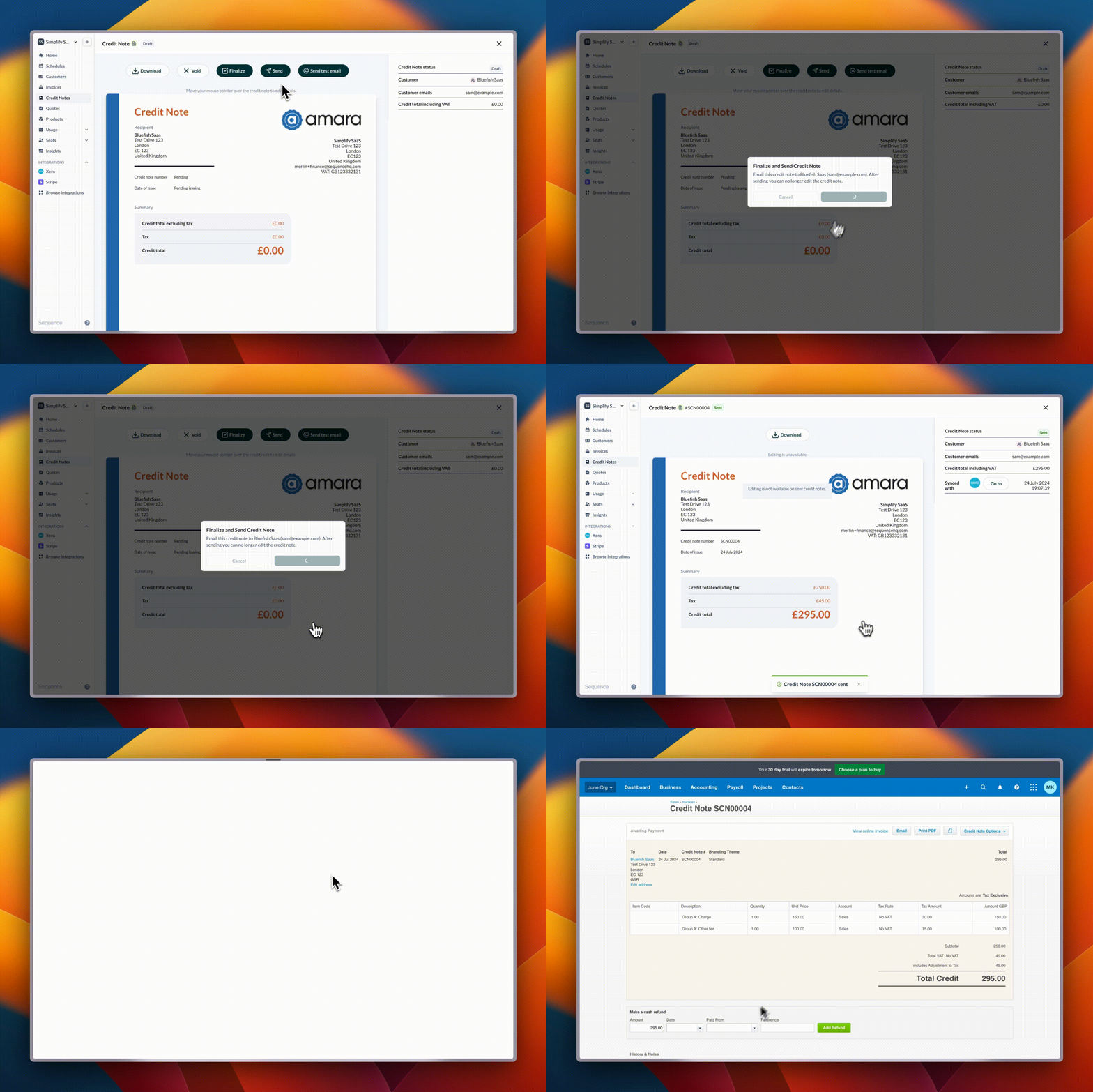
Rounding behavior in Xero
By default, Xero only supports two decimal points. When an invoice is pushed from Sequence into Xero, line item amounts with more than two decimal points (e.g. £0.0003 per event) are therefore flattened into a line item with a quantity of 1 to avoid discrepancies in the total. For example, an invoice line item with a quantity of 500 and a unit-rate of £0.001 will reflect in Xero as a quantity of 1 with a £0.50 rate.Multi-currency transactions in Xero
Xero’s multi-currency feature will auto convert transactions in different currencies. Separate journals for each currency are not required. For tracking different kinds of revenue, you can use tracking categories (similar to tags or labels in Xero) or you can use account codes (specific codes for products).Posting revenue recognition journals to Xero
If your account has revenue recognition and the Xero connector enabled, Sequence can post recognition journals straight into Xero as manual journals. You review each month’s journals in Sequence, then push them across when you’re ready, so there’s no CSV to download and import by hand.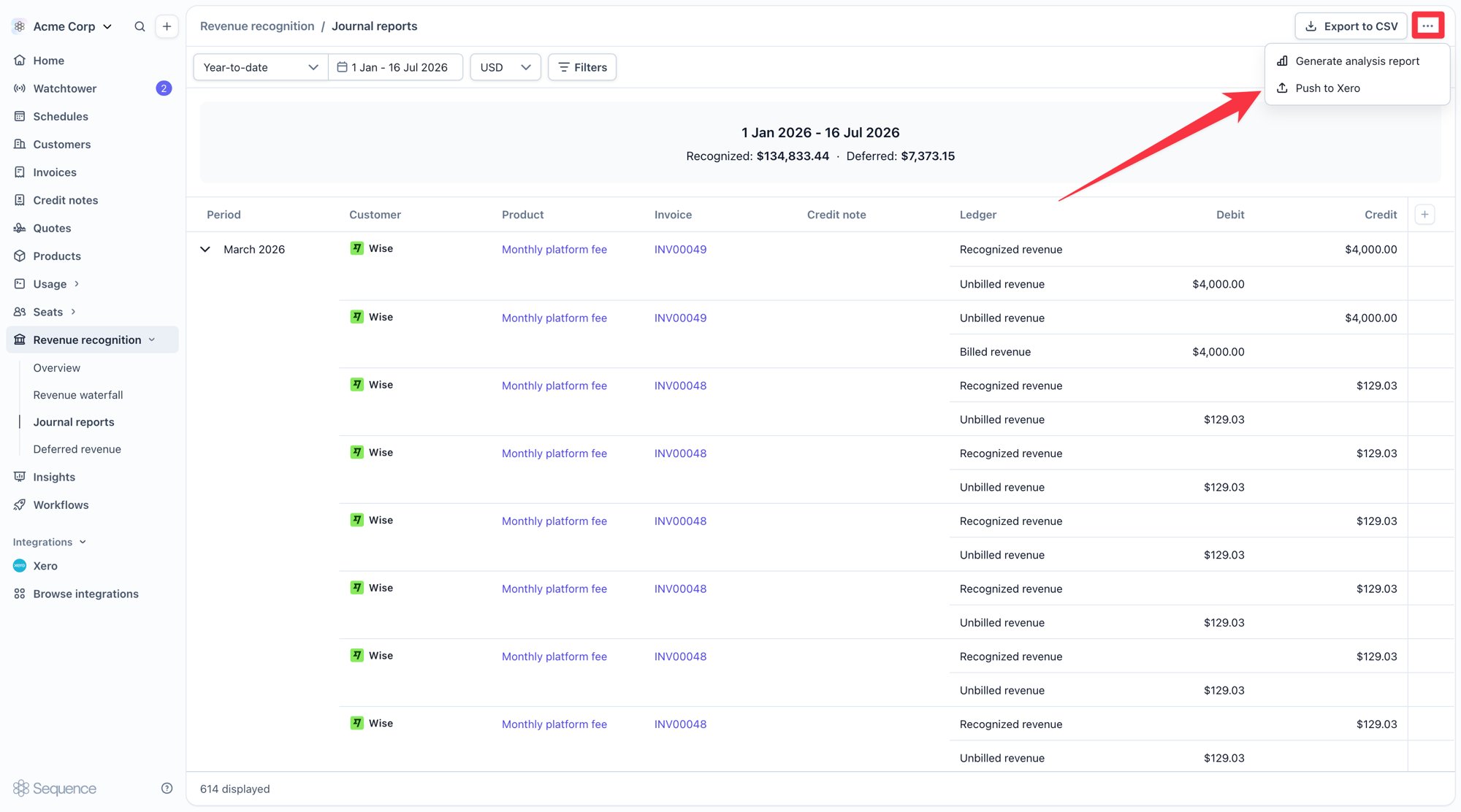
Setting up your ledger accounts
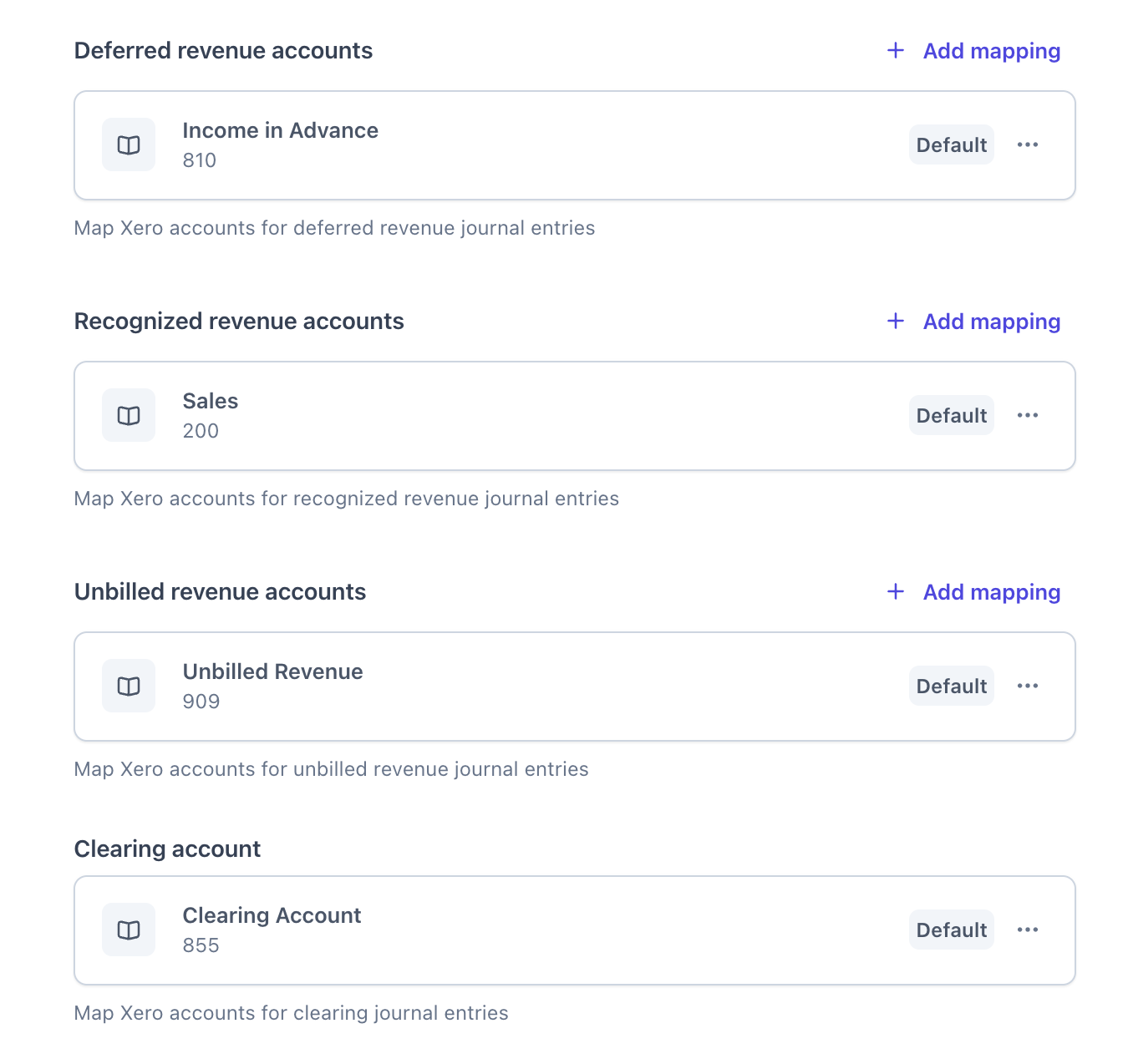
Direct posting uses four Xero accounts. Map each one on the Account > Revenue recognition settings page. Most of these already exist in a typical chart of accounts. The clearing account is the one you’ll usually need to add.
Deferred revenue and unbilled revenue are the two holding accounts that revenue moves out of as it is recognized.
The clearing account
When an invoice syncs to Xero, Xero automatically posts its own journal that would recognize the full invoice amount as revenue straight away. The clearing account stops that from happening. Every invoice and credit note line is routed to the clearing account instead. Sequence then immediately posts an allocation journal that moves the amount out of clearing and into the right deferred or unbilled account for each product. The balance sits in clearing for only a few seconds before it moves on, and the account always returns to zero once allocation is complete.How journals reach Xero
Revenue reaches Xero in two waves.- Allocation happens automatically when an invoice or credit note is sent. It distributes the document’s full amount across the deferred and unbilled accounts. Nothing hits your profit and loss at this stage.
- Recognition happens when you push journals from Sequence, month by month. It moves a slice of revenue out of the deferred or unbilled account and onto recognized revenue.
Journal posting mode
The Journal posting setting controls the state your journals arrive in.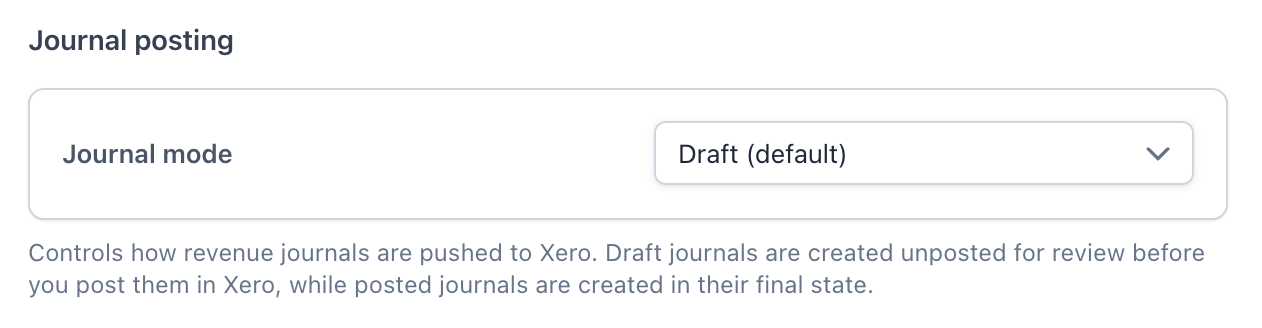
Per-product account mappings
The accounts you map in settings are the defaults for the whole workspace. You can override the deferred, recognized, and unbilled accounts on individual products, so revenue for each product lands in its own Xero accounts. Set these on the product itself.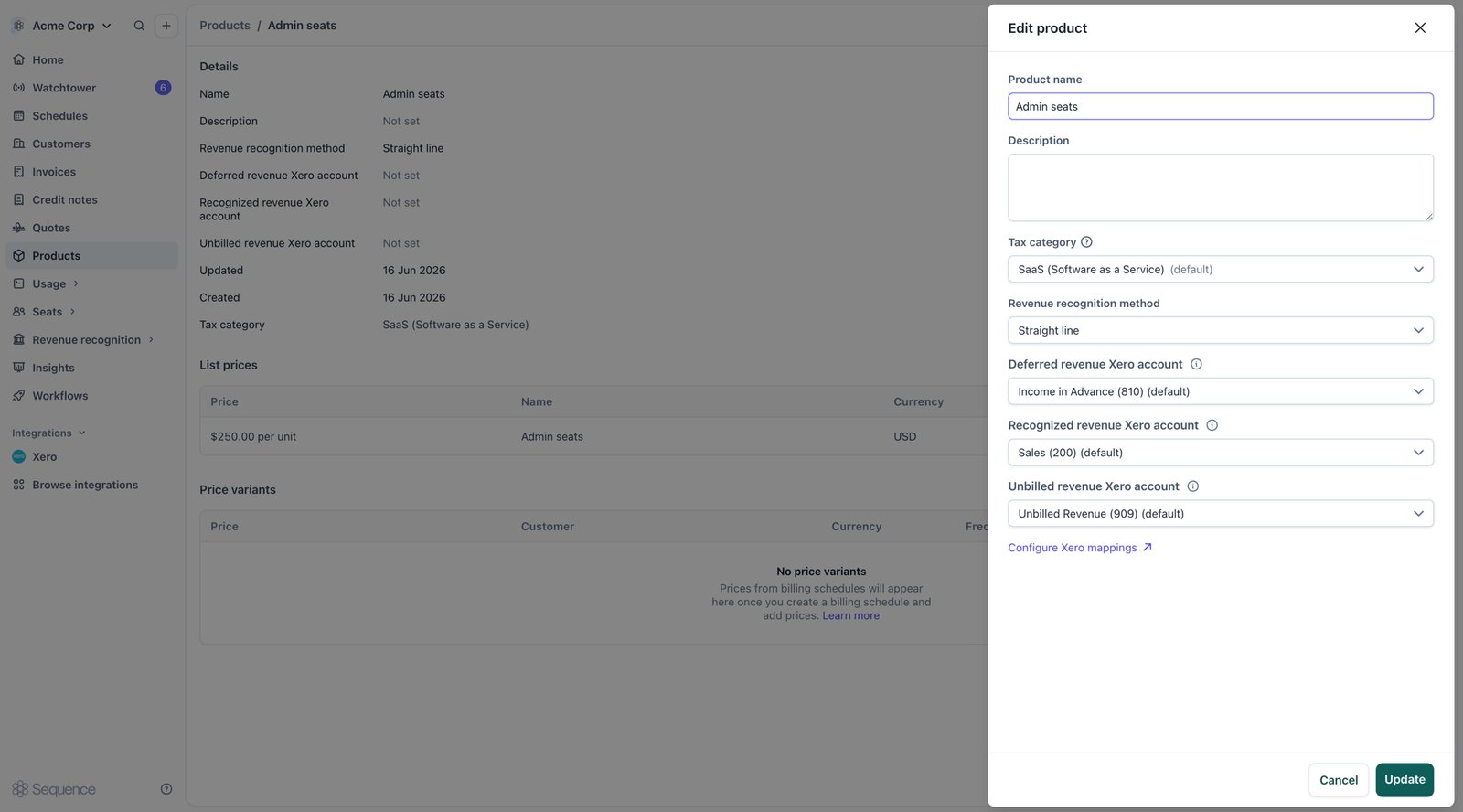
Pushing journals and tracking sync status
You push recognition journals from Revenue recognition > Journal reports. Open the ⋯ menu in the top right and choose Push to Xero, then pick the periods you want to push.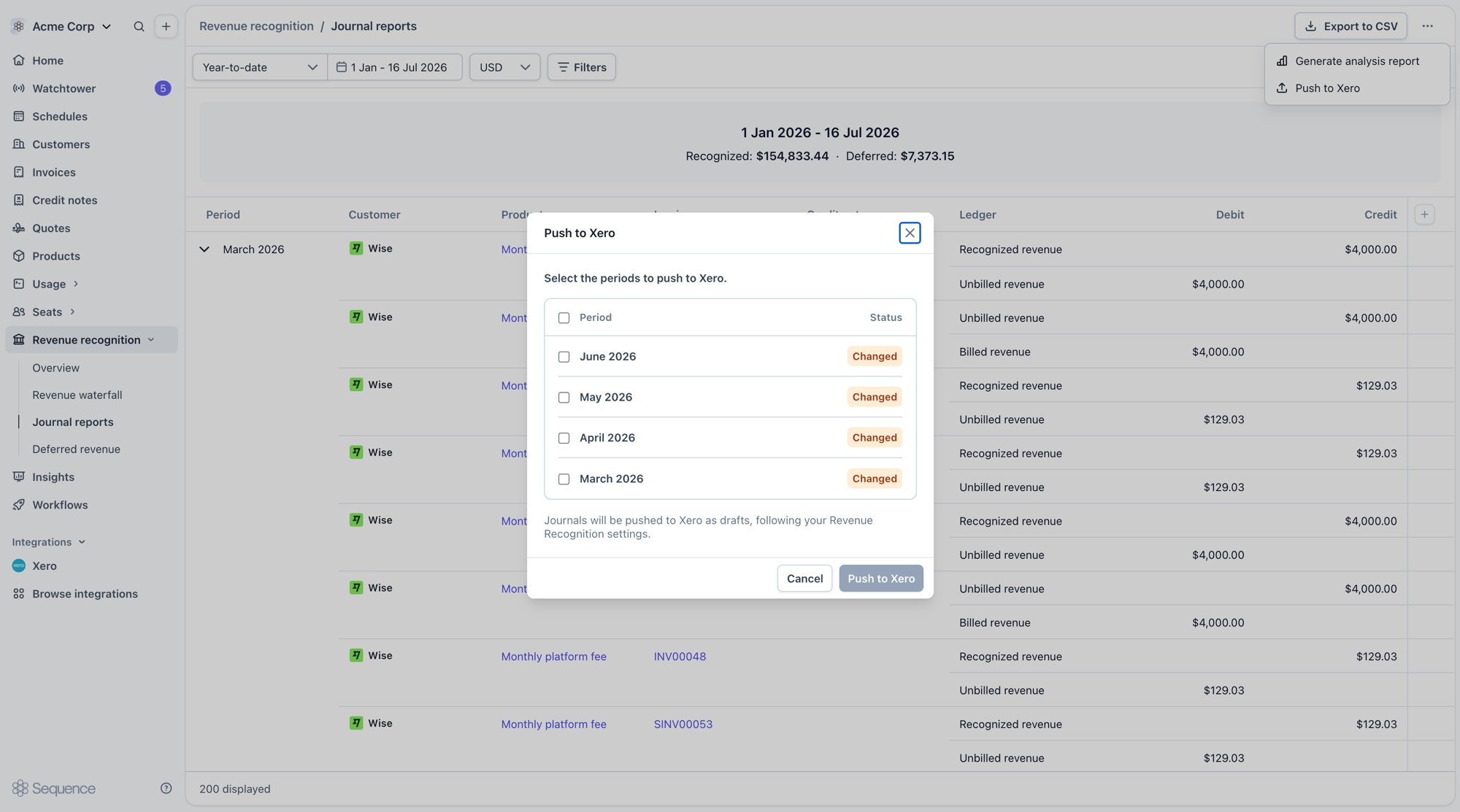
Pushing runs in the background, so you can leave the page while it works. Re-pushing is safe: Sequence only posts what has changed, so a synced period posts nothing and a changed period posts just the new entries, without duplicating what’s already in Xero. If a period fails, you can retry it.
Each push is scoped to one currency at a time, matching the CSV export. Journals are restated into your Xero organization’s base currency using the original document’s exchange rate, so they reconcile in your base currency. If you bill in more than one currency, push each currency separately.
Invoices and credit notes must be synced to Xero before you push recognition journals. Syncing a document is what allocates its amount into the deferred or unbilled account, and recognition moves revenue out of those accounts. If a document has not synced, there is nothing to recognize from.
Revenue recognition CSV export
If you’d rather review journals outside Sequence before they reach Xero, or you don’t use direct posting, you can export them instead of pushing them. The Xero-formatted journal export produces a CSV that’s directly importable as a Manual Journals file in Xero. Columns follow Xero’s published template (*Narration, *Date, Description, *AccountCode, *TaxRate, *Amount, plus tracking columns).
See Journal reports for filters, async download, and the full column list.
Aggregation levels
The export supports daily, monthly, and per-customer-per-product-monthly aggregation:Sign convention
Sequence’s internal ledger uses an explicitDirection (Debit or Credit). When generating the Xero export, the amount is signed according to each Xero account’s normal balance:
- Debiting a debit-normal account produces a positive amount.
- Crediting a credit-normal account produces a positive amount.
- Crediting a debit-normal account produces a negative amount.
- Debiting a credit-normal account produces a negative amount.