


Overview
Use the NetSuite connector to:- Push Sequence customers into NetSuite as Customer records
- Push Sequence products into NetSuite as Service Items, ready to appear on invoice line items
- Push Sequence invoices into NetSuite as Invoices, either standalone or drawn down from a NetSuite Sales Order
- Push Sequence credit notes into NetSuite as standalone Credit Memos
- Surface payments recorded in NetSuite against the corresponding Sequence invoice in real time
- Link Sequence customers and products to existing NetSuite records from the dashboard
What syncs today
Customer, product, invoice, credit note, and billing schedule sync is one-directional. Sequence is the system of record; NetSuite receives a copy so accounting transactions can reference it. If a finance user edits a linked record directly in NetSuite, that change can be overwritten the next time Sequence pushes an update.
Getting connected
Find NetSuite under Connectors in the dashboard to get started. Set up the connector by first creating an Integration record in NetSuite, then entering the resulting details into Sequence.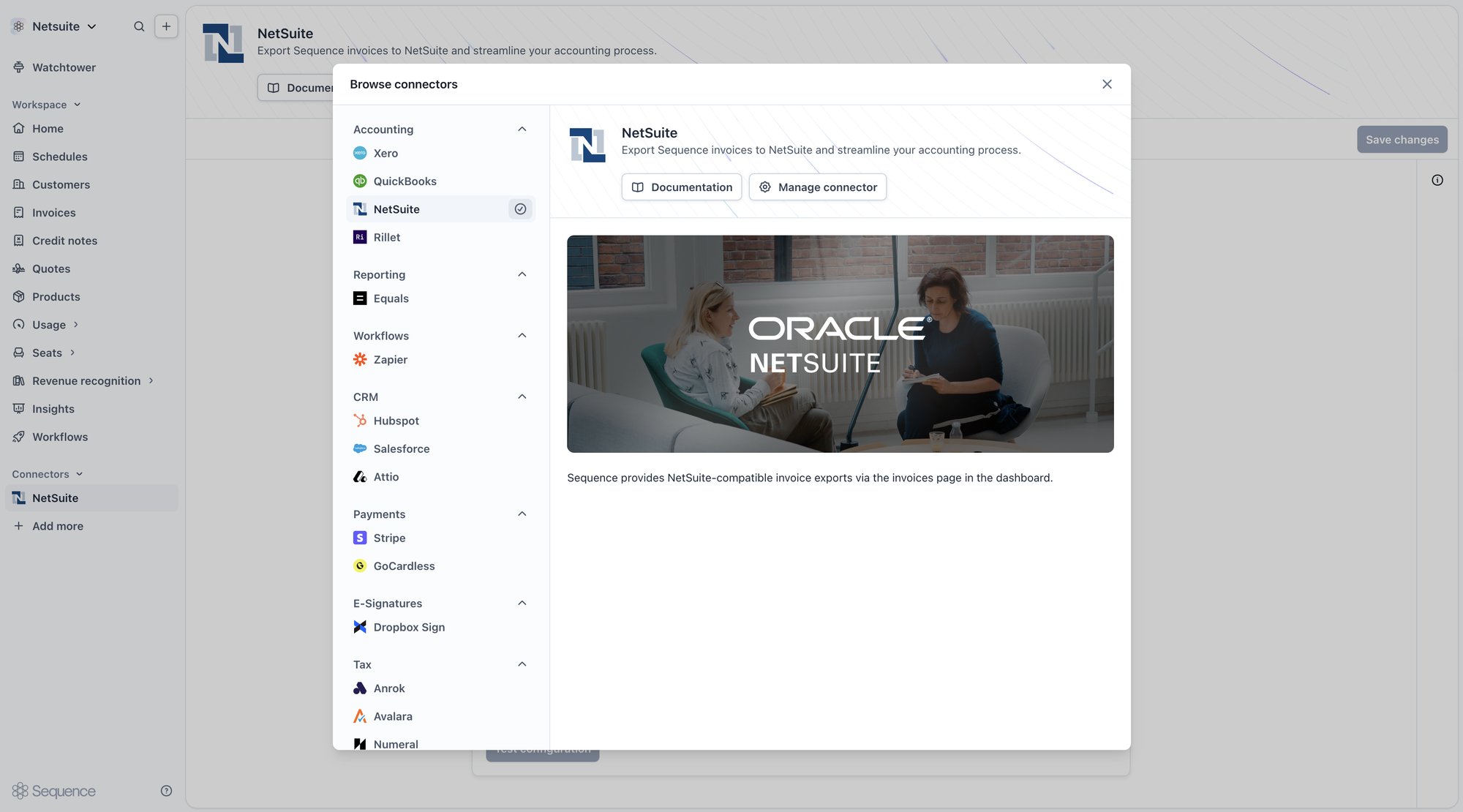
1
Create an Integration record in NetSuite
In NetSuite, create an Integration record for a secure, certificate-based connection, with machine-to-machine access enabled. NetSuite issues a Consumer key for the record, which you’ll need for the next step.
2
Generate and upload a certificate
Generate a private key and matching public certificate, then upload the certificate to the Integration record in NetSuite. NetSuite assigns it a Certificate ID. Keep the private key private. You’ll enter it directly into Sequence next, and it never needs to be shared with anyone else.
3
Configure the connector in Sequence
Open Settings > Connectors > NetSuite and enter the details below.
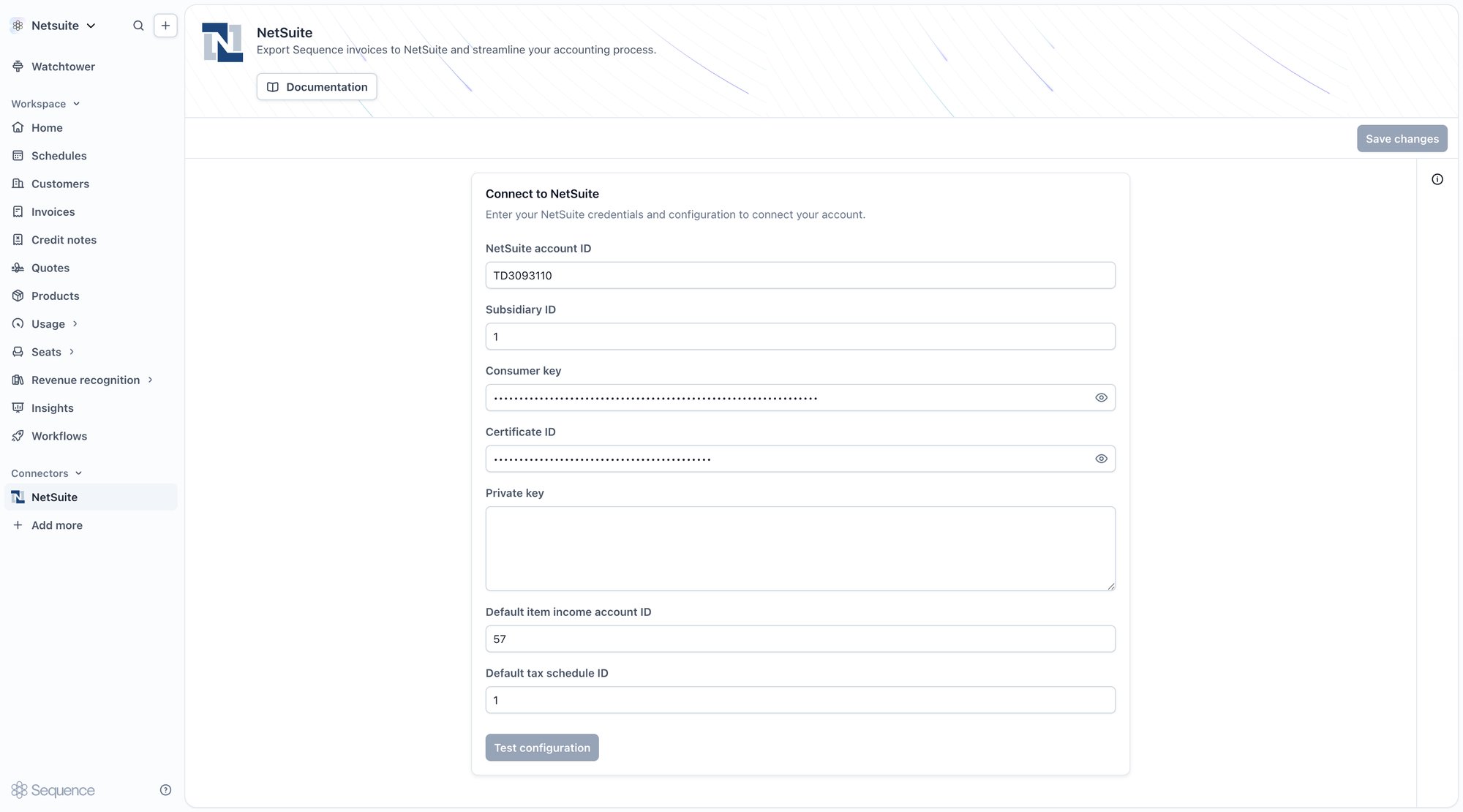
Click Test configuration. Sequence checks the credentials work before letting you save. A successful test unlocks the Save action. If the test fails, Sequence tells you the configuration is invalid. Check each field and try again.
Multi-entity: subsidiaries and workspaces
If your business runs multiple legal entities in NetSuite, for example a US Inc., a UK Limited, and an LLC, each with its own subsidiary, connect them one at a time. Each Sequence workspace holds its own NetSuite connector configuration and posts against exactly one subsidiary. This lets each entity keep its own approval workflows and business logic in Sequence, while every subsidiary still posts into the same NetSuite account. Your finance team gets clean, consolidated reporting across the whole group, without reconciling entities by hand. See Multi-entity support for how Sequence scopes customers, quotes, billing schedules, and connectors to each entity.Customer sync
When you create or edit a customer in Sequence, Sequence pushes the update to NetSuite automatically, keeping the linked record in step as the customer changes.Linking customers
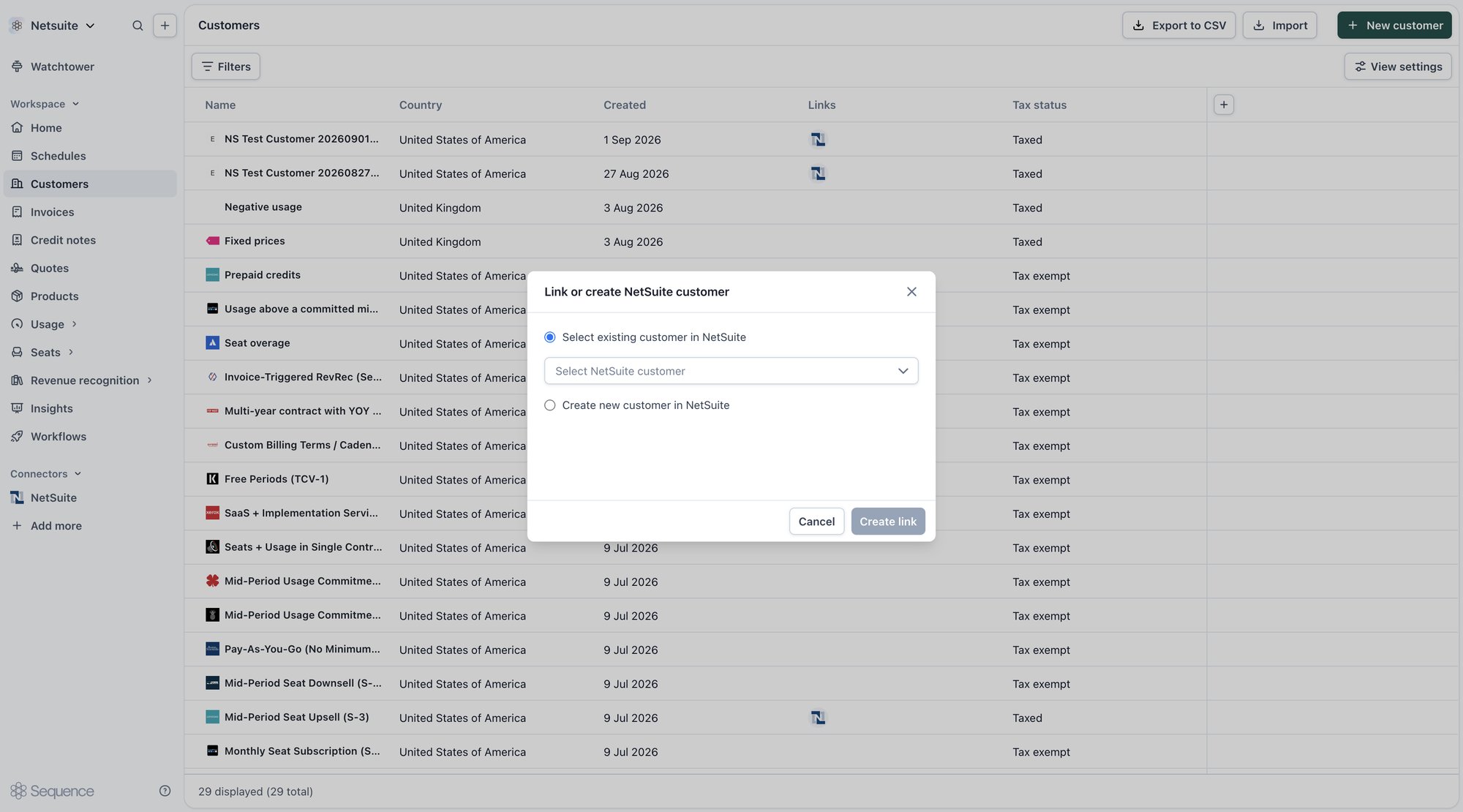
From a customer’s row menu in the customers table, or from the customer inspector, choose Link to NetSuite.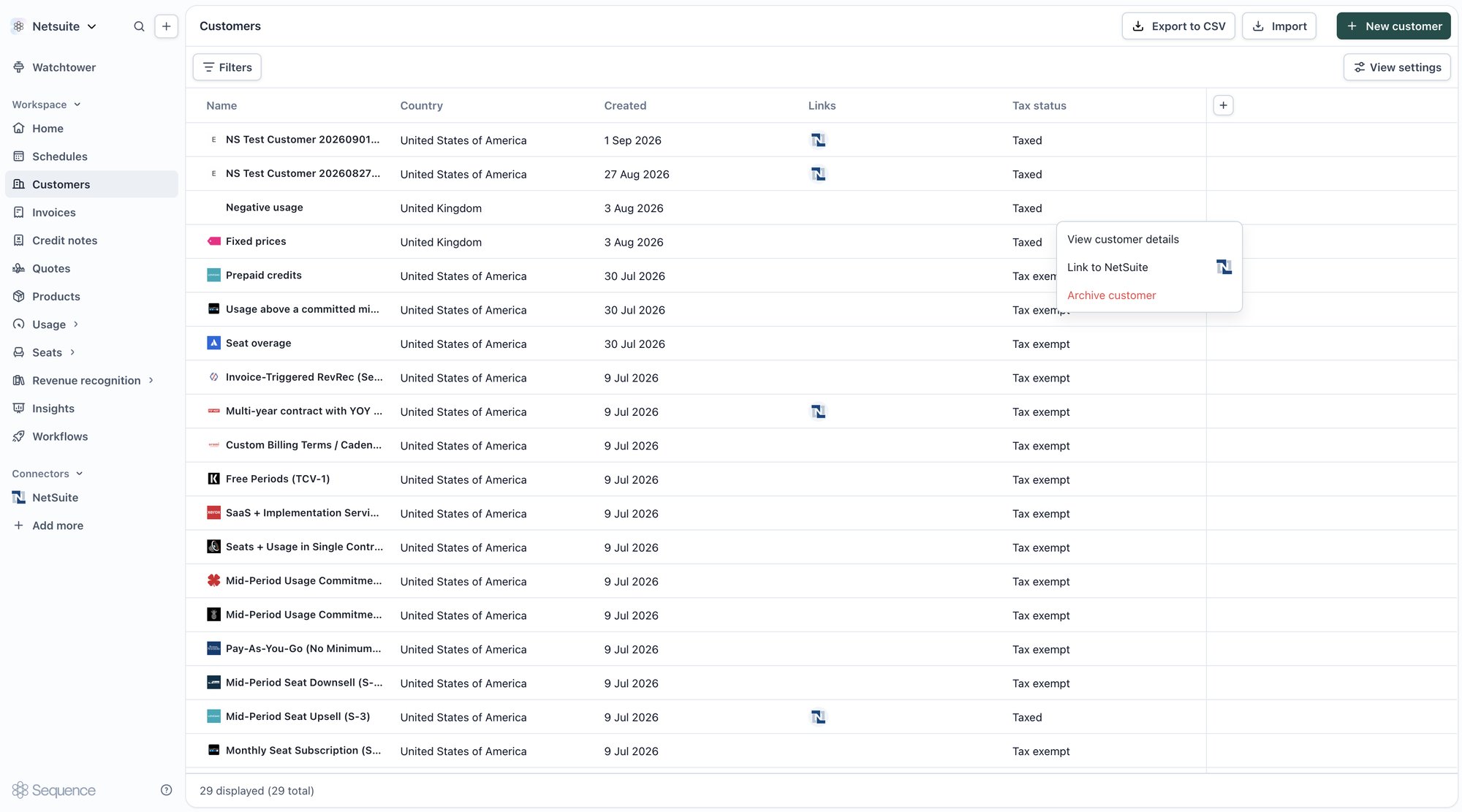
Auto-push when invoicing an unlinked customer
If the account has the customer push sync toggle enabled and an invoice’s customer is not yet linked to a NetSuite customer record, Sequence pushes the customer to NetSuite first, then pushes the invoice, instead of rejecting the sync. This avoids invoice syncs failing on an unsynced customer. With the toggle off, the default applies: invoice sync is rejected until the customer is linked in NetSuite by hand (see Prerequisites). An existing customer link, including one that is still pending, is left alone either way.Product sync
Sequence pushes active products to NetSuite as Service Items, creating them on first sync and keeping them updated after. Draft products are skipped. They have not been released for billing and should not appear in NetSuite’s item catalog.Linking products
Open a product to see its NetSuite panel in the sidebar. An unlinked product shows Link service item; select it to open the link dialog, where you can either select an existing NetSuite service item to link to, or create a new service item in NetSuite directly.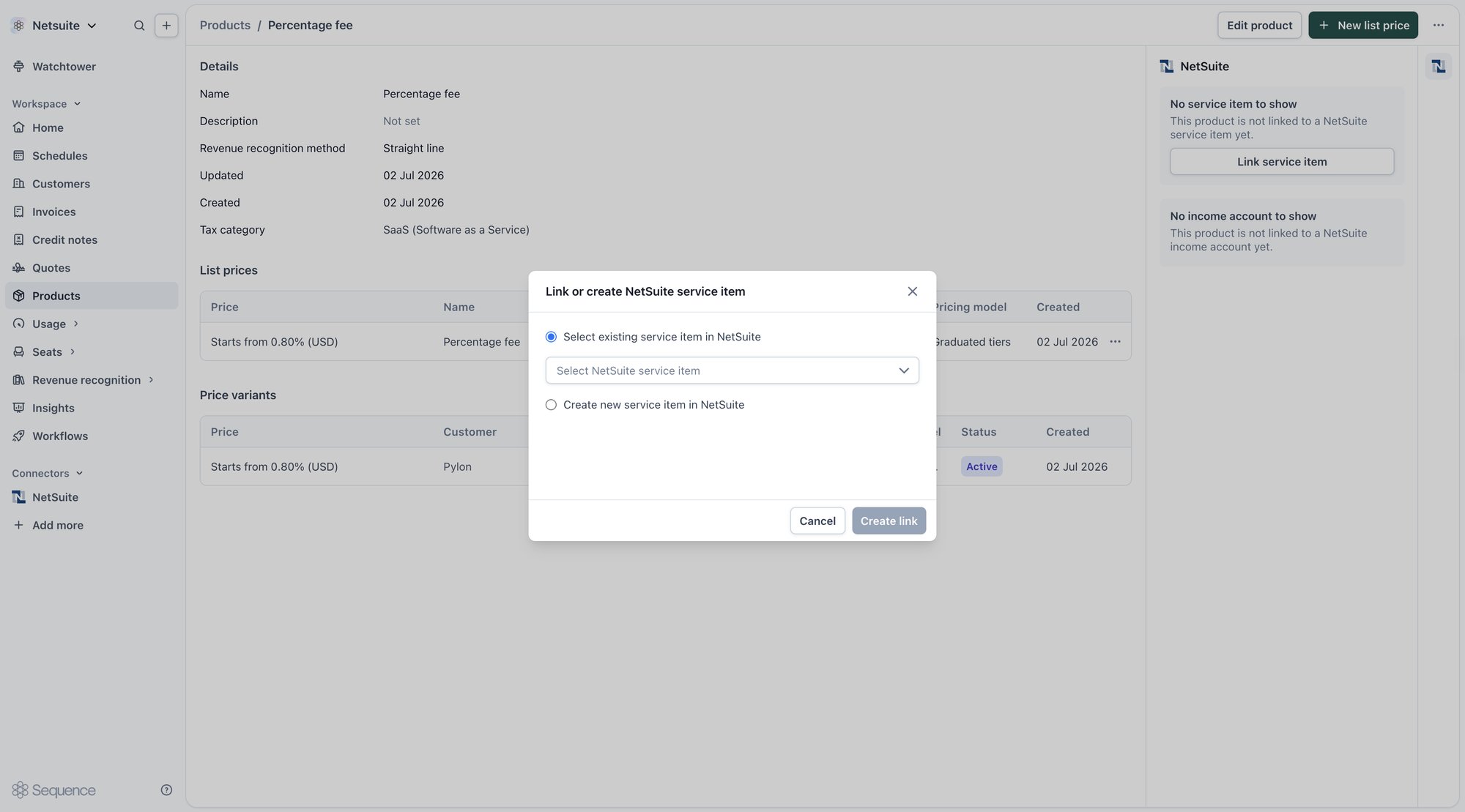
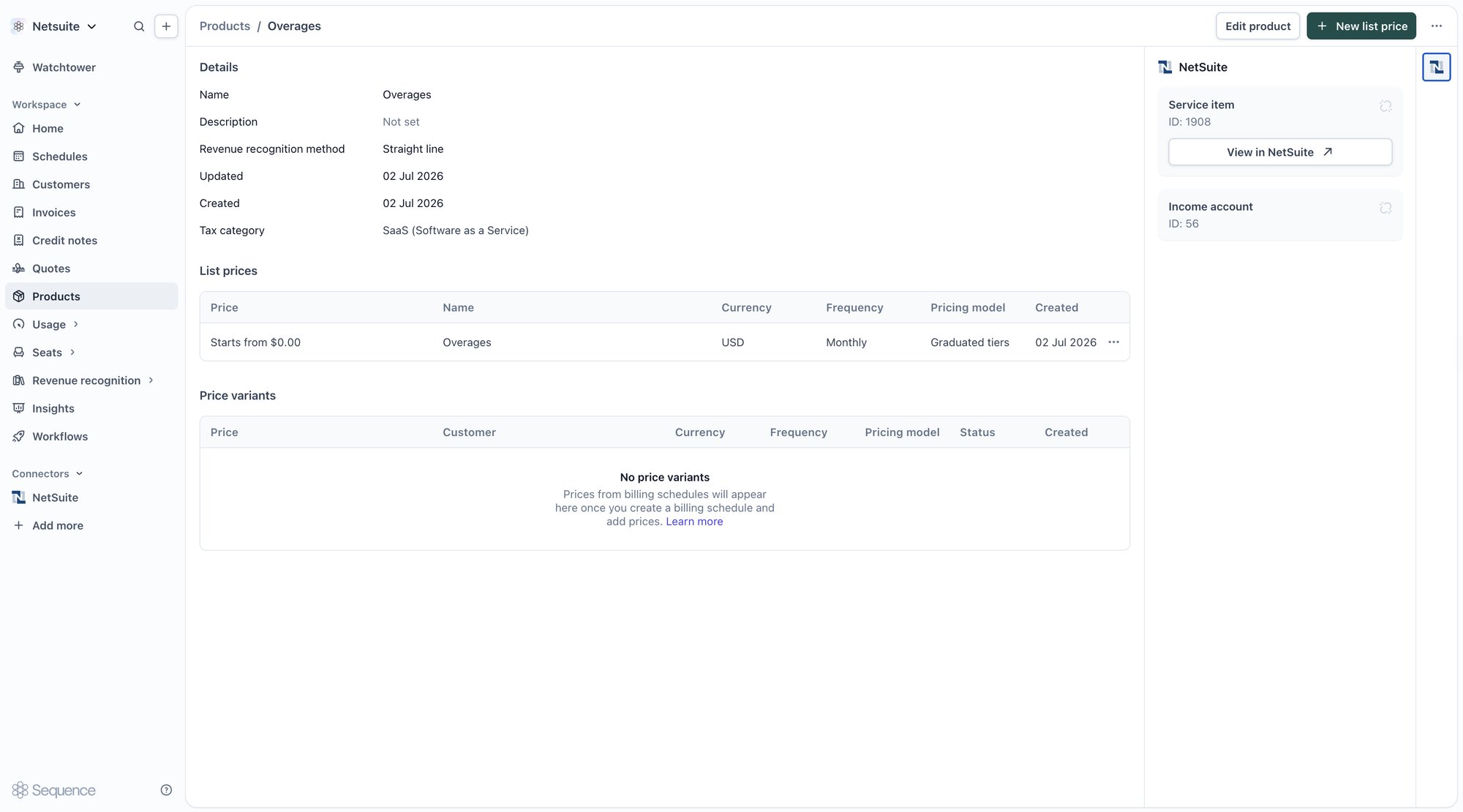
Service Item is the correct NetSuite item type for SaaS and other recurring services: it supports NetSuite’s Advanced Revenue Management module and does not carry inventory tracking fields.
Prepaid credit item
If your account uses prepaid credits, configure a Prepaid credit item on the NetSuite connector. This is the NetSuite item that Sequence posts prepaid-credit burndown lines to, so that invoices and credit notes that consume prepaid credit still balance correctly in NetSuite. Set it alongside your other NetSuite connector settings by entering the NetSuite item you want these lines posted to. The setting is optional. Leave it unset if the account does not use prepaid credits.Invoices that consume prepaid credit
When a Sequence invoice consumes prepaid credit, that credit arrives on the invoice as a negative burndown line. When the invoice syncs to NetSuite, Sequence posts that line against the configured prepaid credit item with the same negative amount, so the NetSuite invoice nets to what is actually due.Sales Order sync
When you create or amend a billing schedule in Sequence, Sequence looks at each phase and creates a NetSuite Sales Order for the phases that carry a fixed, determinable obligation. The Sales Order represents the customer’s committed forward obligation in NetSuite; each invoice for that phase then draws its lines down from the Sales Order instead of billing standalone. This is what lets NetSuite’s Advanced Revenue Management build revenue arrangements straight off Sequence’s data, using whatever recognition method your team runs: straight-line over the contract term, point-in-time, usage-based, or deferred revenue schedules all work the same way. You’re not required to use ARM at all; accounts that recognize revenue from Sequence’s own journals get the same Sales Orders and invoices without any extra setup. A Sales Order line is created for:- A committed seat minimum on a finite-term phase, when the commitment is initial or an increase over the previous phase.
- A ratable fixed fee on a finite-term phase.
- A one-time fee: a prepaid credit or an implementation fee.
- Usage prices (linear, volume, graduated, package): their per-period amount is usage-driven and can’t be known in advance, so they bill entirely at invoice time.
- Evergreen (open-ended) phases: there is no finite term to book against.
- Seat phases with no committed minimum: seats bill as used.
View sales orders on a billing schedule
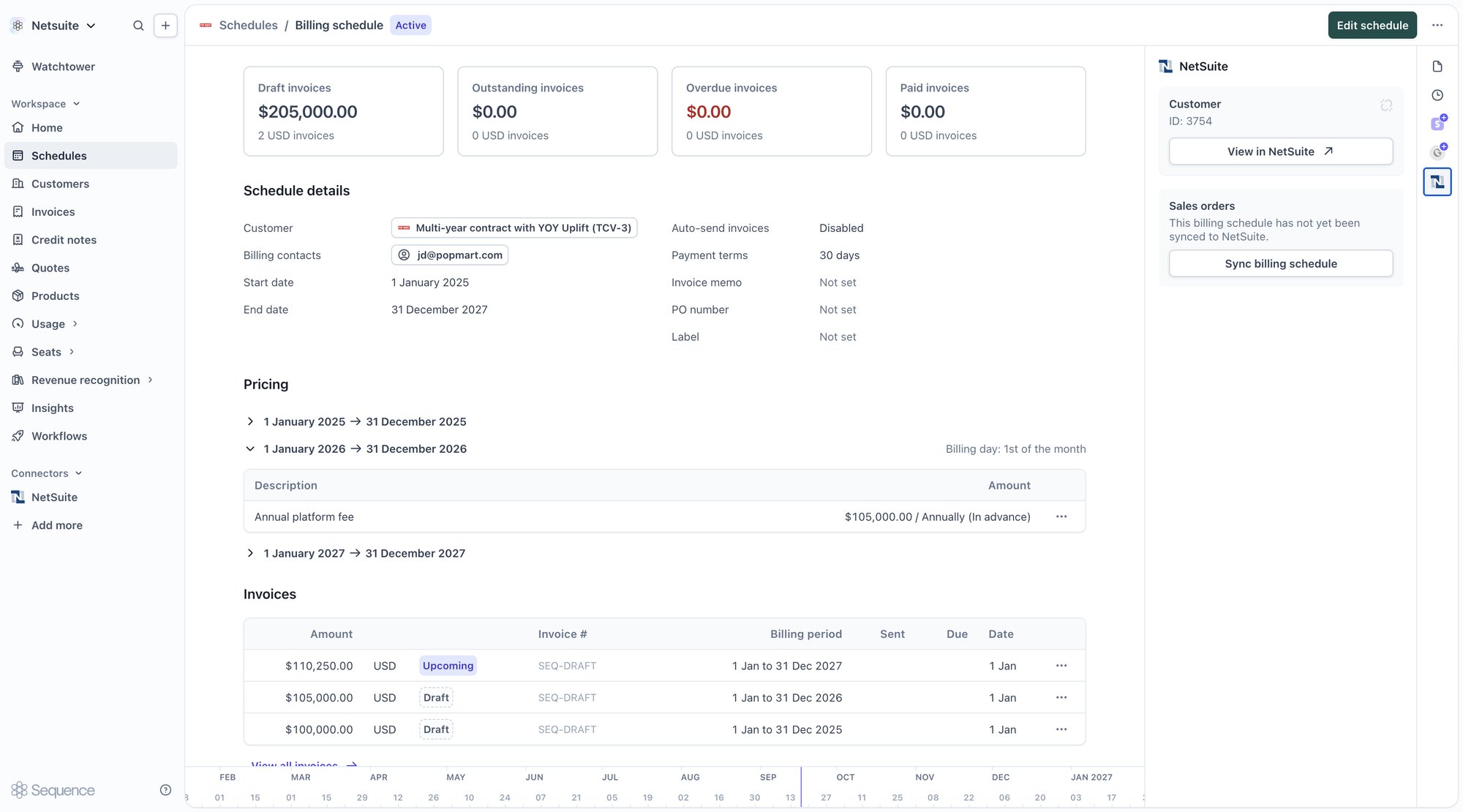
The billing schedule home page and the schedule editor include a NetSuite panel in the sidebar. The panel shows one card per sales order, listing:- The term the sales order covers, with its date range and length.
- The NetSuite sales order the phases in that term synced to.
- A View in NetSuite button that opens the sales order record in NetSuite.
Rolling up phases into one sales order with contract tags
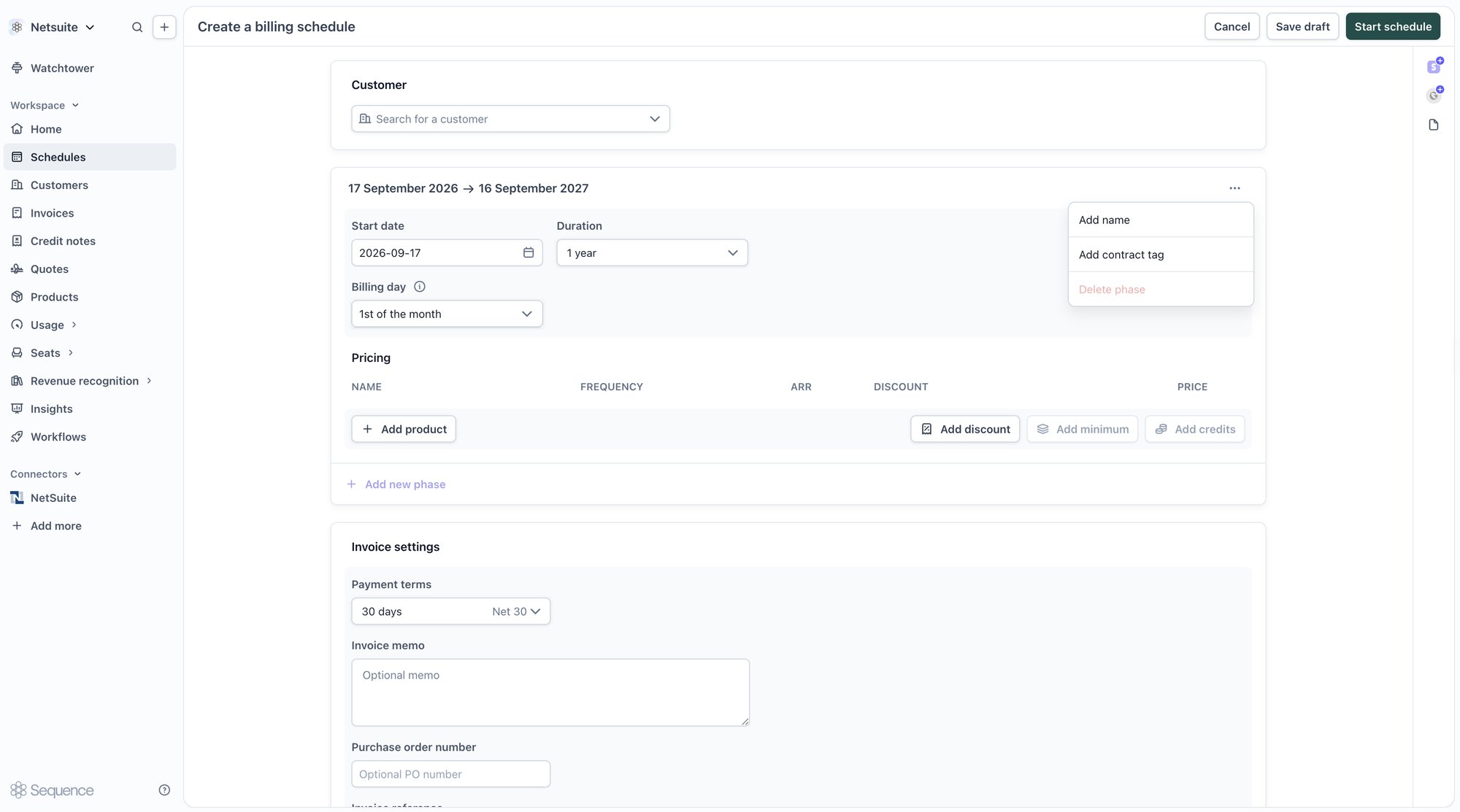
By default, each phase syncs to its own sales order. To represent a multi-phase contract as a single sales order for its total contract value, tag the phases with a shared contract reference. Sequence calls this a contract tag. Setting a contract tag:- Open the billing schedule in edit mode.
- On the phase you want to tag, open the kebab menu in the phase header and select Add contract tag.
- Enter the reference and select Save.
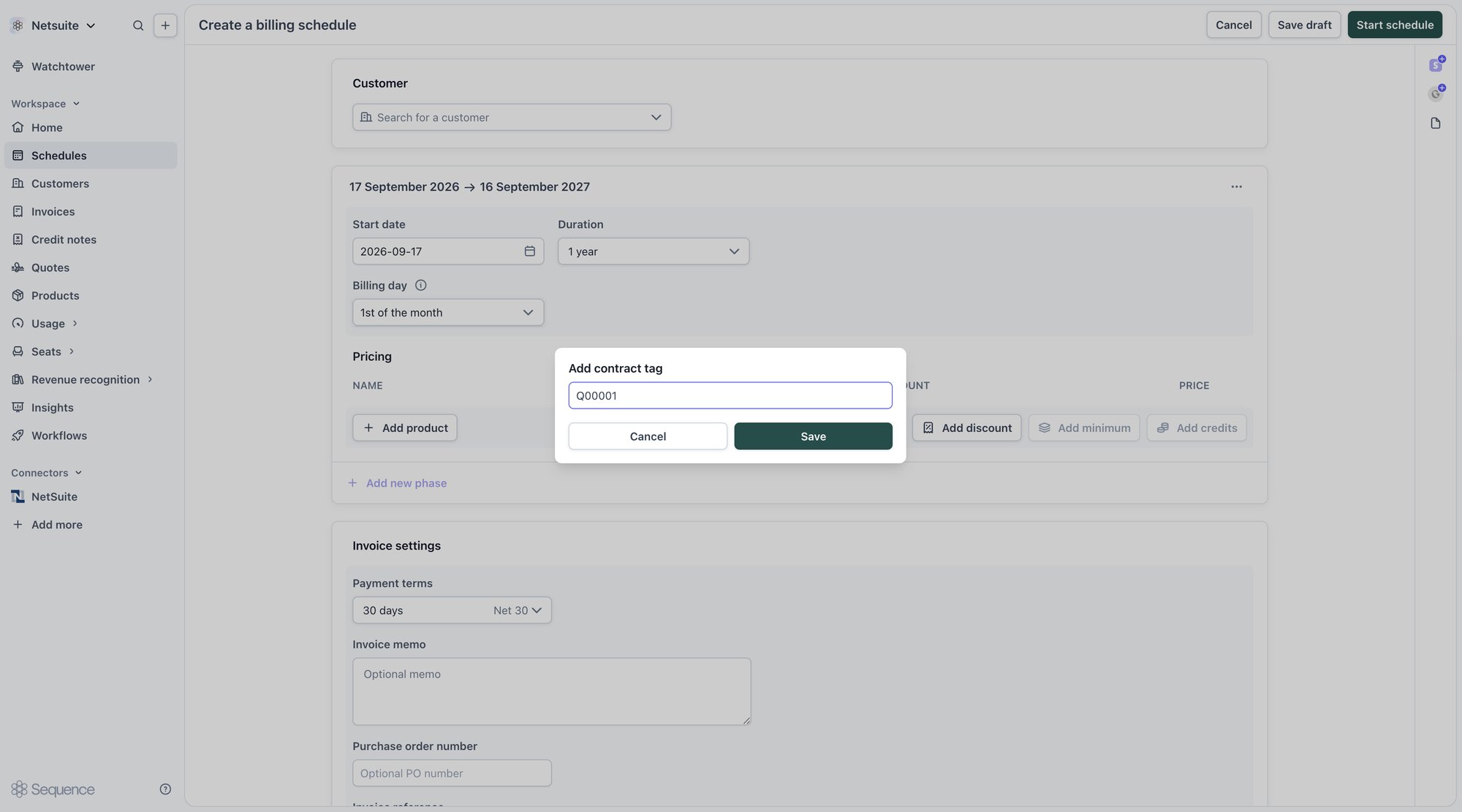
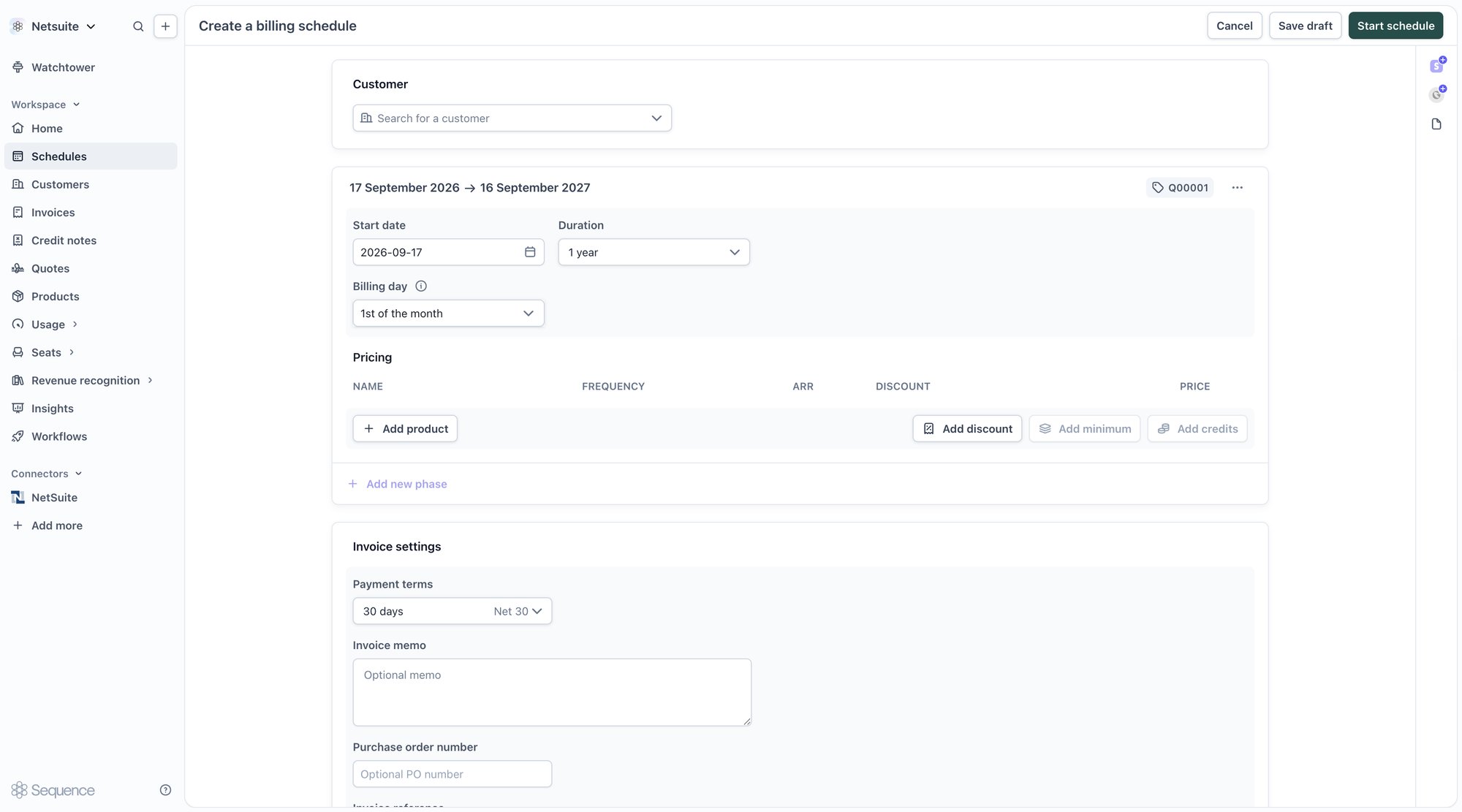
- The tag renders as a badge next to the kebab in the phase header. Use Edit contract tag or Delete contract tag from the same menu to change or remove the value later.
- The sales order spans the full contract term, from the earliest phase start date to the latest phase end date.
- The sales order carries one line per phase price. Each line’s quantity and amount come from its own phase, and revenue for every line is recognized across the whole contract term.
- When a Sequence invoice syncs, each invoice line bills against the sales order line for the phase and price it was generated from. An invoice line with no matching sales order line bills as an independent line.
Contract tags match case-sensitively with whitespace trimmed. Clearing one returns the phase to its own sales order. They only work on schedules with an active NetSuite integration, not in the quote editor or quote templates, so tag a schedule created from a quote after it exists.
Invoice sync
When an invoice is finalized in Sequence, Sequence pushes it to NetSuite as an Invoice record. If the invoice’s phase produced a Sales Order, the NetSuite invoice draws its lines down from that Sales Order, pulling the rate and amount from the matching line. Otherwise, it posts as a standalone invoice. An amendment-boundary invoice can span two phases, so different lines on the same invoice may draw down from different Sales Orders; a line with no Sales Order still bills as an independent line on the same invoice. If the same invoice is sent to NetSuite twice, and NetSuite already has an invoice under that number, Sequence links up with the existing NetSuite invoice rather than failing or creating a duplicate.Prerequisites
Before an invoice can post, the linked customer and every line item’s product must already exist in NetSuite. If a prerequisite link is still in flight, invoice sync retries. If a prerequisite is missing entirely (for example, the product isn’t linked to a NetSuite item), the invoice is rejected until the link is created, unless auto-push is enabled for the customer case.Payments from NetSuite
Sequence listens for payments recorded in NetSuite in real time. When a linked invoice is marked paid in NetSuite, it shows up on the Sequence invoice’s payments list with a NetSuite badge and origin label within moments, so finance teams reconciling in NetSuite still see the payment in Sequence without a manual update.Linking invoices
The NetSuite panel on the invoice shows the linked customer and the invoice’s sync status. A draft invoice shows that it will sync once finalized; once synced, the panel links straight through to the NetSuite invoice record.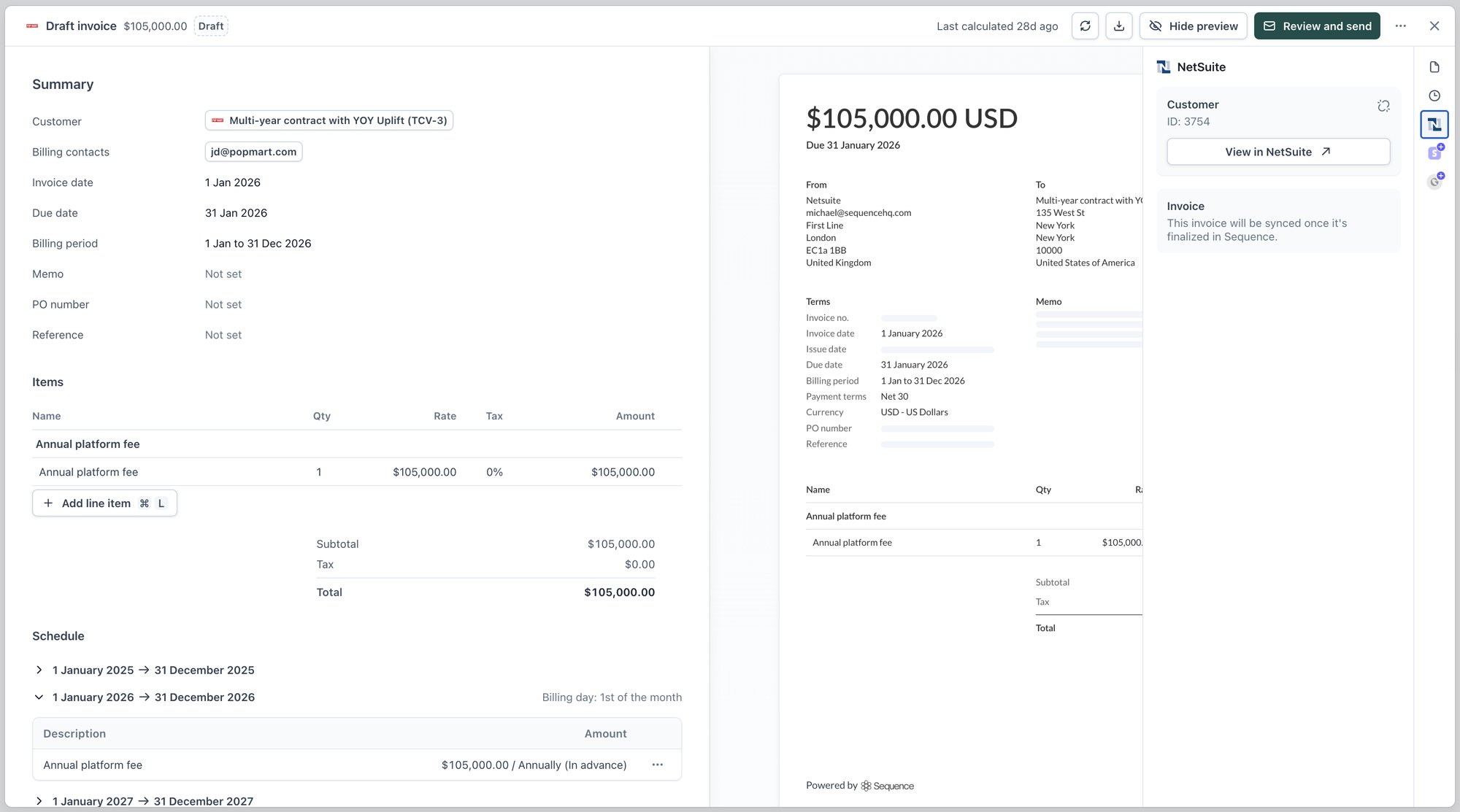
Credit note sync
When a credit note is finalized in Sequence, Sequence pushes it to NetSuite as a standalone Credit Memo. The credit memo is deliberately not applied to the original NetSuite invoice. The original invoice may already be paid, so applying a credit memo to it is incorrect. Where the customer needs to be made whole, issue a refund in NetSuite as a separate step. If the same credit note is sent to NetSuite twice, and NetSuite already has a document under that number, Sequence links up with the existing memo rather than failing. Only finalized credit notes sync. A credit note without a number (still in draft) is skipped and syncs automatically once finalized. The NetSuite panel on the credit note shows the linked customer and the credit note’s sync status. A draft credit note shows that it will sync once issued; once synced, the panel links straight through to the NetSuite credit memo record.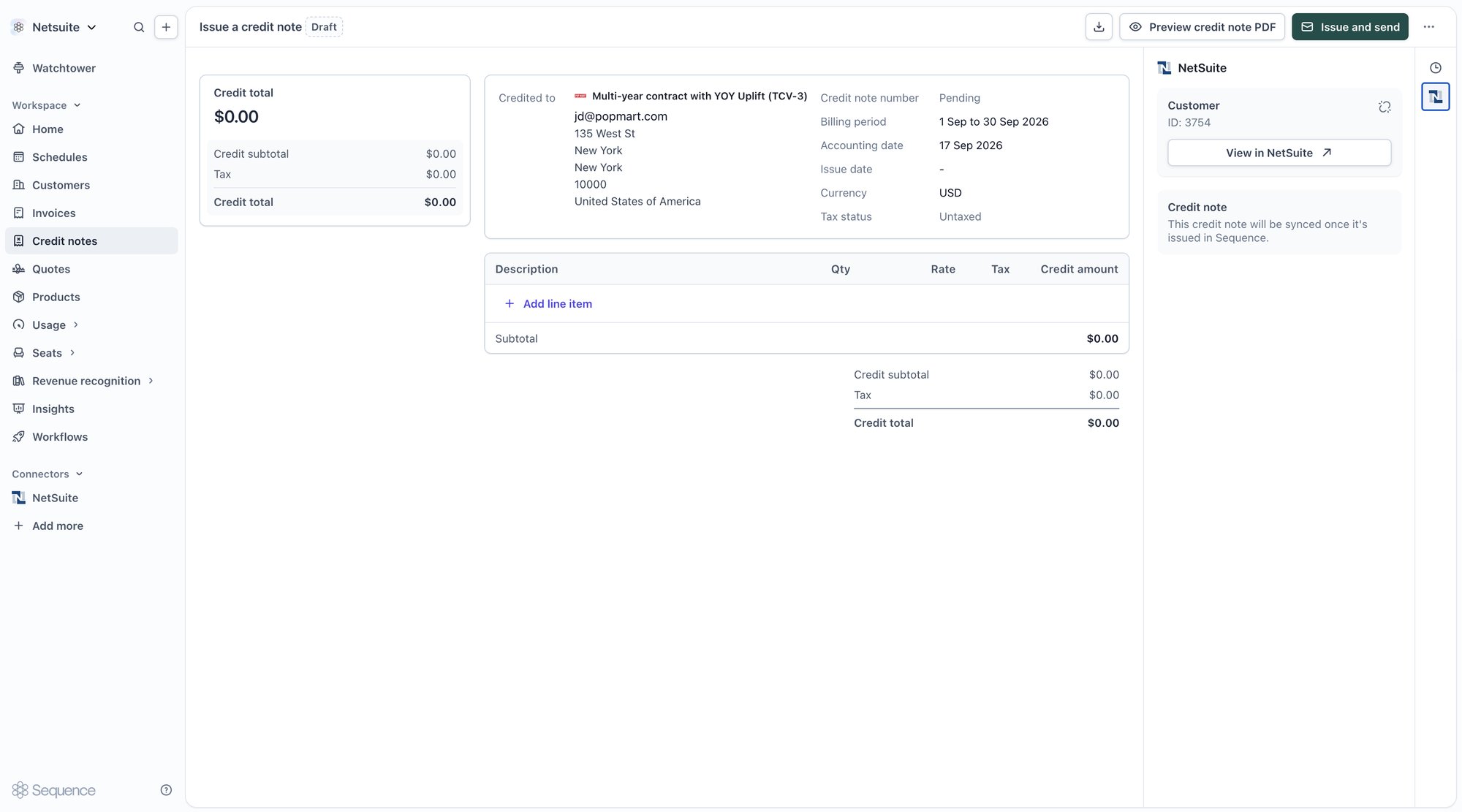
Revenue recognition journals
If you also use Sequence for revenue recognition, journal reports export in a CSV laid out for NetSuite’s journal entry import, so recognition entries load into NetSuite without further transformation. See Journal reports for the full set of export formats.Errors and retries
Every push runs through a retry filter, so transient errors, like a network blip or a temporary rate limit, are retried automatically with a growing delay between attempts. Two classes of failure surface differently:- Authorization failures. If NetSuite rejects the connector’s credentials (for example, the Integration record was disabled or the certificate expired), Sequence marks the connector as failed, disables further pushes, and flags the connector as needing re-authorization. Re-open Settings > Connectors > NetSuite, update the affected fields, and run Test configuration again to resume syncing.
- Validation failures. If NetSuite rejects a specific record (for example, a missing default income account, a customer with no primary billing contact, an invoice line for a product that isn’t linked to a NetSuite item, or an invalid country), the failure is recorded against that record. Fix the underlying data in Sequence and re-save the record to retry the push.
Frequently asked questions (FAQ)
Do I need to use NetSuite's Advanced Revenue Management (ARM)?
Do I need to use NetSuite's Advanced Revenue Management (ARM)?
No. Sales Orders sync regardless, so accounts running ARM can build revenue arrangements off them, and accounts recognizing revenue from Sequence’s own journals get the same Sales Orders and invoices without any extra setup.
Can I connect more than one NetSuite subsidiary?
Can I connect more than one NetSuite subsidiary?
Each Sequence workspace connects to exactly one subsidiary. If you run multiple entities, connect each one from its own Sequence workspace, so each keeps its own approval workflows while still posting into the right subsidiary’s books.
What happens if I edit a linked record directly in NetSuite?
What happens if I edit a linked record directly in NetSuite?
Sequence is the system of record for customers, products, invoices, credit notes, and billing schedules. A direct edit in NetSuite can be overwritten the next time Sequence pushes an update to that record.
Does a synced credit memo get applied to the original invoice automatically?
Does a synced credit memo get applied to the original invoice automatically?
No. Sequence posts it as a standalone credit memo, since the original invoice may already be paid. If the customer needs to be made whole, issue a refund in NetSuite as a separate step.
What happens if my NetSuite credentials expire or get revoked?
What happens if my NetSuite credentials expire or get revoked?
Sequence marks the connector as failed and pauses further pushes rather than retrying against invalid credentials. Re-open the connector settings, update the affected fields, and run Test configuration again to resume syncing.